Blog
Updates, tips, and insights from the 1990Quebec team.

Updates, tips, and insights from the 1990Quebec team.

Select an add-in's outer border on your PowerPoint slide to drag its corner sizing handles, move its frame, or undo a change.
Read more →
Ask Claude for a single-file dashboard, then paste it into HTML Viewer 365 or host it and load it with Web Viewer 2.0.
Read more →
See why a file under SharePoint's 400-character limit can still fail Windows' 259-character limit on your PC, and how to fix both.
Read more →
Extract a valid ZIP archive in SharePoint with Zip & Unzip or on your PC with Windows' tar.exe or PowerShell 7's Expand-Archive when File Explorer rejects its long internal paths.
Read more →
Shorten long ZIP paths in SharePoint with Zip & Unzip or extract to a short local folder like C:\x so every file stays within Windows' path limit.
Read more →
Move or rename folders so your workbook's full path on the PC is 259 characters or fewer and opens in Excel.
Read more →
Shorten parent folders in SharePoint so OneDrive can download cloud-only files on your PC, or open the files directly in your browser.
Read more →
Shorten a parent folder in File Explorer to bring the SharePoint path under 400 characters and let OneDrive finish uploading.
Read more →
Track elapsed time privately on Mac, pause for interruptions, and reset the native timer for another rehearsal.
Read more →
Record your speaking pace or set exact slide durations, then choose automatic or manual playback.
Read more →
Download an editable quiz with three questions, answer slides, and a silent 30-second countdown per question. No timer add-in required.
Read more →
Download a reusable slide with a five-minute video, customize the activity text, and change the timer duration.
Read more →
Place timers on the slides that need them and use Presentation sync to keep their countdown state linked.
Read more →
Set up a PowerPoint countdown or a free browser timer, choose who sees it, and rehearse the timing before a live event.
Read more →
Enable the beep at zero, check the presentation audio, and choose a quiet countdown when sound would interrupt.
Read more →
Insert and configure a countdown in PowerPoint on Mac, then check the timer in Slide Show.
Read more →
Configure browser focus and break cycles, use Windows or Mac Clock, or lead a shared focus session from PowerPoint.
Read more →
Use Zoom's Timer app, share a browser countdown, or keep a timer beside your PowerPoint instructions.
Read more →
Choose a visible timer for lessons, games, and group activities, with browser, Clock app, and slide options.
Read more →
Set up shared exam countdowns, practice timers, or individual quiz time limits.
Read more →
Choose a speech or meeting timer, share a speaker display, and keep a timed agenda on schedule.
Read more →
Set one-off break reminders, alternate work and rest, or show a countdown on a break slide.
Read more →
Count up elapsed time on your slide, pause and resume, or export a stopwatch video.
Read more →
Build a countdown with native PowerPoint animations and compare reusable slides, videos, and live timers.
Read more →
Export a custom timer MP4 and insert it into PowerPoint with the right playback settings.
Read more →
Show the current time with Web Viewer or an HTML clock, and understand PowerPoint's date-and-time fields.
Read more →
Show embeddable public posts and videos on your slides, with a guide for each platform.
Read more →
Show a public Instagram post, reel, or video live on your slide.
Read more →
Play a public TikTok video on your slide without downloading it.
Read more →
Show a public tweet or X post live on your slide, including its video.
Read more →
Play a public Facebook video on your slide with its supported online player.
Read more →
Show a public LinkedIn post or video on your slide with LinkedIn's embed option.
Read more →
Replace the retired viewer with Web Viewer 2.0, an independent 1990Quebec add-in.
Read more →
Play an audio file across slides, or show an online player on one slide.
Read more →
Open the Office add-in catalog, find the right listing, and handle a managed installation.
Read more →
Put a live, interactive web page on your slide and present it without switching to a browser.
Read more →
Play a YouTube video with PowerPoint's Online Video feature or an embedded web player.
Read more →
Choose a video file, a supported Online Video link, or an embeddable web player.
Read more →
Make text, images, or shapes clickable, fix links that don't work, and show websites on the slide.
Read more →
Match the activity to slide links, live polls, simulations, maps, or prototypes.
Read more →
Load a hosted page or iframe source, or save HTML with HTML Viewer 365.
Read more →
Use Microsoft's Power BI add-in for private reports, or embed a report already published to the web.
Read more →
Embed a Tableau Public dashboard with live filters, or export static slides from Tableau.
Read more →
Choose a live dashboard workflow, preserve access controls, and check data freshness.
Read more →
Click through a live Figma prototype on your slide, or export frames as static images.
Read more →
Keep Genially buttons, pop-ups, and quizzes working on your PowerPoint slide.
Read more →
Load a Google Map or OpenStreetMap on your slide and pan and zoom during your talk.
Read more →
Compare Microsoft Forms, polling-service integrations, and embedded presentation or results pages.
Read more →
Add live web pages to PowerPoint from Microsoft AppSource, with no macros.
Read more →
Keep a live dashboard, documentation, map, or video next to your worksheet data.
Read more →
Use OneNote's native embeds, or add a live website to a page in OneNote on the web.
Read more →
Use PowerPoint's 3D Models feature, or embed an interactive Sketchfab viewer on your slide.
Read more →
Need to demo a local web app in PowerPoint? Learn why direct localhost links fail in Office, and how to safely embed your local site using a tunnel.
Read more →
We show six wheel websites inside PowerPoint and explain how to add a live wheel to your slide with Web Viewer 2.0.
Read more →
Copy a ready-to-use HTML sample into your slide or worksheet, then fix common layout problems when resizing the add-in.
Read more →
Browse all 188 conversion paths by source format, including images, spreadsheets, documents, video, and audio.
Read more →
Compare File Converter, Office export, Power Automate, OneDrive sync, and manual conversion. Pick the approach that fits your files and workflow.
Read more →
Marketplace blocked in your tenant? Deploy an Office add-in directly to selected users or your whole organization through Microsoft 365 admin center.
Read more →
Why some websites cannot load inside Web Viewer, and what site owners can change when they control the page.
Read more →
Learn how DICOM studies, series, instances, frames, and DICOMDIR packages map to SharePoint, then open and share medical images.
Read more →
Someone can view a content add-in already included in a shared PowerPoint without installing the add-in separately. PowerPoint may ask them to allow the add-in first.
Read more →
Open the per-user MFA controls in Microsoft 365 and enable or disable MFA for a selected user.
Read more →
Practical DWG size guidance for CAD Viewer, why object count matters more than MB, and what to expect from small, medium, large, and x-large CAD files.
Read more →
Open the add-in in SharePoint admin and check the Version field.
Read more →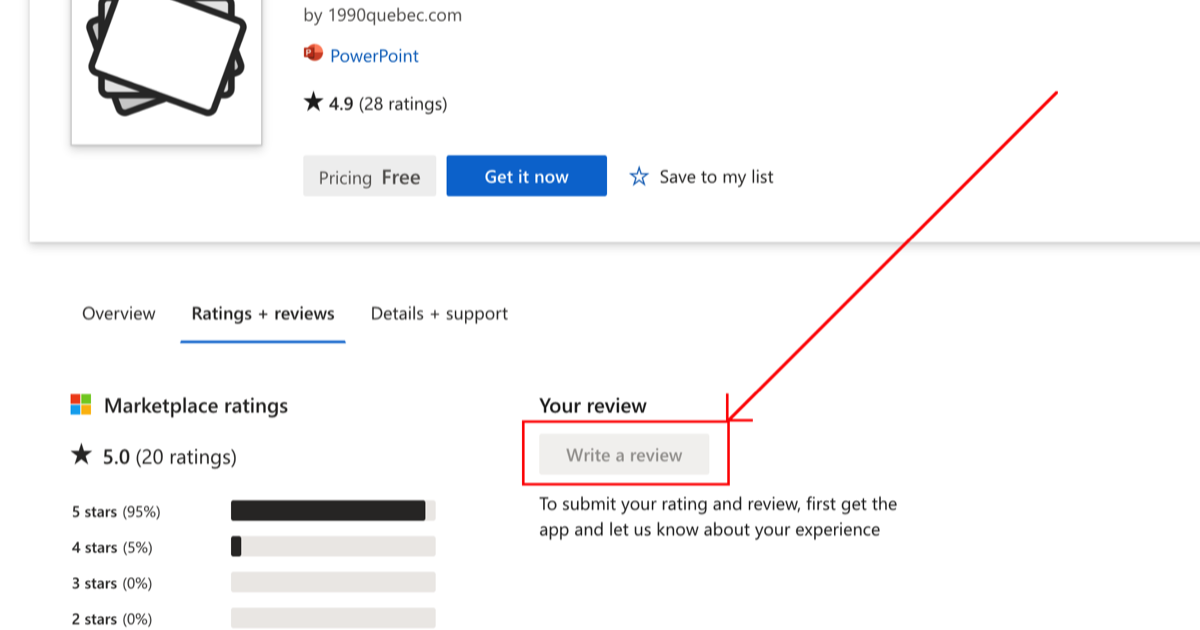
A short checklist for leaving a review when the Microsoft app review button is greyed out.
Read more →
Create a countdown timer video with Timer for Google Slides, save it to Drive, and insert it into your presentation.
Read more →
A short SharePoint admin guide to letting external guest users load SharePoint add-ins from document library toolbars.
Read more →
Install CAD Viewer in your tenant, open CAD files in SharePoint with right-click → View CAD, and add a CAD Viewer tab in Microsoft Teams.
Read more →
A short admin guide to installing 1990Quebec SharePoint add-ins from the SharePoint Store.
Read more →
A short admin guide to updating a SharePoint marketplace app in SharePoint admin center when a new version is released.
Read more →
Open CAD files with CAD Viewer for SharePoint and export the current view as a PDF to SharePoint or your computer.
Read more →
A simple guide to opening the Apps page in SharePoint admin center, deleting an existing app if needed, and uploading an .sppkg file.
Read more →
A short reference for the current 2D command line commands in CAD Viewer for SharePoint, including zoom, pan, and measurement tools.
Read more →
Build equations with a visual editor or LaTeX input, preview them, and insert them into Word, Excel, or PowerPoint.
Read more →
Open DWG, DXF, STEP, STL, and other CAD files directly in SharePoint without desktop CAD software.
Read more →
Open DICOM files in SharePoint, adjust window and level, browse multiframe studies, and inspect metadata.
Read more →
Add 3D dice to a slide, reroll them live, use modifiers, and keep them interactive during a presentation.
Read more →
Shuffle a deck, keep important slides fixed, and undo the result when you want the original order back.
Read more →
Search millions of icons, customize colors and presets, and insert them directly into Excel, PowerPoint, Word, or OneNote.
Read more →
Set a countdown or stopwatch in PowerPoint, choose a theme, add timer sections, and present on time.
Read more →
Why Timer for PowerPoint can fail in slideshow mode and how to fix it by installing the add-in to your account.
Read more →
Compare five ways to zip and unzip files in SharePoint, from in-library archive creation and extraction to OneDrive sync and Power Automate.
Read more →
Supported archive formats, password notes, the macOS 7z caveat, and the most common fixes in one place.
Read more →
A step-by-step guide to upgrading your plan or canceling your 1990Quebec subscription.
Read more →
Welcome to the 1990Quebec blog. Learn about our mission, our products, and what we have planned.
Read more →