
Summary
This post shows you how to time classroom activities by choosing a slide timer, a free browser tool, or a private reminder.
Classroom timing can help you:
- Give the class a visible deadline beside the activity instructions.
- Measure how long a task takes without setting a deadline.
- Keep a reminder on the teacher's computer without showing it to students.
- Show the current time beside a written finish time.
Choose one option for the activity:
- Option A: Countdown on a lesson slide. Insert Timer for PowerPoint, enter the duration, and start it in Slide Show. Enable or disable sound alerts to suit the activity.
- Option B: Free visual countdown. Open Online-Stopwatch's Bar Timer, enter the duration, then select Set and Start. The ruler shows time remaining.
- Option C: Elapsed time. Start a full-screen stopwatch, pause it when the task ends, and record the result before clearing it.
- Option D: Private reminder. Set a countdown in Mac Clock or Windows Clock. Keep that window off the classroom display.
- Option E: Fun classroom countdown. Enter the game duration in Online-Stopwatch's Bomb Timer, then choose Set and Start. The fuse burns down to an explosion animation at zero.
- Option F: Classroom clock. Open the large digital clock and write the activity's finish time beside the display. The clock shows current time, not a countdown.
Option A: Put a countdown on your lesson slide
- Add the activity instructions to a slide in PowerPoint for the web. Select the slide, then open Home > Add-ins.

Open Home, then Add-ins in PowerPoint for the web.
- Enter Timer for PowerPoint in the search box. Under More search results, select Add beside the matching result.
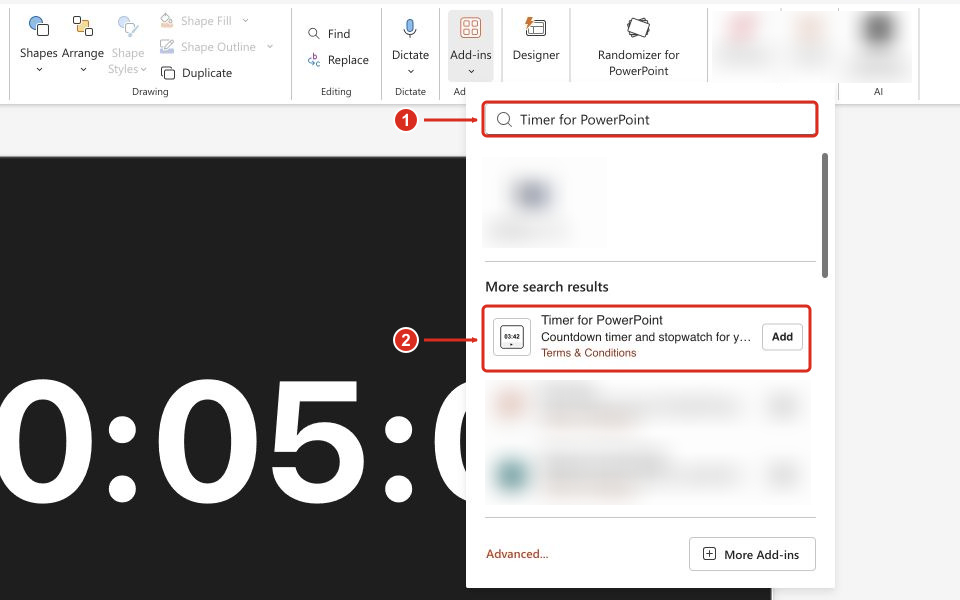
Search for the full add-in name, then select Add beside the matching result.
Complete any installation prompts. The timer appears on the selected slide. For other PowerPoint versions or organization-managed installation, see the full installation guide.
- For a five-minute pair discussion, enter 00:05:00.
- Open Settings using the gear on the timer.
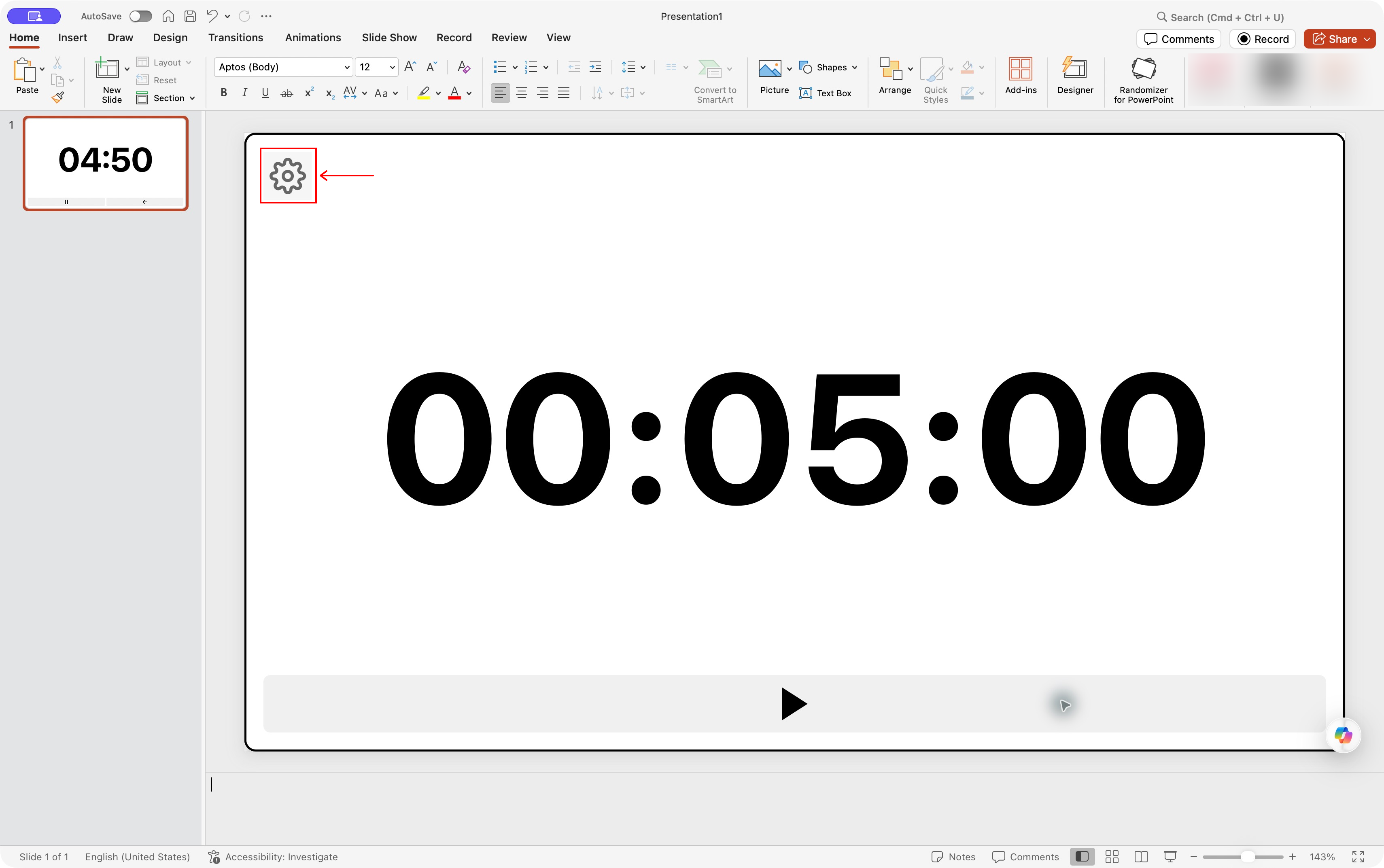
Settings gear location in Timer for PowerPoint on Mac. Select the screenshot to enlarge it.
- Choose Theme in the sidebar and select a color, such as Dark.
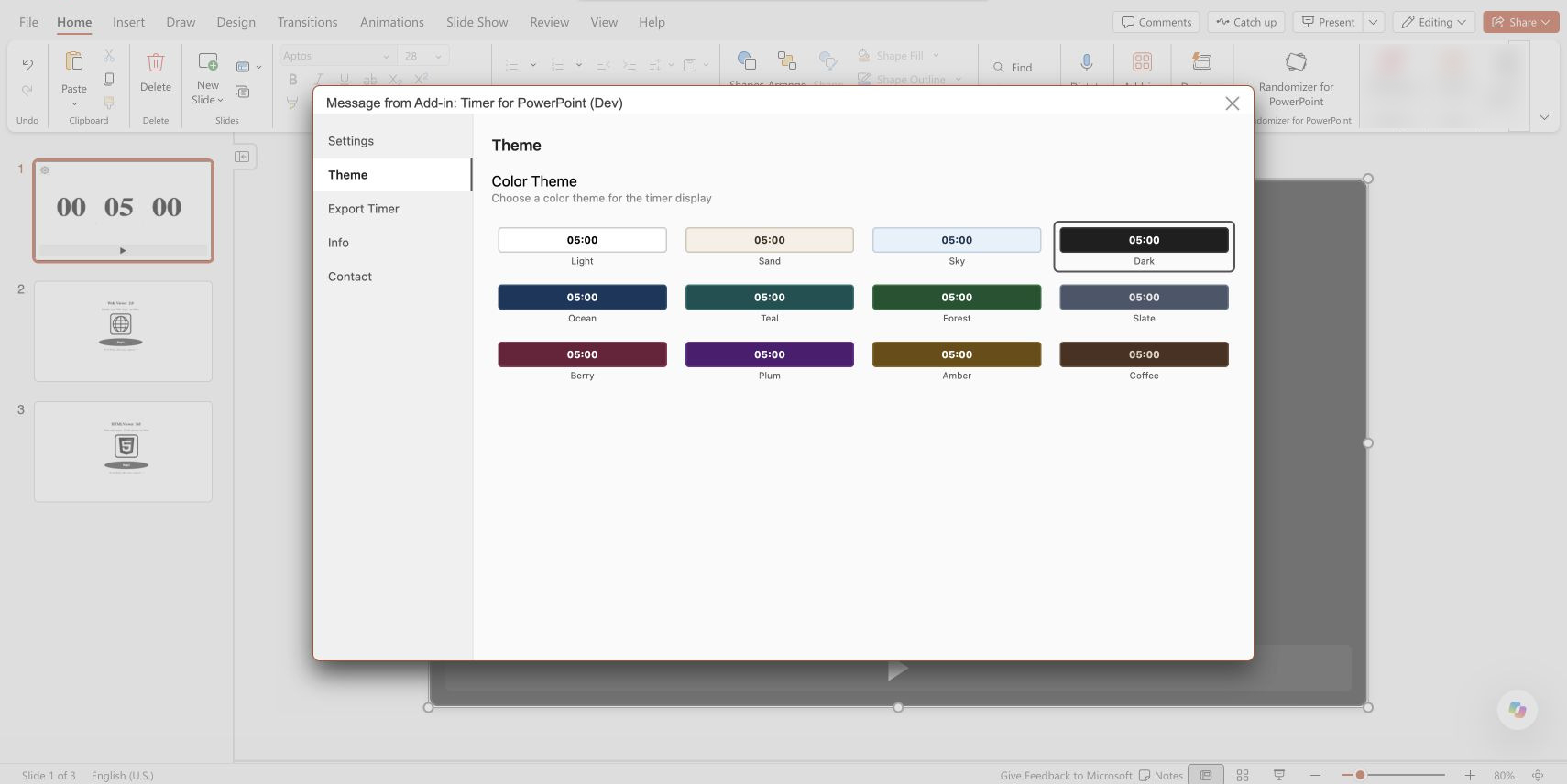
Theme settings in Timer for PowerPoint on PowerPoint for the web. Select the screenshot to enlarge it.
- Return to Settings. Under Alert, check Sound Enabled for an end beep or clear it for a quiet activity. Preview the end alert before using it.
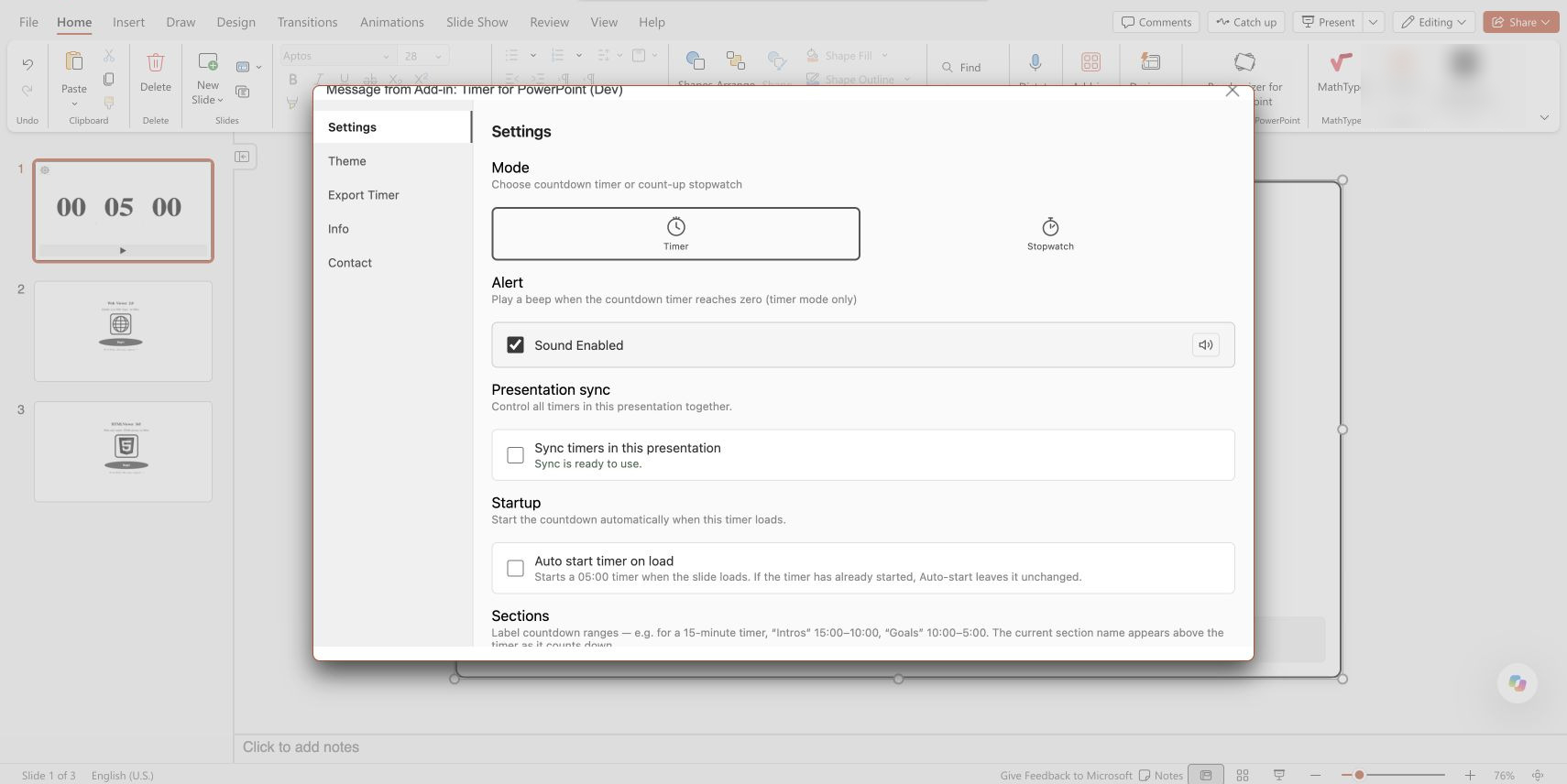
Settings in Timer for PowerPoint on PowerPoint for the web; presentation sync is off. Select the screenshot to enlarge it.
- Close Settings, enter Slide Show, and press Start.
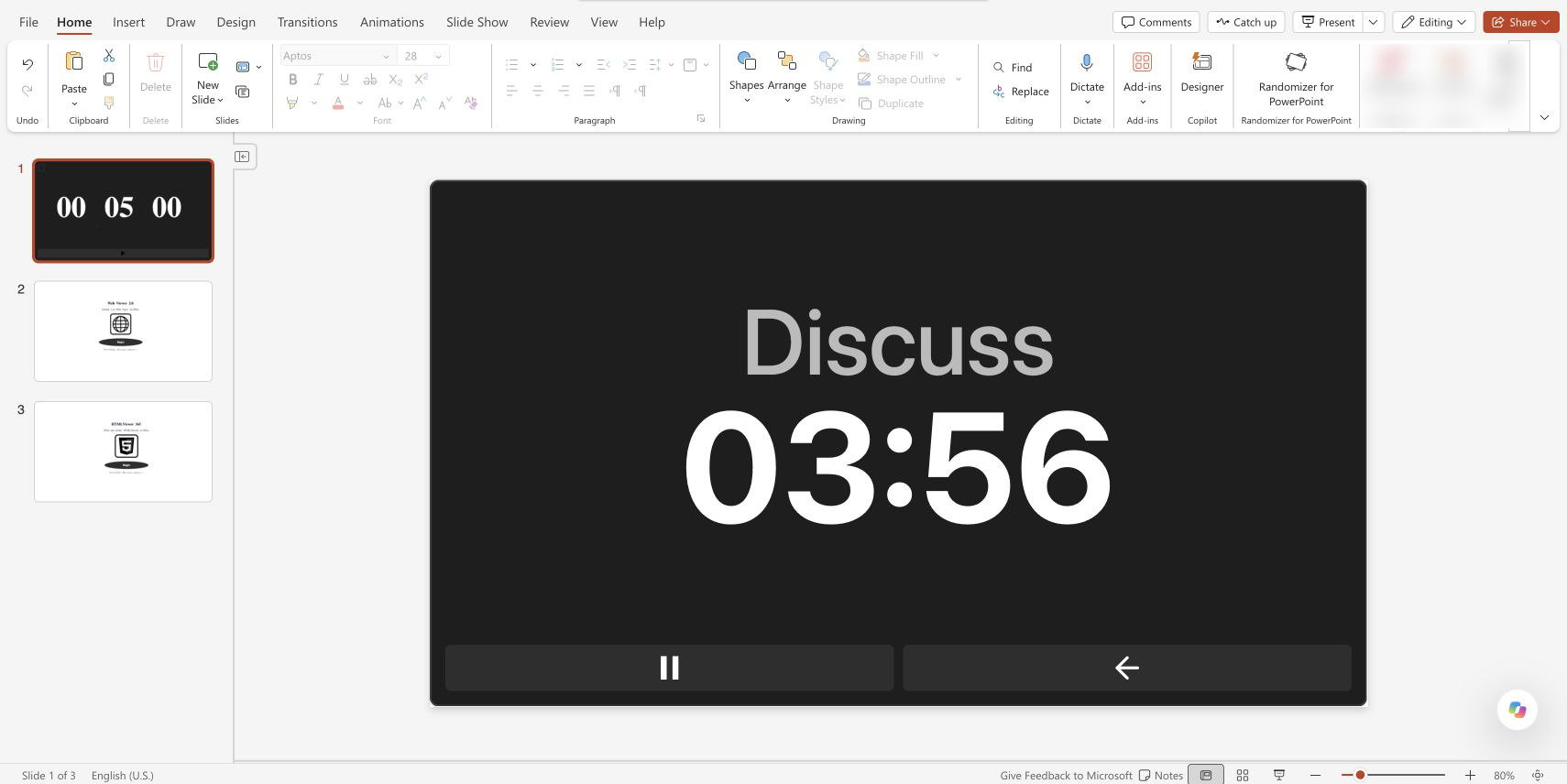
A five-minute countdown running in PowerPoint for the web. Select the screenshot to enlarge it.
Timer for PowerPoint offers a 24-hour trial followed by a paid subscription. For a free five-minute countdown, use the timer slide template. For Google Slides, follow the timer video guide.
Option B: Set up a free online classroom timer
- Open Online-Stopwatch's classroom timers and choose Bar Timer, which opens in a new tab.
- Choose Go Fullscreen! to enlarge the timer.
- For five minutes, press 5, 0, 0 on the keypad and check 00:05:00. Use Clear first if a duration is already entered.
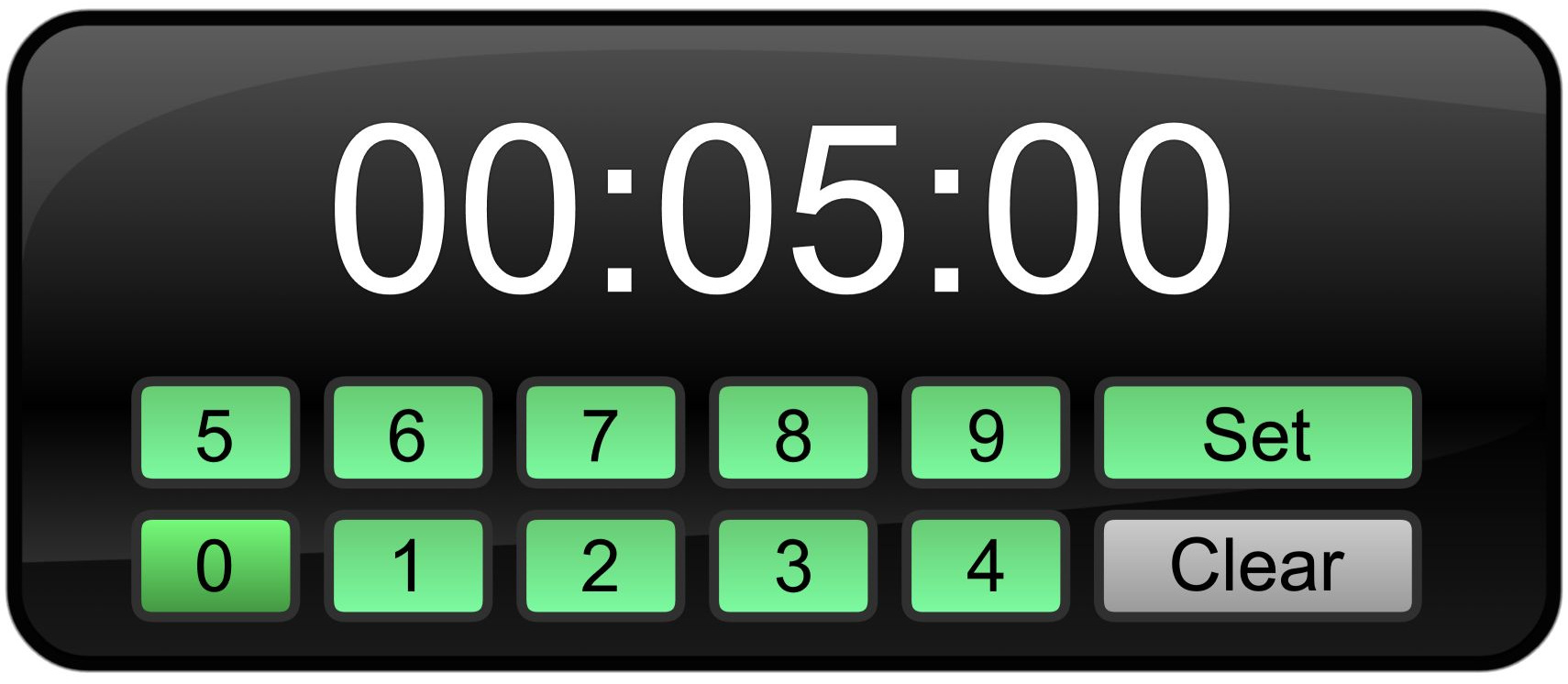
Enter the activity duration before choosing Set. Select the screenshot to enlarge it.
- Choose Set.
- Choose Start when the activity begins.
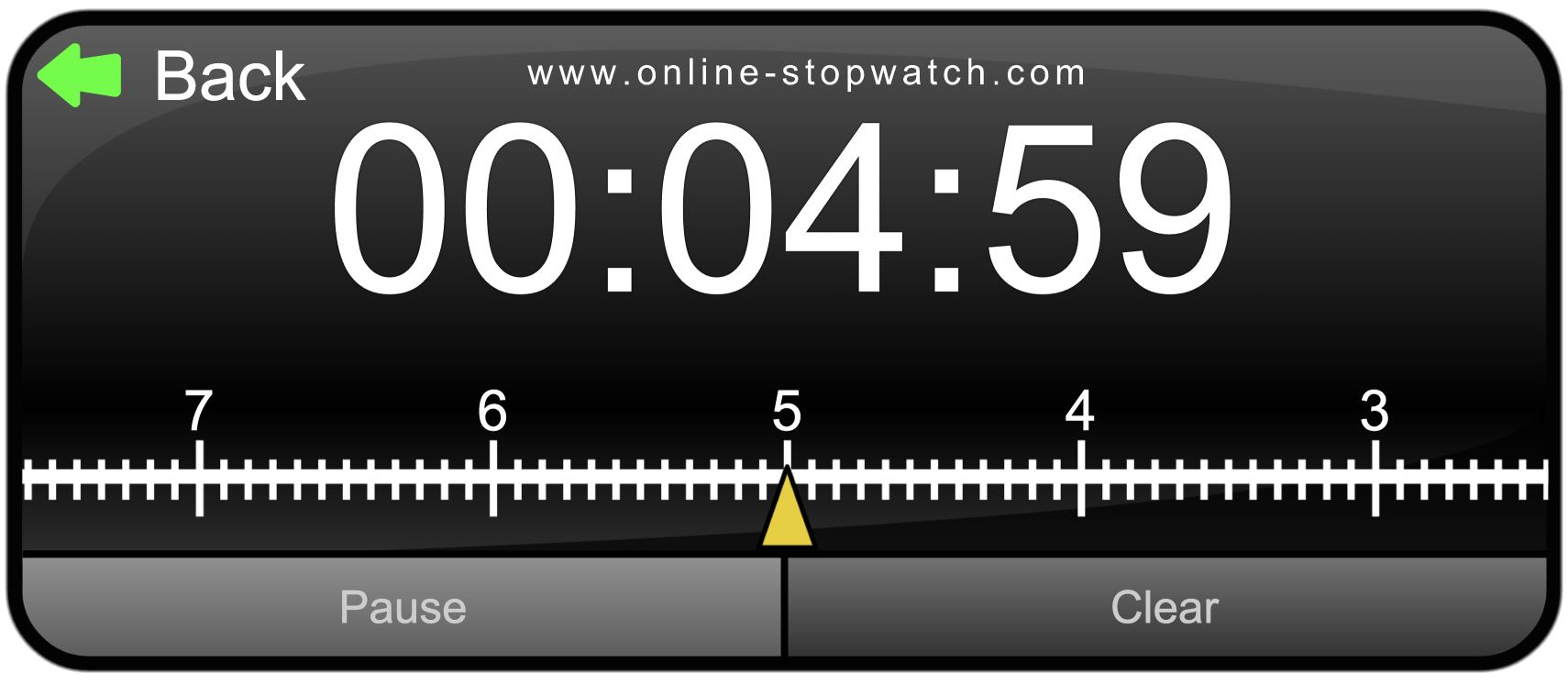
The current Bar Timer shows remaining time on a ruler. Select the screenshot to enlarge it.
Option C: Measure a task with a stopwatch
- Open the online stopwatch. Choose Stopwatch, shown as the green upward arrow.
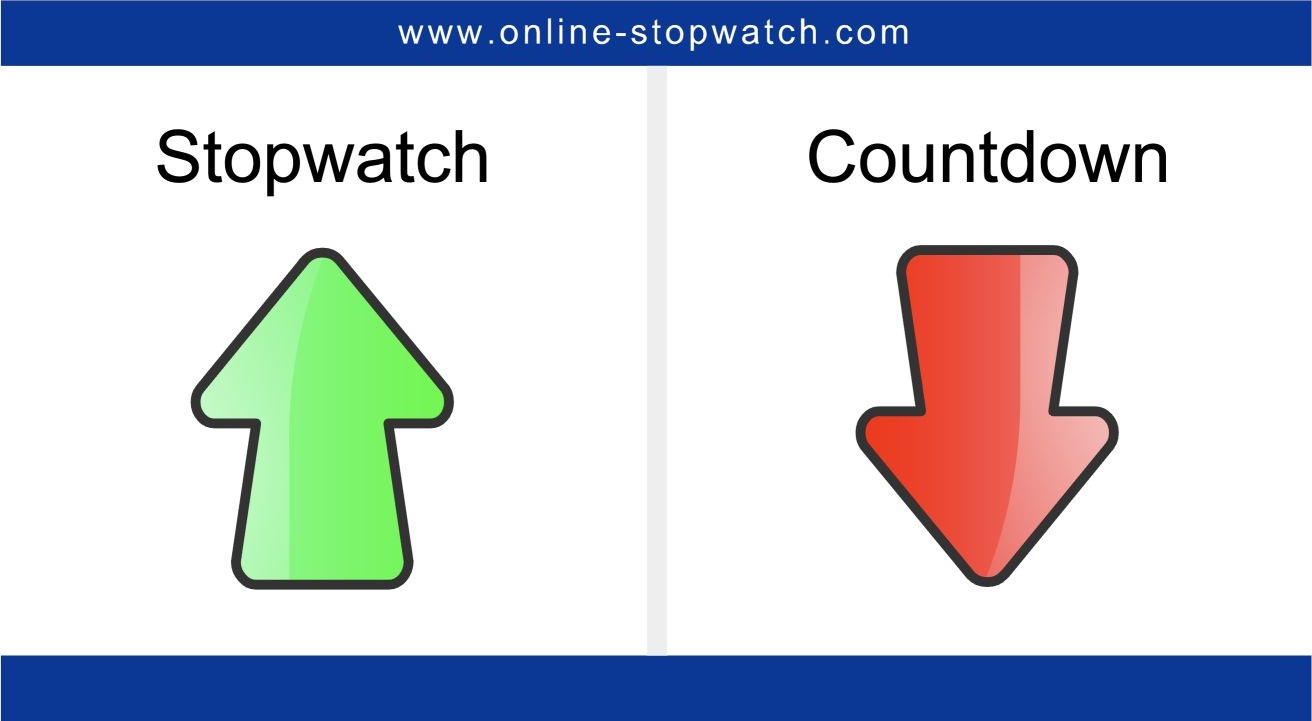
Choose Stopwatch to measure elapsed time.
- Choose Start when the activity begins. The display counts up from zero.
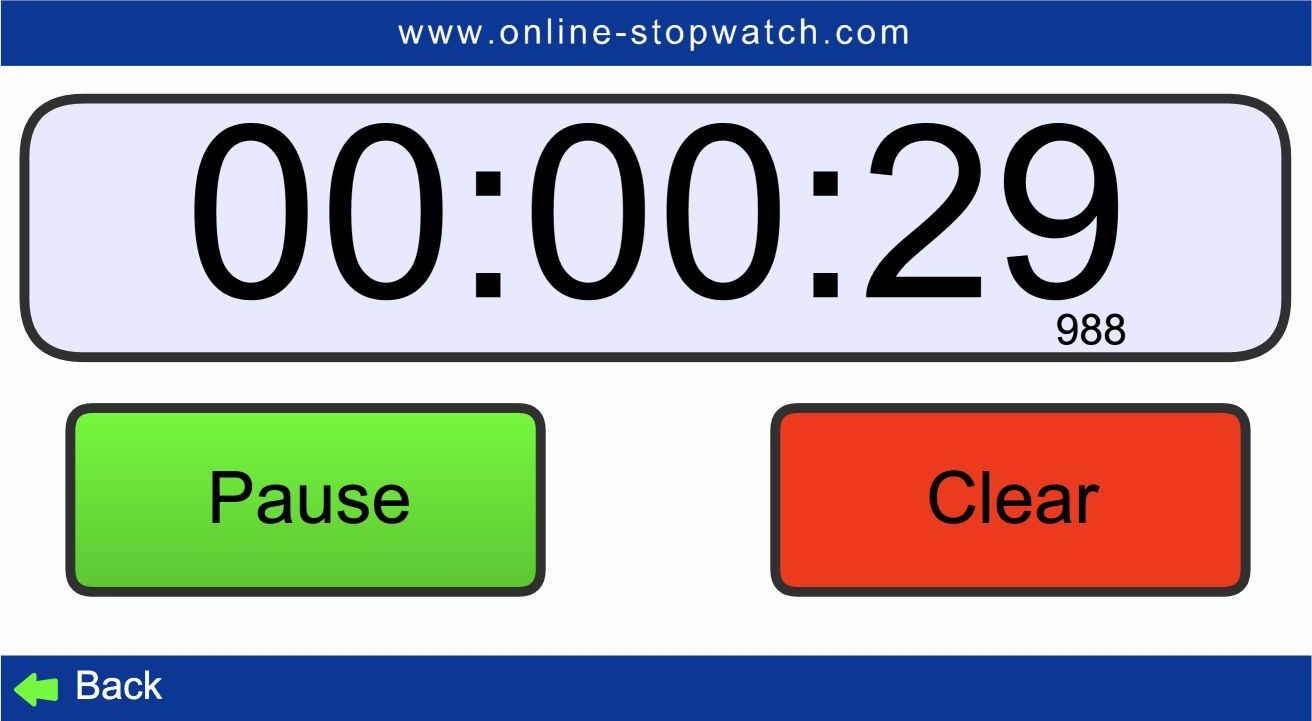
The running stopwatch shows elapsed time and its Pause control.
- Choose Pause when the task ends and record the elapsed time. Choose Continue to resume an interrupted attempt.
- Choose Clear to return to zero before another attempt, then select Start.
For elapsed time beside your slide instructions, use Stopwatch mode in PowerPoint.
Option D: Keep a private teacher reminder
A private countdown can prompt you to move on without displaying a deadline to the class.
Mac Clock
- Open Clock > Timers. Select + to add another timer.
- Enter 0 hours, 5 minutes, 0 seconds for a short reminder. Name it "Reminder" and choose an alert sound.
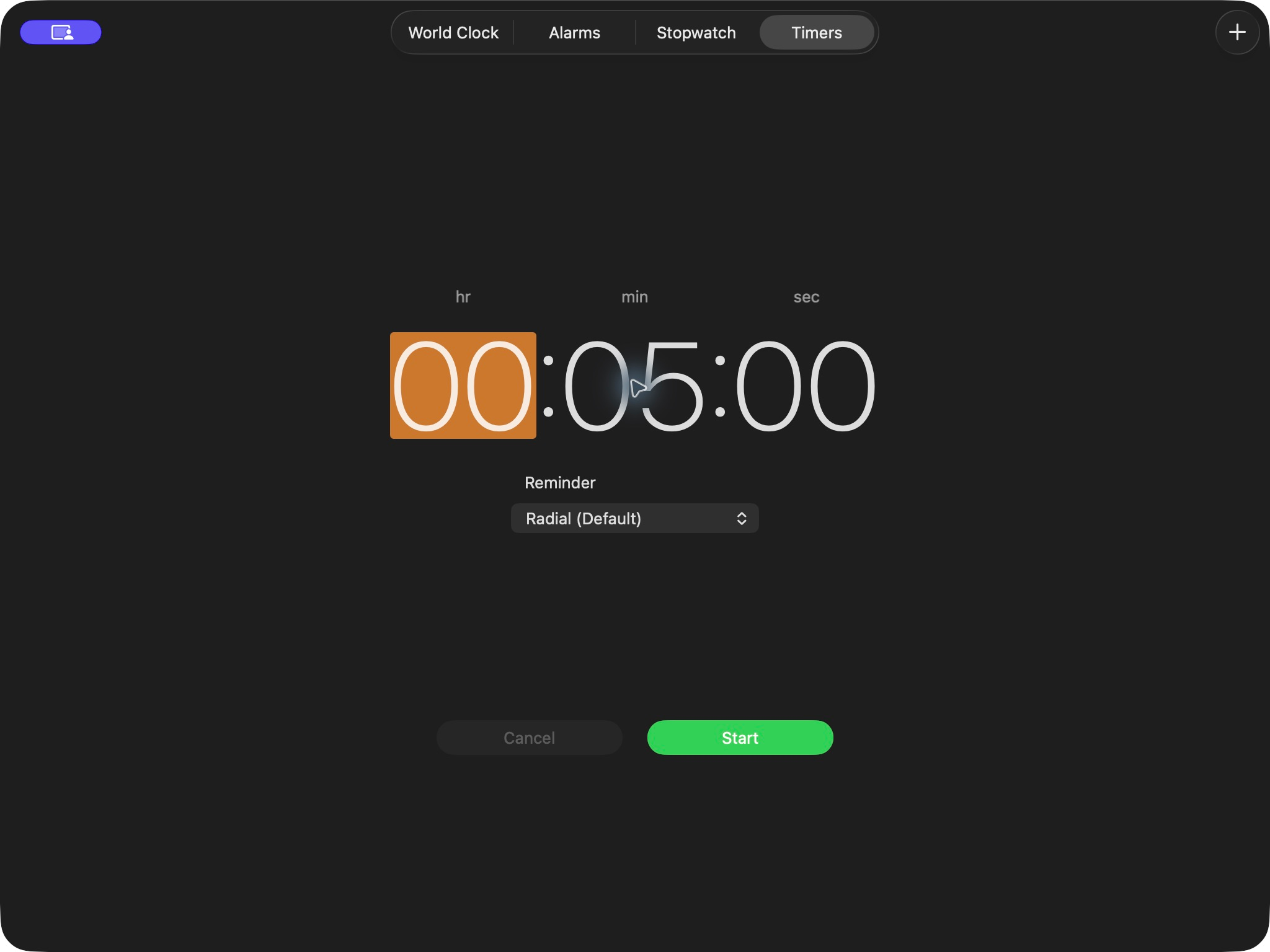
A five-minute Reminder before Start. Select the screenshot to enlarge it.
- Select Start when the timed activity begins.
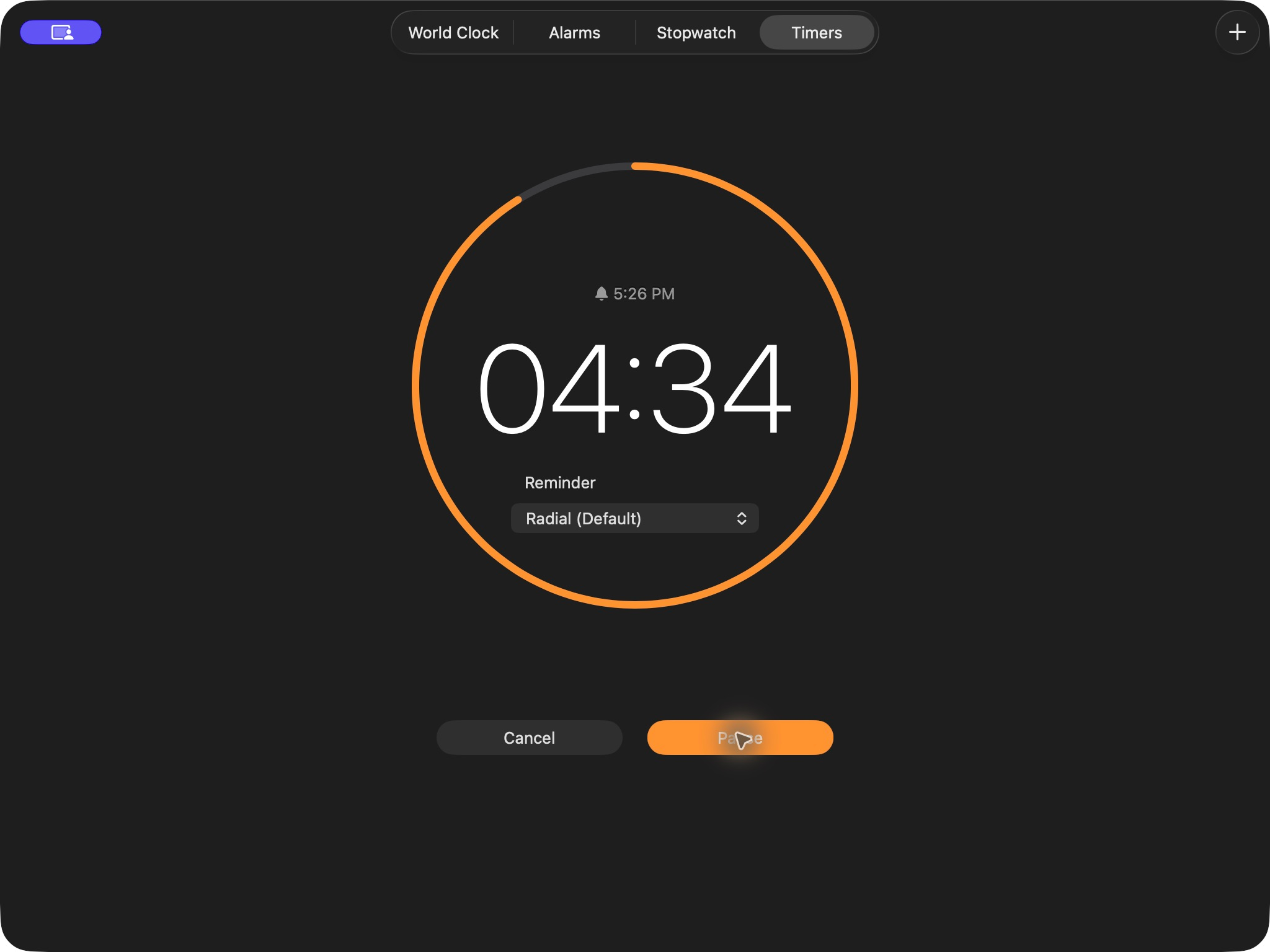
The Reminder timer after Start. Select the screenshot to enlarge it.
Use Pause and Resume for interruptions, or stop the alert when time expires.
The countdown continues while you use another app. See Apple's timer instructions for timer controls.
Windows Clock
- Open Clock > Timer and select +.
- Enter the hours, minutes, and seconds, then name and save the timer.
- Start the timer using its play button. Keep Clock outside the shared window for a private reminder.
Microsoft's Clock guide explains notification and sleep settings that affect the alert.
Option E: Use a fun classroom countdown
An animated timer can make the end of a game round easy to recognize. Online-Stopwatch's Bomb Timer shows a burning fuse during the countdown and an explosion animation at zero. Preview a short countdown before class to decide whether its animation and sound suit the activity.
- Open the full-screen Bomb Timer. The duration keypad appears first.
- For a five-minute game, press 5, 0, 0 and check 00:05:00. Use Clear first when a previous duration is entered.
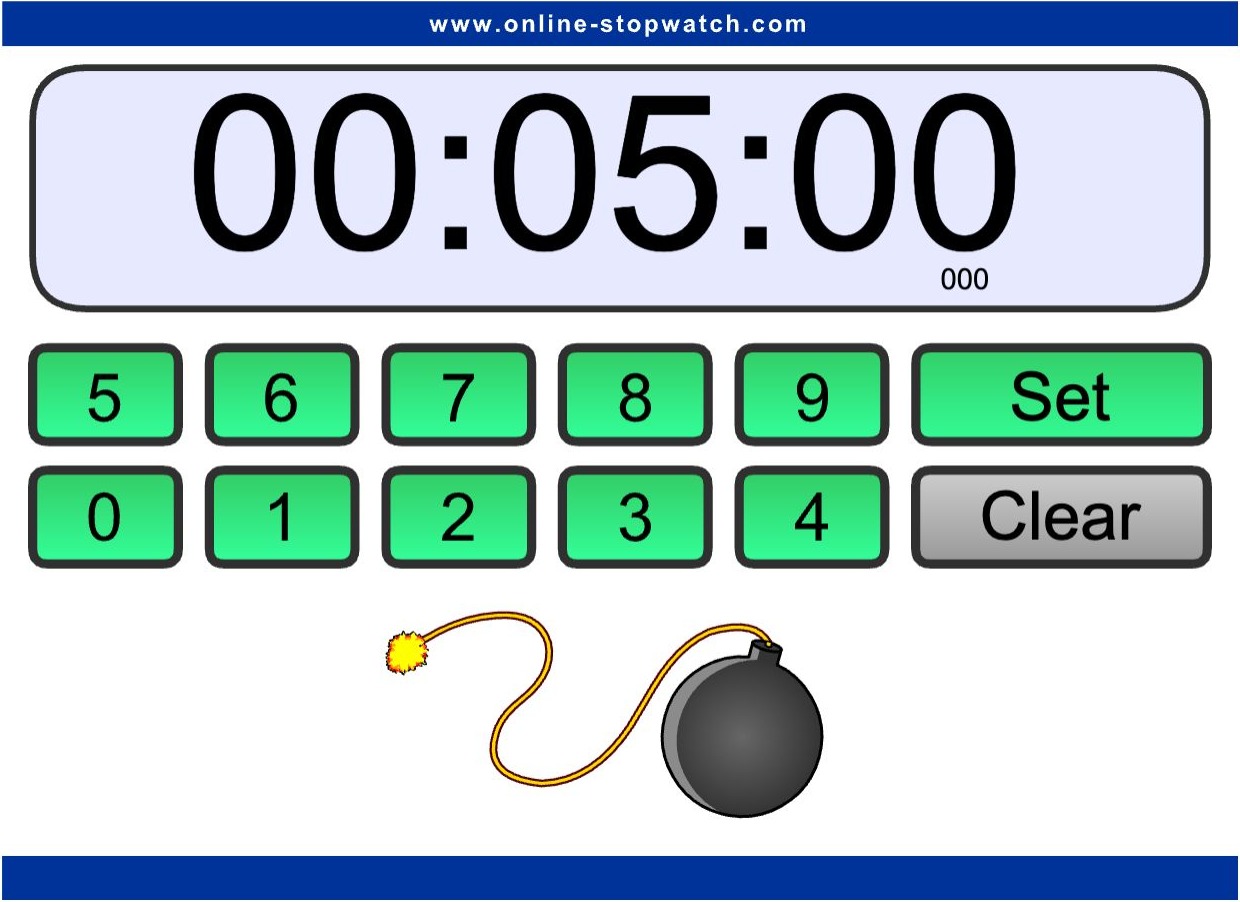
Enter the game duration, then choose Set.
- Choose Set, then Start when the activity begins.
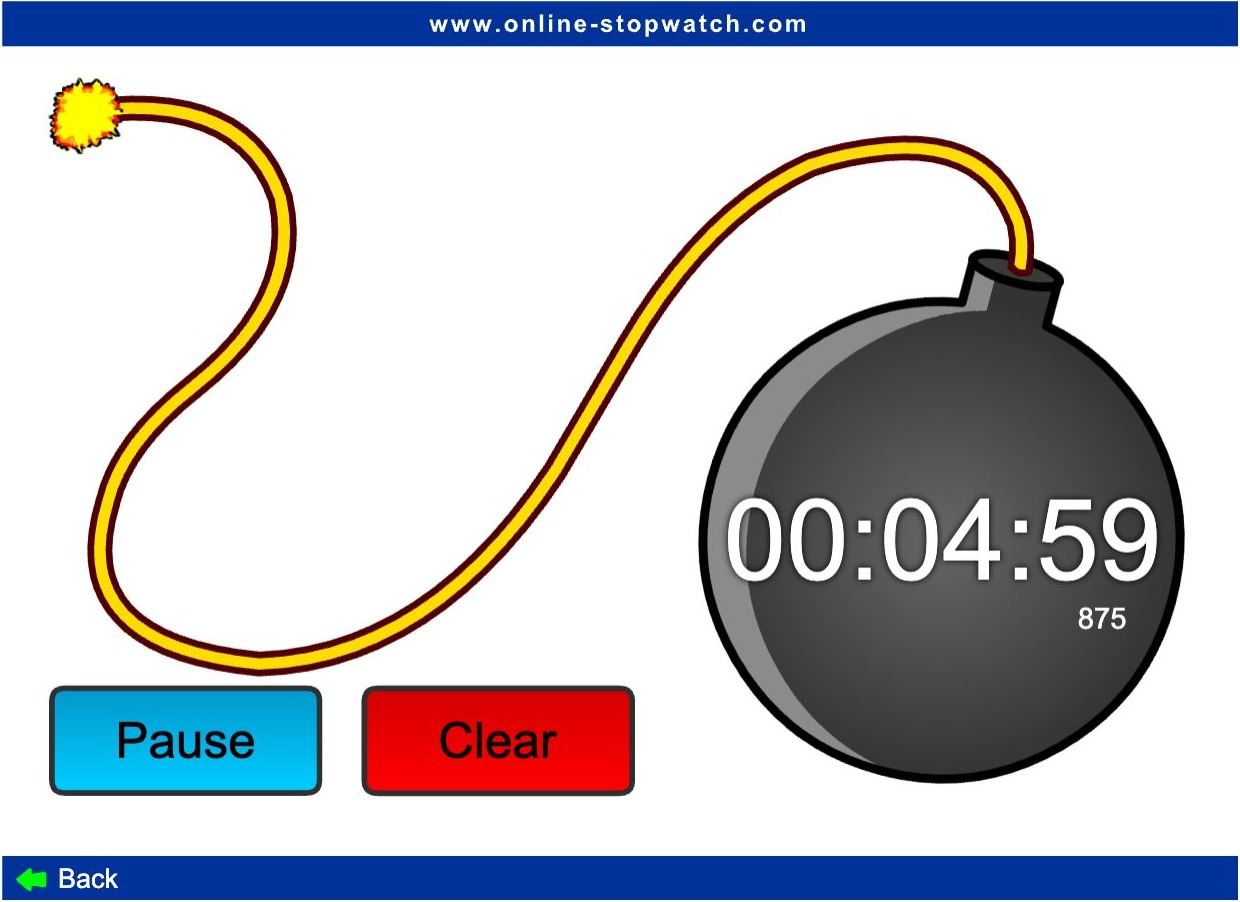
The fuse burns while the displayed time counts down.
Use Pause for an interruption. Clear resets the timer to the chosen duration; Back returns to the keypad to change it. For a quieter visual style, use the Bar Timer in Option B.
Option F: Show a classroom clock
Use a clock when students need the current time rather than minutes remaining, such as an activity that ends at 10:30.
- Open Online-Stopwatch's large digital clock on the classroom display. The clock starts immediately; no countdown duration or Start button is needed.
- Check the displayed time against the clock your class uses, then write the activity's finish time on the board beside the display.
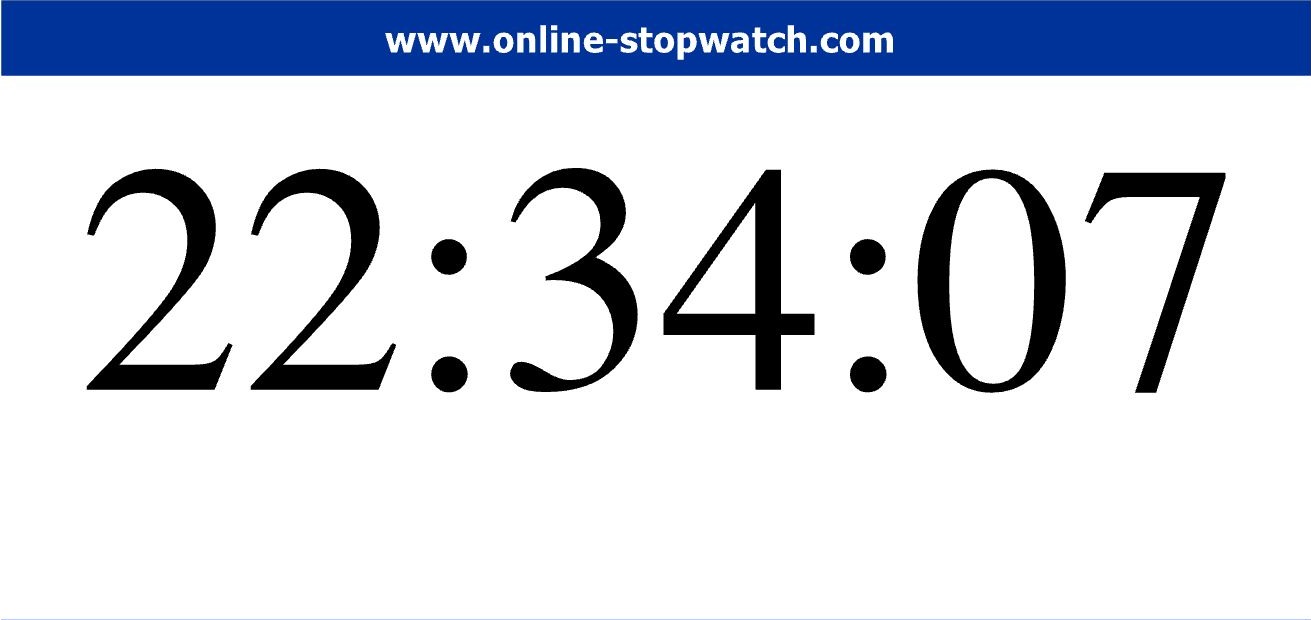
The clock shows time of day and continues updating while the page stays open.
The clock does not count down or stop the activity automatically. To put an updating clock inside a slide, follow the live clock in PowerPoint guide.
Choose the display for your class
- A digital countdown shows the exact time remaining.
- A visual timer represents time with a ruler, shrinking bar, or sand display.
- A race timer or animated ending can suit a game. Preview the animation and sound before showing it to the class.
Timer for PowerPoint provides a digital countdown with color themes and an optional sound alert. To create a visual bar in PowerPoint, follow the native bar animation steps.
For assessments, see exam and quiz timers. For pauses between activities, see break timers.