
Add a ready-to-use HTML sample to your slide or worksheet with HTML Viewer 365. Copy the sample below, then use the resizing fixes if your content leaves empty space or overlaps.
Get HTML Viewer and insert the sample
- Install HTML Viewer 365 from AppSource and place the add-in on your slide or worksheet.
- Copy the full sample below and paste it into the add-in's HTML editor.
- Choose Save to display the sample.
- Save your presentation or workbook to keep the HTML with your document.
Ready-to-use HTML sample
The sample shows launch progress. Select Plan or Risks to expand the details. All styling is included; the sample needs no external libraries or images.

Click inside the code box, select all with Ctrl+A (Windows) or Command+A (Mac), then copy.
Common resizing problems and fixes
HTML Viewer resizes the frame, but your HTML controls the layout inside it. Check the content at the size you plan to use, including any expanded details.
The HTML sample leaves empty space
Fixed-width content stays small when you enlarge the add-in. Remove the fixed width and let the layout fill the frame:
body { margin: 0; min-height: 100vh; }
main { width: 100%; }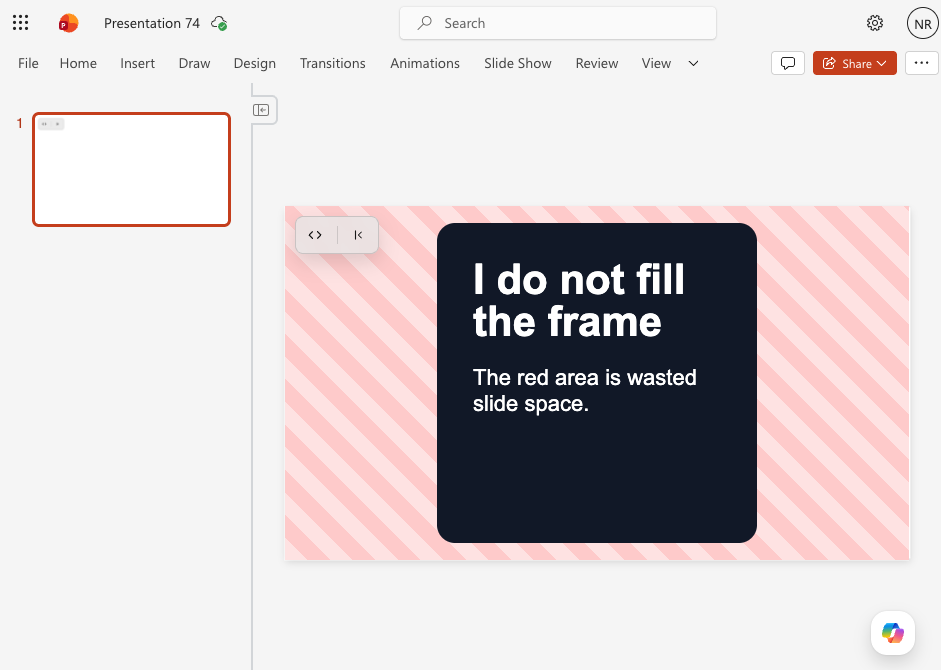
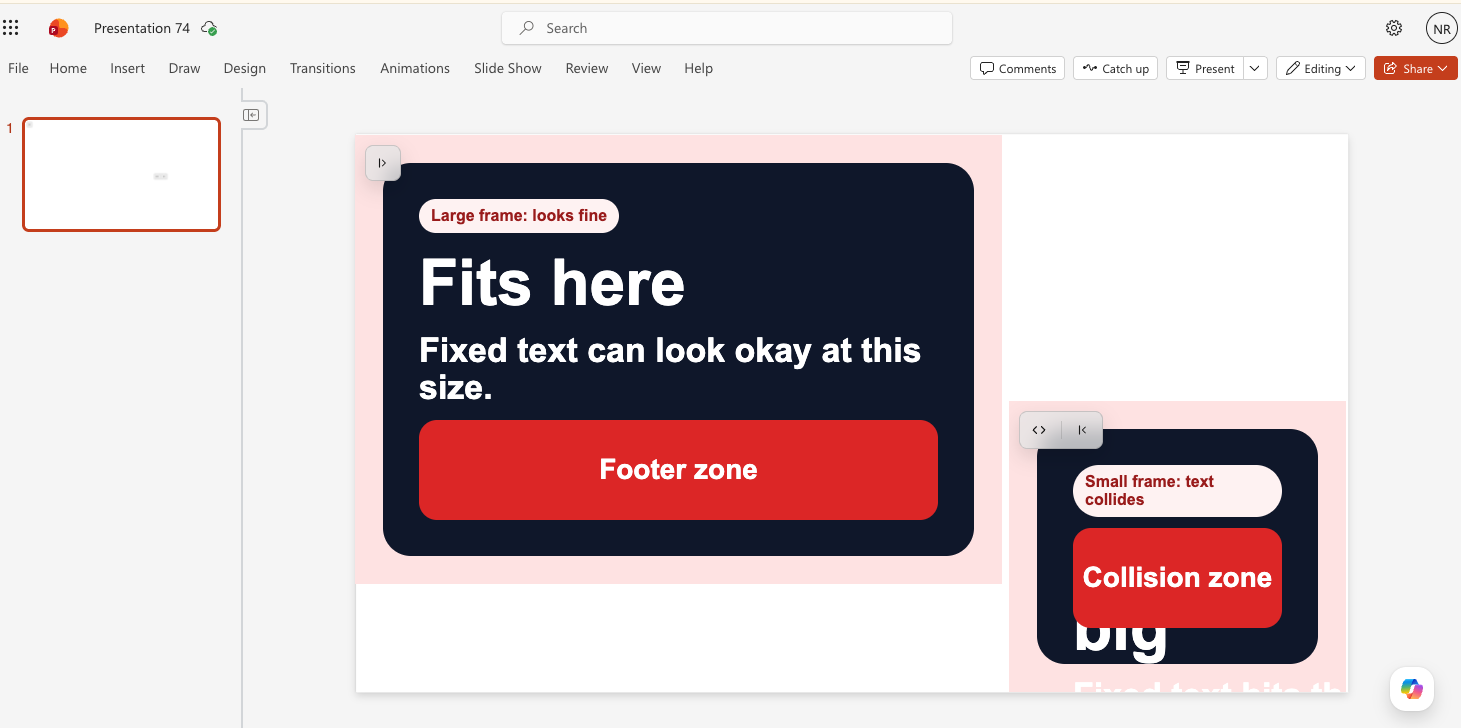
Text overlaps or gets cut off
Large, fixed text sizes can crowd a smaller frame. Use clamp() to scale text
within readable limits. The vmin unit follows the frame's smaller dimension:
body { font-size: clamp(16px, 3vmin, 28px); }
h1 { font-size: clamp(24px, 7vmin, 64px); }
If the content still does not fit, enlarge the add-in or shorten the text. Avoid
overflow: hidden on the page: scrolling keeps overflowing content reachable.
Need help?
If your HTML does not display as expected, message support and we'll get back to you shortly.