
Summary
This post shows you how to fix OneDrive's We can't sync this item because the path is too long error by renaming a long parent folder in File Explorer.
When you create or save a file inside a synced OneDrive folder on your PC, OneDrive checks whether the destination path in SharePoint exceeds SharePoint's 400-character limit. If the SharePoint path is over 400 characters, OneDrive blocks the upload until you shorten the path:
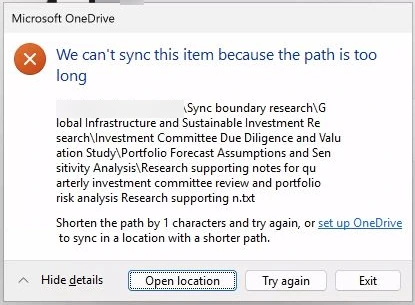
- Check the blocked item's path: Use the folder names in the OneDrive dialog to locate the file and see how many characters you need to remove.
- Rename a parent folder in File Explorer: Shorten a folder above the blocked file so its SharePoint path drops to 400 characters or fewer, then verify that OneDrive uploads the file.
Why OneDrive shows "We can't sync this item because the path is too long"
OneDrive displays this dialog when a file in your synced folder on the PC would exceed SharePoint's 400-character path limit once uploaded. In the example below, the file's local path on the PC is 380 characters, while its destination path in SharePoint is 406 characters:
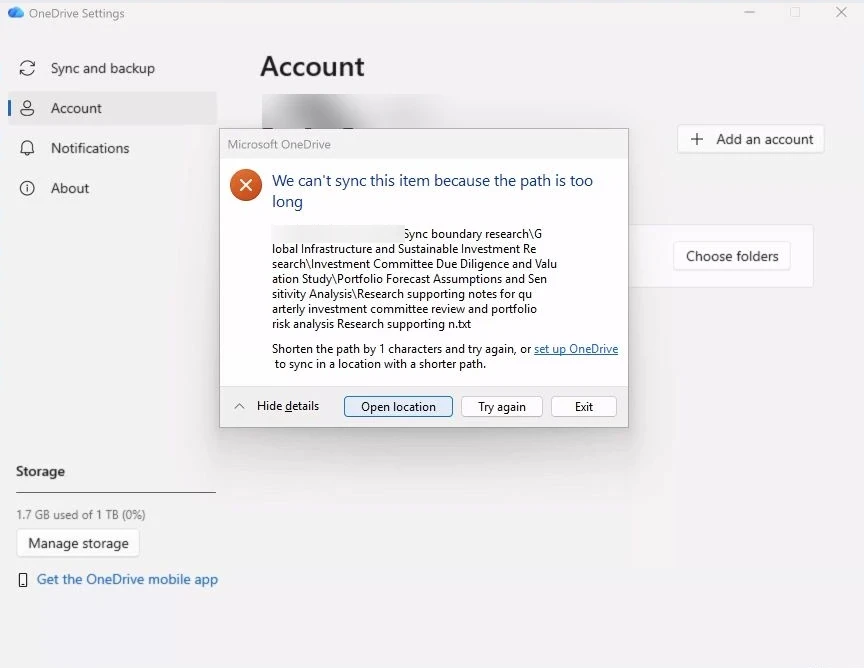
This error means the new or modified file on your PC has not uploaded to SharePoint yet. It differs from a file that is already in SharePoint but fails to open on your PC because the local Windows path exceeds 259 characters. For a side-by-side comparison of both limits, see SharePoint and OneDrive path length limits.
Check the path of the blocked item
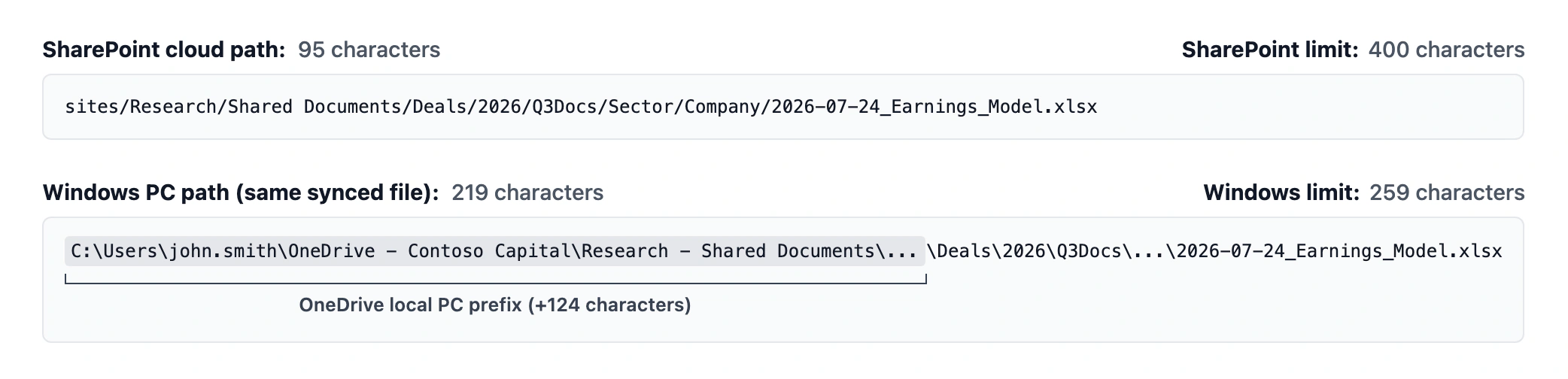
SharePoint counts the decoded cloud path starting at sites/... (including the
site name, document library, folders, and filename), whereas Windows counts the local path
starting at C:\Users\...:
The OneDrive error dialog tells you how many characters to remove and lists the folder path leading to the blocked item:
-
Open the blocked file's folder
- Click Open location in the OneDrive dialog, or browse to the containing folder in File Explorer.
-
Inspect the full folder chain
-
Click the File Explorer address bar to view the folder path as text and pick a long
parent folder to shorten. If File Explorer displays a shortened folder name
containing
~1, count the complete folder name instead.
-
Click the File Explorer address bar to view the folder path as text and pick a long
parent folder to shorten. If File Explorer displays a shortened folder name
containing
Rename a parent folder in File Explorer
Shortening a parent folder in your synced OneDrive folder reduces the path for every item inside it so OneDrive can finish the upload:
-
Shorten a parent folder in File Explorer
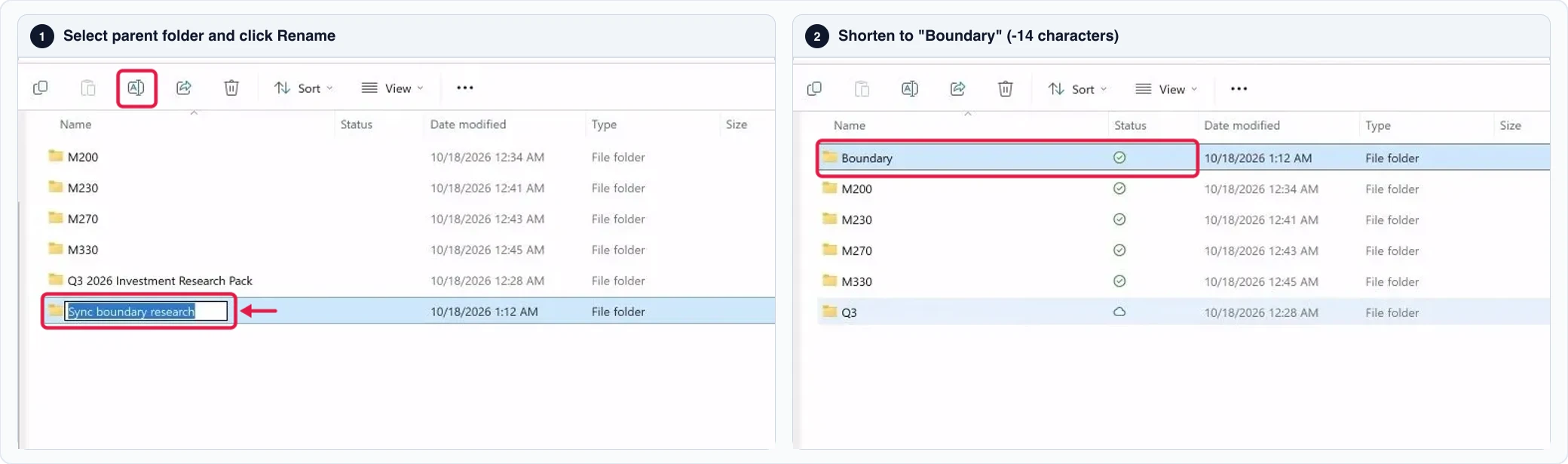
- Select a long parent folder above the blocked file, click Rename on the File Explorer toolbar, enter a shorter name, and press Enter.
- In the example below, renaming Sync boundary research to Boundary removes 14 characters from every file path inside the folder:
-
Verify that OneDrive uploads the file
- Click the OneDrive cloud icon in the Windows notification area and confirm that OneDrive shows Backed up and synced with the file listed as uploaded:
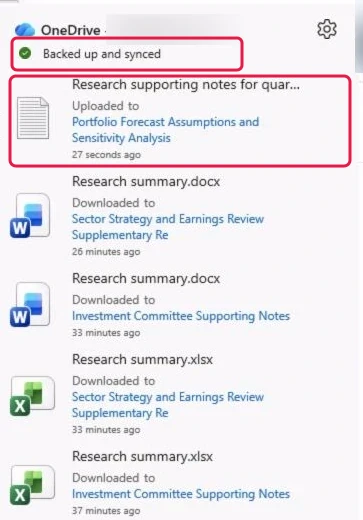
Removing 14 characters reduces the file's SharePoint path from 406 to 392 characters (and its local PC path from 380 to 366 characters), allowing OneDrive to upload the file.
Keep in mind that a SharePoint path under 400 characters lets OneDrive sync the file, but desktop apps like Excel still enforce Windows' 259-character local path limit when opening files on your PC. If a synced file still cannot open in a desktop app, shorten the path further or see how to fix Excel's 259-character file path error.