
Summary
This post shows you how to fix
The Compressed (zipped) Folder is invalid by extracting the ZIP archive
in SharePoint with
Zip & Unzip for SharePoint, or on Windows with tar.exe or PowerShell 7's Expand-Archive.
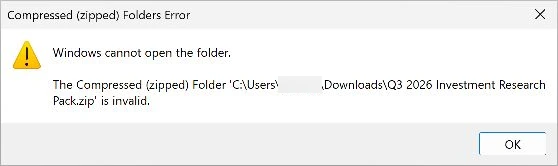
When a valid ZIP archive contains deeply nested folders and long filenames, Windows File Explorer and its Extract All wizard reject the archive as invalid, even when you extract to a short folder near the drive root:
Choose one method based on where you need the extracted files:
-
Option A: Extract in SharePoint with Zip & Unzip.
When the archive belongs in a SharePoint library synced with OneDrive, upload the
.zipto SharePoint and use Zip & Unzip for SharePoint to check your 259-character Windows PC path limit and shorten long parent folders before unpacking. -
Option B: Extract on Windows with tar.
For a local archive on your PC, create a short output folder such as
C:\x\pf-t16, runtar.exe -xfin PowerShell 7, and verify the extracted file count. -
Option C: Use PowerShell 7 Expand-Archive.
Open PowerShell 7, set the ZIP and short destination paths, and run
Expand-Archiveto bypass File Explorer's ZIP-folder check.
Why long paths trigger "The Compressed (zipped) Folder is invalid"
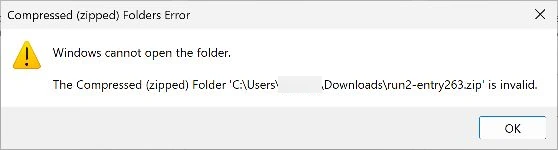
File Explorer shows Windows cannot open the folder and The Compressed (zipped) Folder is invalid when an archive is corrupted, or when an intact ZIP contains internal folder and file paths that exceed File Explorer's limit.
The internal path inside the ZIP triggers this failure even when the path is split across several nested folders rather than one long filename. A single-file ZIP with a 200-character internal path opens and extracts normally, whereas a single-file ZIP with a 263-character internal path fails with the same invalid-folder error when opened or extracted into a short folder:
How the extraction path is counted
Every file inside a ZIP has an internal path made up of its nested folders and filename.
When you extract the archive, Windows prepends your destination folder and a backslash to
that internal path. Giving the .zip file itself a shorter name does not
shorten the folder structure inside it.
In the 16-file example archive (Q3 2026 Investment Research Pack.zip), the
deepest internal path is 263 characters. Extracting it into C:\x\pf-t16 (11
characters) produces a 275-character full path on your PC (11 + 1 + 263 = 275 characters).
To measure an extracted file's full path on your PC:
-
Reveal the folder path in File Explorer
- Open the file's containing folder and click the address bar to display the full text path.
-
Count the folder path and filename
-
Add the folder path, a backslash, and the filename with its extension. If File
Explorer abbreviates a folder name with
~1, count the complete folder name instead.
-
Add the folder path, a backslash, and the filename with its extension. If File
Explorer abbreviates a folder name with
The
SharePoint and OneDrive path-length guide
explains how this local PC path differs from a SharePoint web path. Option A shortens long
folder paths inside SharePoint before extracting, while Options B and C unpack the archive
into a short local folder under C:\x.
Option A: Extract in SharePoint with Zip & Unzip
When the archive belongs in a SharePoint document library that syncs with OneDrive, upload
the .zip to SharePoint and extract it with
Zip & Unzip for SharePoint
(see the
SharePoint ZIP guide). It
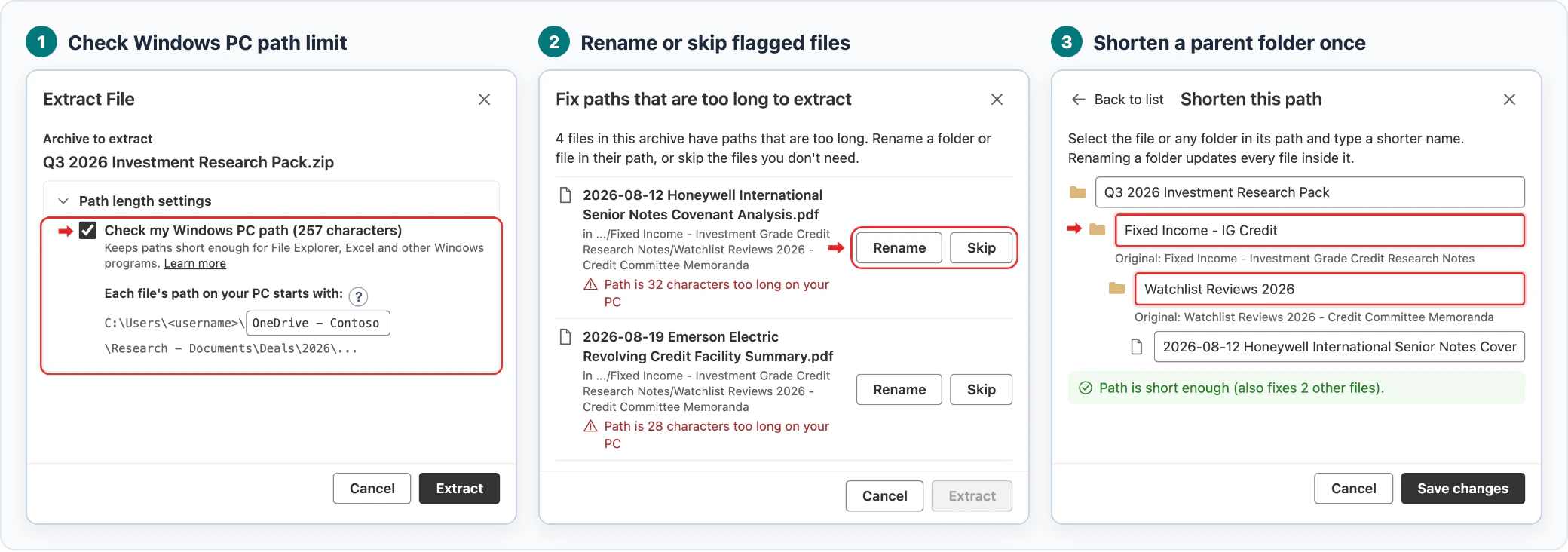
unpacks the archive in your browser and checks both SharePoint's 400-character limit and
your 259-character Windows PC limit before extracting:
-
Check SharePoint and Windows PC path limits
- Zip & Unzip always checks SharePoint's 400-character limit automatically.
- Expand Path length settings and check Check my Windows PC path to verify your predicted PC path and OneDrive folder name. Your admin can also enable this setting once for your whole organization.
-
Rename or skip files that are too long
- Zip & Unzip pauses before extracting any over-limit files so you can click Rename to shorten a path or Skip to exclude the file.
-
Shorten a parent folder to fix every file inside it
- Edit any folder or file name in the path chain. Shortening one parent folder fixes every file inside it at once.
Try the interactive demo
The interactive demo below shows how the Zip & Unzip add-in checks and shortens long file paths inside SharePoint. Try it to preview the solution:
For help with Zip & Unzip for SharePoint, contact support.
Option B: Extract on Windows with tar
Open
PowerShell 7
and use Windows' built-in tar.exe utility to unpack the archive into a short
folder near the drive root. Replace the example ZIP filename with your own archive:
-
Set the ZIP and destination paths
-
Point
$zipto your archive and$destinationto a short folder nearC:\:
-
Point
$zip = "$env:USERPROFILE\Downloads\Q3 2026 Investment Research Pack.zip"
$destination = 'C:\x\pf-t16'-
Create the destination folder and extract with
tar.exe-
Run
New-Itemandtar.exe -xf, then count the extracted files to confirm that every entry unpacked:
-
Run
New-Item -ItemType Directory -Path $destination | Out-Null
tar.exe -xf $zip -C $destination
tar.exe extracts all 16 files from the archive that File Explorer rejected,
with full PC paths ranging from 145 to 275 characters.
Option C: Use PowerShell 7 Expand-Archive
PowerShell 7's Expand-Archive cmdlet also extracts long-path ZIP archives
that File Explorer blocks:
-
Set the ZIP and destination paths
-
Point
$zipto your archive and$destinationto a fresh folder nearC:\:
-
Point
$zip = "$env:USERPROFILE\Downloads\Q3 2026 Investment Research Pack.zip"
$destination = 'C:\x\pf-e16'-
Create the destination folder and run
Expand-Archive- Unpack the archive and count the extracted files to verify that the deepest folders are complete:
New-Item -ItemType Directory -Path $destination | Out-Null
Expand-Archive -LiteralPath $zip -DestinationPath $destination -ErrorAction Stop
PowerShell 7 extracts all 16 files into C:\x\pf-e16, with full PC paths from
145 to 275 characters.
Verify the extracted files and shorten deep paths
In the same PowerShell 7 window, count the extracted files recursively to make sure no deep entries were skipped:
$files = @(Get-ChildItem -LiteralPath $destination -File -Recurse)
$files.Count
Both command-line methods return 16, matching the total file count inside the archive. Always check the deepest subfolder rather than assuming extraction succeeded just because the top-level folder appeared.
Unpacking the archive locally does not shorten the extracted paths themselves. Because the deepest files here reach 275 characters on your PC and desktop Excel blocks workbooks at 260 characters and above, move deep workbooks higher or shorten their parent folders before opening them, as shown in the Excel 259-character error guide.
If File Explorer opens your ZIP but stops mid-extraction with Path too long - Error 0x80010135, see the Error 0x80010135 extraction guide.