
Summary
This post shows you how to add a countdown timer with sound in PowerPoint by using Timer for PowerPoint with sound alerts enabled.
An audible alert is useful when:
- Participants are concentrating on an activity and may miss the countdown reaching zero.
- People need a reminder to return from a break, including those joining remotely.
Choose one approach:
- Option A: Live countdown. In Timer for PowerPoint, choose Settings > Mode > Timer and enable Sound Enabled. Preview the beep, then run a five-second countdown in Slide Show through the speakers your audience will hear.
- Option B: Countdown video. Leave Sound Enabled on, choose Export Timer > Export Video, and insert the MP4 in PowerPoint. The video includes the end beep and plays without the timer add-in.
For either approach, remote attendees need computer audio included in the share. Enable Share sound in Zoom or Include sound in Teams when sharing from their desktop apps.
Option A: Enable the live countdown alert
- In PowerPoint for the web, select the slide and open Home > Add-ins.

PowerPoint for the web. Select the screenshot to enlarge it.
- Enter Timer for PowerPoint in the search box (1). Under More search results, select Add beside the matching result (2).
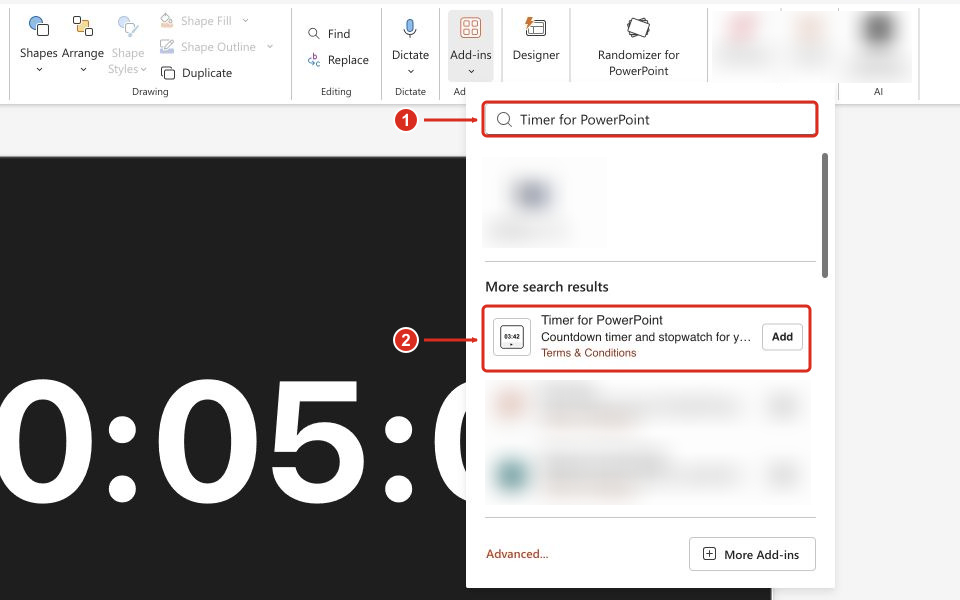
Complete the installation prompts. The timer appears on the selected slide. For other PowerPoint versions or organization-managed setup, see the full installation guide.
- Enter the activity duration. If the timer is running, choose New Timer to return to setup.
- Choose the gear button labeled Settings at the timer's upper left.
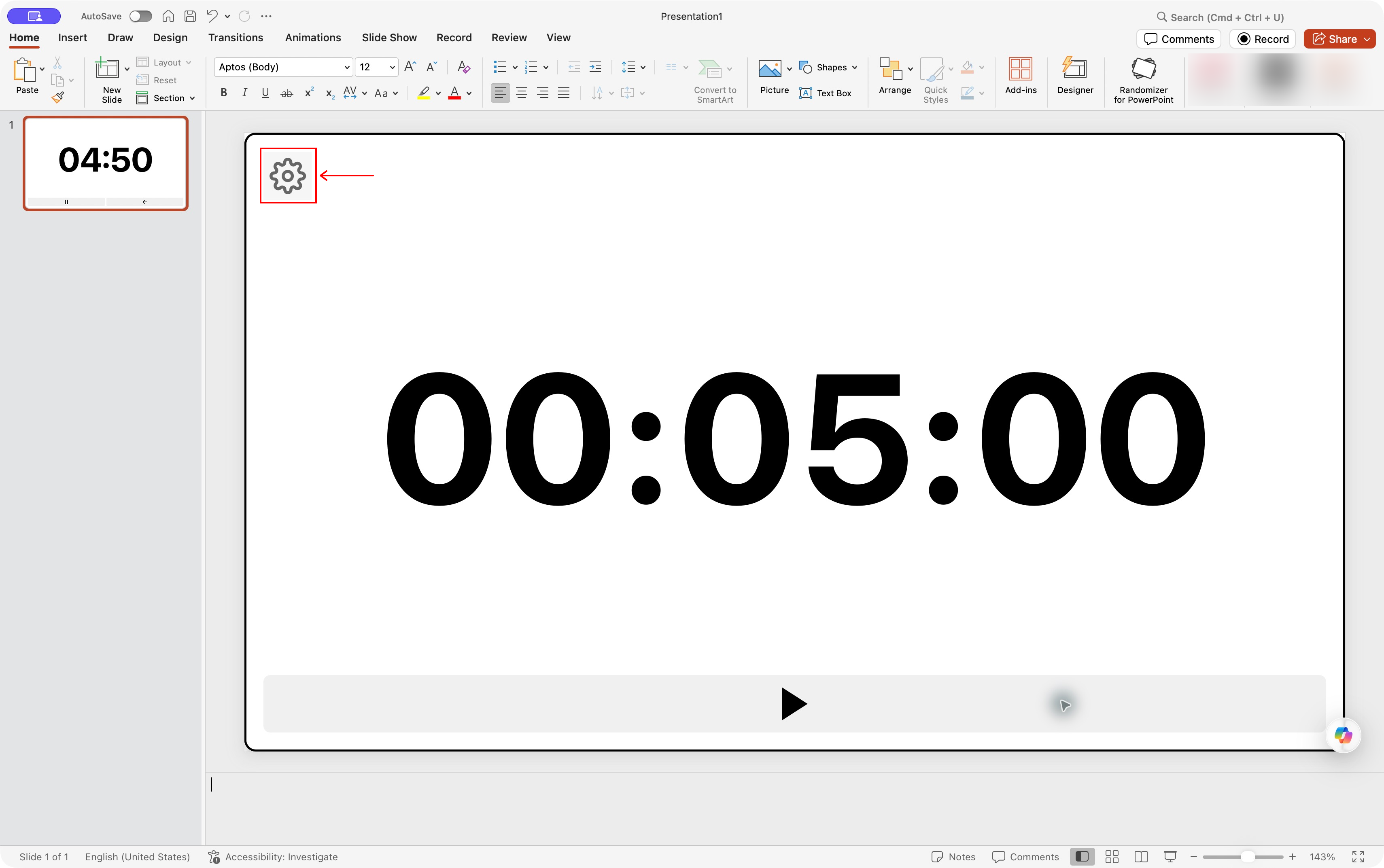
PowerPoint for Mac. Select the screenshot to enlarge it.
- Under Mode, select Timer for a countdown.
- Under Alert, enable Sound Enabled.
- Choose the speaker button labeled Preview sound and check the volume on your presentation device.
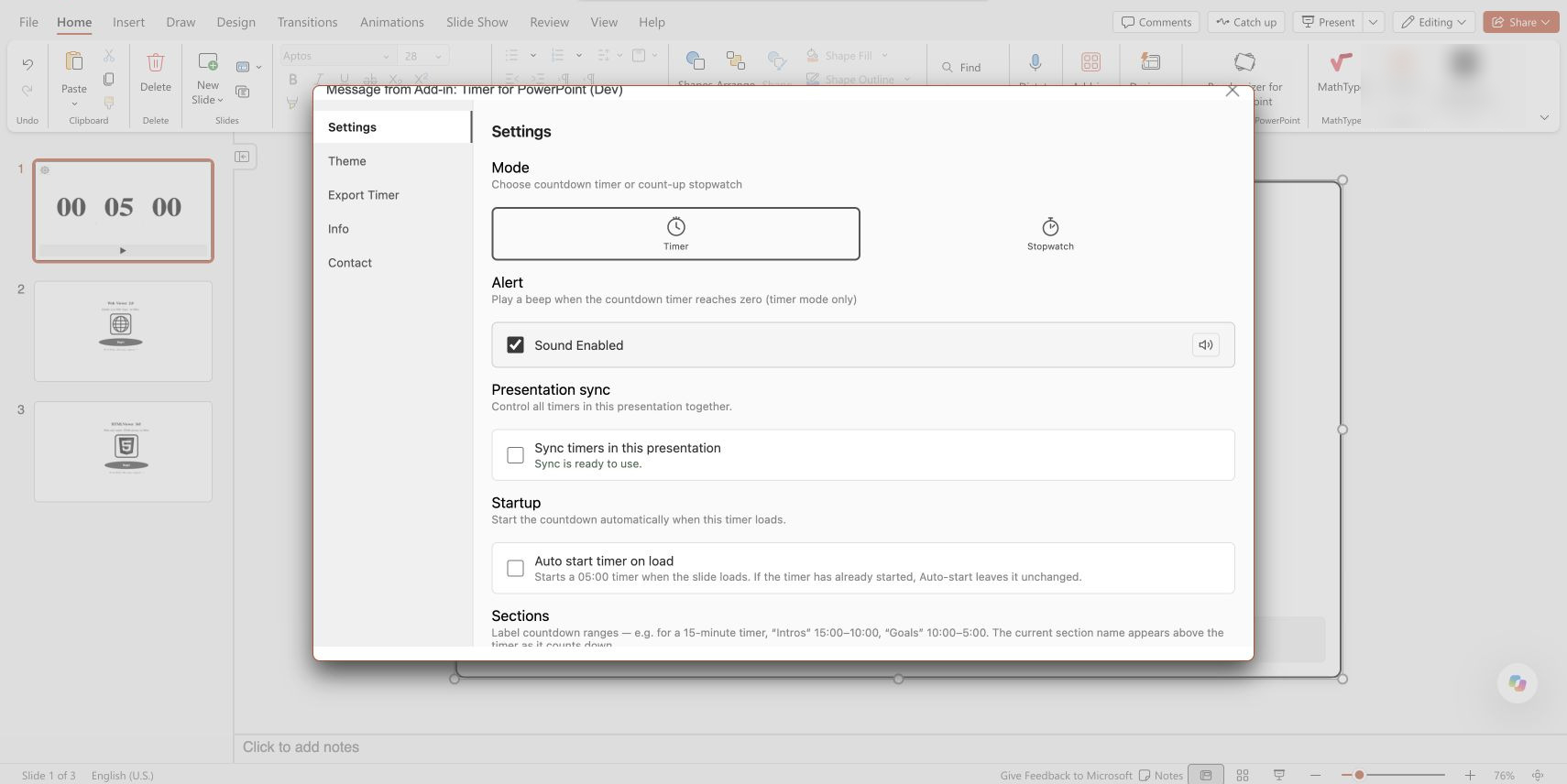
PowerPoint for the web. The speaker button previews the sound. Select the screenshot to enlarge it.
Timer for PowerPoint uses a short beep, rather than an uploaded alarm, music track, or spoken countdown. Stopwatch mode has no countdown-ending alert.
Test the sound in Slide Show
- Close Settings and set a short test countdown, such as 00:00:05.
- Enter Slide Show and press Start.
- Let the timer reach zero. Check that you hear the beep through the speakers the audience will use.
- Choose New Timer and restore the real duration before the session.
For a quiet assessment, turn Sound Enabled off and use the visible countdown and flashing finish.
Option B: Insert a countdown video with sound
- Use the installation steps above, then configure the duration in Timer for PowerPoint. Open Settings, keep Timer mode selected, and enable Sound Enabled as shown above.
- Open Export Timer, then choose Export Video. Keep the export window open until processing finishes and save the MP4.
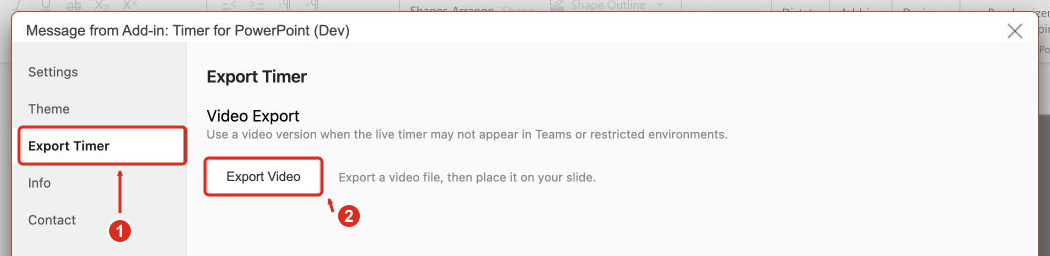
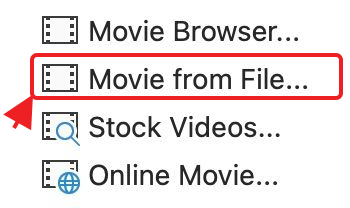
- In PowerPoint for Mac, choose Insert > Video > Movie from File. On Windows, choose Insert > Video > This Device. Select the saved MP4 and resize it on the slide.

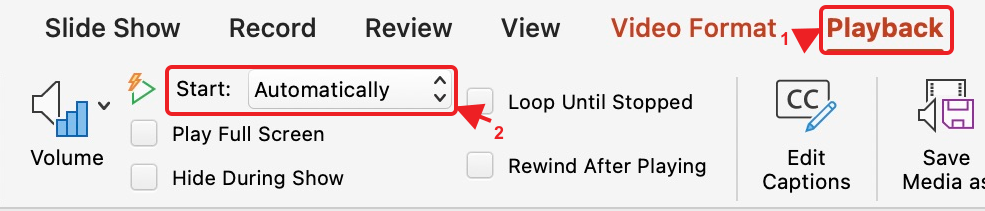
- Select the video and choose Playback > Start > Automatically to begin on entering the slide, or keep a click-to-start setting.
- Enter Slide Show and play the video to zero. Confirm the end beep plays through the audience speakers.
Trial exports have a FREE TRIAL watermark. Each video runs independently of live timers. See the export-and-insert guide for more detail. The free five-minute timer template contains a silent video.
Share either timer's sound in an online meeting
Use the sharing controls for the meeting app you already use. Run a short countdown with another participant to confirm they hear the alert.
Zoom desktop app
- Join the meeting and choose Share Screen.
- Select the PowerPoint slide show or timer window, enable Share sound, and choose Share.
- Run the countdown to zero while another participant checks the sound.
Zoom's audio-sharing instructions also explain how to enable sound after sharing starts. For timer display choices, see the Zoom timer guide.
Teams desktop app
- Join the meeting, choose Share, and turn on Include sound.
- Select the screen or PowerPoint window that contains the timer.
- Run the countdown to zero while another participant checks the sound.
On Mac, Teams may require its audio driver before sharing computer sound. Follow Microsoft's audio-sharing instructions for driver setup and troubleshooting.
What if the countdown is silent?
Check Sound Enabled, try Preview sound, and check the device's mute setting and selected audio output. If you use an exported video, check its playback volume. If only remote participants miss the alert, check the meeting's computer-audio sharing option. For add-in issues, contact support.