
Summary
This post shows you how to fix Excel's Cannot open the file because the file path is more than 259 characters error by moving the workbook to a shallower folder in File Explorer or shortening its parent folders in SharePoint.
Desktop Excel counts the entire local path on your PC, from the drive letter through your
Windows user folder, OneDrive shortcut name, every parent folder, and the
.xlsx filename:
Choose one approach based on whether you can move the file:
- Option A: Move the workbook to a shallower folder. Cut the downloaded workbook in File Explorer and paste it into a folder closer to the top of your synced library. Moving the example workbook below reduces its local PC path from 262 to 184 characters so Excel opens it without changing the filename.
- Option B: Shorten parent folders. Rename long parent folders in SharePoint, wait for OneDrive to sync the shorter names, and reopen the workbook in place. Shortening two parent folders reduces the local PC path from 330 to 249 characters while keeping the folder structure intact.
Why Excel blocks workbooks past 259 characters
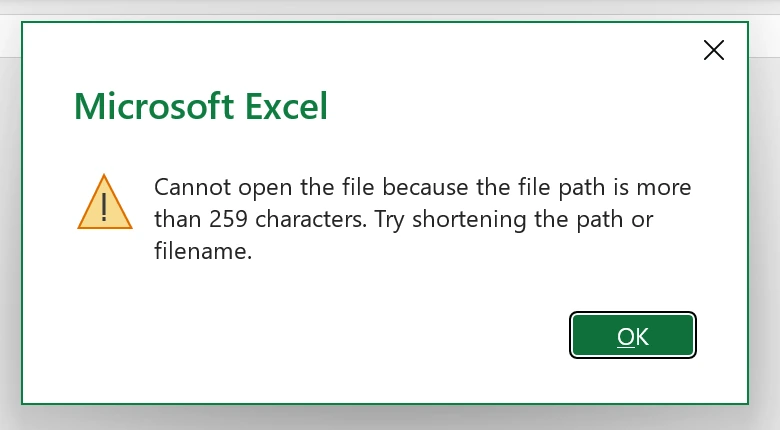
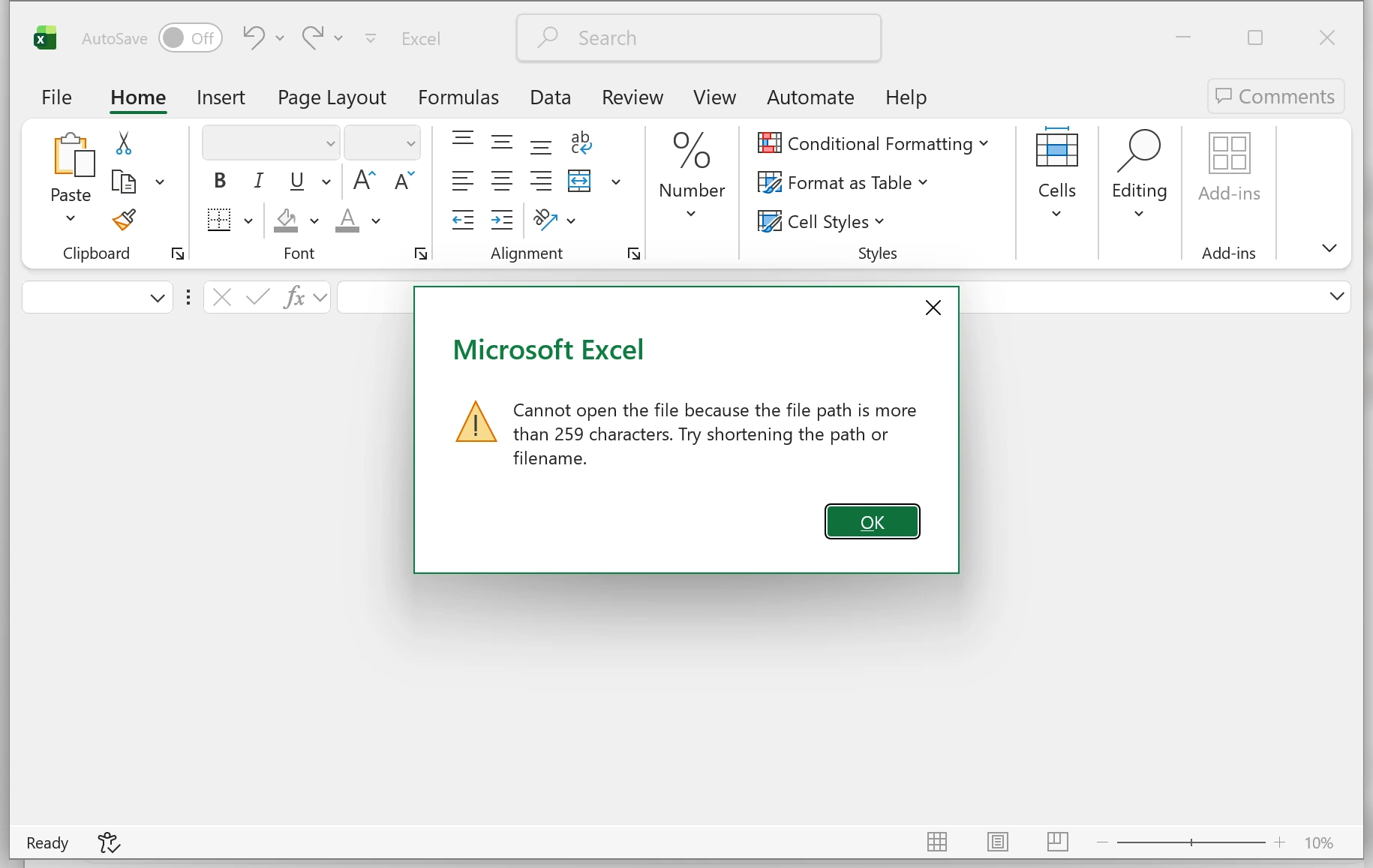
When you open a downloaded workbook whose full local path exceeds 259 characters, desktop Excel stops and displays: Cannot open the file because the file path is more than 259 characters. Try shortening the path or filename.
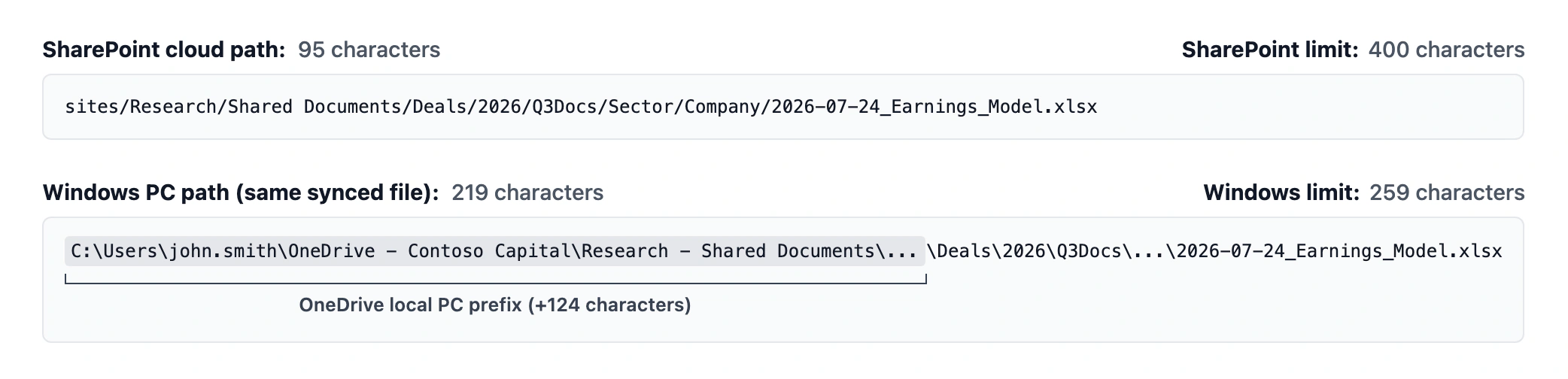
Shortening the filename alone often is not enough because OneDrive prepends your Windows user folder and company name to every synced file. As shown in the SharePoint and OneDrive path-length guide, that local prefix adds over 100 characters before your folders and filename even start:
Compare how desktop Excel handles downloaded workbooks across the 259-character boundary:
| Full path on the PC | Path in SharePoint | Desktop Excel result |
|---|---|---|
| 255 characters | 281 characters | Opens normally |
| 258 characters | 284 characters | Opens normally |
| 260 characters | 286 characters | Blocked by 259-character warning |
| 262 characters | 288 characters | Blocked by 259-character warning |
Desktop Excel enforces this 259-character check when opening the local file, even though all four paths are well under SharePoint's 400-character limit.
Option A: Move the workbook to a shallower folder
Use this option when you can move the workbook higher up in File Explorer. Moving the file to a shallower folder removes intermediate folder names from its path without shortening the workbook's own filename:
-
Cut the workbook from its deep folder
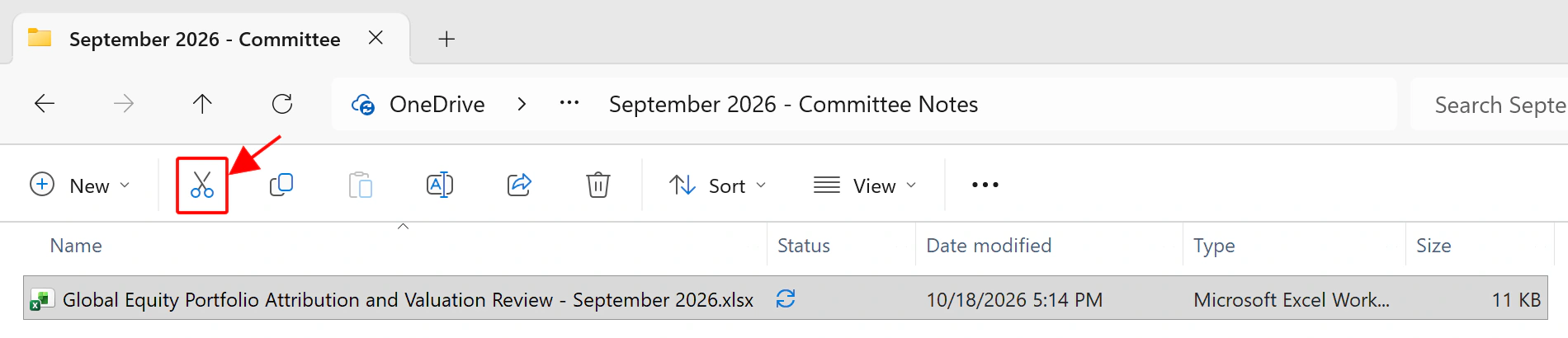
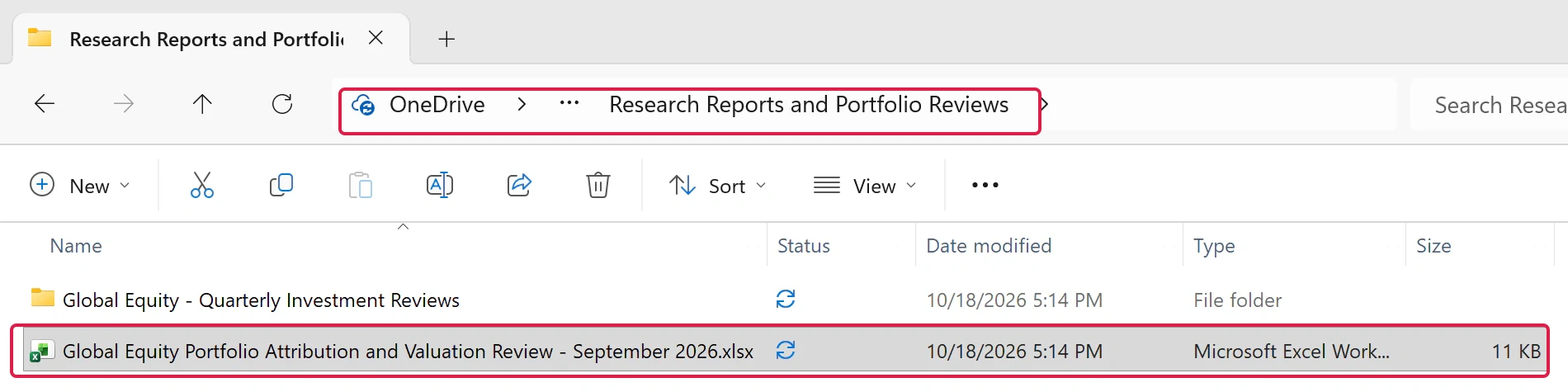
- Dismiss the Excel warning, close Excel, select the downloaded workbook in File Explorer, and click Cut (the scissors icon) on the toolbar:
-
Paste the workbook into a shallower folder
- Open a folder closer to the top of your synced library and click Paste on the File Explorer toolbar:
-
Open the workbook in Excel
- Double-click the workbook in its new folder to open it in desktop Excel:
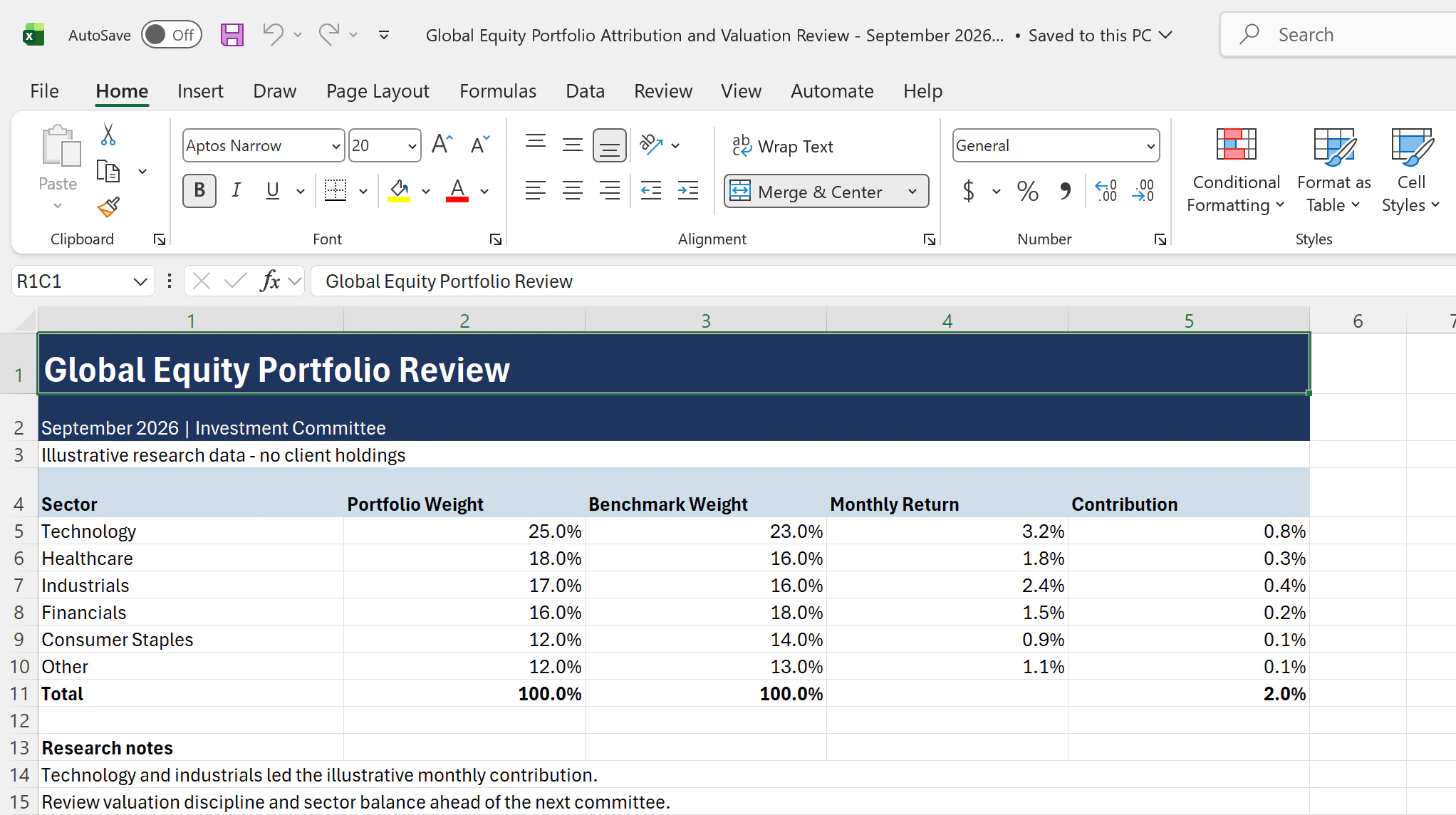
Moving the workbook to the top of the synced folder cuts its local PC path from 262 to 184 characters (and its SharePoint path from 288 to 210 characters), so Excel opens the worksheet immediately with its original filename intact.
Option B: Shorten parent folders
Use this option when the workbook needs to stay in its current folder hierarchy. Renaming one or two long parent folders in SharePoint shortens the synced path for every file inside them:
-
Rename long parent folders in SharePoint
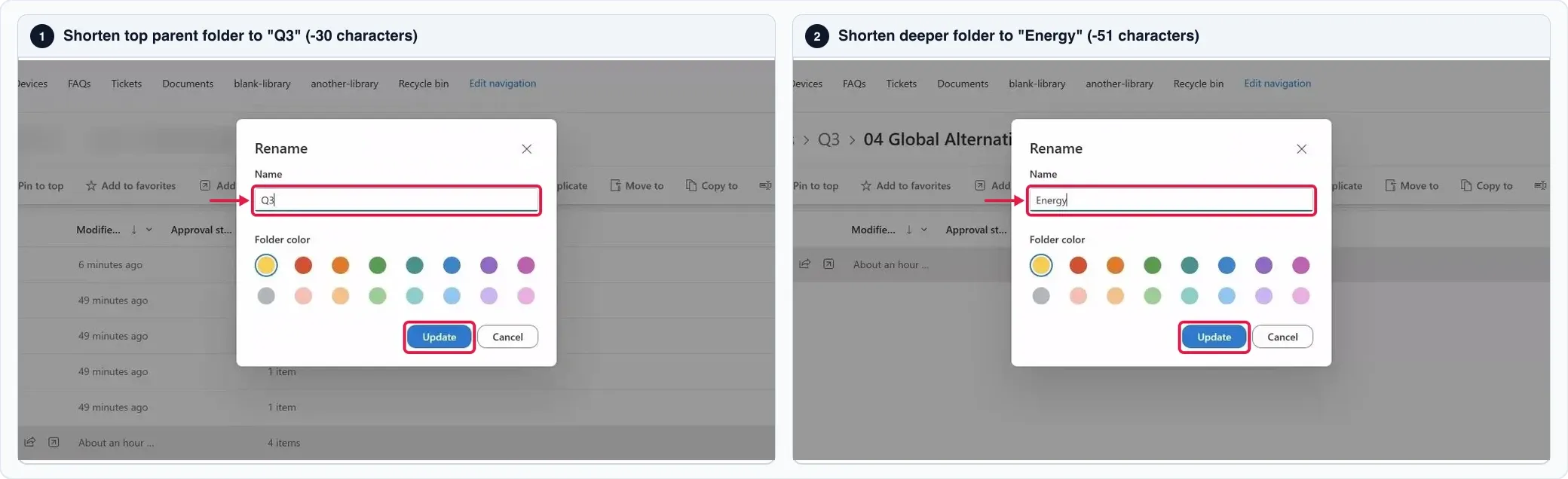
- Select a long parent folder above the workbook in your SharePoint library, click Rename on the toolbar, enter a shorter name, and click Update.
- Shorten a second folder if the local PC path still exceeds 259 characters. In the example below, renaming the top folder to Q3 removes 30 characters and renaming a deeper folder to Energy removes another 51 characters:
-
Wait for OneDrive to sync and reopen the workbook
- Once OneDrive syncs the renamed folders to your PC, open the workbook from its shorter path in File Explorer:
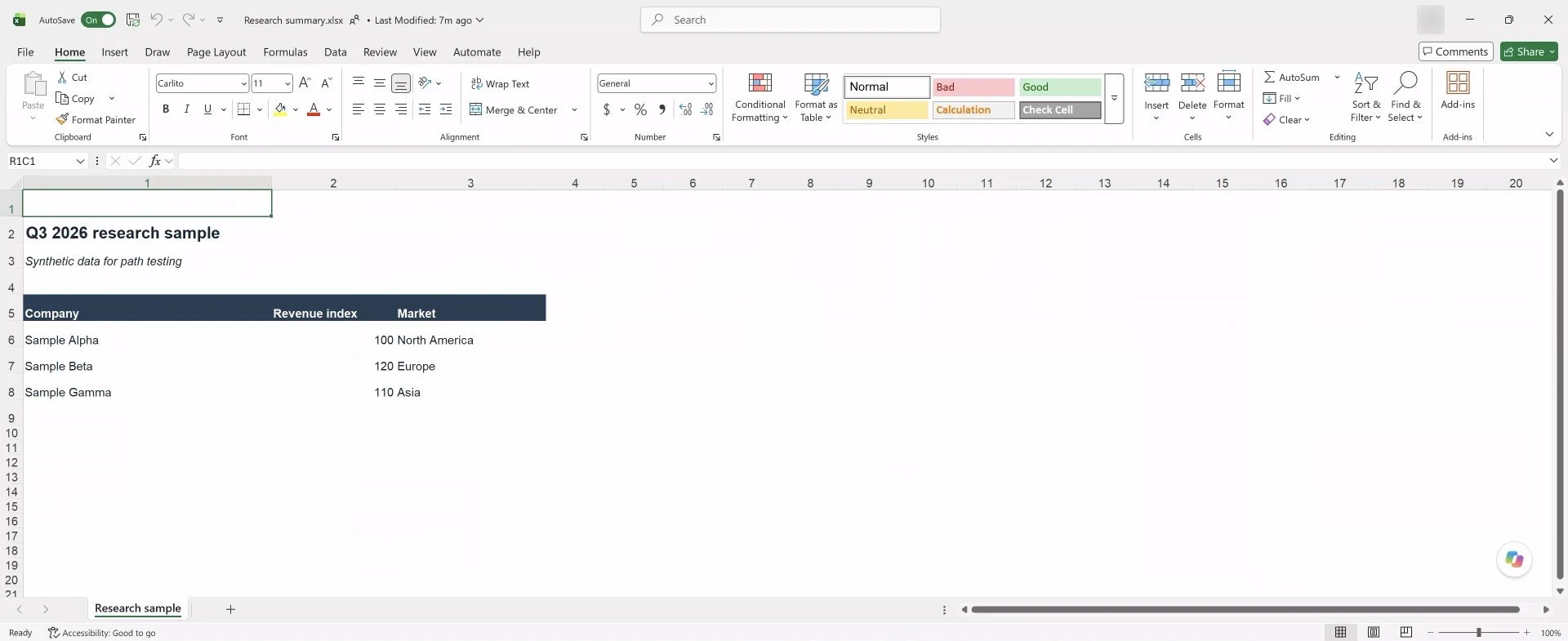
Shortening those two folders brings the workbook's local PC path down from 330 to 249 characters, allowing desktop Excel to open it directly from the synced folder.
If you cannot move the file or rename shared folders right now, you can also open the workbook in Excel for the web by following the browser-opening steps in the OneDrive cloud-operation guide.