
Summary
You can embed and interact with a local web development server (localhost or
127.0.0.1) directly inside PowerPoint by exposing it through a secure
Cloudflare Tunnel and loading the generated HTTPS address into
Web Viewer 2.0. Present live dashboards,
prototypes, and internal tools without switching windows.
Direct local addresses like http://localhost:8080 fail inside Office add-ins
due to browser security restrictions, while free ngrok tunnels stall on an anti-phishing
interstitial. Follow the four steps below to launch a quick Cloudflare Tunnel and embed
your local site into PowerPoint.
Before you start
- Open a PowerPoint presentation with Web Viewer 2.0 already inserted on the slide.
- Resize Web Viewer to fill the slide, with its edges aligned to the slide's edges.
-
Start your local web application in a terminal (for example, on
http://localhost:8080). -
Open a second terminal window to run
cloudflaredvianpxor the Cloudflare CLI.
Embed your local site with Cloudflare Tunnel
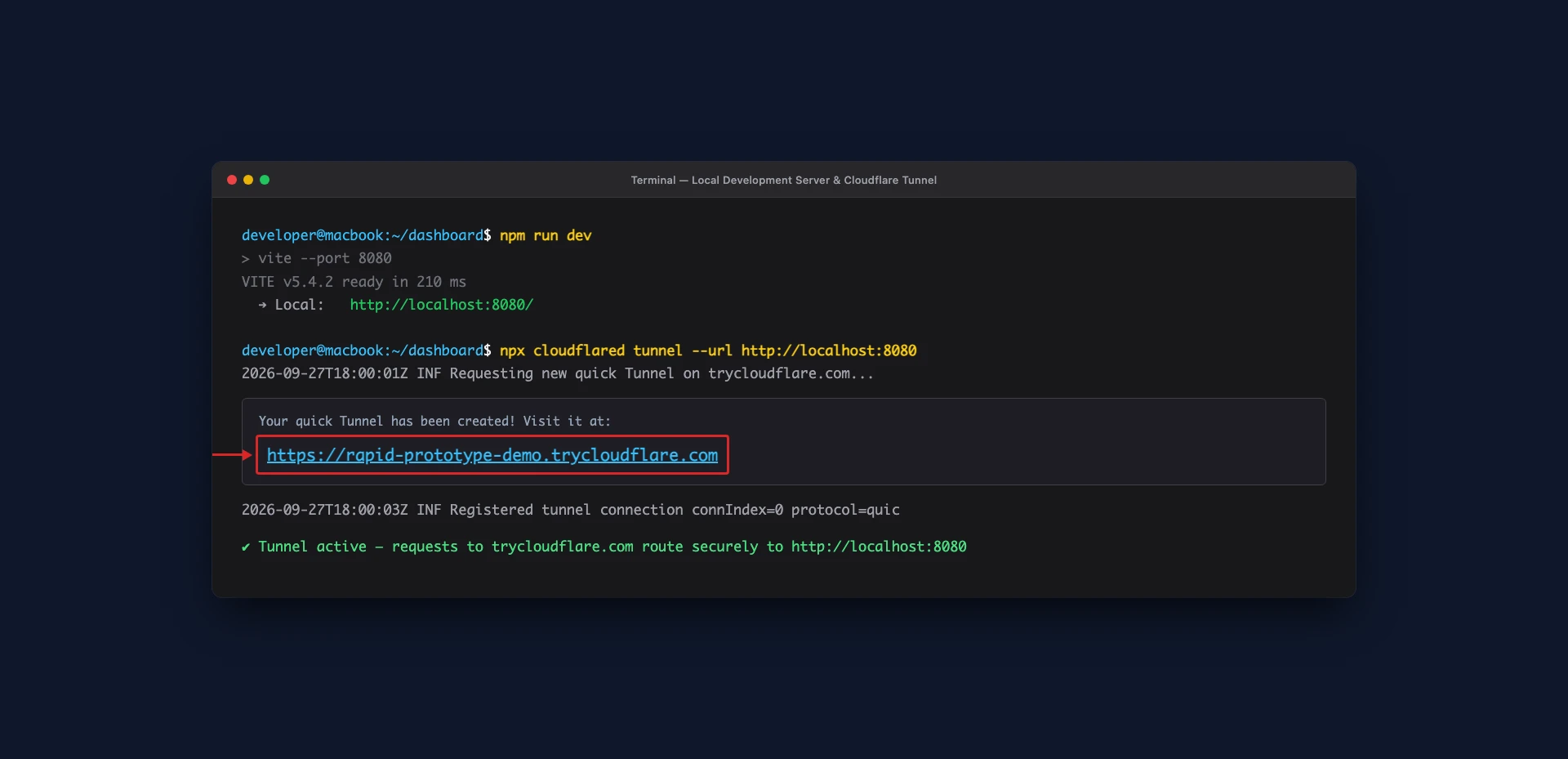
- Open your terminal and run
cloudflaredpointing to your local port:
npx cloudflared tunnel --url http://localhost:8080
Cloudflare creates a temporary tunnel on trycloudflare.com without requiring
an account or authentication token. Locate the generated public HTTPS URL in your terminal
output.
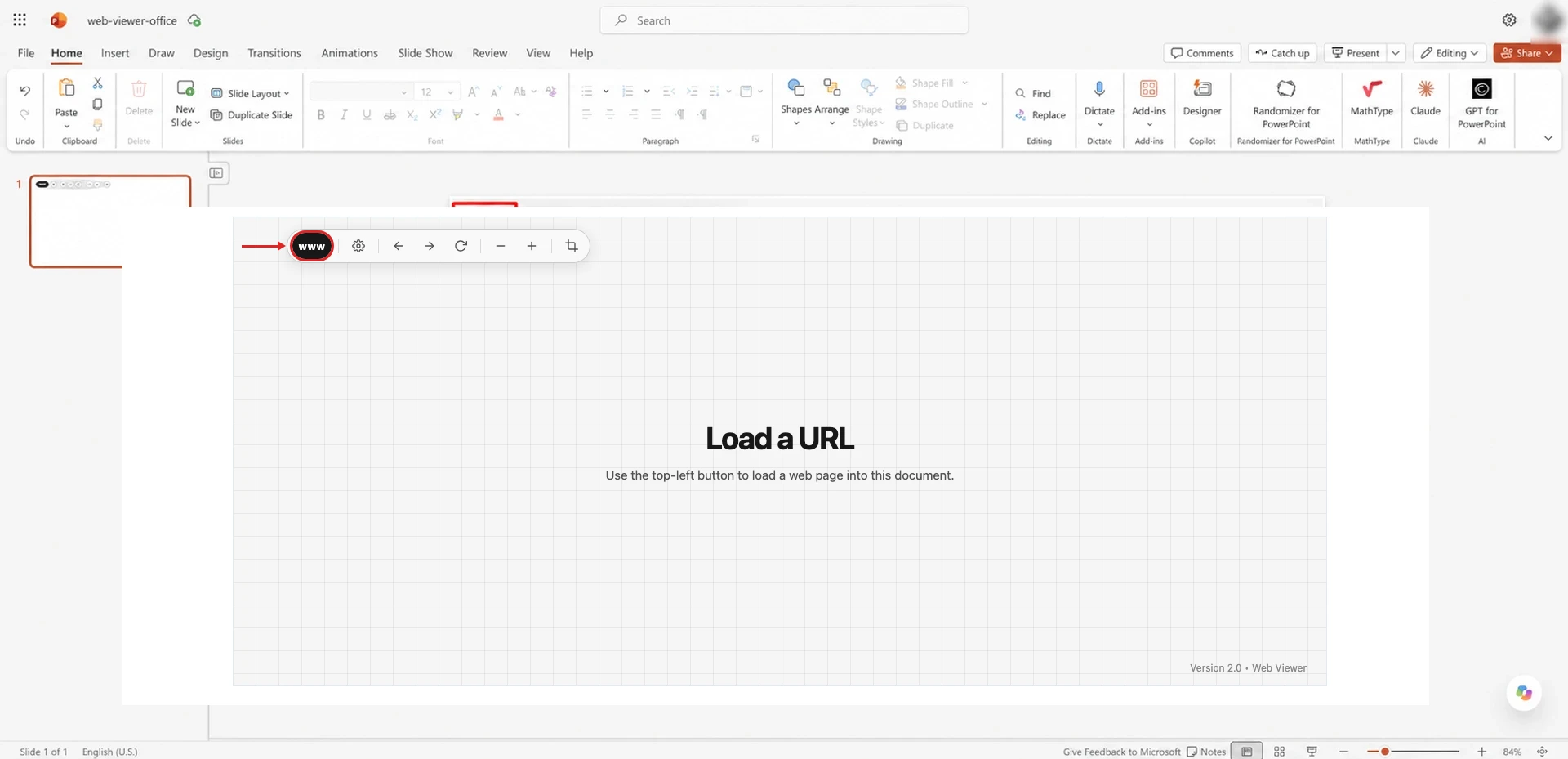
- In PowerPoint, click the www button at the top left of Web Viewer. Its tooltip is Loads a web page from a URL.
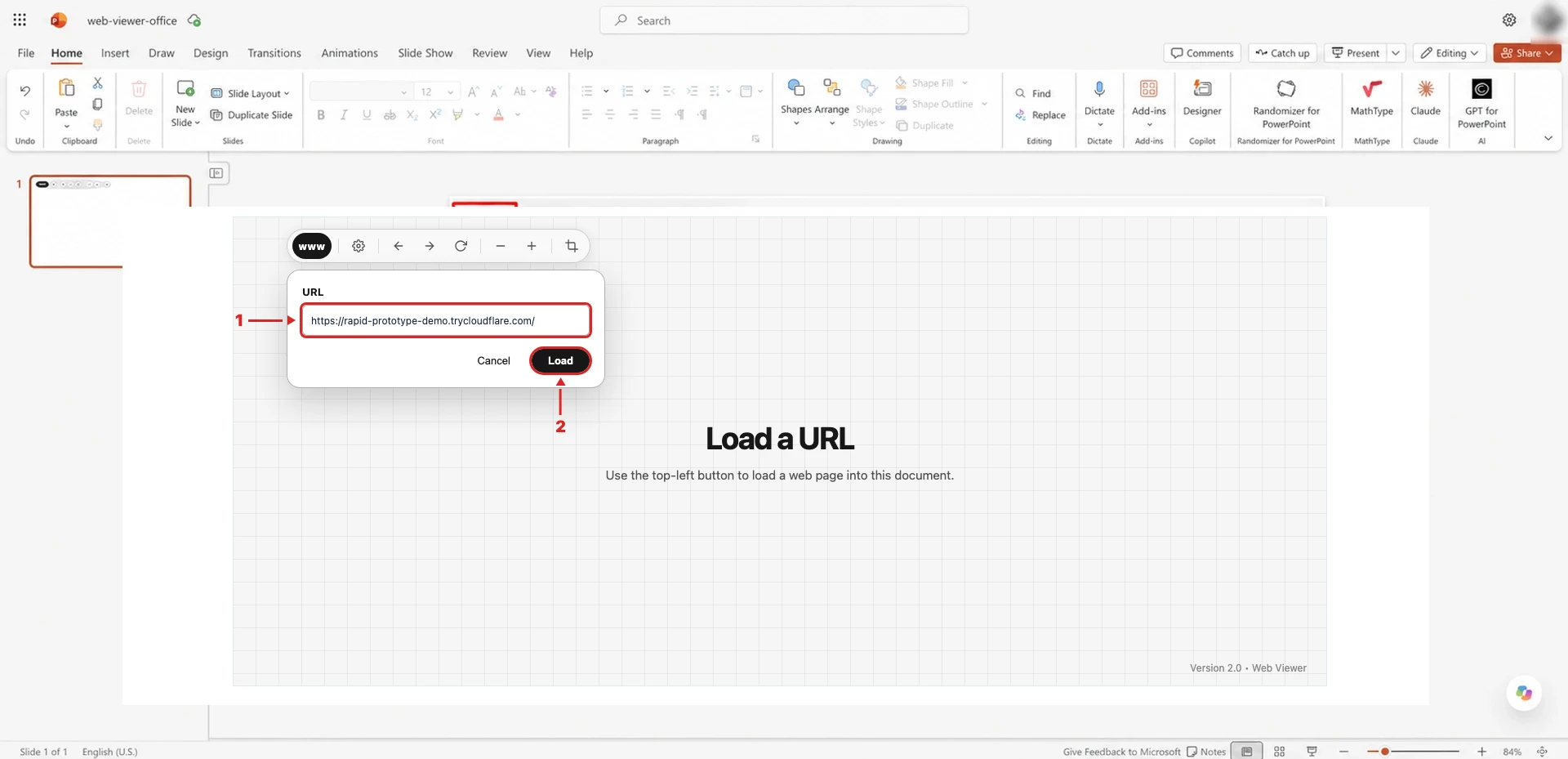
-
Paste the
trycloudflare.comaddress into URL (1), then click Load (2).
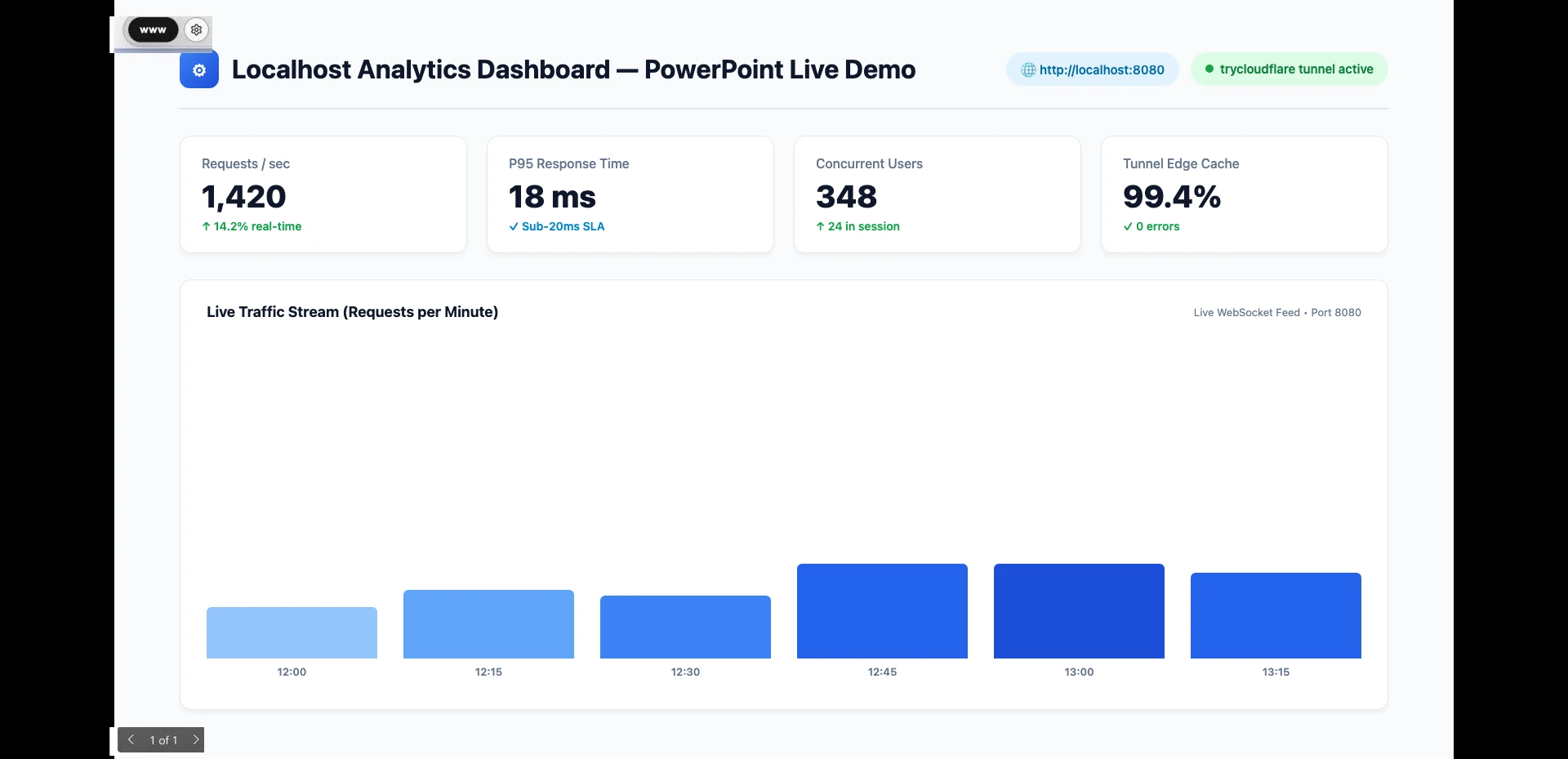
- Once your local page loads, click Present in PowerPoint to interact with your application live during Slide Show.
Comparing localhost embedding methods
The table below compares the three primary approaches developers use to test local pages inside PowerPoint:
| Method | Protocol & SSL | Interstitial Screen | Works in Web Viewer | Key Requirement |
|---|---|---|---|---|
| Cloudflare Tunnel | Public HTTPS (trusted edge certificate) | None | Yes | Run npx cloudflared alongside your local server |
| ngrok (Free Tier) | Public HTTPS (trusted edge certificate) | Anti-phishing interstitial warning | No | Third-party cookies blocked in iframes prevent bypassing the warning |
| Direct Localhost (127.0.0.1) | Local HTTP or self-signed HTTPS | None | No | Blocked by Mixed Content, Local Network Access (LNA), and untrusted certs |
Why free ngrok fails in Web Viewer
ngrok provides public HTTPS tunnels, but its free tier fails inside Web Viewer due to two cascading browser restrictions:
-
Anti-phishing interstitial screen:
- ngrok pauses visitors on an interstitial warning page (“You are about to visit...”).
- Bypassing this page requires clicking Visit Site to set an authorization cookie.
-
Third-party cookie blocking:
-
Web Viewer runs your site inside an
<iframe>within PowerPoint. - Modern browsers block cross-origin third-party cookies inside iframes.
- The bypass cookie never saves, ngrok loops the warning screen, and your app never renders.
-
Web Viewer runs your site inside an
Why direct localhost addresses fail
Three browser security standards block direct local addresses in Office add-ins:
-
Mixed Content restrictions:
- Office add-ins run over secure HTTPS parent frames.
-
Browsers prohibit HTTPS parent pages from embedding insecure plaintext
http://iframes.
-
Local Network Access (LNA) protections:
-
Chromium engines (Google Chrome and Microsoft Edge) restrict public web contexts
from querying loopback IP addresses (
127.0.0.1). - Browsers block internal network calls unless the local server grants explicit preflight permission.
-
Chromium engines (Google Chrome and Microsoft Edge) restrict public web contexts
from querying loopback IP addresses (
-
Untrusted certificate rejection in iframes:
- Local HTTPS servers rely on self-signed certificates.
-
Standalone browser tabs offer an interactive “Proceed anyway” button,
but browsers reject untrusted certificates inside an
<iframe>immediately without displaying a bypass prompt.
Local server configuration checklist
Before your presentation, verify your local application headers and terminal session:
-
Frame permission headers:
-
Remove
X-Frame-Options: DENYorX-Frame-Options: SAMEORIGINresponse headers. -
If you enforce Content Security Policy (CSP), configure
Content-Security-Policy: frame-ancestors *or include your Office domain. - See our guide on why some websites cannot load in Web Viewer.
-
Remove
-
Terminal liveness:
-
Cloudflare Tunnel forwards traffic only while
npx cloudflaredruns. - Keep the tunnel terminal window open alongside your dev server throughout your demo.
-
Cloudflare Tunnel forwards traffic only while
-
Session cleanup:
-
Press
Ctrl + Cin the tunnel terminal when your presentation ends to close the public gateway.
-
Press
FAQ
Does Cloudflare Quick Tunnel require an account or credit card?
No. Running npx cloudflared tunnel --url http://localhost:8080 creates a
temporary tunnel on trycloudflare.com without any account registration,
payment, or configuration files.
Can I interact with my local application during Slide Show?
Yes. Web Viewer 2.0 maintains a live browser session inside PowerPoint. Buttons, form inputs, dropdowns, and WebSocket connections continue to function during your presentation.
Can my organization deploy Web Viewer for internal demos?
Yes. See Web Viewer plans and licensing. If your organization manages Microsoft 365 add-in access centrally, an administrator can deploy Web Viewer through the Microsoft 365 admin center.
Need help?
Still stuck? Contact Web Viewer support and we will help you get your site running.