
Summary
This post shows you how to add a live clock to PowerPoint by using Web Viewer 2.0 for a website clock or HTML Viewer 365 for an HTML clock.
PowerPoint's native date-and-time field does not tick continuously during Slide Show. A live clock keeps the current time visible throughout a presentation, either for your own location or another time zone.
Choose one option based on the display you need:
- Option A: A chosen location. Use Timeanddate's clock generator, copy the generated HTTPS clock URL, and load it in Web Viewer 2.0. This method needs internet access.
- Option B: Your device's local time. Paste this post's HTML sample into Edit HTML in HTML Viewer 365 and choose Save. The sample refreshes once per second.
- Option C: A date or time label. Use PowerPoint's native Date and time field for a presentation date or timestamp. The field does not tick during Slide Show, so use Option A or B for a live clock.
For a live clock, place the add-in on each slide where it should appear. Check that the time updates in Slide Show.
Option A: Show a clock website with Web Viewer 2.0
Timeanddate provides free clocks designed for embedding. Use
https://free.timeanddate.com/clock/ for a quick
Coordinated Universal Time (UTC) clock,
or customize a clock with the generator below.
Customize the clock URL
- Open the free clock generator, select a template such as Big & Bold, and choose Continue.
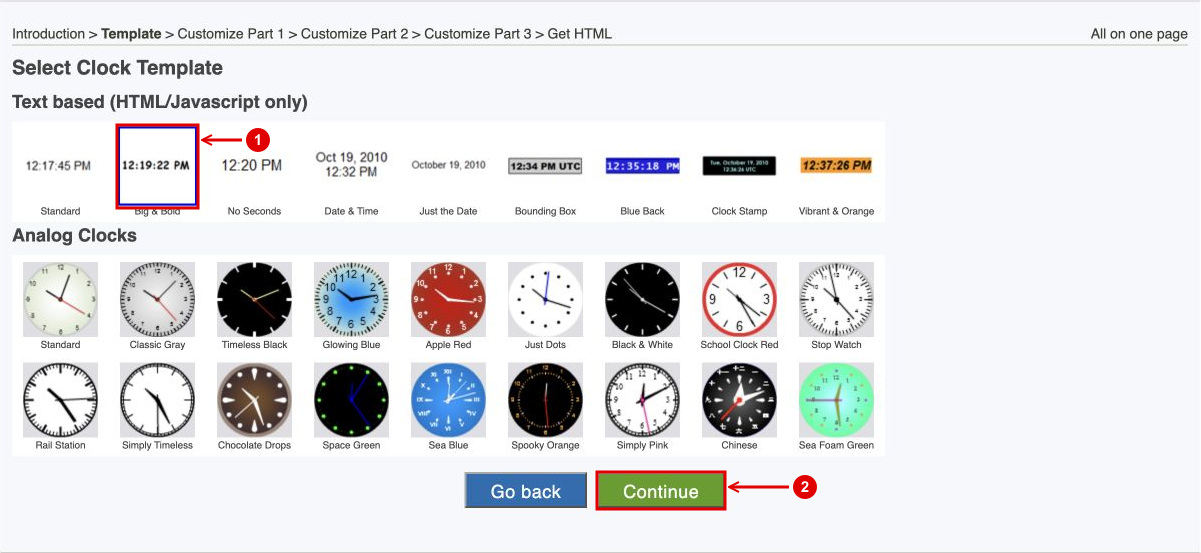
Choose a clock template (1), then Continue (2). Select the screenshot to enlarge it.
- Choose the location whose time you want to display, such as UTC / GMT. Set Display date to Only time, Hour to 24-hour, and Seconds to Display seconds. Choose Continue.
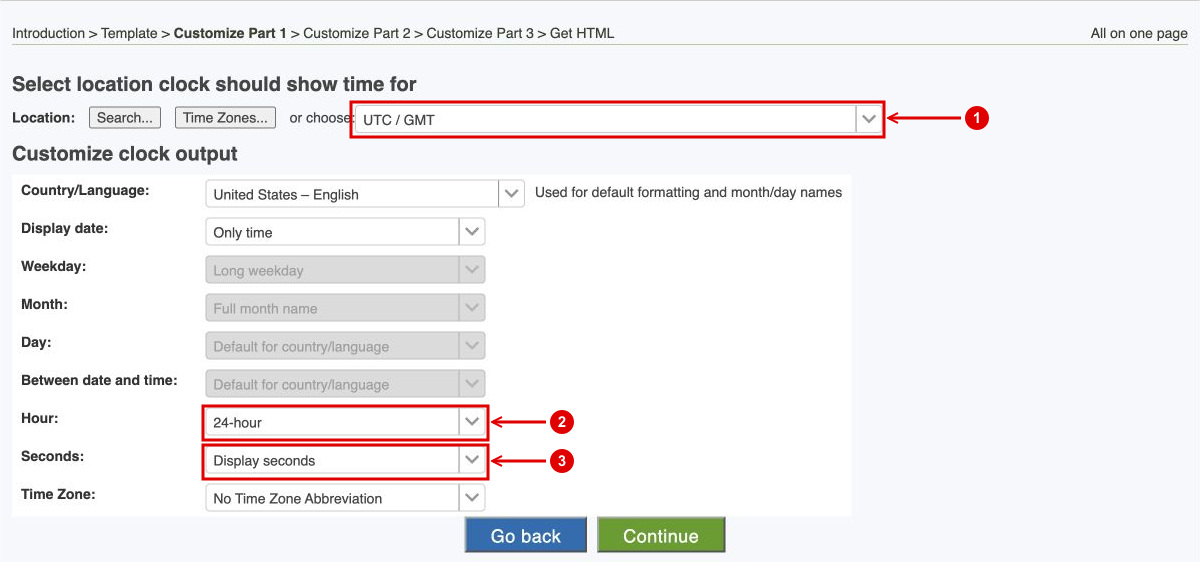
Location (1), hour format (2), and seconds (3) configure the clock output. Select the screenshot to enlarge it.
- Choose Continue on the remaining style screens to reach Get HTML.
-
Select Secure web page (https/SSL server, recommended). Copy only the
URL inside the generated iframe's
srcattribute, beginning withhttps://.
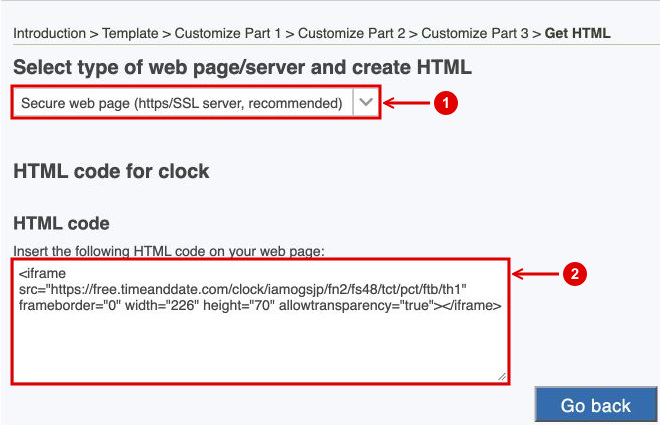
Choose HTTPS output (1), then copy the src URL from the HTML code (2). Select the screenshot to enlarge it.
Load the clock on your slide
- In PowerPoint for the web, select the slide and open Home > Add-ins.

- Search for Web Viewer 2.0. Under More search results, choose Add beside the matching result.
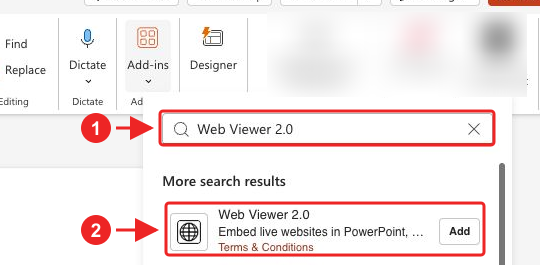
Complete any installation prompts. The viewer appears on the selected slide. For other PowerPoint versions or organization-managed setup, see the full installation guide.
- Click www at the top left, paste the clock URL into URL, and choose Load. Paste the URL, not the full iframe HTML.
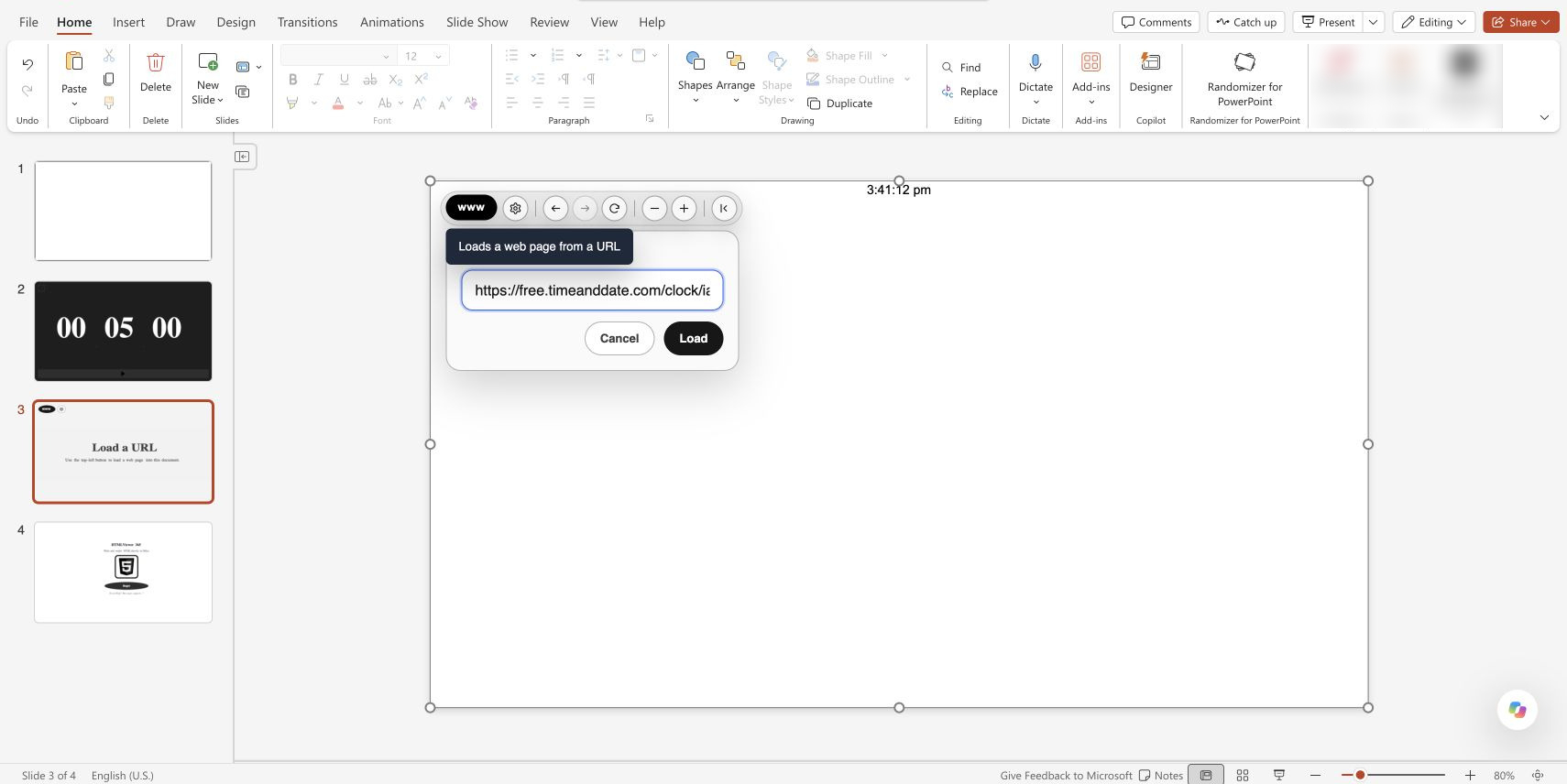
Enter the clock URL in Web Viewer 2.0; the UTC starting URL is shown. Select the screenshot to enlarge it.
- Resize the viewer and adjust its zoom so the clock is readable.
- Enter Slide Show and confirm the time is correct and seconds keep changing.

The UTC website clock running in PowerPoint Slide Show. Select the screenshot to enlarge it.
The hosted clock needs internet access. Use the clock's embed URL because ordinary pages can block embedding. Web Viewer 2.0 has a free trial followed by a subscription. Its embedding guide explains the toolbar controls.
Option B: Insert a digital live clock with HTML Viewer 365
- In PowerPoint for the web, select the slide and open Home > Add-ins.
- Search for HTML Viewer 365. Select its tile if already installed, as shown below. For a first installation, choose Add beside the matching result.
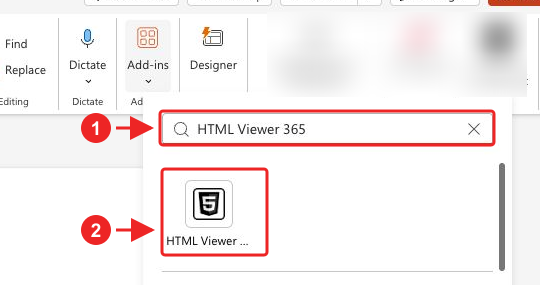
Complete any installation prompts. The viewer appears on the selected slide. For other PowerPoint versions or organization-managed setup, see the full installation guide.
- If only a chevron appears at the top left, choose Show toolbar.
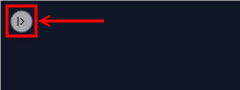
The chevron reveals the toolbar in HTML Viewer 365 when its controls are hidden. Select the screenshot to enlarge it.
- Choose the top-left Edit HTML button.
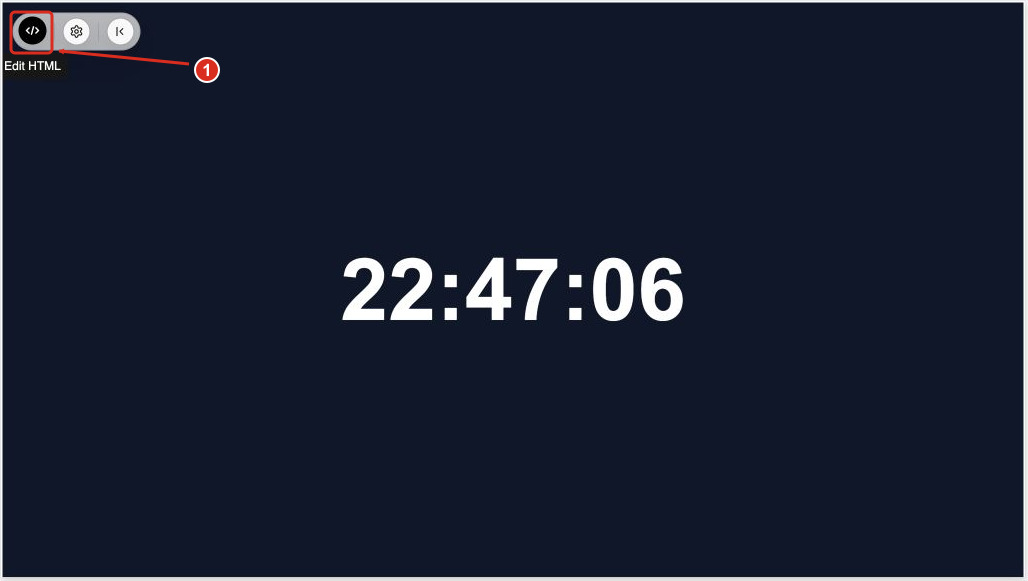
Edit HTML opens the source editor; an existing clock is shown. Select the screenshot to enlarge it.
- Copy the full HTML sample below and paste it into the editor.
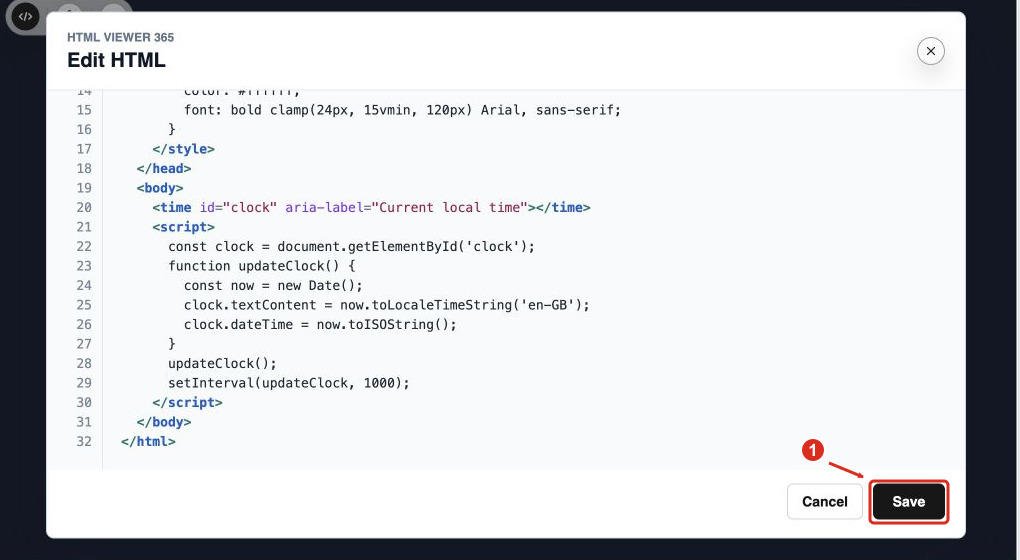
The clock source in the editor, ready to save. Select the screenshot to enlarge it.
- Choose Save, then resize the on-slide add-in.
- Enter Slide Show and check that the seconds change on your presentation device.
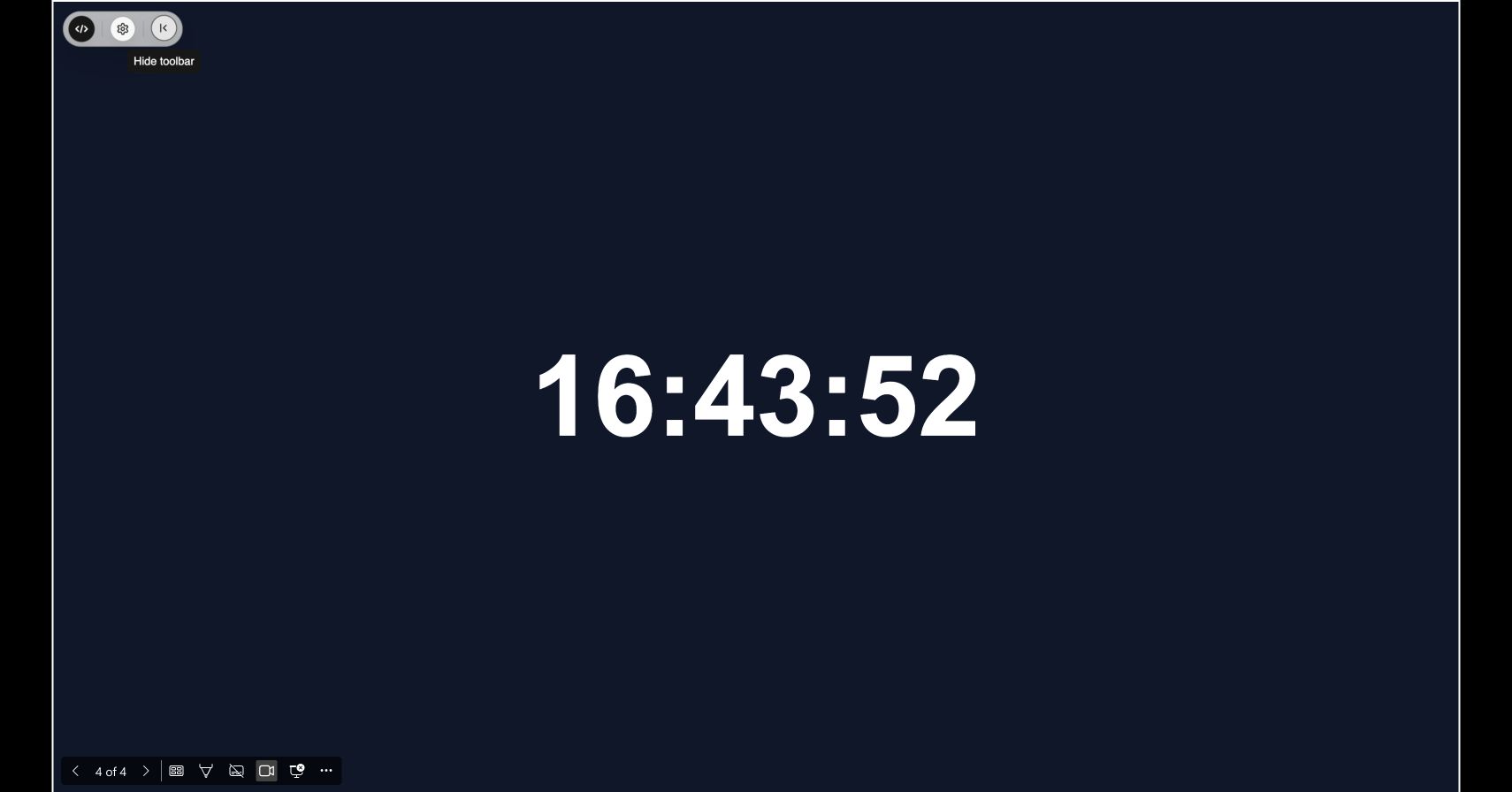
The local-time clock running in PowerPoint Slide Show. Select the screenshot to enlarge it.
HTML Viewer 365 saves the clock source with your presentation. It has a free trial followed by a subscription.
Copy this current-time clock
Copy the entire sample, including its HTML tags. The clock uses your device's time zone, shows a 24-hour time, and refreshes once per second. It needs no external scripts or images.
<!doctype html>
<html lang="en">
  <head>
    <meta charset="utf-8" />
    <meta name="viewport" content="width=device-width, initial-scale=1" />
    <title>Current time</title>
    <style>
      body {
        margin: 0;
        min-height: 100vh;
        display: grid;
        place-items: center;
        background: #0f172a;
        color: #ffffff;
        font: bold clamp(24px, 15vmin, 120px) Arial, sans-serif;
      }
    </style>
  </head>
  <body>
    <time id="clock" aria-label="Current local time"></time>
    <script>
      const clock = document.getElementById('clock');
      function updateClock() {
        const now = new Date();
        clock.textContent = now.toLocaleTimeString('en-GB');
        clock.dateTime = now.toISOString();
      }
      updateClock();
      setInterval(updateClock, 1000);
    </script>
  </body>
</html>
To use a 12-hour display with AM or PM, change 'en-GB' to
'en-US'. This changes the format while keeping your device's time zone. The
JavaScript time-formatting reference
explains other options. For layout help, see
the HTML layout guide.
Place the clock add-in on each slide that needs the display. Images and PDF exports show only the captured time; the add-in must be running to update the clock.
Option C: Add a date or time label with PowerPoint's native field
- On Windows, open Insert > Date & Time. On Mac, use Insert > Header & Footer.
- On the Slide tab, select Date and time.
- Choose Update automatically and a format, or choose Fixed and enter the date or time you want to show.
- Choose Apply for one slide or Apply to All.
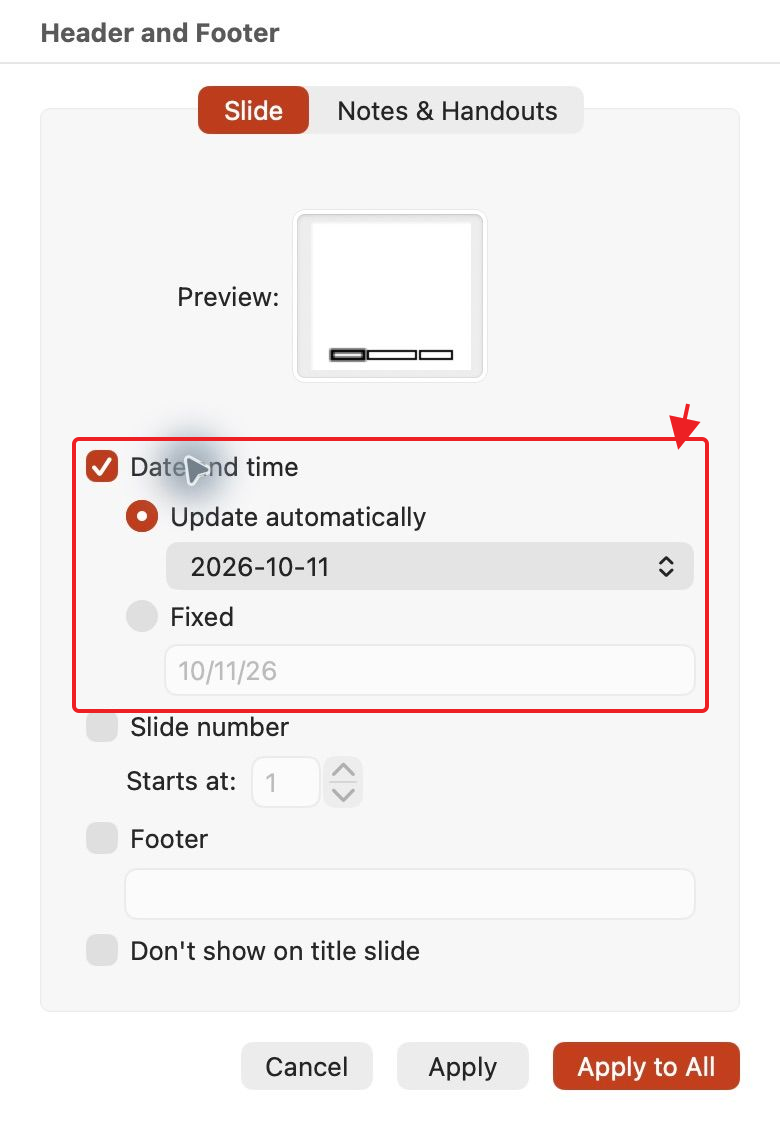
This field updates when you open or print the presentation, as described in Microsoft's date-and-time instructions. Update automatically does not make seconds tick during a talk.
How do I replace a Flash clock in PowerPoint?
Old Flash clock files need a different approach. Adobe ended Flash Player support on December 31, 2020, and blocked Flash content from January 12, 2021. Downloading another Flash clock does not restore that support.
Use the website clock in Option A for a chosen location, or the HTML clock in Option B for your device's local time. Both methods show an updating clock without Flash.
Use a countdown or stopwatch for a time limit
Timer for PowerPoint has countdown and stopwatch modes, with no current-time mode. Use a countdown for an activity deadline or a stopwatch to measure a speech.
For help, contact support for clock websites, HTML clocks, or countdowns and stopwatches.