
Summary
This post shows you how to keep a meeting or presentation on track by setting time limits and choosing who sees the timer.
With a timer, you can:
- Give the speaker a private reminder of how much time remains.
- Show a shared countdown for everyone to follow.
- Allocate time to each agenda item, including discussion and questions.
Choose one timer setup for your session:
- Option A: Shared PowerPoint agenda. Add Timer for PowerPoint to a slide and enter the total duration. Under Settings > Sections, label the remaining-time ranges for each agenda item, then start the countdown in Slide Show.
- Option B: Private reminder. Set a countdown in Mac Clock or Windows Clock. Keep the window on the speaker's computer and outside the shared display.
- Option C: Free browser countdown. Enter the duration in Online-Stopwatch's Bar Timer, select Set, and start it when the session begins. This works without a slide deck.
For online attendees, share your chosen timer window in Teams. A timer outside the shared window stays private.
Option A: Show a timed PowerPoint agenda
This example reserves time for each part of a 30-minute meeting:
- 5 minutes: introductions and the decision the meeting needs.
- 15 minutes: presentation, demo, or main discussion.
- 8 minutes: questions and decisions.
- 2 minutes: confirm owners and next steps.
Use a countdown per agenda item or workshop exercise when each needs its own start. Use one total countdown to track the meeting's finish time. For workshop pauses, see break timers.
Configure the agenda countdown
Timer for PowerPoint labels parts of a countdown with named sections. To use the agenda above:
- In PowerPoint for the web, select your agenda slide, then open Home > Add-ins.

Open Home, then Add-ins in PowerPoint for the web.
- Enter Timer for PowerPoint in the search box. Under More search results, select Add beside the matching result.
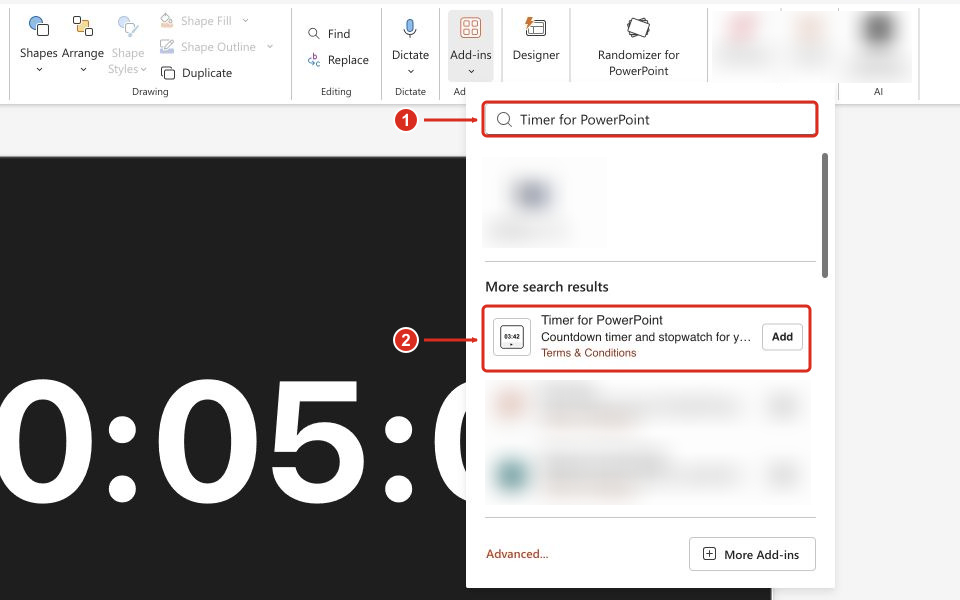
Search for the full add-in name, then select Add beside the matching result.
Complete any installation prompts. The timer appears on the selected slide. For other PowerPoint versions or organization-managed installation, see the full installation guide.
- Set the timer to 00:30:00.
- Open Settings using the gear on the timer.
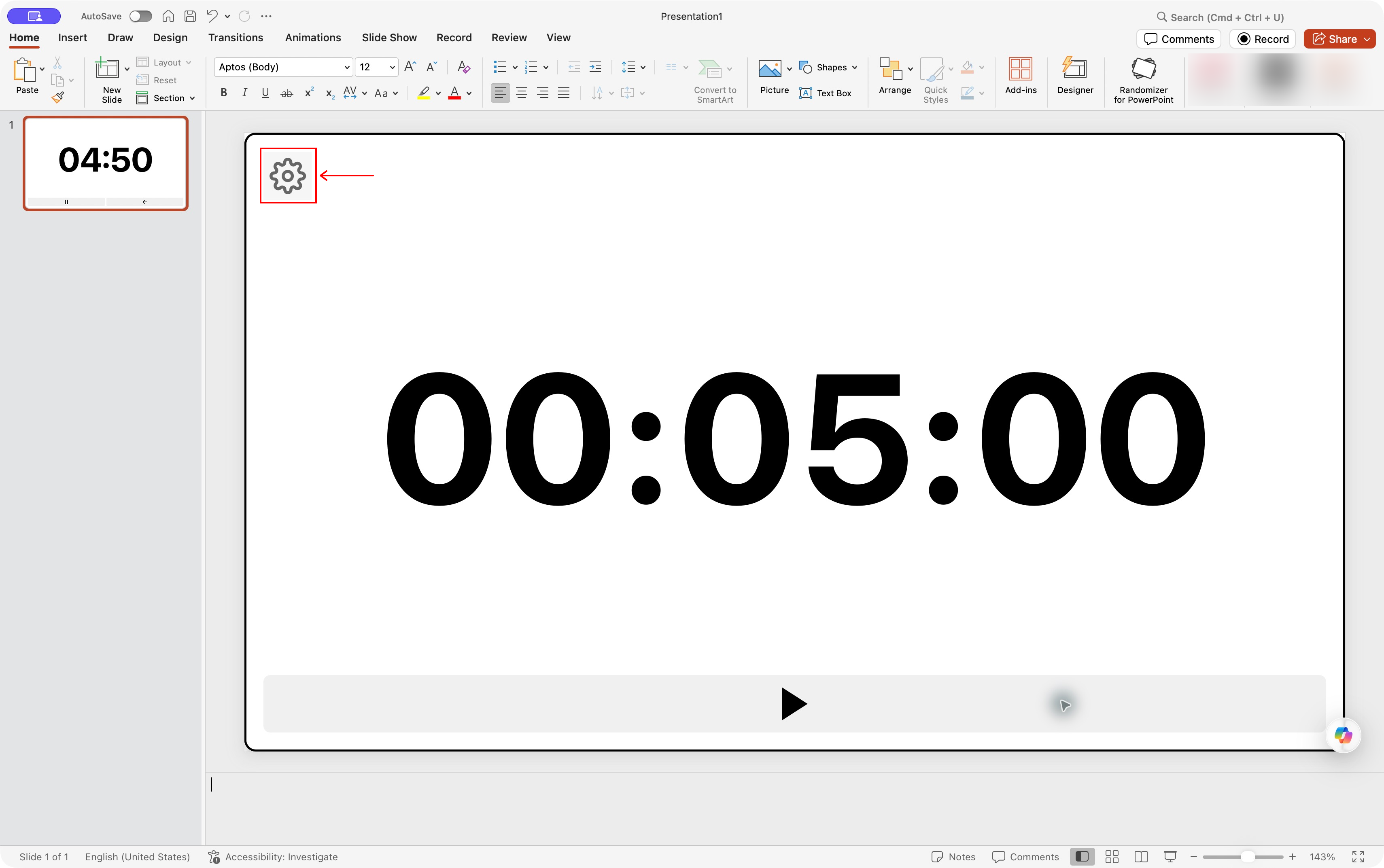
Settings gear location in Timer for PowerPoint on Mac. Select the screenshot to enlarge it.
- Scroll to Sections and choose + Add Section.
- Add the remaining-time ranges Introductions 30:00-25:00, Main discussion 25:00-10:00, Q&A 10:00-02:00, and Next steps 02:00-00:00.
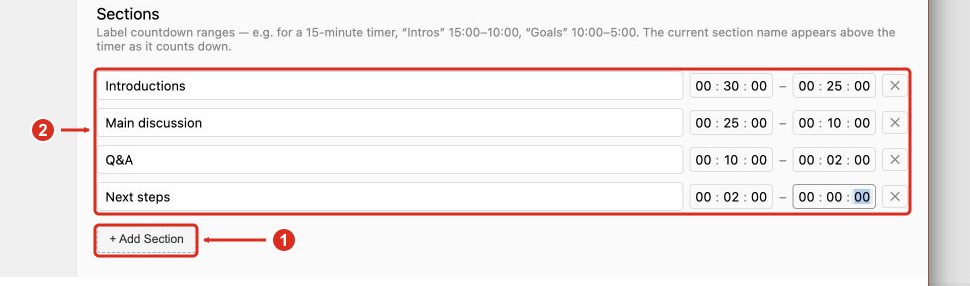
Add Section (1) and the four agenda ranges (2) in PowerPoint for the web. Select the screenshot to enlarge it.
- Close Settings, enter Slide Show, and press Start.
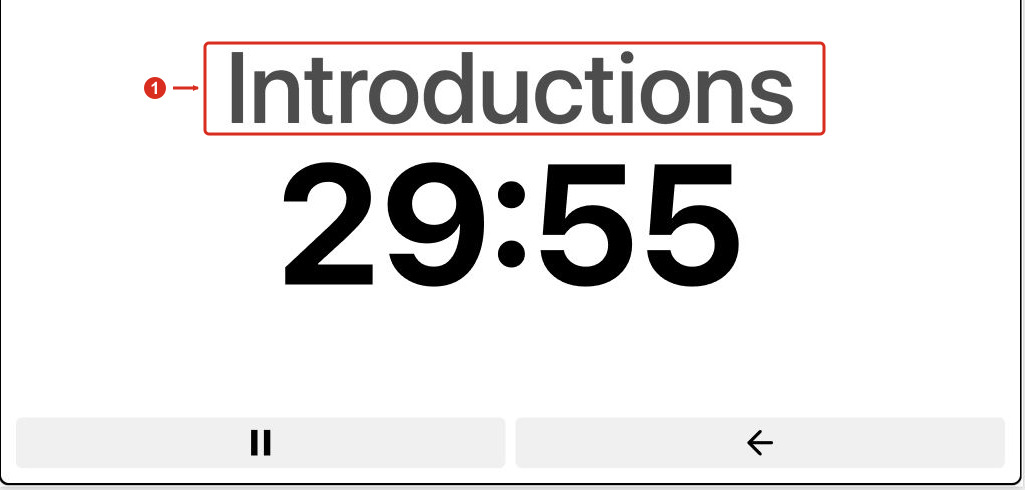
The current agenda section appears above the countdown. Select the screenshot to enlarge it.
Timer for PowerPoint shows the current section name above the countdown. Sections do not advance slides or start another timer. Use presentation sync to link timer instances across slides.
Timer for PowerPoint offers a 24-hour trial followed by a paid subscription. For prepared slide media, use a timer MP4.
Option B: Keep a private speaker reminder
A five-minute reminder suits a short update or speech. Keep Clock on your own screen while the audience sees your slides.
Mac Clock
- Open Clock > Timers. Select + to add another timer.
- Enter 0 hours, 5 minutes, 0 seconds for a short reminder. Name it "Reminder" and choose an alert sound.
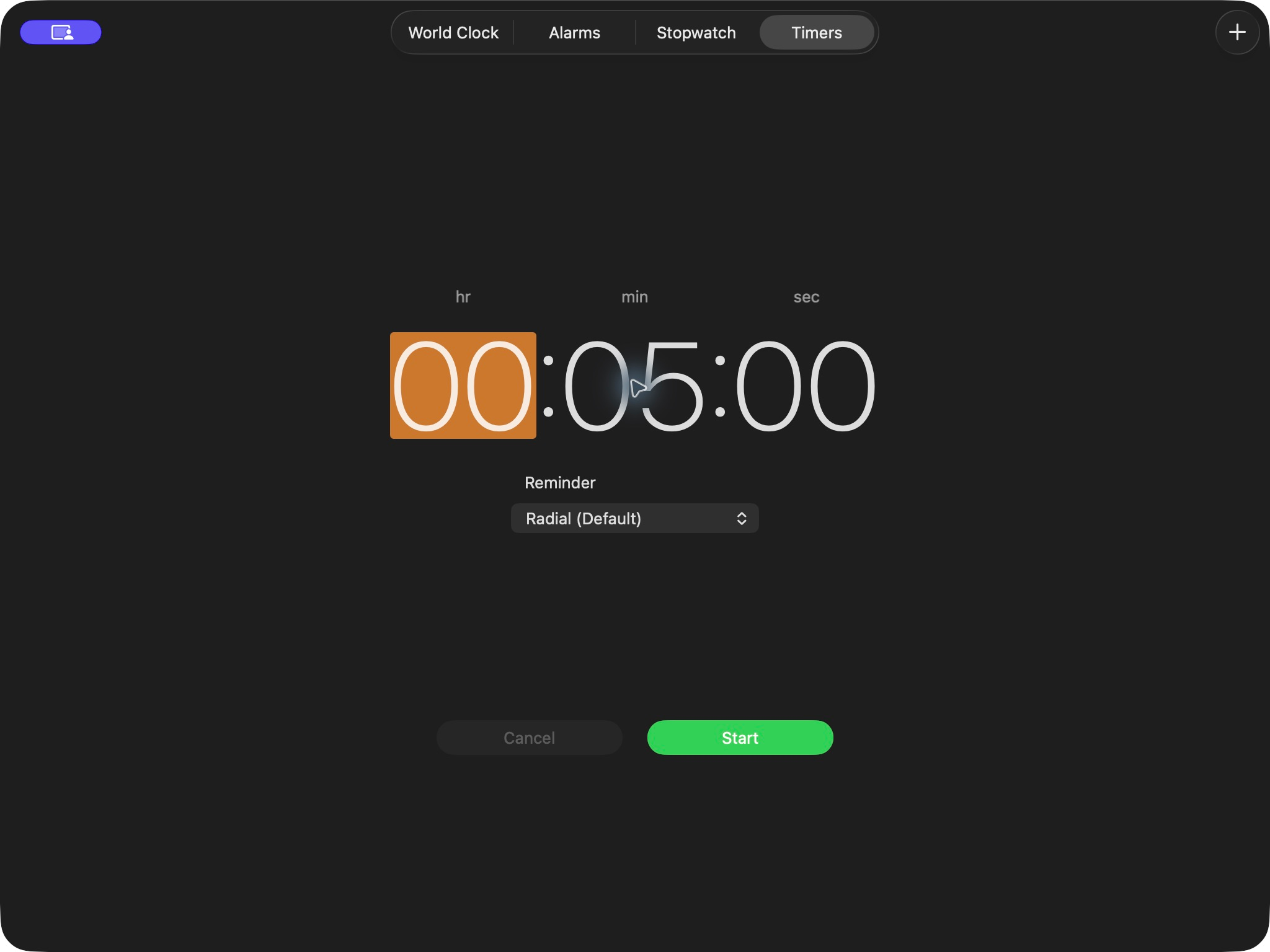
A five-minute Reminder before Start. Select the screenshot to enlarge it.
- Select Start when the timed activity begins.
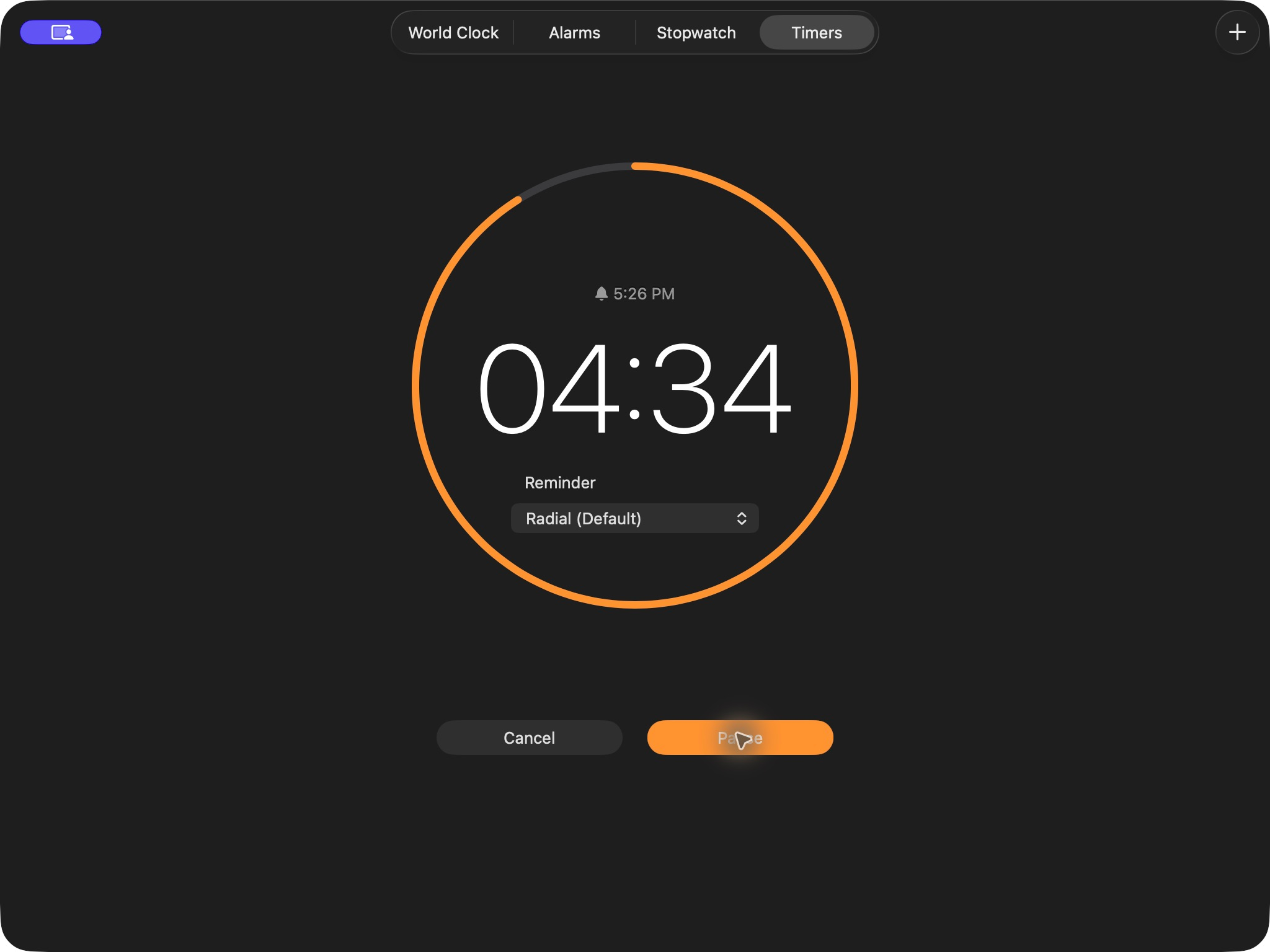
The Reminder timer after Start. Select the screenshot to enlarge it.
Use Pause and Resume for interruptions, or stop the alert when time expires.
The countdown continues while you use another app. See Apple's timer instructions for timer controls.
Windows Clock
- Open Clock > Timer and select +.
- Enter the hours, minutes, and seconds, then name and save the timer.
- Start the timer using its play button. Keep Clock outside the shared window for a private reminder.
Microsoft's Clock guide explains notification and sleep settings that affect the alert.
For rehearsal, use the PowerPoint stopwatch guide to measure elapsed time instead of counting down to a deadline.
Option C: Display a free browser countdown
- Open Online-Stopwatch's Bar Timer.
- Choose Go Fullscreen! to enlarge the timer.
- For five minutes, press 5, 0, 0 on the keypad and check 00:05:00. Use Clear first if a duration is already entered.
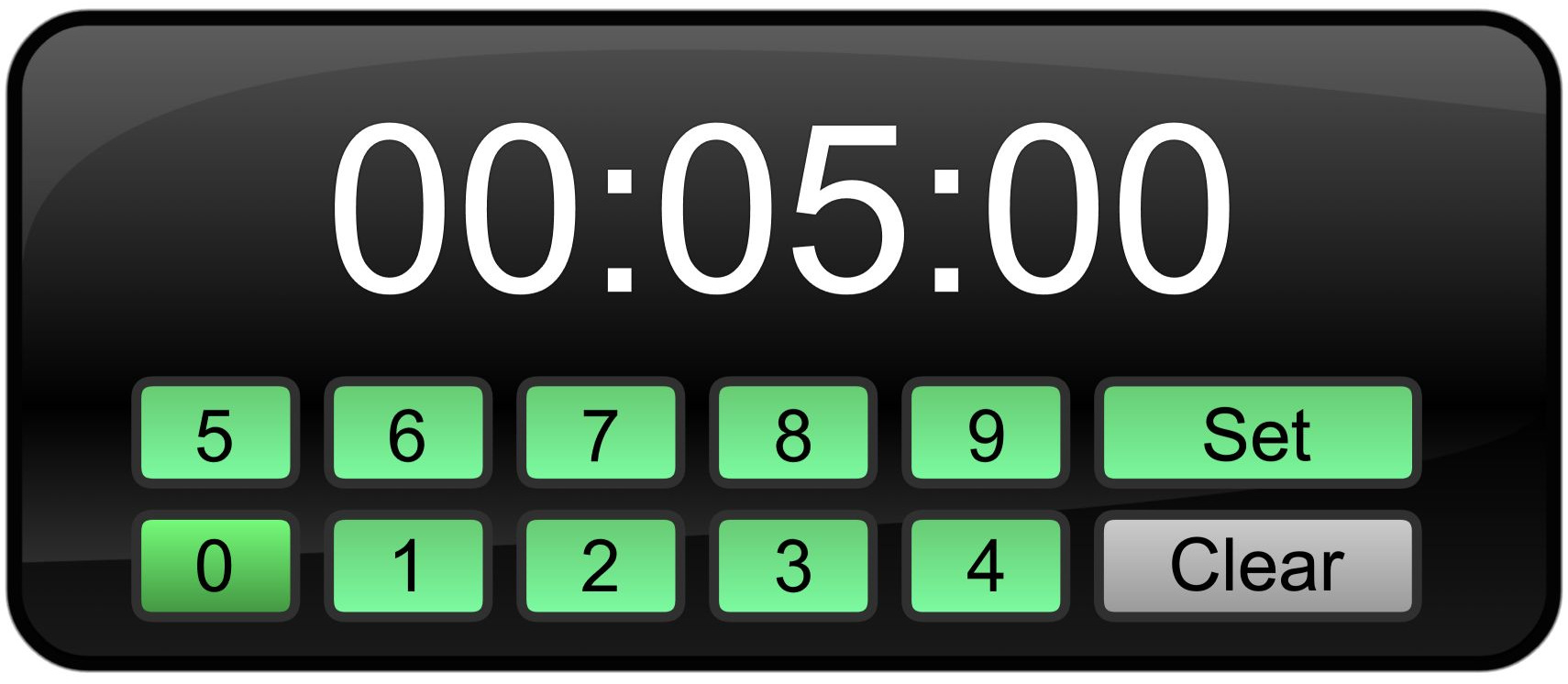
Enter the session duration before choosing Set. Select the screenshot to enlarge it.
- Choose Set.
- Choose Start when the session begins.
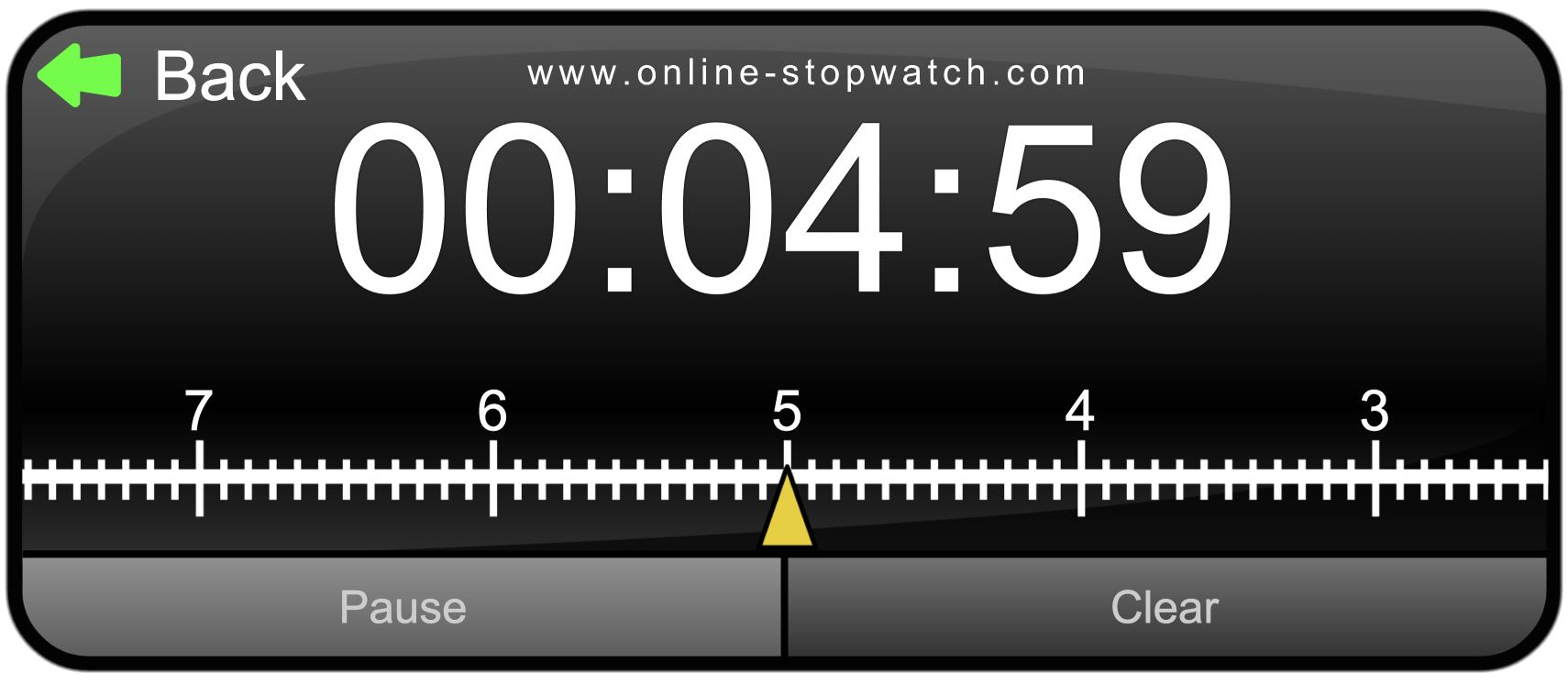
The current Bar Timer shows remaining time on a ruler. Select the screenshot to enlarge it.
Show the browser window on the room display for a shared deadline. For a speaker-facing monitor at a live event, see the stage timer setup.
Share your chosen timer in an online meeting
In Teams for the web:
- Select Share in the meeting toolbar.
- Choose Screen, window, or tab.
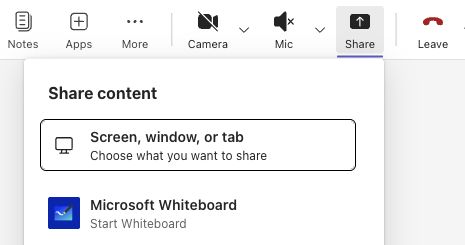
Teams for the web sharing menu. Select the screenshot to enlarge it.
- Choose the window or tab containing the timer and start sharing.
In Teams desktop, select Share and choose the timer window or the screen showing your timer slide. Enable Include sound if attendees need the end alert. Follow Microsoft's screen-sharing instructions and check the attendee view. For Zoom, follow the meeting timer guide.
For workshop pauses, see break timers. For repeated focus periods, see Pomodoro timers.