
Summary
Every file in a OneDrive-synced SharePoint library must stay under
400 characters in SharePoint (sites/...) and
259 characters on Windows
(C:\Users\john\OneDrive - Contoso\...) or you will get cryptic Microsoft
errors.
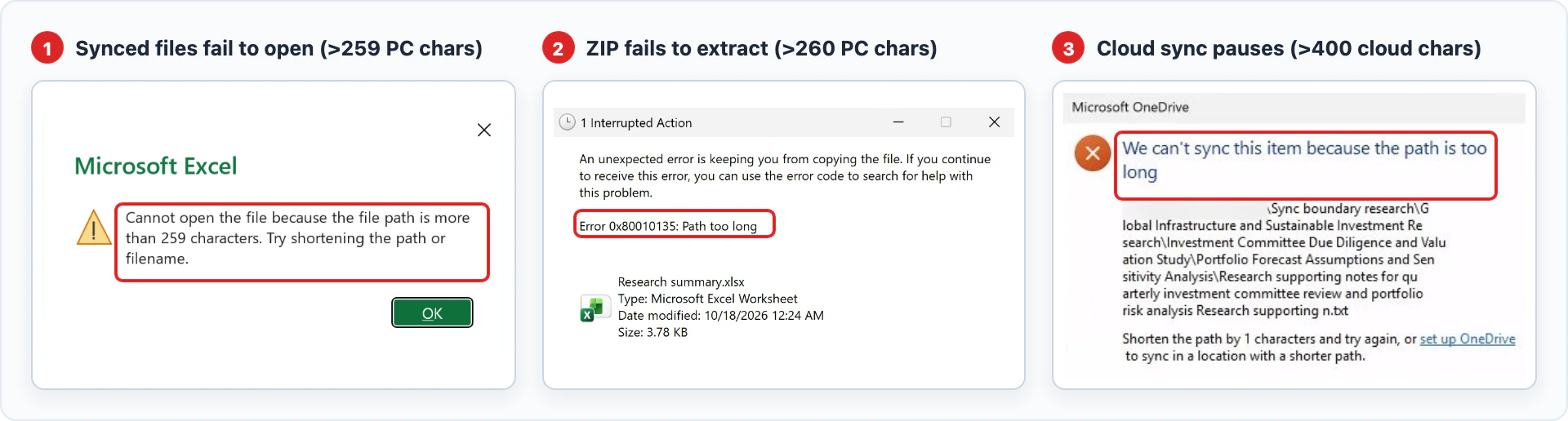
The 259-character PC limit is especially problematic because OneDrive adds your Windows user folder and company name to the start of every synced path and causes the following issues:
- Synced files fail to open on your PC (>259 PC chars): OneDrive marks the file as Backed up and synced, yet Excel, Word, and File Explorer throw errors when you open it from your PC.
-
ZIP files fail to extract in File Explorer (>260 PC chars):
Windows stops mid-way with
Error 0x80010135: Path too longor rejects the entire.zipfile as invalid. - Cloud uploads pause (>400 SharePoint chars): OneDrive stops syncing the file to the cloud and SharePoint blocks browser uploads.
To prevent these errors when extracting archives, use
Zip & Unzip for SharePoint
to
extract .zip files directly in SharePoint. It checks both SharePoint's 400-character limit and your PC's 259-character Windows
limit upfront, then lets you Rename long parent folders or
Skip unneeded files in one step.
One file, two path limits: 400 vs. 259 characters
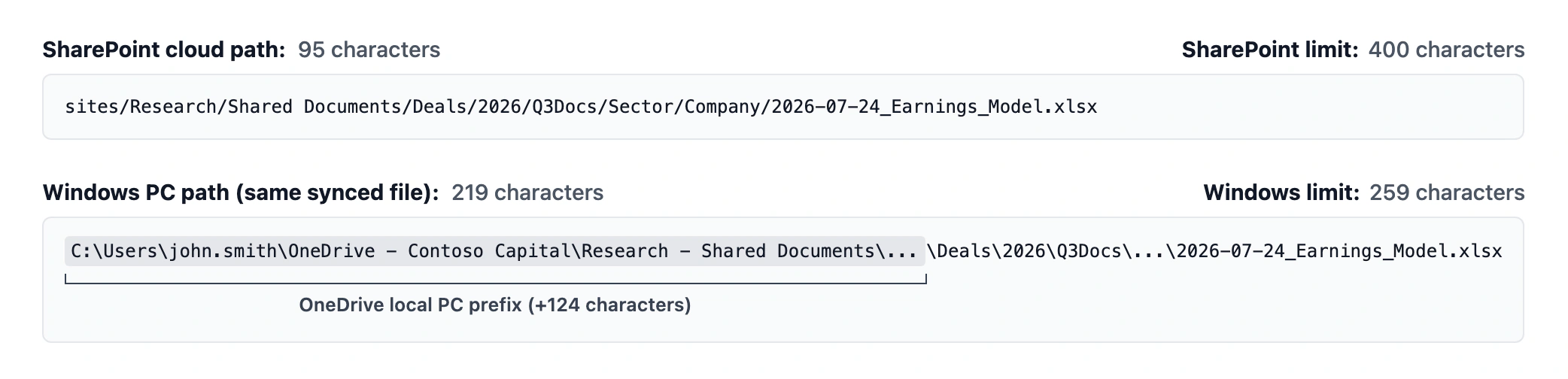
A file's path includes every parent folder, separator, and space, not just the filename at the end. When an analyst named John at Contoso syncs a SharePoint document library to his Windows PC, the exact same spreadsheet measures 95 characters in SharePoint and 219 characters on his PC because OneDrive adds a 124-character local prefix:
Compare how each limit is counted and what breaks when a path exceeds it:
| Limit | Maximum length | How it is counted | What breaks when exceeded |
|---|---|---|---|
| Windows and Desktop Office Limit | ~259 characters |
Full local path on your PC starting at C:\Users\... through the
filename and extension
|
|
| SharePoint Cloud Limit | 400 characters (255 per folder or file name) |
Decoded cloud path starting at sites/... (excluding the domain and
query string)
|
|
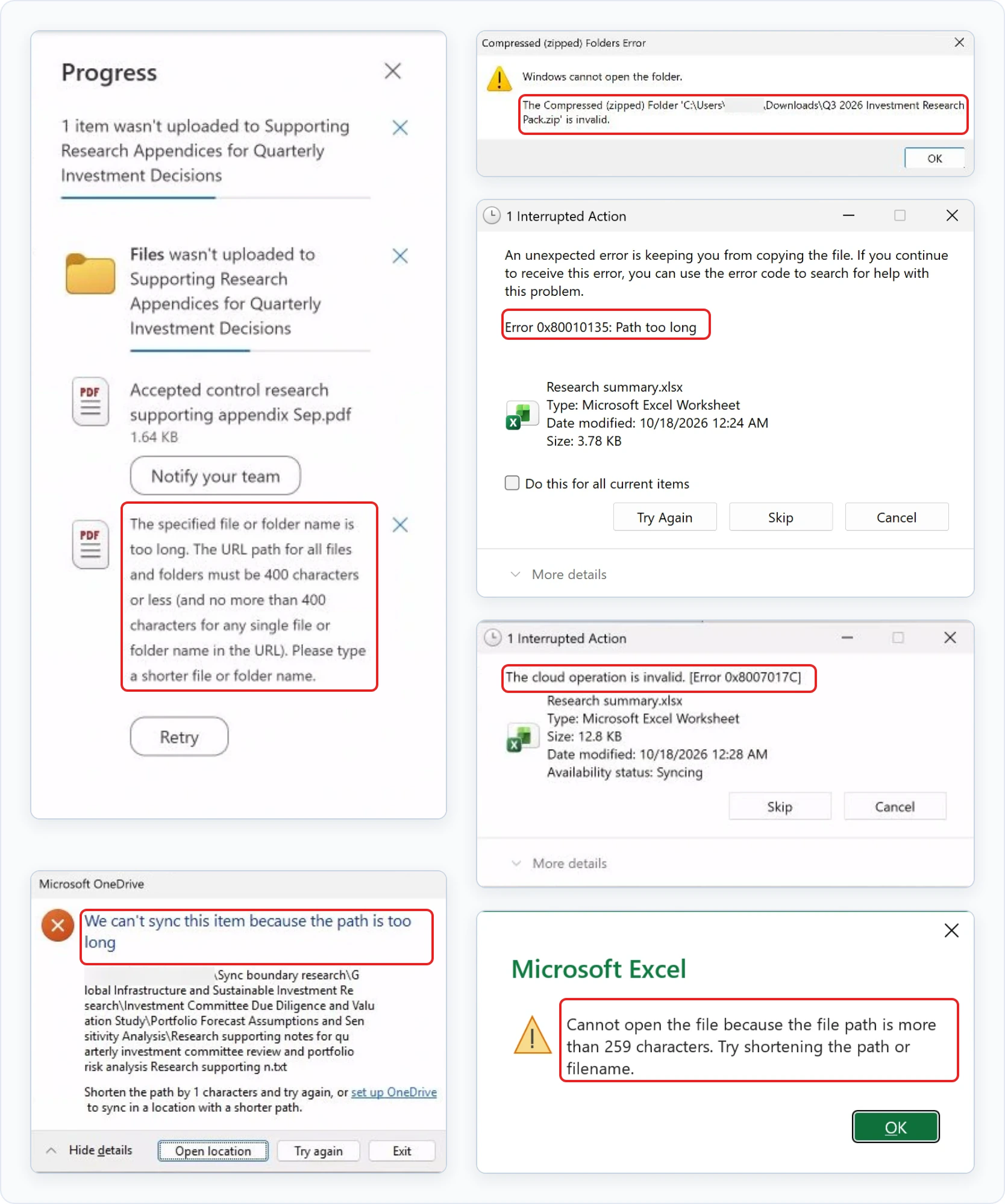
Here are the error messages SharePoint, OneDrive, Windows, and Excel show when a file path crosses those limits:
How to extract long-path ZIPs in SharePoint
Upload the .zip to SharePoint and use
Zip & Unzip for SharePoint
to check and shorten long paths before any files are extracted:
-
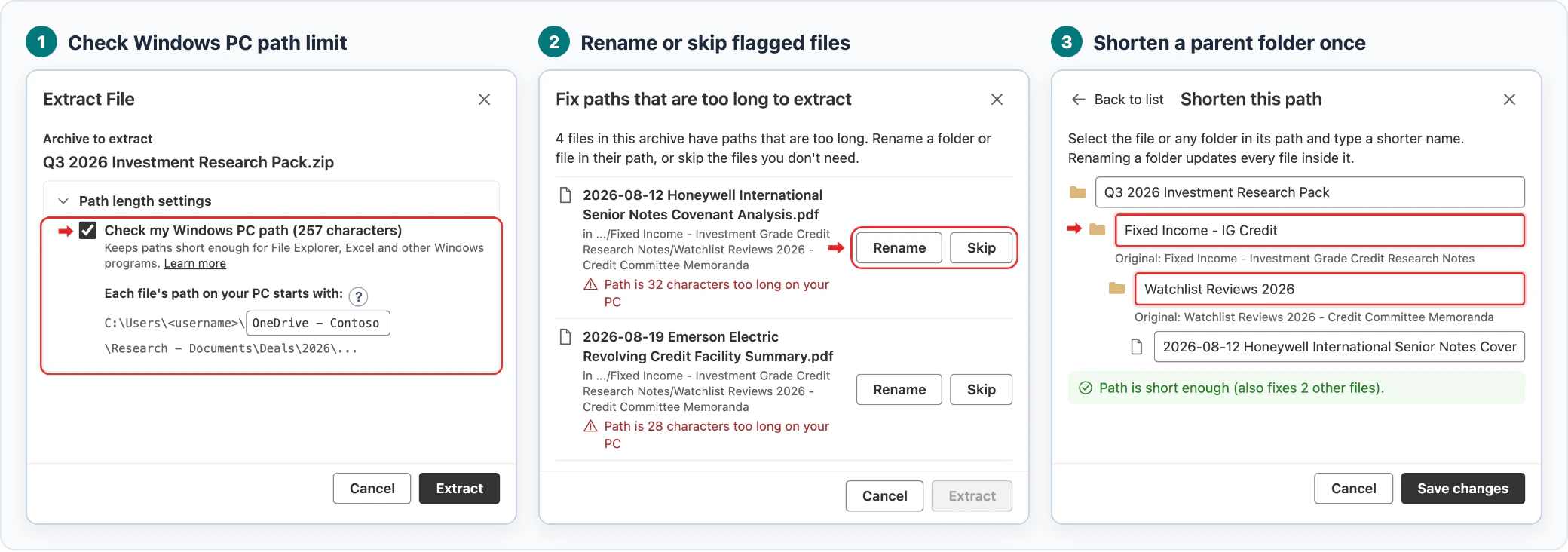
Check SharePoint and Windows PC path limits
- Zip & Unzip always checks SharePoint's 400-character limit automatically.
- Expand Path length settings and check Check my Windows PC path to verify your predicted PC path and OneDrive folder name. Your admin can also enable this setting once for your whole organization.
-
Rename or skip files that are too long
- Zip & Unzip pauses before extracting any over-limit files so you can click Rename to shorten a path or Skip to exclude the file.
-
Shorten a parent folder to fix every file inside it
- Edit any folder or file name in the path chain. Shortening one parent folder fixes every file inside it at once.
Try the interactive demo
The interactive demo below shows how the Zip & Unzip add-in checks and shortens long file paths inside SharePoint. Try it to preview the solution:
Fix a specific path-length error
Choose the guide that matches the error message on your screen: