
Summary
This post shows you how to create a countdown video for PowerPoint by exporting an MP4 from Timer for PowerPoint.
A timer video lets you:
- Prepare a countdown with your chosen duration, theme, labels, and optional end beep.
- Share a presentation that recipients can play without installing a timer add-in.
To create and use the video:
- Set the countdown duration and configure its theme, sections, and sound alerts in Settings.
- Open Export Timer, choose Export Video, and save the MP4 when processing finishes.
- In PowerPoint, insert the MP4 as a video. Keep the video embedded when sharing the deck.
- Check playback in Slide Show. In desktop PowerPoint, choose Playback > Start > Automatically to begin when the slide appears.
Each video plays independently on its slide. Change the setup and export again for a different duration or appearance. For elapsed time, choose Stopwatch mode and export a 15-, 30-, or 60-minute video.
Set the countdown duration and appearance
For a ready-made slide with a silent five-minute video already embedded, download the PowerPoint timer template. Follow the steps below to create a video with your own duration and appearance.
- Open the presentation for editing in PowerPoint for the web. Select the slide that needs the timer, then open Home > Add-ins.

- Enter Timer for PowerPoint in the search box. Under More search results, select Add beside the matching result.
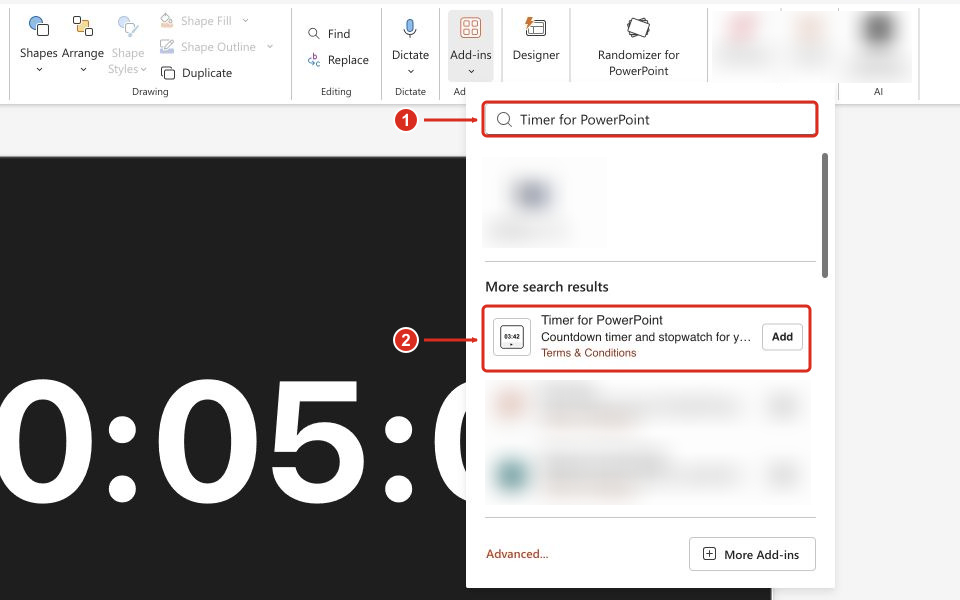
Complete any installation prompts. The timer appears on the selected slide. For other PowerPoint versions or organization-managed installation, see the full Office add-in installation guide.
- Set the hours, minutes, and seconds. For a five-minute timer, use 00:05:00; for ten minutes, use 00:10:00.
- Open Settings using the gear on the timer.
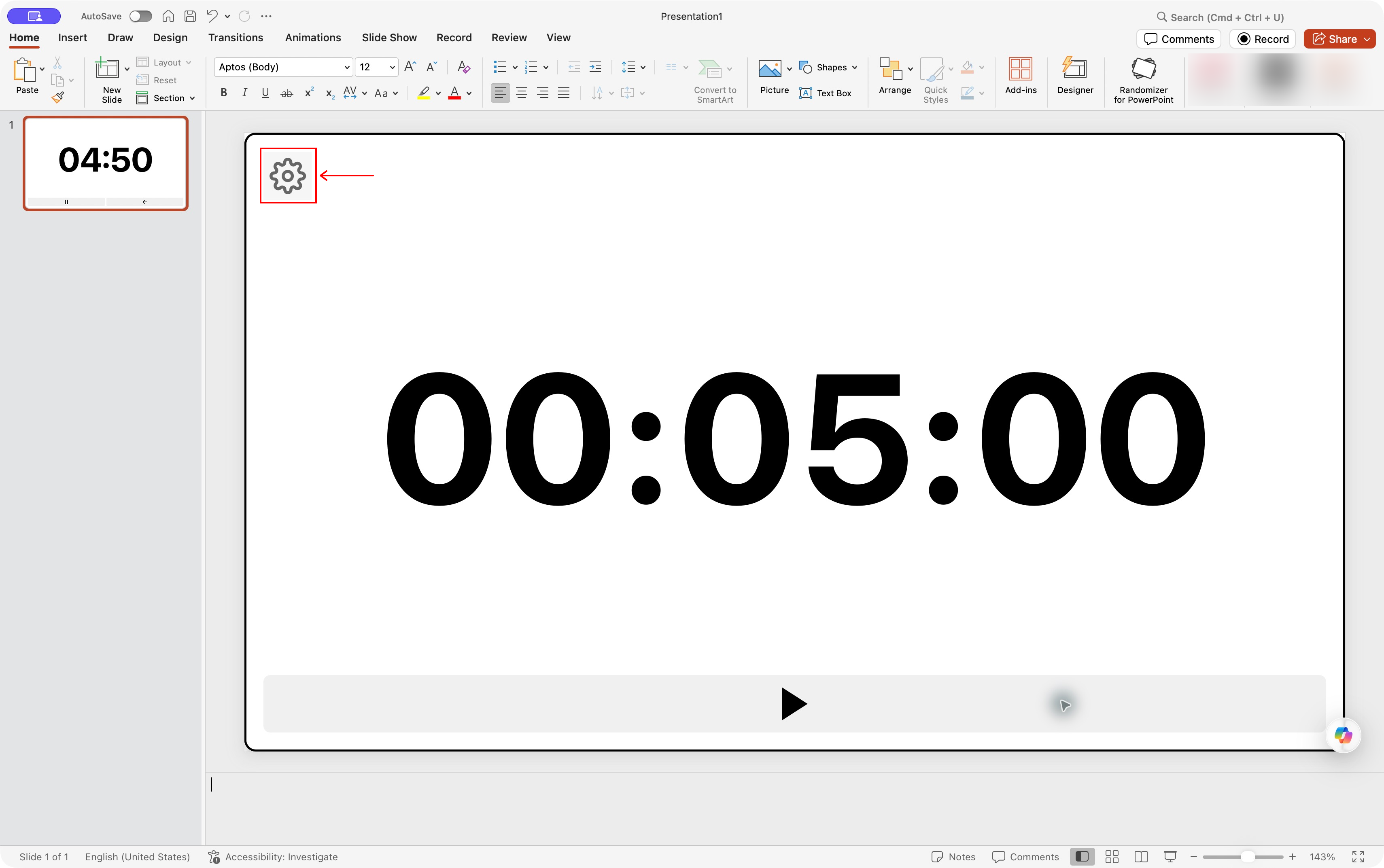
The gear opens Timer for PowerPoint settings in PowerPoint for Mac. Select the screenshot to enlarge it.
- Choose Theme in the sidebar and select a color, such as Dark.
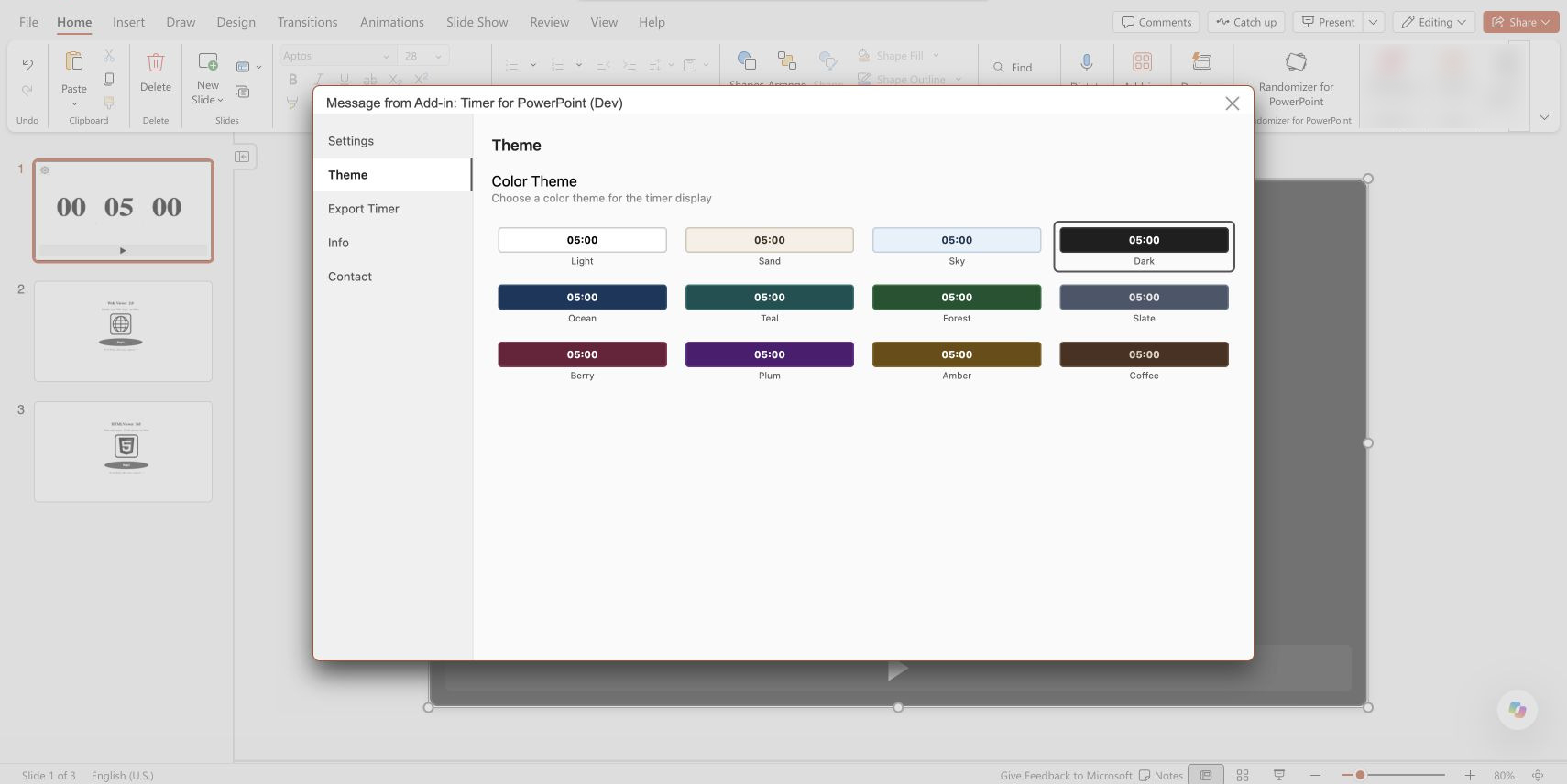
Timer for PowerPoint theme settings in PowerPoint for the web. Select the screenshot to enlarge it.
- Return to Settings in the sidebar. Under Alert, check Sound Enabled for an end-of-countdown beep, or clear it for a silent video.
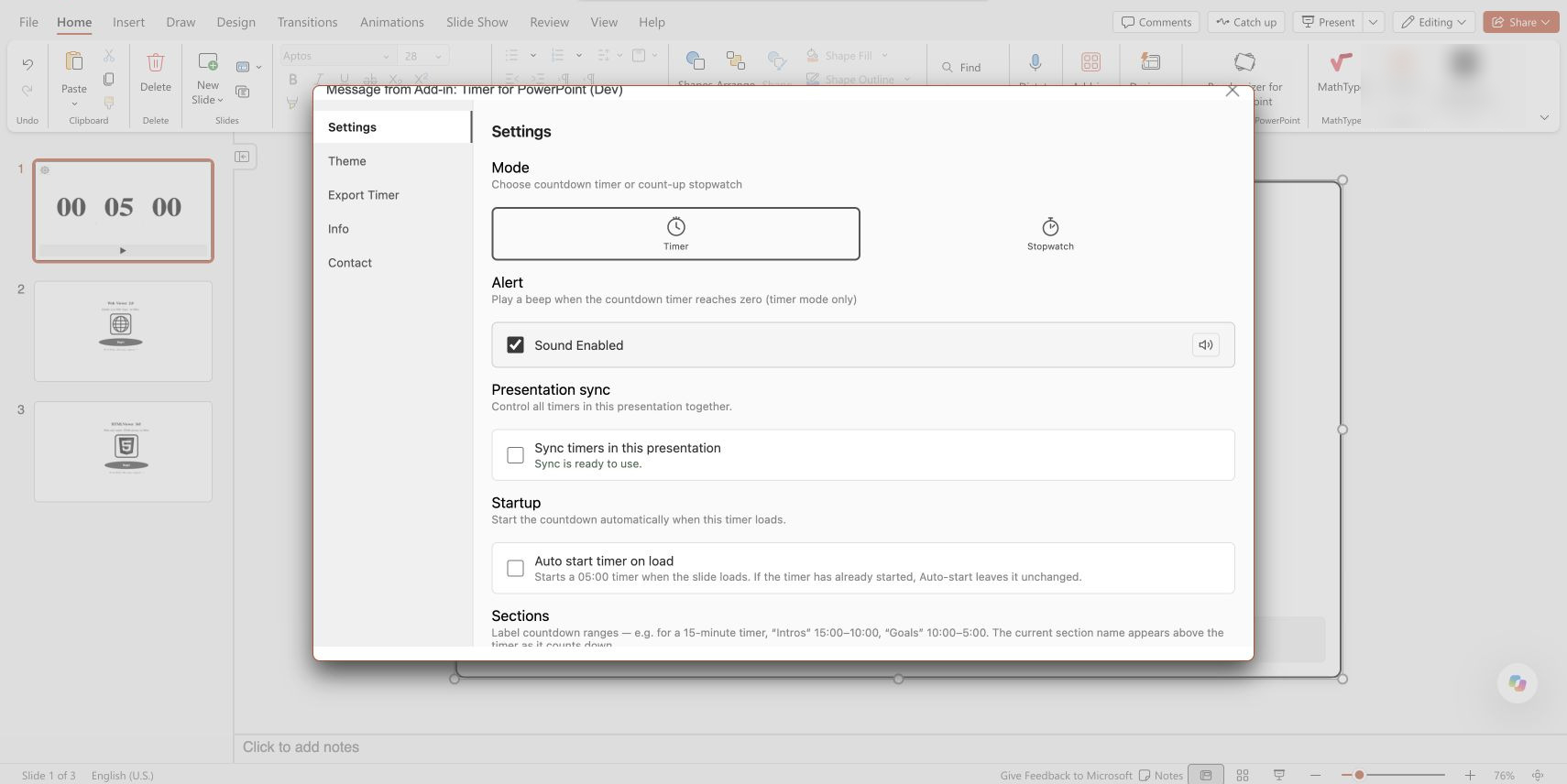
The end alert is enabled in this PowerPoint for the web example. Select the screenshot to enlarge it.
- For a label in the exported countdown, scroll to Sections and choose + Add Section. For a five-minute discussion, name the section Discuss and set its remaining-time range to 05:00-00:00.
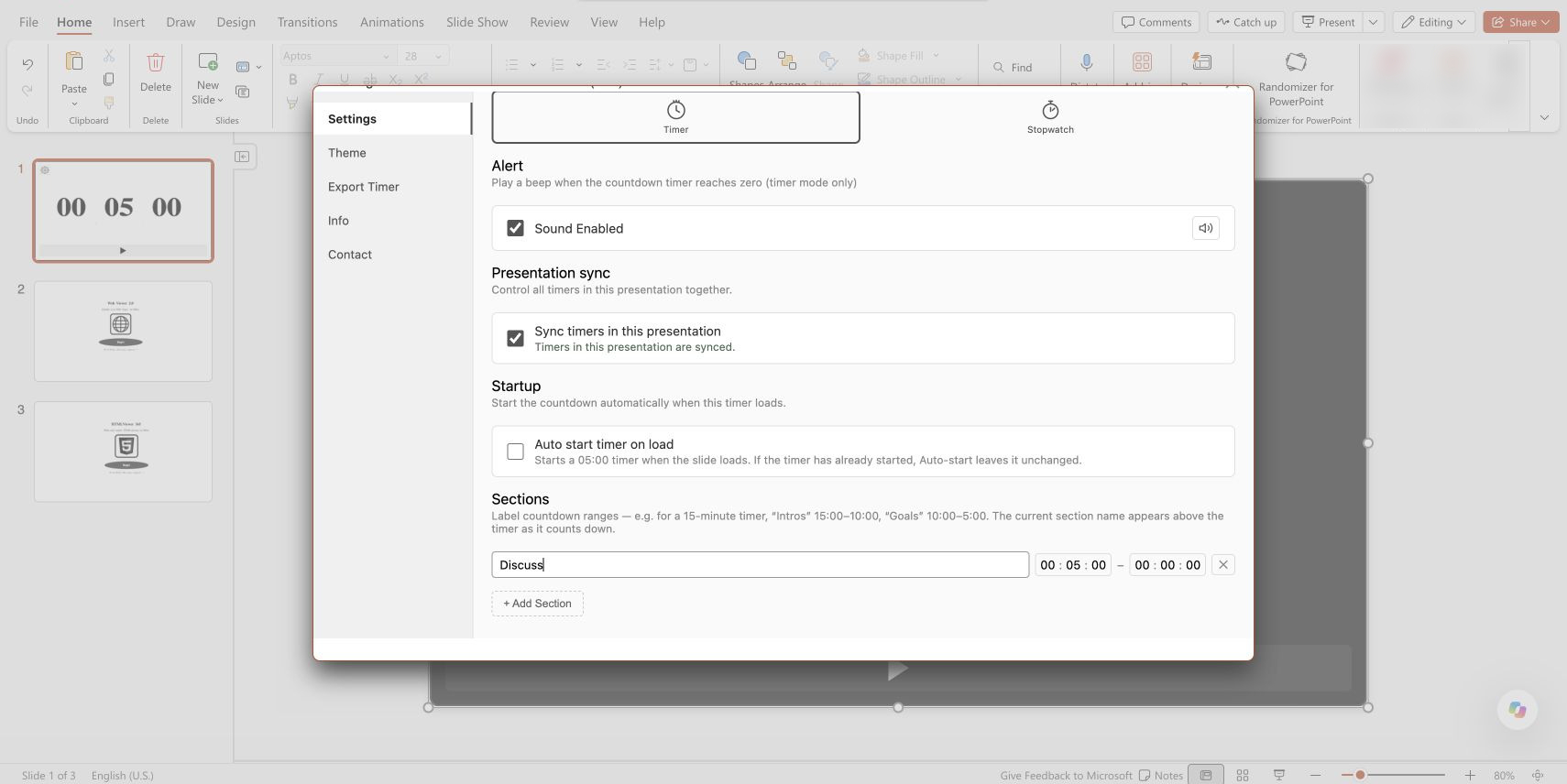
A five-minute Discuss section in PowerPoint for the web. Select the screenshot to enlarge it.
Export creates the full countdown with your configured duration, theme, sections, and sound. The video contains only the timer and begins at the configured duration.
Export and save the MP4
Timer for PowerPoint offers a 24-hour free trial followed by a subscription. Trial exports have a FREE TRIAL watermark.
- In the Settings window, select Export Timer in the sidebar.
- Choose Export Video and wait for processing to finish.
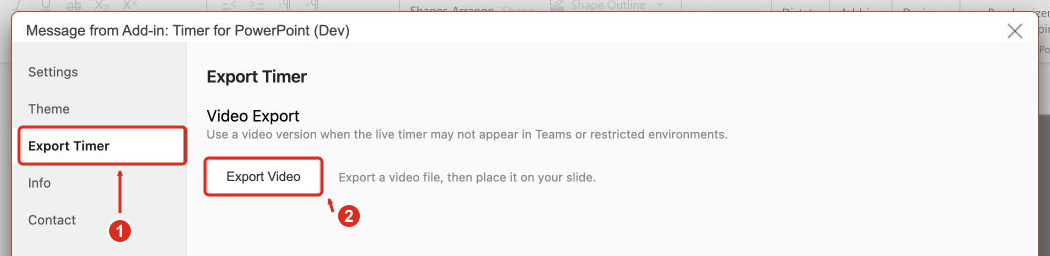
Open Export Timer (1), then choose Export Video (2). Select the screenshot to enlarge it.
- Choose a save location when prompted, or find the file in your downloads.
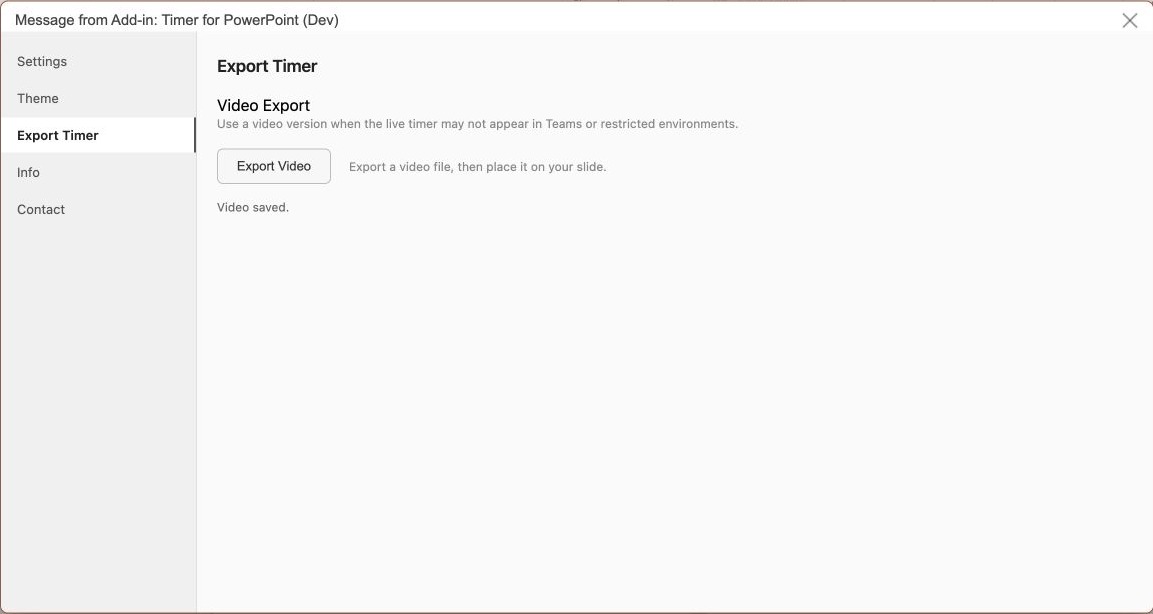
- Open the saved MP4 and check the countdown, labels, and sound before inserting it.
Keep the export window open while it processes. Use Cancel to stop the export.
Insert the timer video in PowerPoint
On Windows, select Insert > Video > This Device, choose the MP4, and resize the video frame. Microsoft provides video insertion instructions for each platform.
Insert and start the video on Mac
- On the Insert tab, open Video.

PowerPoint for Mac: Insert (1), then Video (2). Select the screenshot to enlarge it.
- Choose Movie from File....
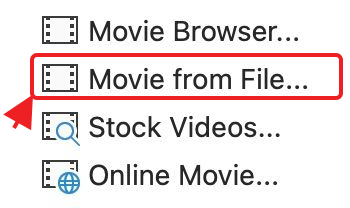
Movie from File inserts the downloaded MP4. Select the screenshot to enlarge it.
- Choose the MP4, insert it, and resize the video frame.
- Select the video and open Playback. Set Start to Automatically if the countdown should begin when the slide appears. Otherwise, keep a click-to-start option.
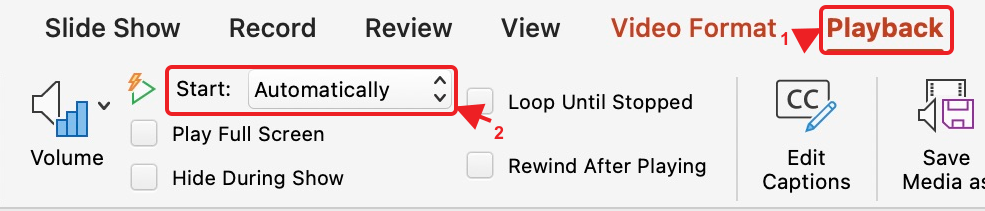
Playback (1) and the Start setting (2) in PowerPoint for Mac. Select the screenshot to enlarge it.
- Enter Slide Show and check playback.
Insert the video in PowerPoint for the web
- On the Insert tab, choose Video > This Device.
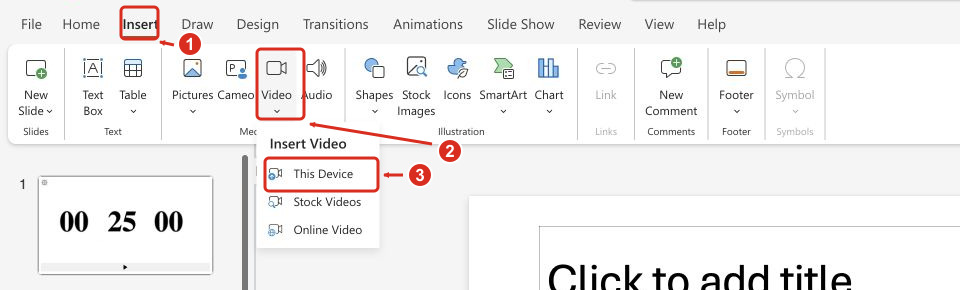
PowerPoint for the web: Insert (1), Video (2), then This Device (3). Select the screenshot to enlarge it.
- Choose the MP4, insert it, and resize the video frame.
- Enter Slide Show and start the video.
Keep the video embedded when sharing the deck so recipients can play it without a timer add-in or a separate video file. For a workshop, place the countdown beside an instruction such as Return when the timer reaches zero; see break timer setups.
Export a stopwatch video instead
Start with the add-in setup above, then use these settings for an elapsed-time video:
- In Settings, change Mode to Stopwatch.
- Open Export Timer.
- Choose 15 min, 30 min, or 60 min under Stopwatch video length.
- Choose Export Video, then wait and save the MP4 as above.
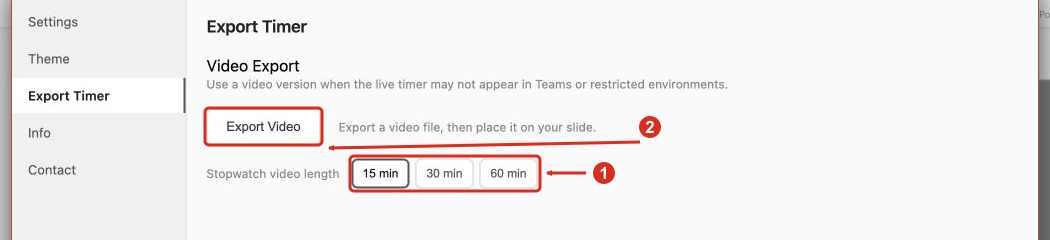
Choose a stopwatch video length (1), then Export Video (2). Select the screenshot to enlarge it.
The video counts up from zero for that fixed length. Follow the stopwatch guide for interactive elapsed-time controls.
What changes when the timer becomes a video?
PowerPoint controls MP4 playback. Each video runs independently, including copies on other slides. To change its duration, theme, or labels, configure Timer for PowerPoint and export again. For one shared clock, use live timers with presentation sync.
If online attendees miss the video or alert, check the meeting's sharing controls; see how to share timer sound. For export errors, contact support with your PowerPoint version and operating system.