
Summary
This guide shows how to build an interactive dashboard with Claude and present it live on a PowerPoint slide so its filter buttons and chart hover details keep working instead of turning into a static screenshot.
Because PowerPoint slides cannot run an interactive dashboard on their own, you first ask Claude to write the dashboard as a single HTML file, then add a PowerPoint add-in to your slide to display it. Choose either approach:
| Option | How it works | Hosting and internet | Best when |
|---|---|---|---|
|
Option A: Paste the code on the slide with HTML Viewer 365 |
Add the HTML Viewer 365 add-in to your slide, paste Claude's HTML code into it, and select Save. | Saved inside the presentation file. Needs no hosting. | You want the quickest setup with nothing to host. |
|
Option B: Host the file at a web link with Web Viewer 2.0 |
Drop Claude's HTML file onto Netlify Drop to get a free public web link, then load that link in the Web Viewer 2.0 add-in on your slide. | Hosted at a public web link. Needs internet access when viewing or presenting the slide. | You also want a link anyone can open in a browser, or want to update the hosted dashboard without editing the slide. |
Ask Claude for a single-file dashboard
Ask Claude to generate one self-contained HTML file with your data, styling, and interactive controls built in. The screenshots below use a 30-day Claude API usage dashboard with model filter buttons (All, Opus, Sonnet, and Haiku), summary cards, a daily spend chart, a spend-by-model chart, and a model table:
-
Send a single-file dashboard prompt in
Claude
- Replace the bracketed placeholders below with your own topic and data:
Build an interactive dashboard about [your topic] using this data: [paste or describe your data]. Requirements: - One self-contained HTML file with the data, CSS, and JavaScript inside it. - No external libraries, fonts, images, or network requests. - A 4:3 layout that fills the page, with text readable at 1024 by 768 pixels. - Buttons that filter the charts, and a hover readout on each chart. Give me the complete file. - Preview and copy the complete HTML file
Option A: Show the dashboard with HTML Viewer 365
HTML Viewer 365 is a PowerPoint add-in that runs HTML code directly on a slide and saves it inside your presentation.
Insert HTML Viewer 365
-
Open PowerPoint's Add-ins menu
- Select the slide where you want the dashboard, then select Home (1) > Add-ins (2) in the top ribbon.

-
Search for and add HTML Viewer 365
- Enter HTML Viewer 365 in the search box (1).
- Select Add beside HTML Viewer 365 to place the add-in on your slide, or select its tile above More search results if it is already installed (2).
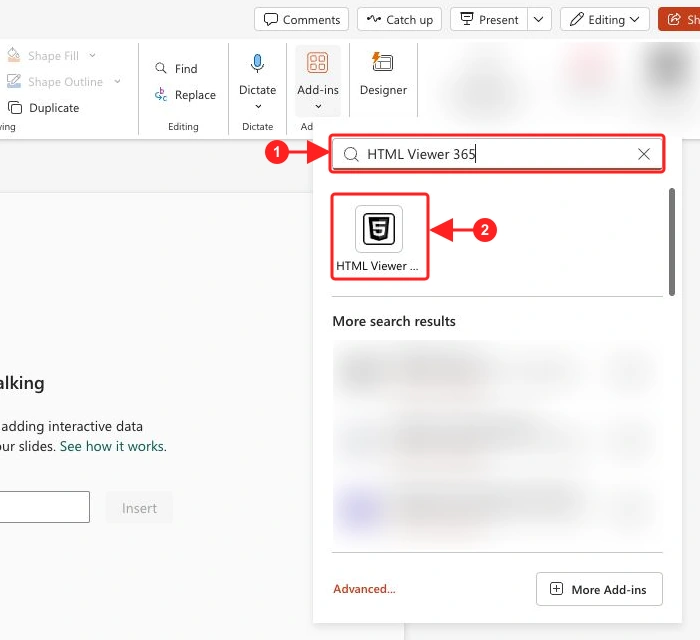
For desktop PowerPoint or organization-managed deployment, see the full installation guide.
Paste and test the dashboard
-
Paste the HTML code from Claude and save
- In the add-in box on your slide, select the Edit HTML (</>) button at the top left of the add-in.
- Paste the complete HTML file from Claude into the editor, then select Save.
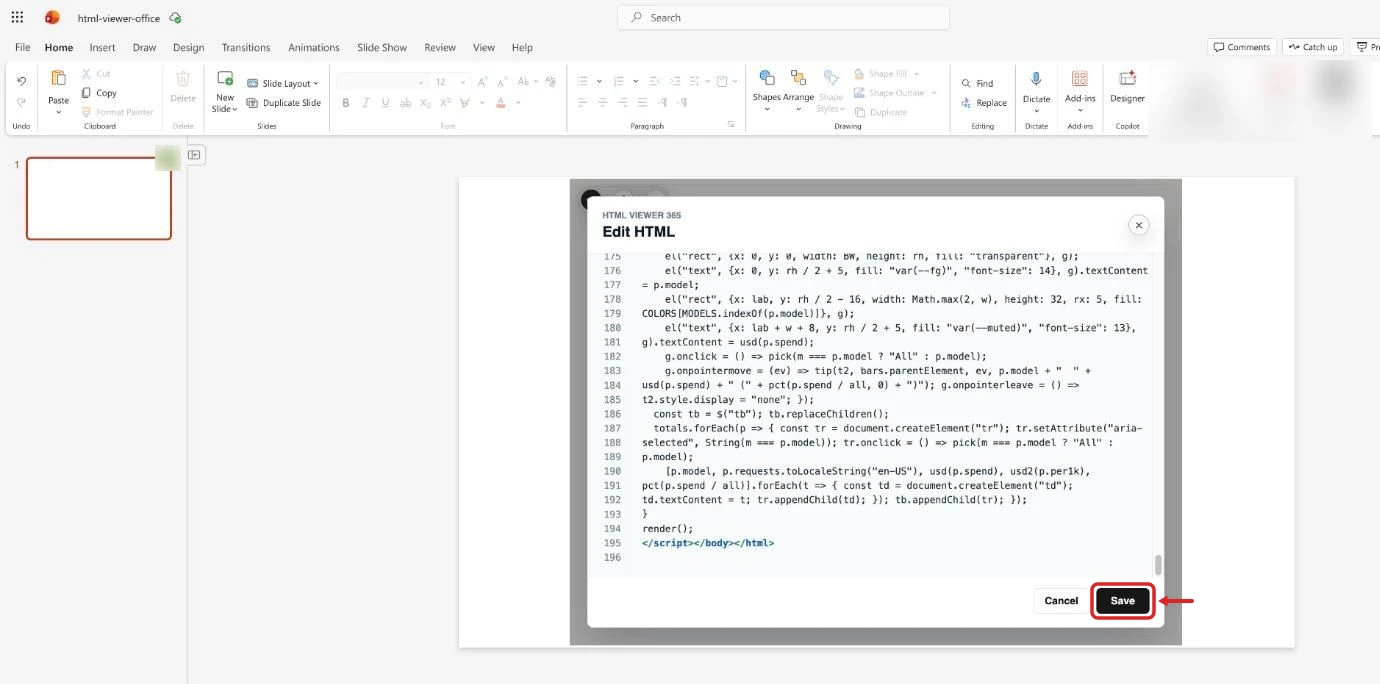
-
Resize the add-in and test the filters
- Drag the add-in's handles to a 4:3 frame that fills the slide's height.
- Select a model button such as Opus to update the summary cards and daily spend chart and highlight that model in the table, then start Slide Show to present.
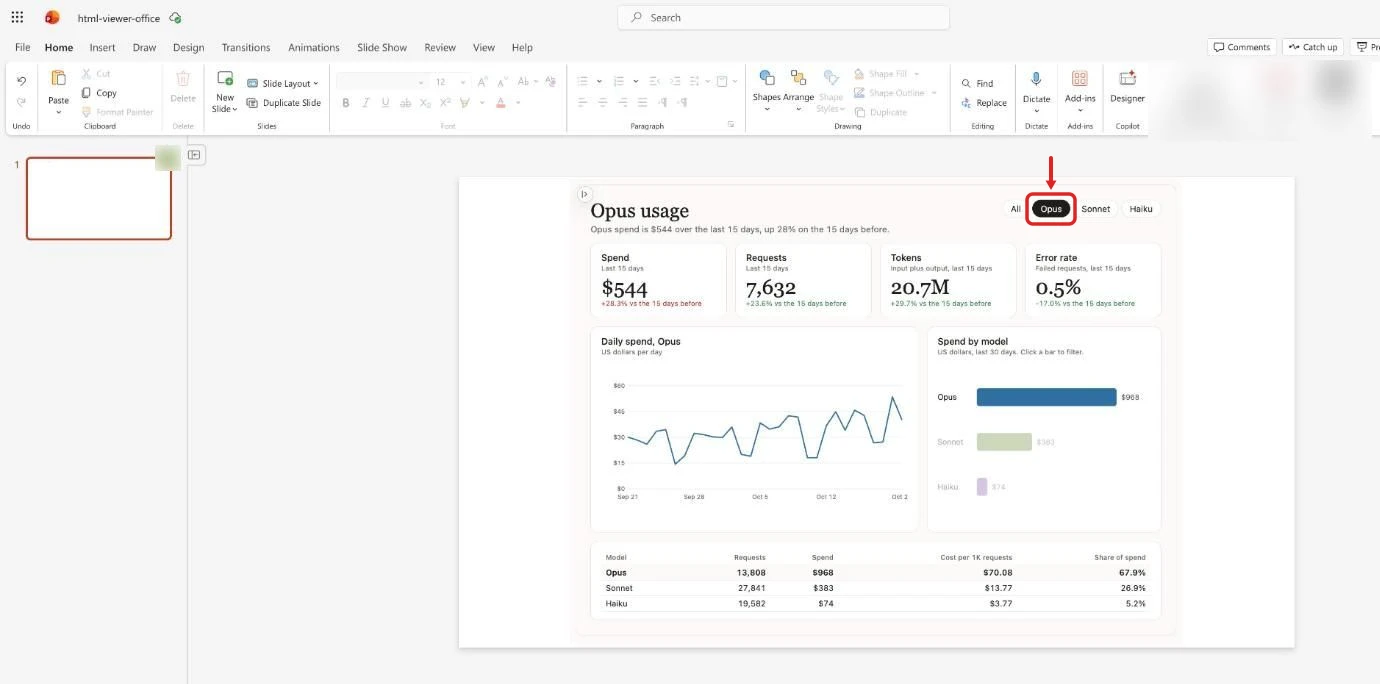
For help with HTML Viewer 365, contact support.
Option B: Host the dashboard and load it with Web Viewer 2.0
Web Viewer 2.0 is a PowerPoint
add-in that displays a live webpage on a slide. Because Claude's own
claude.ai share links block other apps from embedding them, publish your HTML
file to a free public link on Netlify Drop first.
Publish the HTML file to a public URL
Save the HTML code from Claude as index.html inside a new folder on your
computer. Then open
Netlify Drop,
drag that folder onto the page, and complete three steps to make the URL public:
-
Claim the site on Netlify Drop
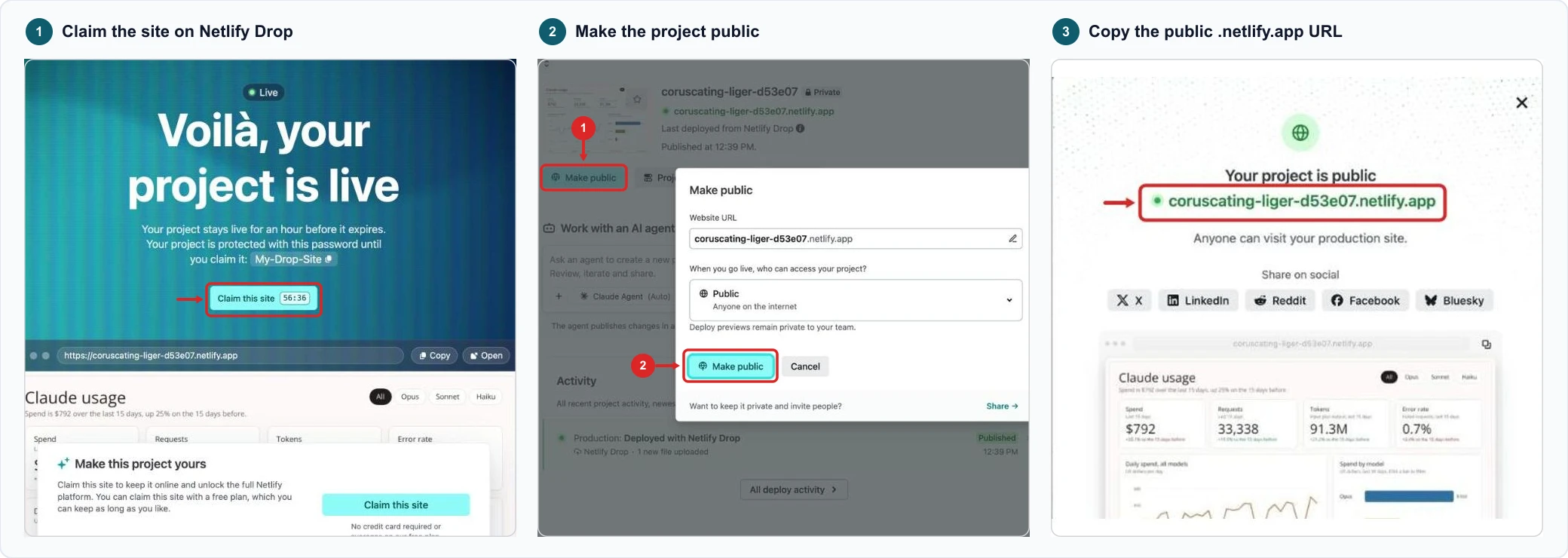
- Select Claim this site and sign up for a free Netlify account. Unclaimed drops require a visitor password and expire after one hour.
-
Make the project public
- On the Netlify project page, select Make public (1), keep Public selected in the dialog, and select Make public (2).
-
Copy the public
.netlify.appURL-
Copy the HTTPS address shown under Your project is public (for
example,
https://coruscating-liger-d53e07.netlify.app).
-
Copy the HTTPS address shown under Your project is public (for
example,
Insert Web Viewer 2.0 and load the URL
-
Open PowerPoint's Add-ins menu
- Select the slide where you want the dashboard, then select Home (1) > Add-ins (2) in the top ribbon.
-
Search for and add Web Viewer 2.0
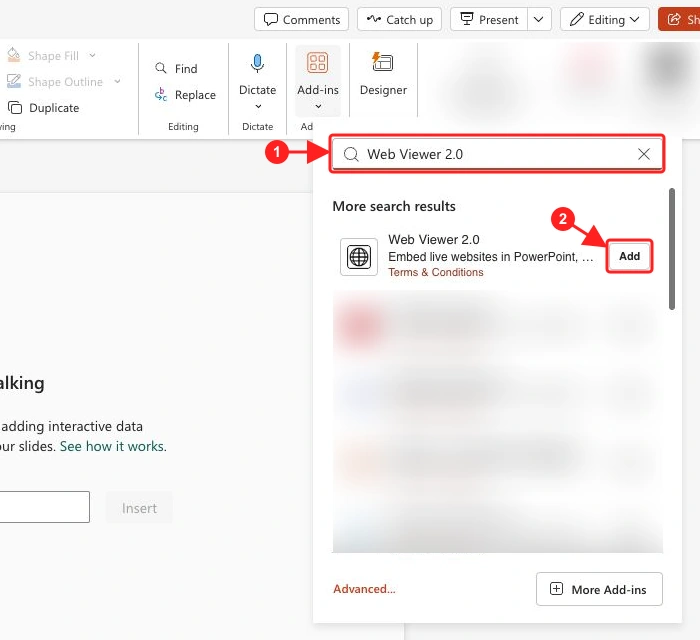
- Enter Web Viewer 2.0 in the search box (1), then select Add beside Web Viewer 2.0 under More search results to place the add-in on your slide (2).
For desktop PowerPoint or organization-managed deployment, see the full installation guide.
-
Load the public dashboard URL
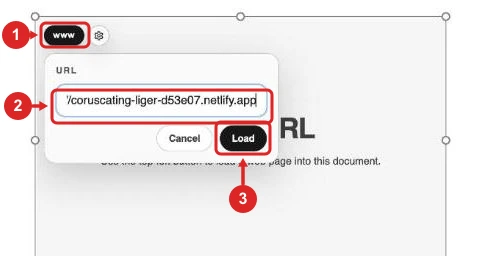
- In the add-in box on your slide, select www at the top left of the add-in (1), paste your Netlify HTTPS address into URL (2), and select Load (3).
-
Resize the viewer and test the filters
- Drag the viewer's handles to a 4:3 frame that fills the slide's height.
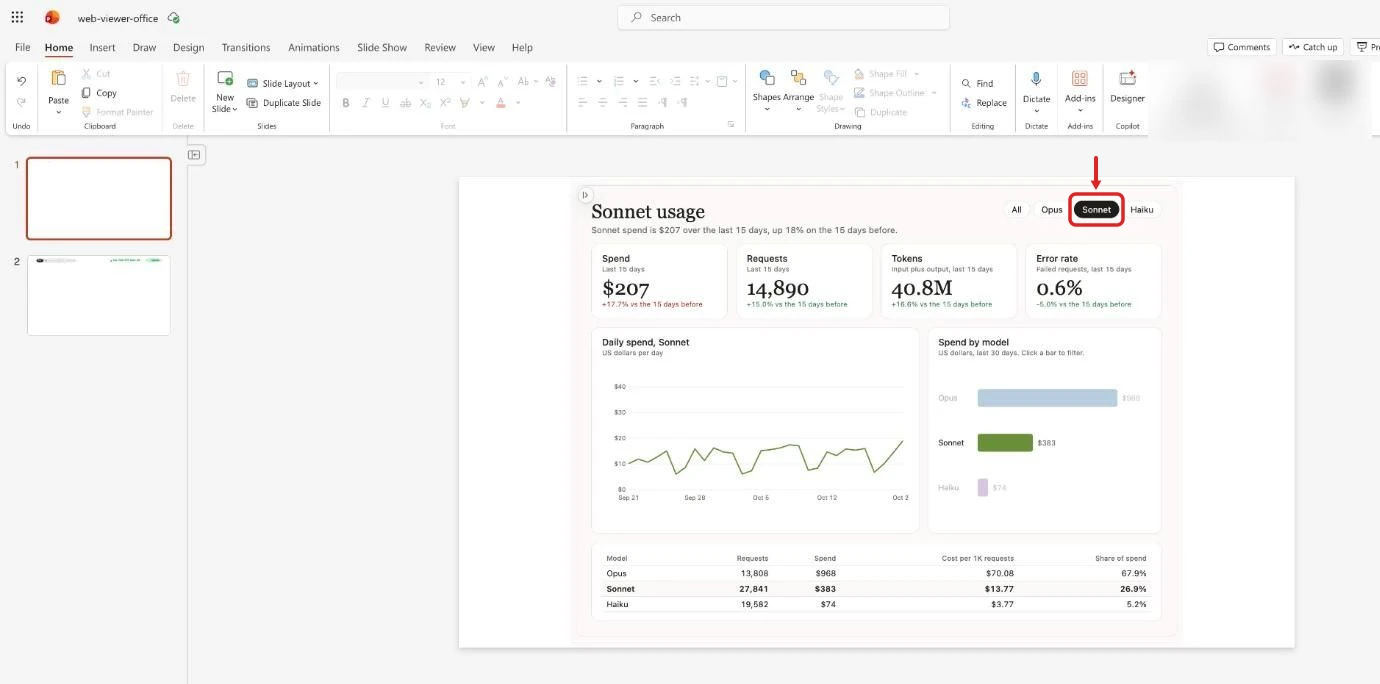
- Select a model button such as Sonnet to update the summary cards and daily spend chart and highlight that model in the table, then start Slide Show to present.
Keep an internet connection active when presenting so the slide can load the hosted dashboard. For help with Web Viewer 2.0, contact support.