
Summary
If your tenant blocks Microsoft Marketplace (the Office Store), an administrator can deploy an Office add-in using its XML manifest link. This guide shows how to assign the add-in to one person, a group, or the whole tenant without enabling Marketplace access for users.
Non-goals
This guide does not cover:
- Deploying Office add-ins through Microsoft Marketplace.
- Deploying SharePoint add-ins. See our SharePoint deployment guide.
The screenshots use Timer for PowerPoint as an example.
Before you start
You need:
- A Microsoft 365 admin account with permission to deploy Office Add-ins.
- Your add-in's XML manifest URL from the table below.
| Add-in | Manifest URL |
|---|
Open Integrated apps
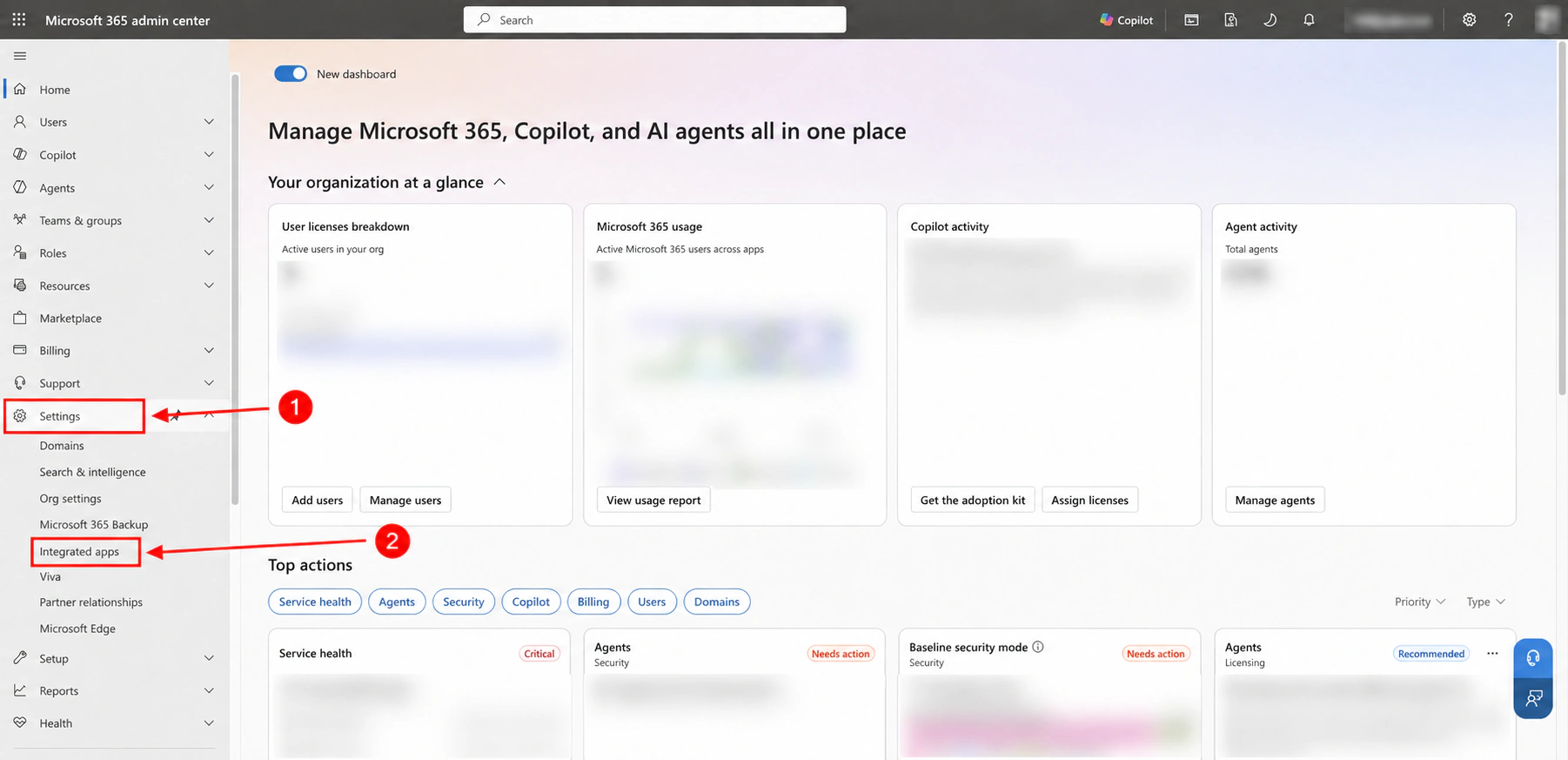
- Sign in to the Microsoft 365 admin center, then click Show all in the left navigation.

- Click Settings, then Integrated apps.
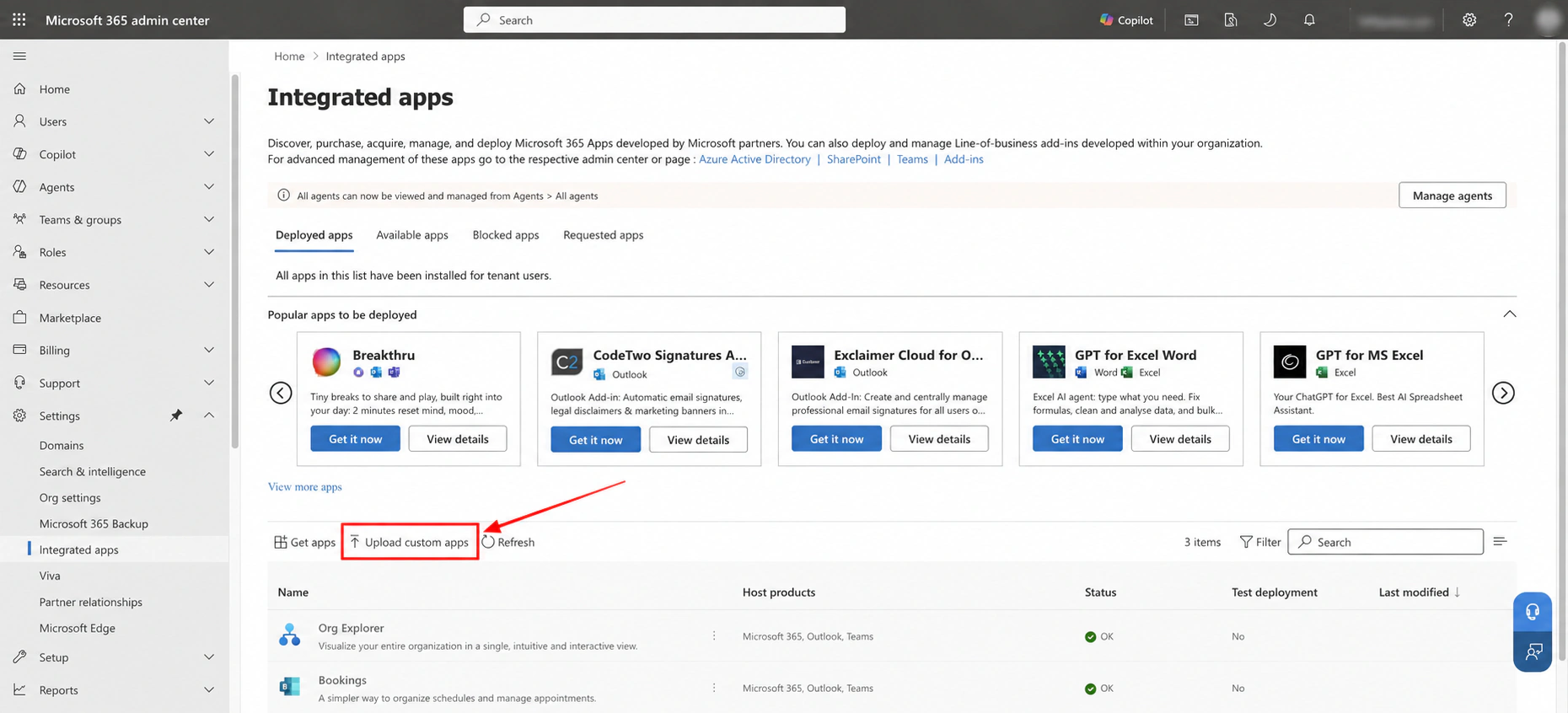
- Click Upload custom apps.
Deploy the add-in
-
On Upload custom app:
- Set App type to Office Add-in.
- Select Provide link to manifest file and paste your add-in's manifest URL from the table above.
- Click Validate and wait for Manifest file validated.
- Click Next.

-
On Users, choose who should receive the add-in:
- Specific users or groups: Search for and select the people or groups you want to include. For a single person, select only their account.
- All users: Make the add-in available to everyone in your tenant.
- Just me: Test with your own account.

- Under Deployment → Permissions, review the permissions, then click Next.
Why does the add-in need read/write access?
For Timer for PowerPoint, Web Viewer, and HTML Viewer:
-
To save settings: These add-ins use
ReadWriteDocumentto save their own settings inside your file. Saved settings stay with the file, so your setup travels across devices. - Your content stays private: These add-ins never read the content of your presentation, spreadsheet, or document or upload that content to external servers.

- On Finish, review the app and assigned users, then click Finish deployment.
Find the add-in in Office
- Restart Word, Excel, or PowerPoint and sign in with an account included in the deployment.
- Open Home → Add-ins → More Add-ins → Manage your apps to find the deployed add-in.
Microsoft advises allowing 24-72 hours for deployed add-ins to appear. See Microsoft's deployment guidance and where to find your add-in.
Need help?
Contact us and we'll get back to you shortly.