
DICOM Viewer for SharePoint lets you open medical imaging files stored in SharePoint directly in your browser, without downloading them first or using a separate desktop viewer.
Select a .dcm or .dicom file
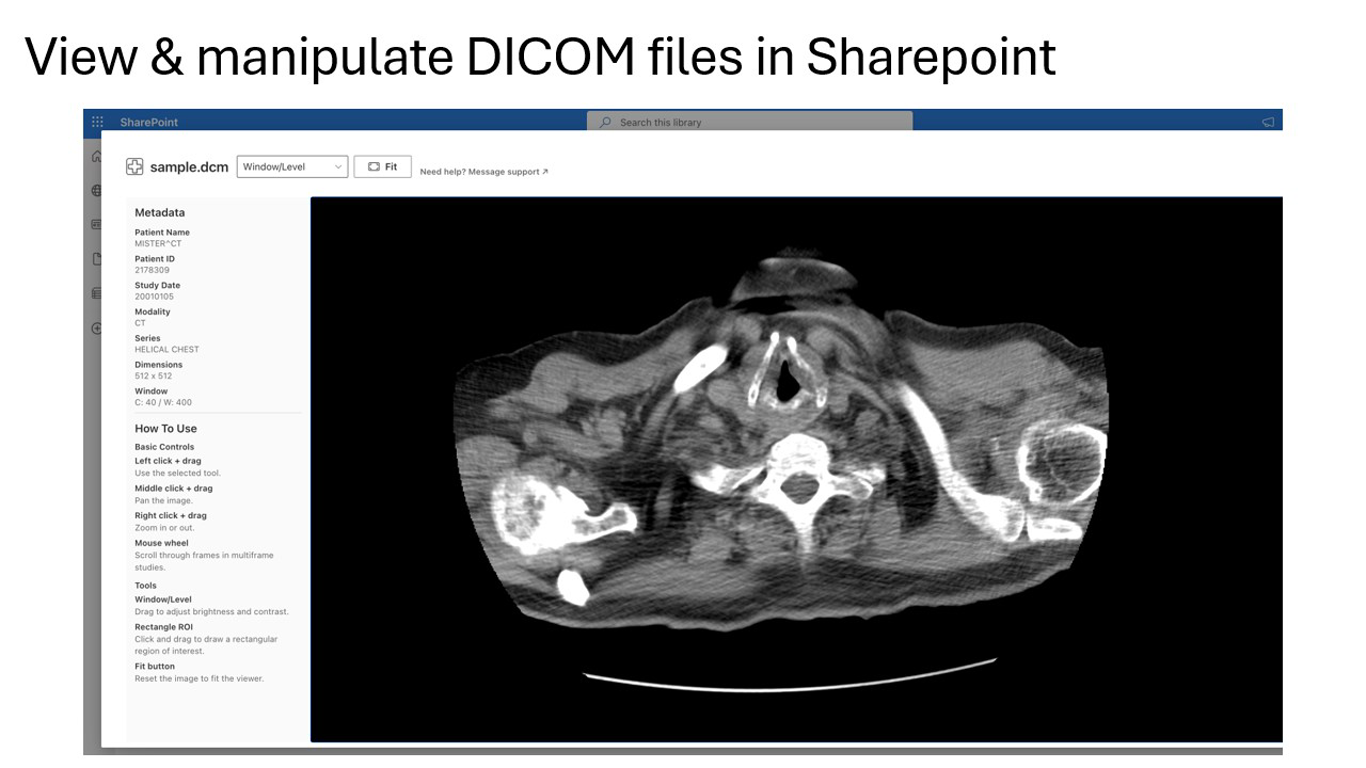
Open your document library and select the DICOM file you want to review. The add-in supports both .dcm and .dicom files.
Click View DICOM
Use the View DICOM command in the SharePoint command bar to open the file in the viewer. The image loads directly from SharePoint.
Adjust window and level, zoom, and pan
Once the image is open, use the viewer tools to adjust window and level for brightness and contrast, zoom in on details, pan around the image, and fit it back to the viewport when needed.
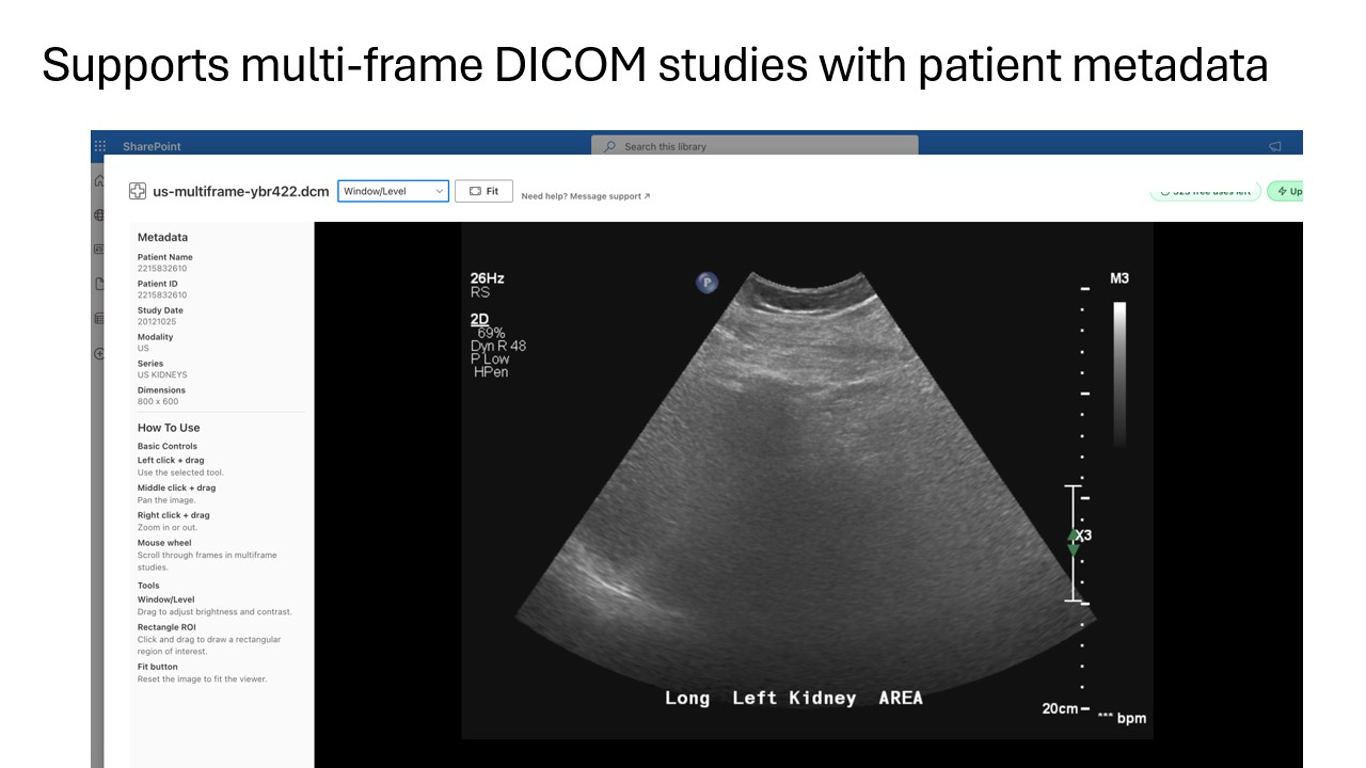
Scroll multiframe studies and inspect metadata
If the file contains multiple frames, use the mouse wheel to move through the study. You can also inspect metadata such as patient ID, study date, modality, series information, and image dimensions.
Use ROI tools when you need them
The viewer includes rectangular ROI tools so you can mark areas of interest while reviewing images inside SharePoint.
Need help?
If you hit a problem, email product@1990quebec.com with the file type, whether it is single-frame or multiframe, and a screenshot or error message.