
Summary
A SharePoint folder can contain single DICOM files, entire multi-series studies, or indexed media packages. DICOM metadata defines the imaging hierarchy regardless of folder structures or file names.
This guide explains how to:
- Identify common DICOM folder layouts in SharePoint.
- Choose the right file, folder, or
DICOMDIRindex to open. - View and share studies securely using DICOM Viewer for SharePoint.
Prerequisite: Files are already uploaded to SharePoint and de-identified where required.
Non-goals
This guide does not cover:
- Uploading DICOM files to SharePoint.
- Reorganizing DICOM folders into custom SharePoint structures.
- Limits for file size, study size, and browser memory. We will cover file size limits separately.
How the DICOM hierarchy maps to SharePoint
The DICOM Standard organizes imaging data through metadata embedded inside each file rather than physical folder paths.
The DICOM hierarchy
Patient                 (The person receiving the scan)
└── Study               (The exam or imaging event)
    └── Series          (A specific sequence or scan group)
        └── Instance    (The DICOM file stored in SharePoint)
            └── Frame(s) (Image content inside the file)
DICOM levels and SharePoint storage
| DICOM Level | What It Means | SharePoint Reality |
|---|---|---|
| Patient | Subject of the scan | Embedded file metadata |
| Study | Examination event | Embedded file metadata |
| Series | Specific scan sequence | Embedded file metadata |
| Instance | Single DICOM object | One file in SharePoint |
| Frame | Image page(s) / slice(s) | Stored inside the instance file; scroll to move between frames |
How folders work in SharePoint
- Folders are optional: You do not need dedicated Patient, Study, or Series folders.
- Flexible layouts: Files can live in a single flat library or across nested subfolders.
- Automatic grouping: DICOM Viewer for SharePoint reads internal metadata tags to build the visual hierarchy.
DICOM Viewer for SharePoint exposes Patient, Study, Series, and Instance navigation. Frames remain inside the active instance, where the mouse wheel moves between them.
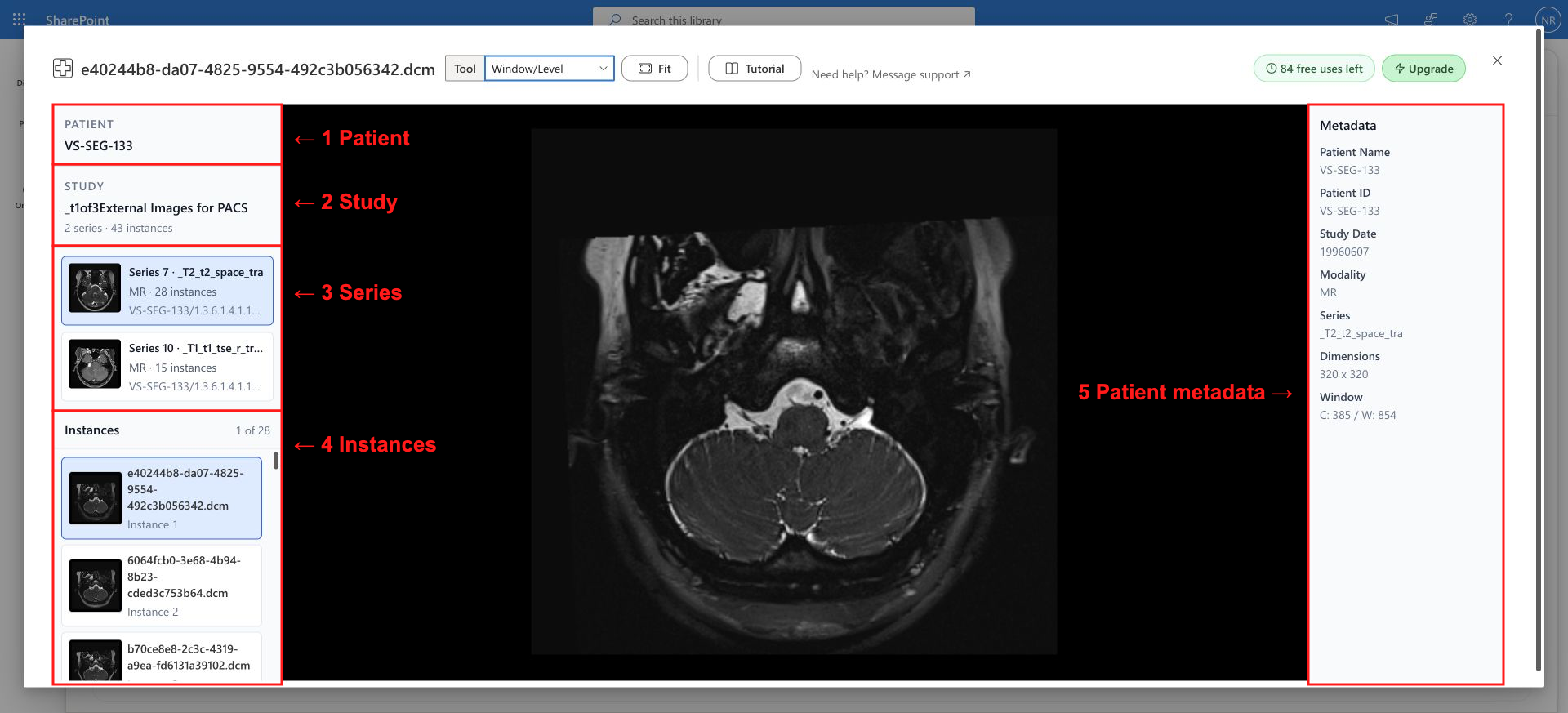
One study with 43 single-frame instances across two series. DICOM Viewer for SharePoint groups Patient, Study, Series, and Instance navigation on the left. The right rail shows metadata for the active instance. Source: Vestibular-Schwannoma-MC-RC by Kujawa et al. (2023), CC BY 4.0. Cropped, redacted, and annotated by 1990Quebec.
The DICOM Part 10 specification defines how a single instance is stored in a file.
Common SharePoint file structures
The folder names below demonstrate layout patterns, but descriptive names are not required.
1. One instance in one file
Example Study/
└── IMG0001.dcm
The file contains one instance. That instance can hold a single frame or multiple frames. A multi-frame instance remains one file in SharePoint.
2. One series in several files
Example Study/
├── IMG0001.dcm
├── IMG0002.dcm
└── IMG0003.dcm
Each file stores one instance. When the series identifiers match, DICOM Viewer for SharePoint groups them into one series.
3. Several series and studies
Example Patient/
├── Study 1/
│   ├── Series 1/
│   │   ├── IMG0001.dcm
│   │   └── IMG0002.dcm
│   └── Series 2/
│       └── IMG0003.dcm
└── Study 2/
    └── Series 1/
        └── IMG0004.dcm
The same structure can also exist in a flat directory using system-generated filenames:
Received Files/
├── 000001
├── 000002
├── 000003
└── 000004
As long as files contain study and series identifiers, DICOM Viewer for SharePoint reads the tags and reconstructs the hierarchy.
4. A DICOMDIR media package
A
DICOMDIR file
acts as an index for a DICOM media package. It points to the files that belong to the
package and can include hierarchy records. It contains directory metadata, not image
pixels.
Received Media/
├── DICOMDIR
└── DICOM/
    ├── 0001/
    │   ├── 000001
    │   └── 000002
    └── 0002/
        └── 000001
DICOM Viewer for SharePoint supports packages with or without an index:
-
With
DICOMDIR: Select the index file or open its containing folder. DICOM Viewer for SharePoint uses the root-level index to choose the referenced files, then reads those files' metadata to build the Patient, Study, and Series hierarchy. -
Without
DICOMDIR: Open the folder. DICOM Viewer for SharePoint scans all subfolders and groups files using their Patient, Study, and Series metadata.
Choose what to open
Select a starting point and click View DICOM:
- Single DICOM file: Opens the file and discovers compatible images in the same folder.
-
Selected folder: Scans the target folder and its subfolders. A
DICOMDIRat the selected folder's root defines which files to open. - Current folder (nothing selected): Scans the active folder location. This works identically to selecting the folder from its parent directory.
-
DICOMDIRfile: Reads the index to load the complete referenced file set.
Selecting a DICOMDIR file or opening its parent folder yields the same
result. A nested DICOMDIR does not replace the scope of a folder opened above
it. Without a root-level DICOMDIR, folder scanning discovers files directly
from file metadata.
Share with another person
- Share the narrowest folder containing the necessary files.
- Standard SharePoint permissions control view and download access.
- External guests must be allowlisted in tenant settings. See How to Let Guest Users Use SharePoint Add-ins.
- DICOM Viewer for SharePoint renders locally in the browser. Pixel data is never uploaded to external servers.