
Summary
This post shows you how to fix Path too long (Error 0x80010135) when extracting a ZIP archive by shortening long paths in SharePoint with Zip & Unzip for SharePoint or choosing a shorter destination folder in Windows' Extract All wizard.
By default, Extract All creates an output folder named after the ZIP
inside your current directory (such as Downloads or a synced OneDrive
folder). Windows prepends that destination folder to every folder and filename inside the
archive. When the combined path exceeds Windows' limit, extraction stops on the deepest
files while still unpacking shallower ones:
Choose one method based on where you need the extracted files:
-
Option A: Extract in SharePoint with Zip & Unzip.
When the archive belongs in a SharePoint library synced with OneDrive, upload the
.zipto SharePoint and use Zip & Unzip for SharePoint to check your 259-character Windows PC path limit and shorten long parent folders before extracting. -
Option B: Extract into a shorter folder on Windows.
For a local archive on your PC, open Extract All on the original ZIP,
replace the suggested output path with a short folder near the drive root (such as
C:\x\r2-nc12), and verify that the deepest subfolder unpacked.
Why Error 0x80010135 leaves an incomplete folder
A file's extracted path equals your destination folder, plus a backslash, plus the file's entire path inside the ZIP (including all nested folders and the file extension). Shortening the destination folder trims characters from every file in the archive at once.
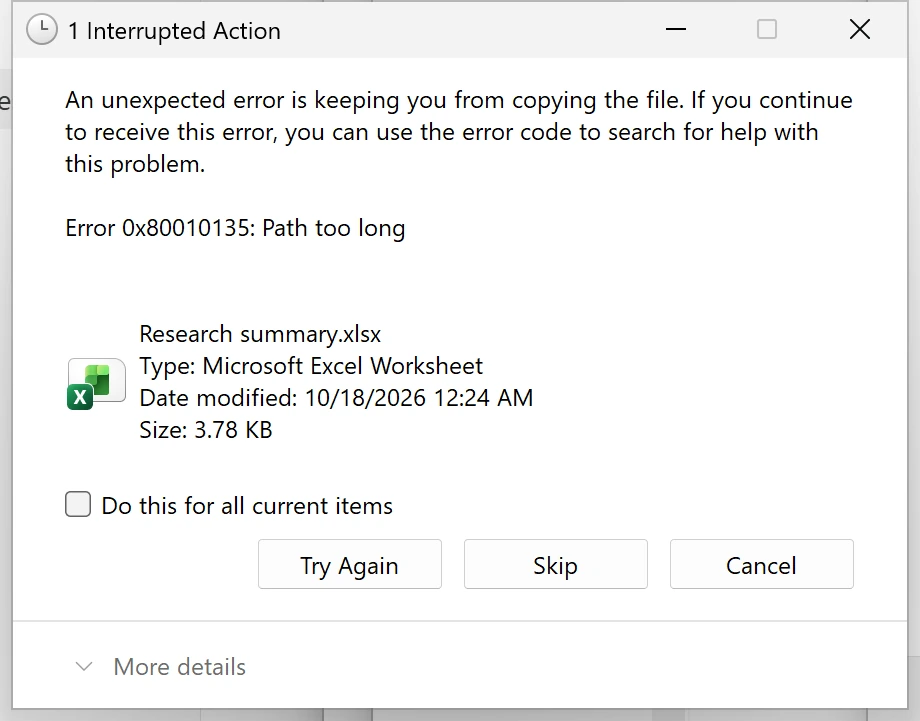
In the 12-file example archive below, extracting to the default
Downloads subfolder fails on the four deepest files (an Excel workbook, Word
document, PDF, and PNG image) because their combined PC paths reach 261 characters, while
eight shallower files (at 191 and 221 characters) unpack normally. Clicking
Skip leaves an incomplete folder that is missing the deepest files.
Compare how a shorter destination folder reduces the total path for a 203-character entry inside the ZIP:
| Extraction destination | Combined path on the PC | Extraction result |
|---|---|---|
Default Downloads subfolder (57 characters) |
57 + 1 + 203 = 261 characters | Fails with Error 0x80010135 (skips 4 deepest files) |
C:\x\r2-nc12 (12 characters) |
12 + 1 + 203 = 216 characters | Extracts all 12 files |
To check an extracted file's path length in File Explorer, open its containing folder and
click the address bar to reveal the full text path, then add a backslash and the filename.
If File Explorer displays a shortened folder name containing ~1, count the
full folder name instead. See the
SharePoint and OneDrive path-length guide
for how local PC paths compare with SharePoint web paths.
Option A: Extract in SharePoint with Zip & Unzip
When the archive belongs in a SharePoint library that syncs with OneDrive, extracting it
to C:\x and copying the folders back into your synced library re-adds your
long OneDrive folder prefix. Instead, upload the .zip to SharePoint and use
Zip & Unzip for SharePoint
(see the
SharePoint ZIP guide) to
check your 259-character Windows PC path limit and shorten long parent folders before
extracting:
-
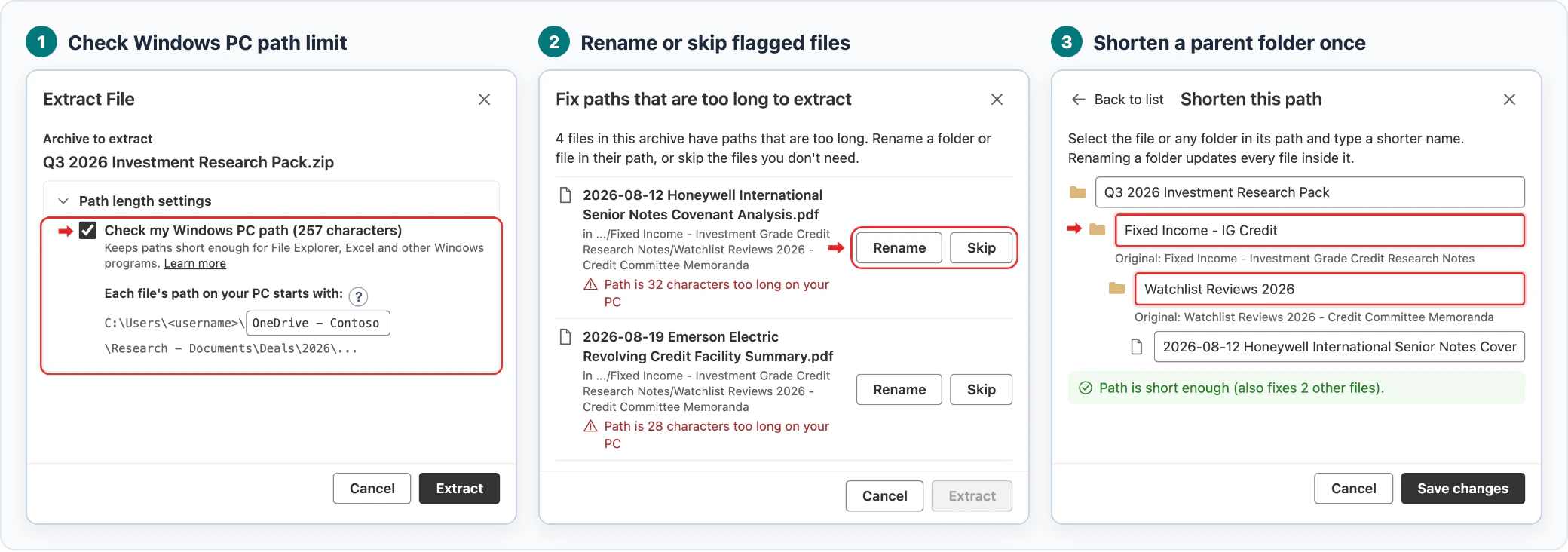
Check SharePoint and Windows PC path limits
- Zip & Unzip always checks SharePoint's 400-character limit automatically.
- Expand Path length settings and check Check my Windows PC path to verify your predicted PC path and OneDrive folder name. Your admin can also enable this setting once for your whole organization.
-
Rename or skip files that are too long
- Zip & Unzip pauses before extracting any over-limit files so you can click Rename to shorten a path or Skip to exclude the file.
-
Shorten a parent folder to fix every file inside it
- Edit any folder or file name in the path chain. Shortening one parent folder fixes every file inside it at once.
Try the interactive demo
The interactive demo below shows how the Zip & Unzip add-in checks and shortens long file paths inside SharePoint. Try it to preview the solution:
For help with Zip & Unzip for SharePoint, contact support.
Option B: Extract into a shorter folder on Windows
For a local archive on your PC, delete any partial output folder from the failed attempt,
then extract the original ZIP into a short path near C:\:
-
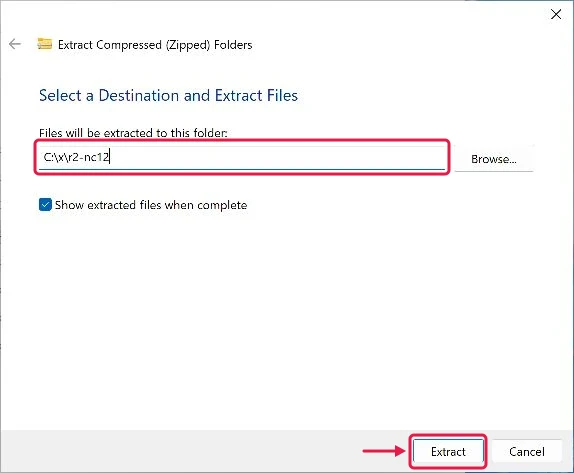
Set a short destination path in Extract All
- Right-click the original ZIP in File Explorer and choose Extract All.
-
Under Files will be extracted to this folder, enter a short folder
near the drive root (such as
C:\x\r2-nc12), keep Show extracted files when complete checked, and click Extract:
-
Confirm that the deepest files unpacked
- Open the deepest subfolder in the extracted directory and verify that all files arrived:
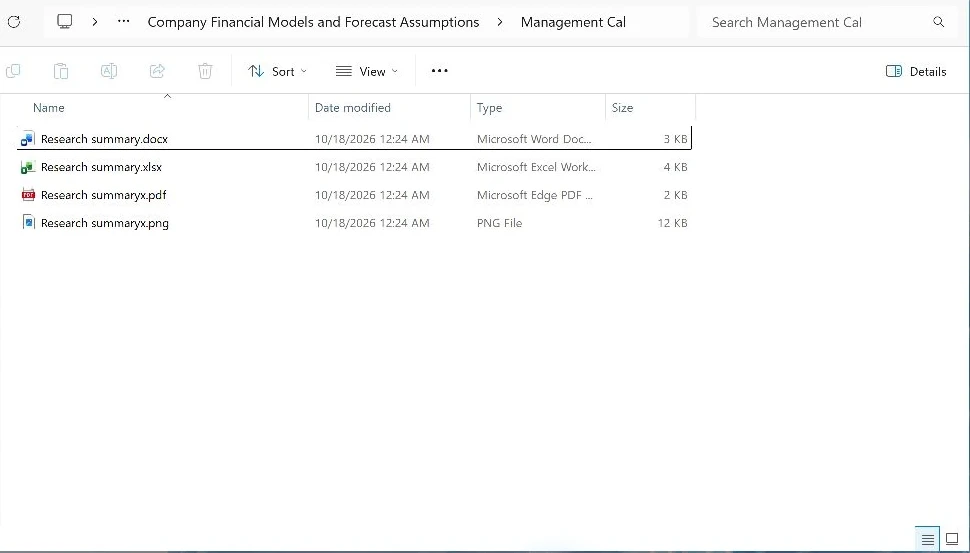
Extracting to C:\x\r2-nc12 reduces the longest paths from 261 to 216
characters, so all 12 files unpack without error.
If Windows still refuses to extract your ZIP into a short folder and shows The Compressed (zipped) Folder is invalid, the paths inside the archive itself exceed File Explorer's limit. Unpack the archive using the invalid-ZIP guide.