
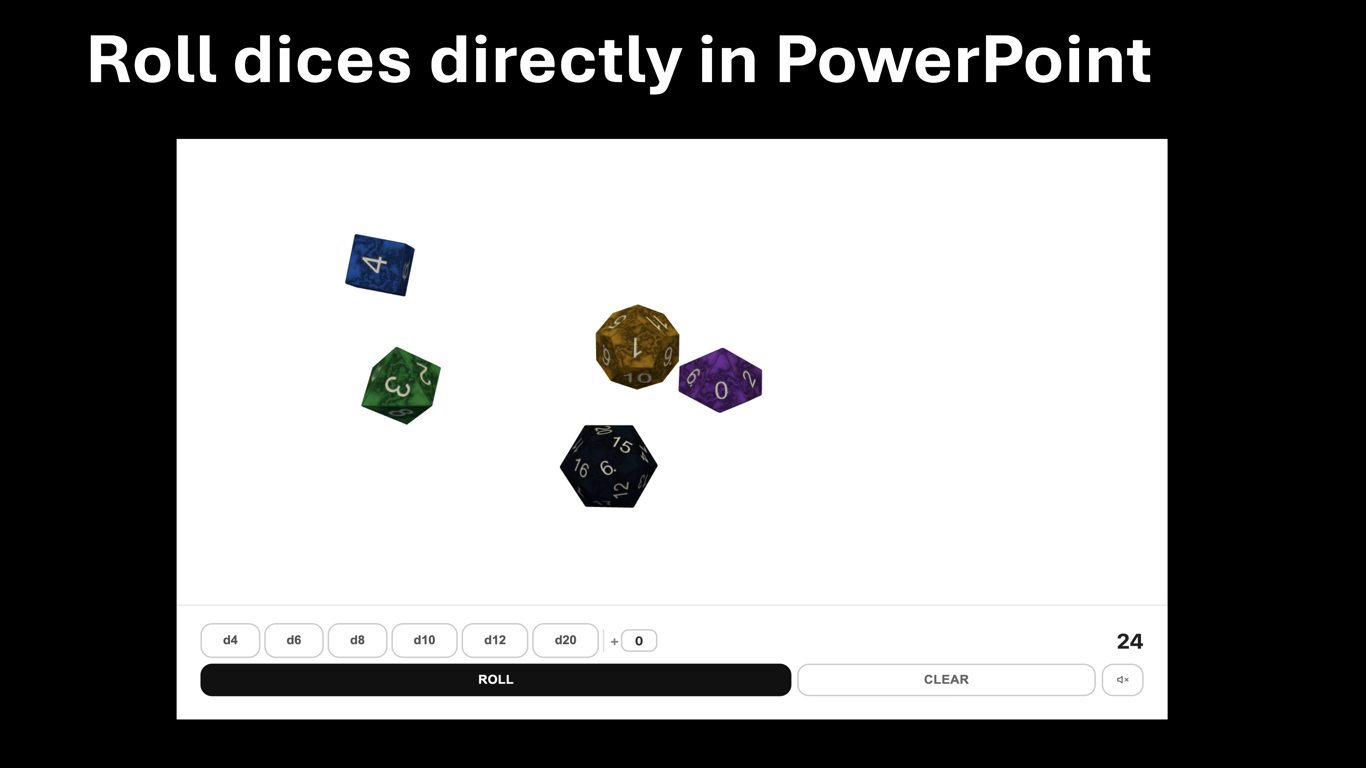
If you want to roll dice directly inside a presentation, Dice Roller for PowerPoint lets you place animated 3D dice on a slide and reroll them live while you present.
Add dice to the slide
Use the die buttons to add any combination of d4, d6, d8, d10, d12, and d20 dice to the canvas. Each die type has its own color so it stays easy to read during class, game night, or a live demo.
Roll again whenever you want
Click ROLL to reroll every die on the canvas. Click CLEAR to remove all dice and start over with a fresh set.
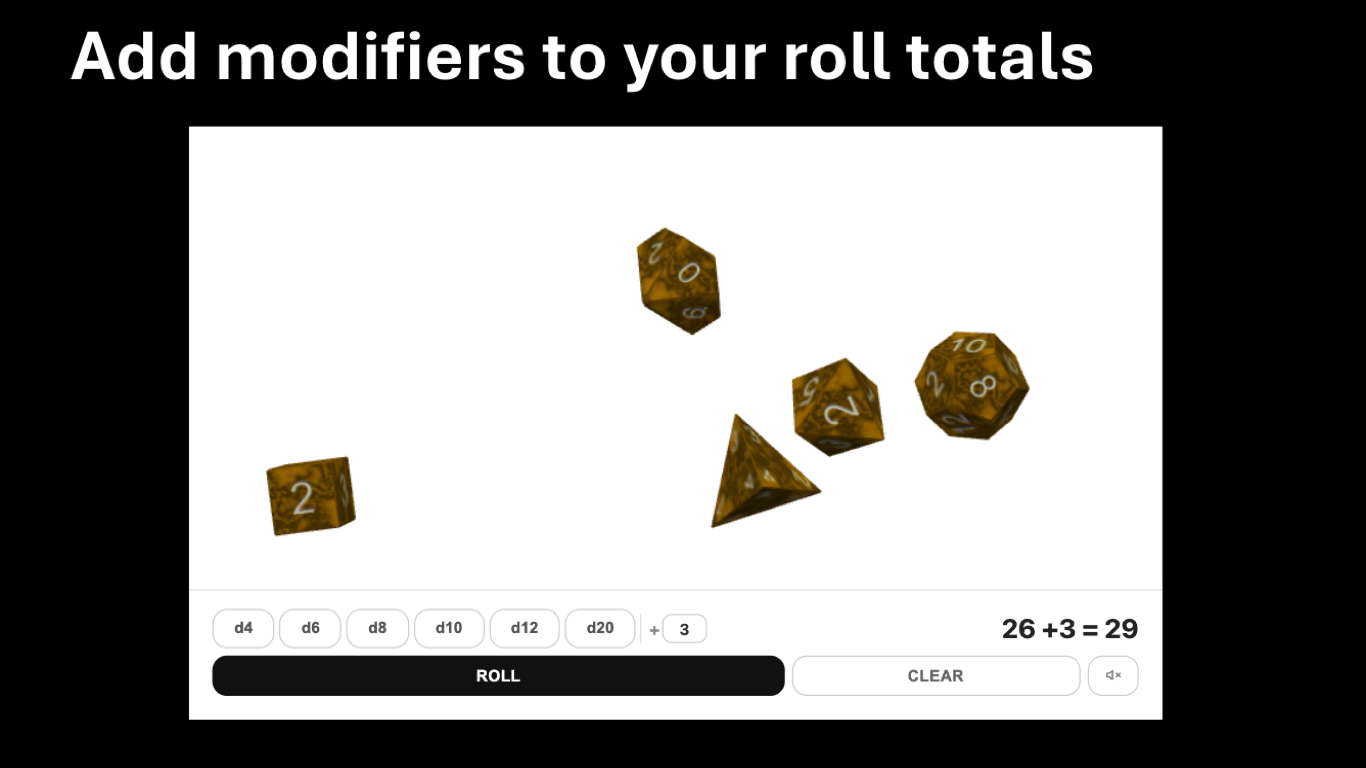
Use a modifier
The modifier field adds a fixed bonus or penalty to the total. This is useful for tabletop RPG checks, classroom activities, and any presentation where the random result needs a quick adjustment.
Turn sound on or off
Use the sound button to enable or disable dice audio depending on the room, audience, or recording setup.
Use it in presentation mode
The add-in is designed to work in both edit mode and presentation mode, so you can keep the dice interactive while the slide is on screen.
Need help?
If you run into an issue, email product@1990quebec.com with the Office app you are using, your operating system, and a short description of what happened.