
Summary
This post shows you how to alternate focused work and breaks by using separate PowerPoint timers, a Pomodoro app, or your computer's Clock app.
A Pomodoro routine provides a defined work period and a reminder to rest. Choose automatic cycles for uninterrupted work, or manual starts when a group needs time to switch activities.
Choose one setup:
- Option A: PowerPoint group session. Add Timer for PowerPoint to separate Focus and Break slides, set 25 and 5 minutes, and leave presentation sync off. Move slides and start each timer manually; the add-in does not automate Pomodoro cycles.
- Option B: Automatic browser cycles. In Pomofocus, set focus to 25 minutes, short breaks to 5, and a 15-minute long break after four focus periods. Enable Auto Start Breaks and Auto Start Pomodoros for automatic transitions.
- Option C: Mac Clock. Create 25-minute Focus and five-minute Break timers in Mac Clock. Start each manually and reuse them for subsequent rounds.
- Option D: Windows Focus sessions. Open Clock > Focus sessions, choose the session length and breaks, then start the session.
Option A: Lead a focus session from PowerPoint
- Create a Focus slide with the task instructions in PowerPoint for the web. Select the slide, then open Home > Add-ins.

Open Home, then Add-ins in PowerPoint for the web.
- Enter Timer for PowerPoint in the search box. Under More search results, select Add beside the matching result.
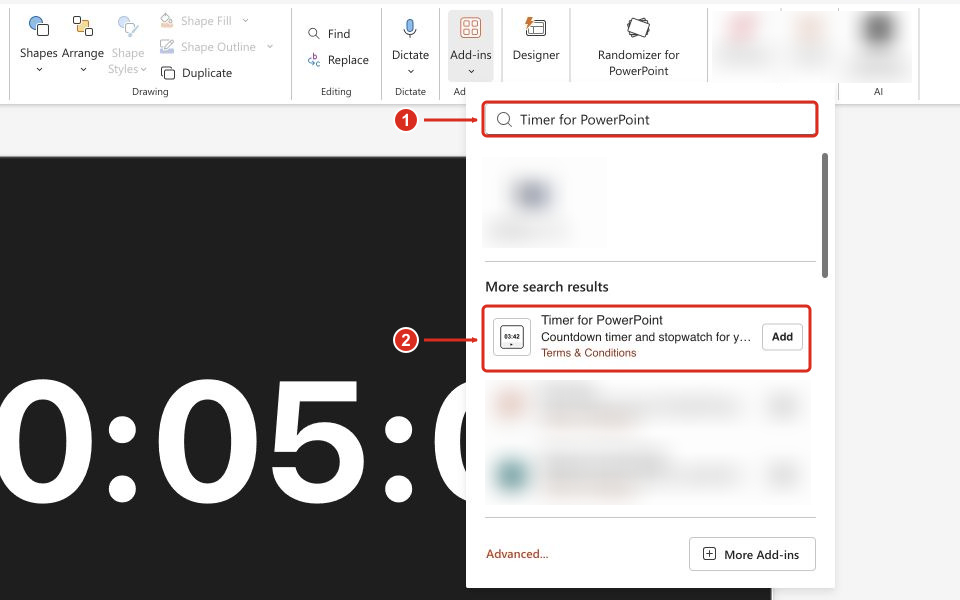
Search for the full add-in name, then select Add beside the matching result.
Complete any installation prompts. The timer appears on the selected slide. For other PowerPoint versions or organization-managed installation, see the full installation guide.
- Set the Focus timer to 00:25:00.
- Create a Break slide. Repeat the installation steps above to add its own Timer for PowerPoint instance, then set 00:05:00.
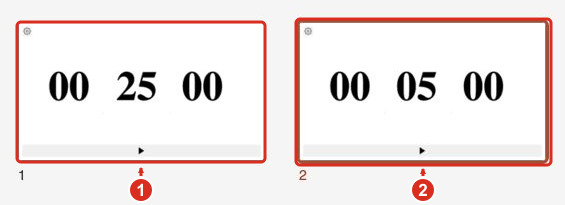
Separate Focus (1) and Break (2) timers in PowerPoint for the web. Select the screenshot to enlarge it.
- Open Settings using the gear on the timer.
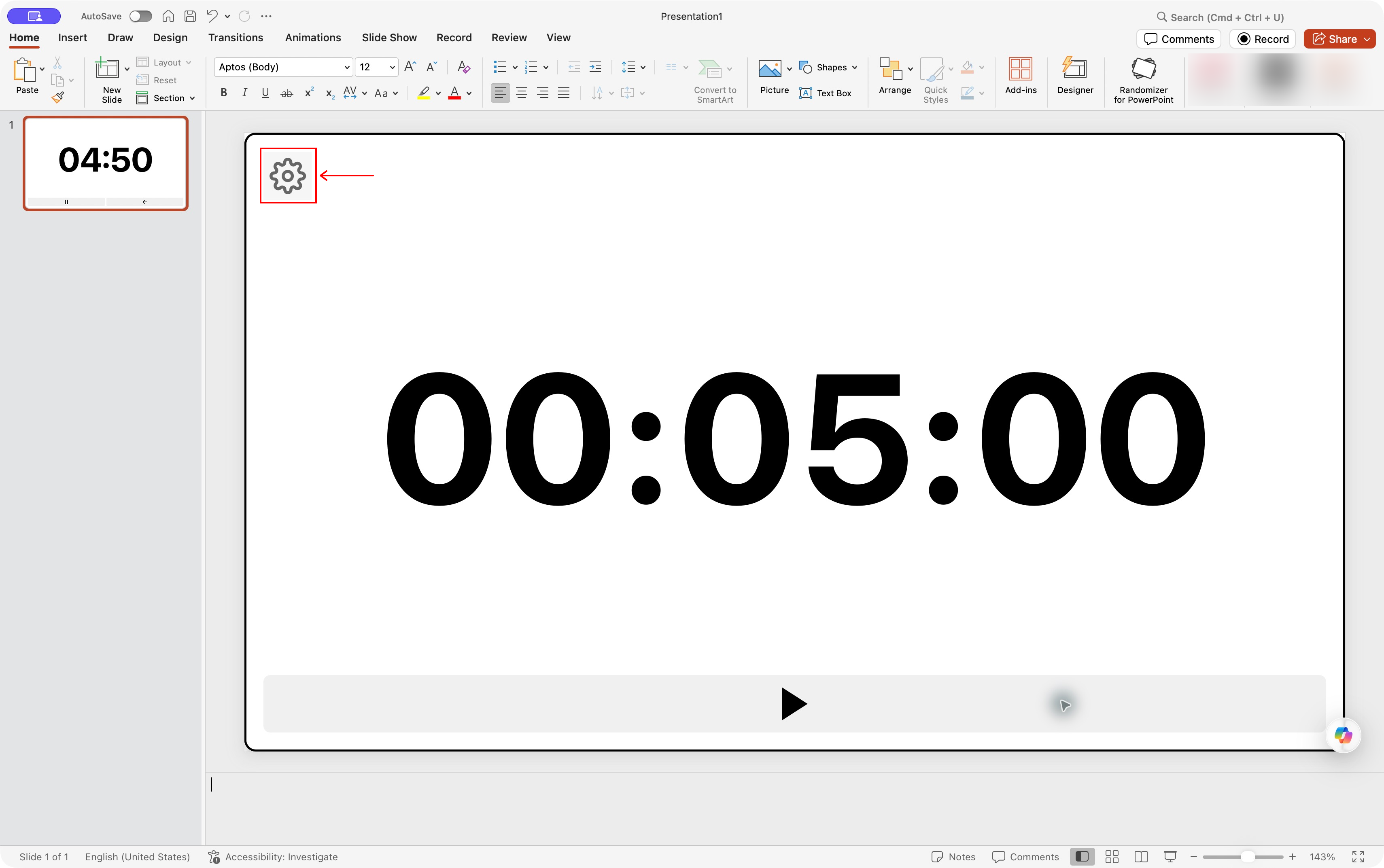
Settings gear location in Timer for PowerPoint on Mac. Select the screenshot to enlarge it.
- Leave Sync timers in this presentation unchecked so each slide keeps its duration.
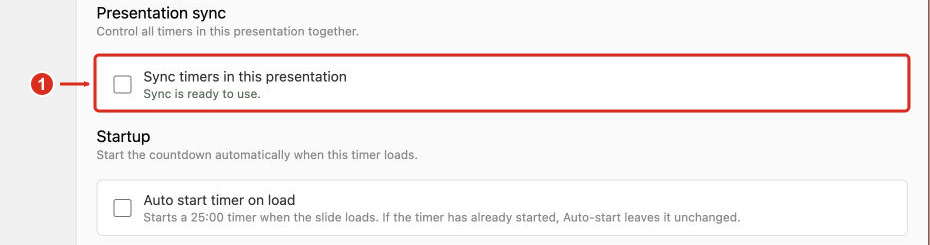
Presentation sync is off in PowerPoint for the web. Select the screenshot to enlarge it.
- Close Settings and enter Slide Show. Check that the Focus timer is set to 00:25:00, then press Start.
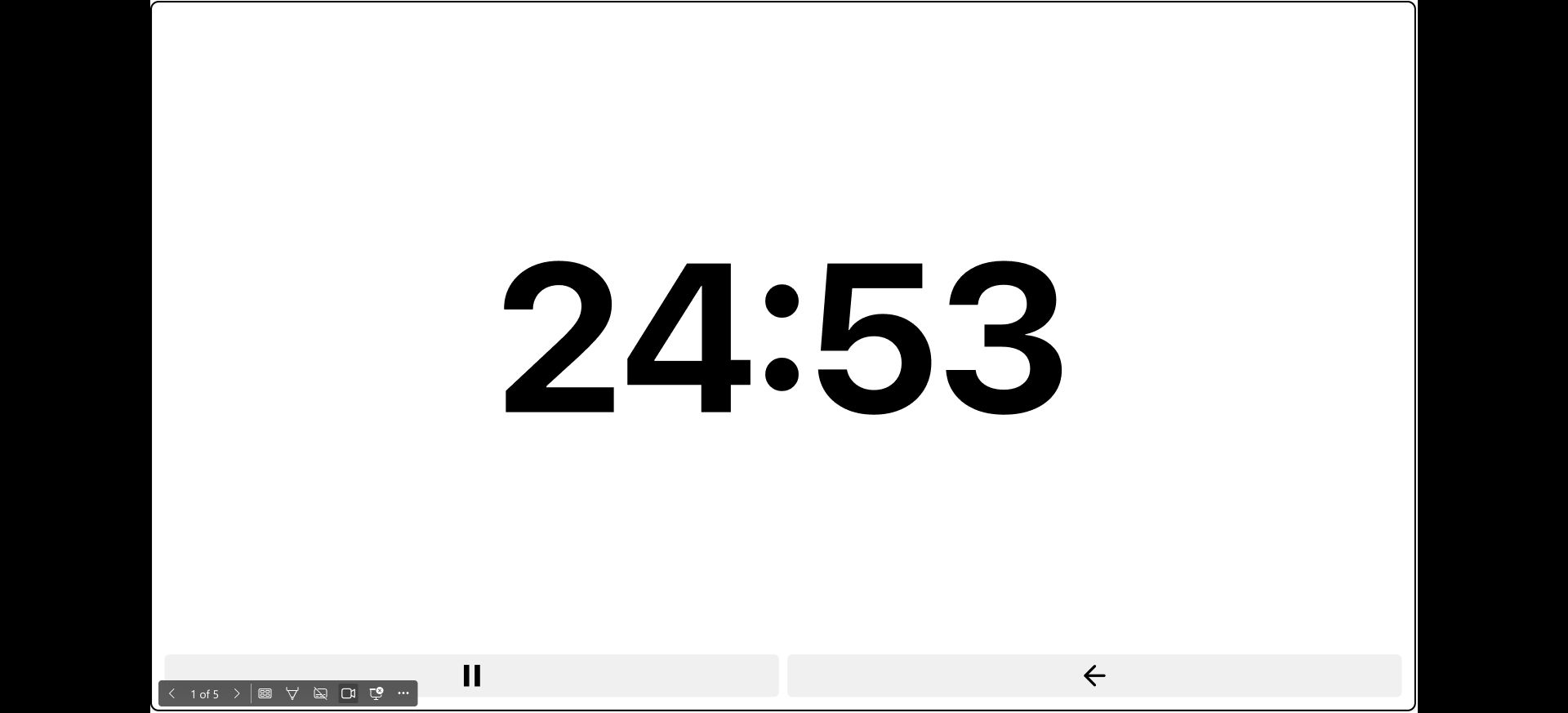
The Focus countdown running in PowerPoint for the web Slide Show.
- When work ends, move to the Break slide. Check that its timer is set to 00:05:00, then press Start for the break.
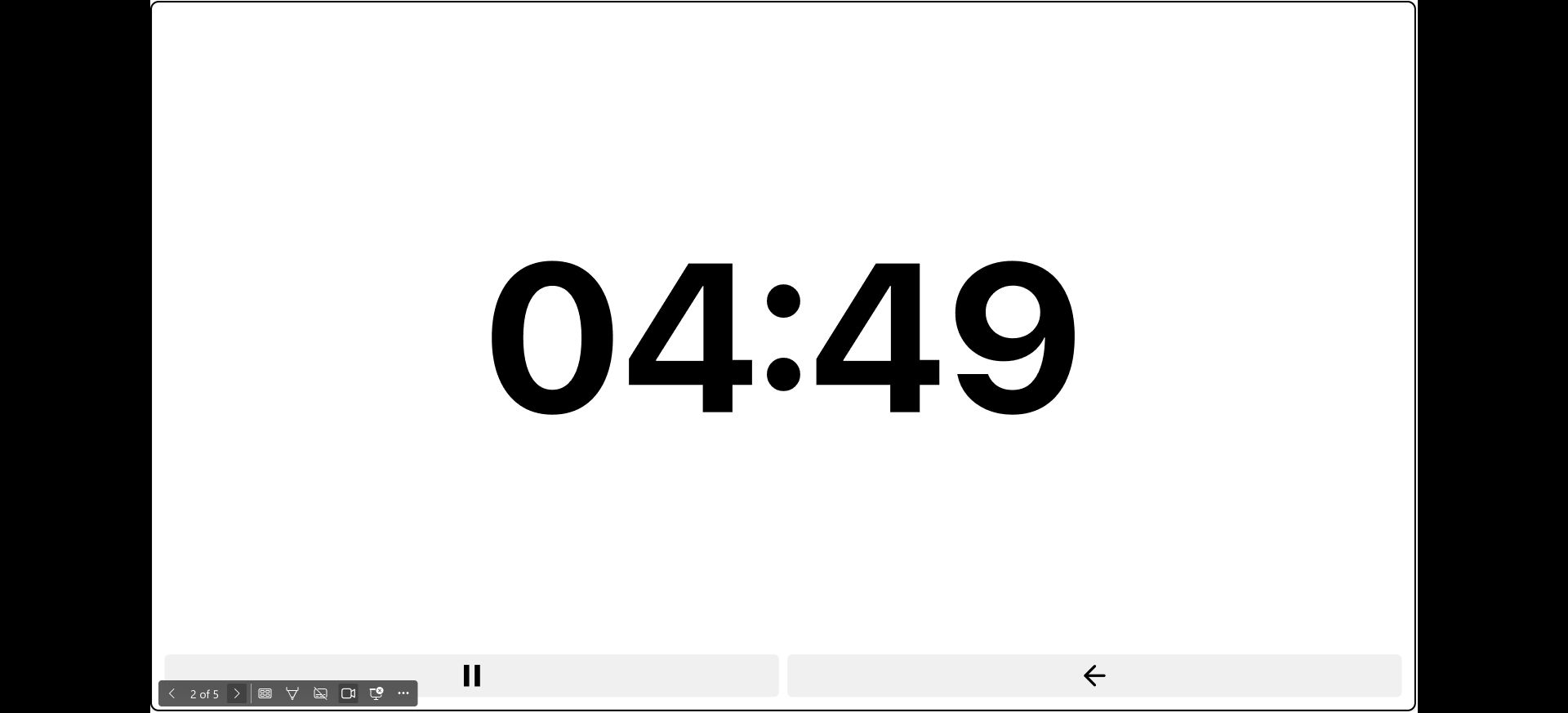
The Break countdown after moving to its slide and starting it manually.
- Return to the Focus slide and use New Timer before the next focus period.
This routine needs manual transitions; use a dedicated Pomodoro app for automatic cycles. Timer for PowerPoint offers a 24-hour trial followed by a paid subscription.
Option B: Configure a browser Pomodoro timer
Pomofocus works in desktop and mobile browsers. Its basic timer includes custom durations and alarm sounds; projects and yearly reports require Premium. For a simple visual timer, use the countdown without task tracking. To set a 25-minute focus period with short and long breaks:
- Open Setting. Set Pomodoro to 25 minutes, Short Break to 5, and Long Break to 15.
- Set Long Break interval to 4 for a longer rest after four focus periods.
- Enable Auto Start Breaks and Auto Start Pomodoros for automatic transitions, or leave them off to start each interval yourself.
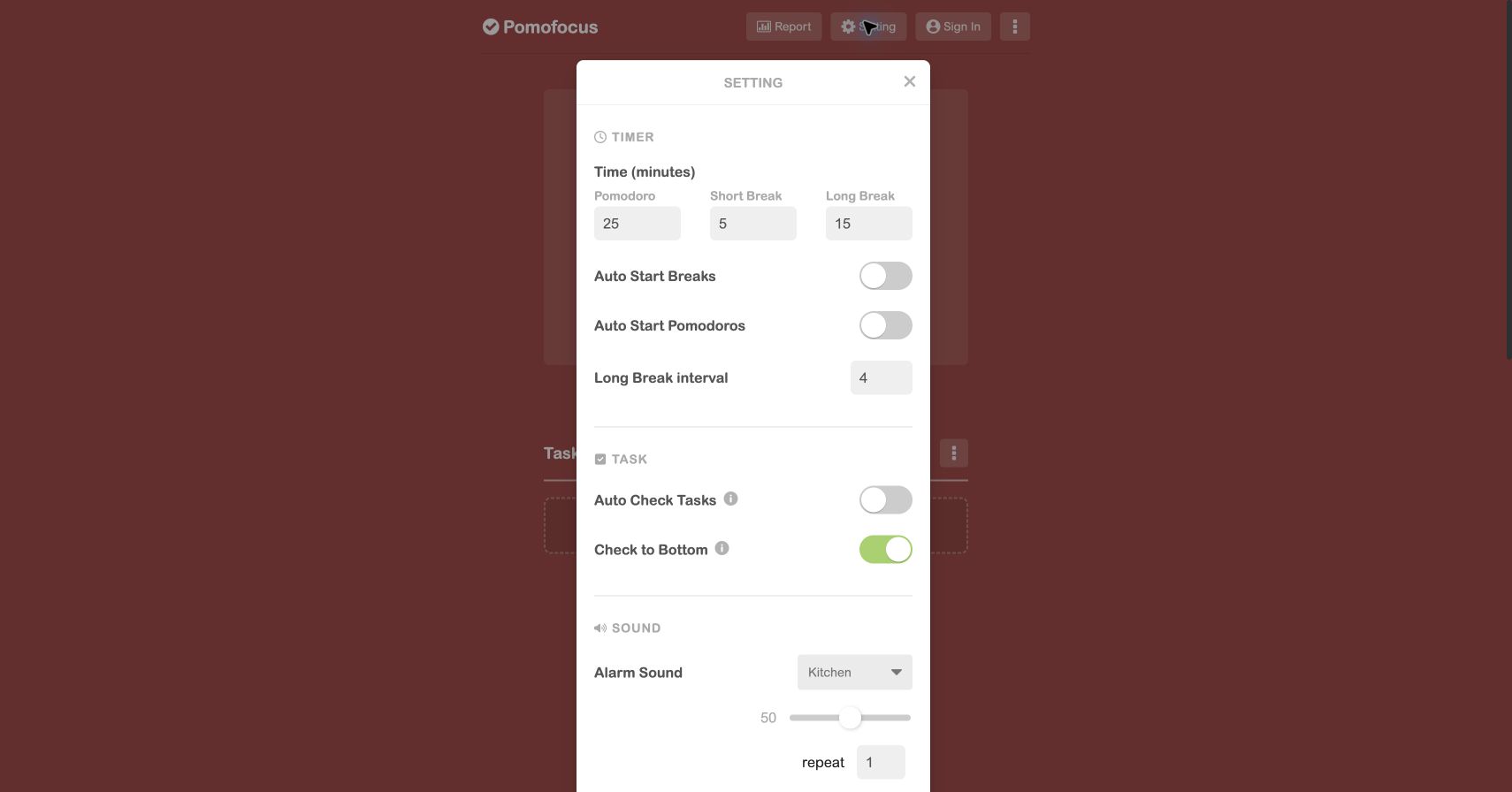
Pomofocus focus and break durations, interval, and automatic-start settings. Select the screenshot to enlarge it.
- Close settings, select Pomodoro, and press START.
- With manual transitions, select Short Break or Long Break when the focus period ends, then press START.
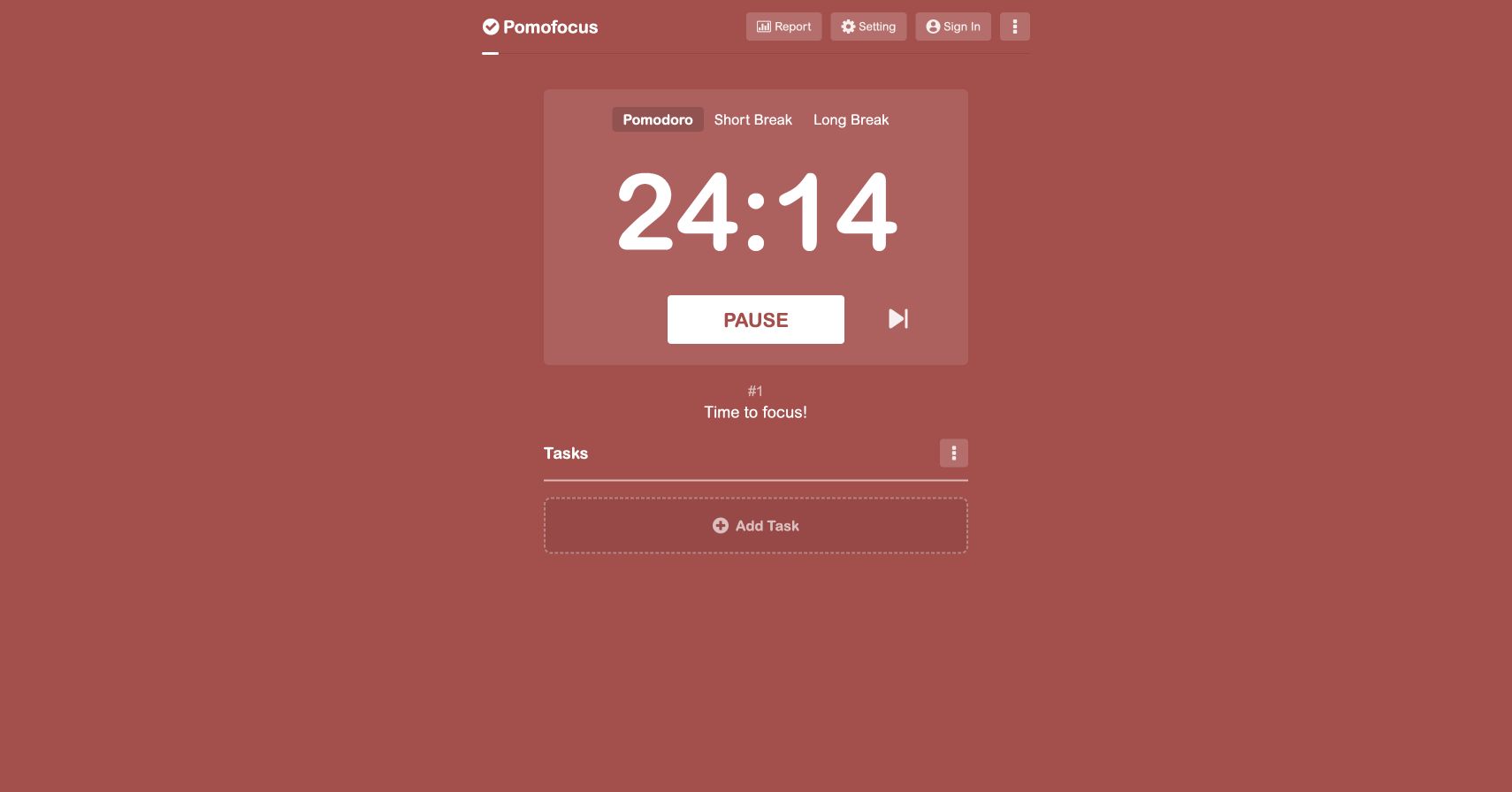
A running Pomodoro focus period. Select the screenshot to enlarge it.
Option C: Alternate timers in Mac Clock
Mac Clock supports a manual work-and-break routine:
- Open Clock > Timers and select +. Set 0 hours, 25 minutes, 0 seconds, name the timer "Focus", and select Start.
- When the focus timer ends, stop the alert. Select + to create a five-minute timer named "Break" and choose its alert sound.
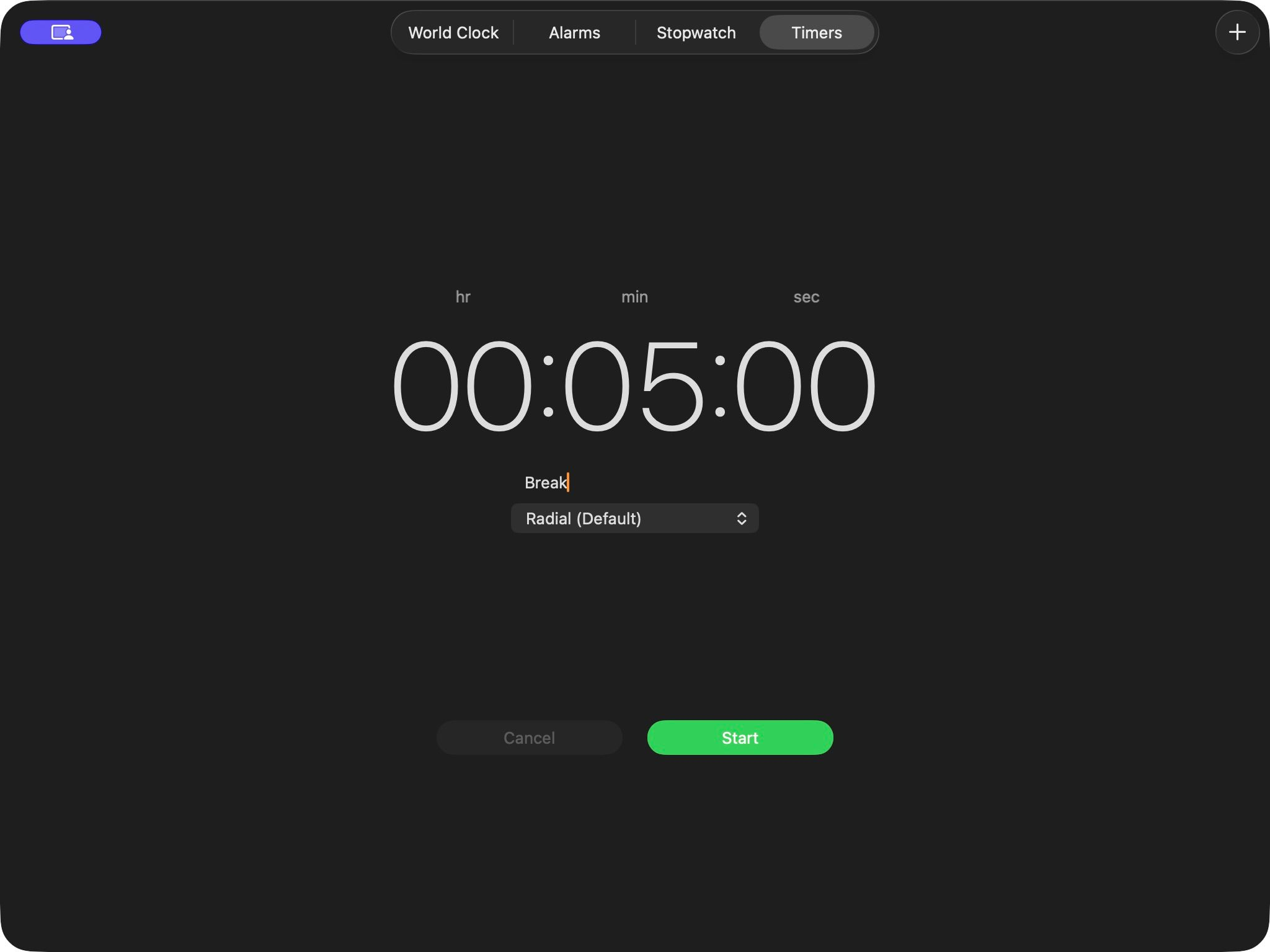
The same duration controls set either interval; this example shows the five-minute Break setup. Select the screenshot to enlarge it.
- Select Start for the break.
- Restart Focus from recently used timers for the next round.
Mac Clock does not automate this routine; see Apple's timer instructions.
Option D: Use Windows Focus sessions
- Open Clock > Focus sessions in Windows 11.
- Choose the total session length. Leave Skip breaks off to include breaks; check the work-and-break split before starting.
- Select Start focus session. Follow the countdown through each work period and break.
Do not disturb turns on during a focus session. Follow Microsoft's Focus instructions to configure notifications.
For fixed return times, see break timers. For online groups, see Zoom meeting timers.