
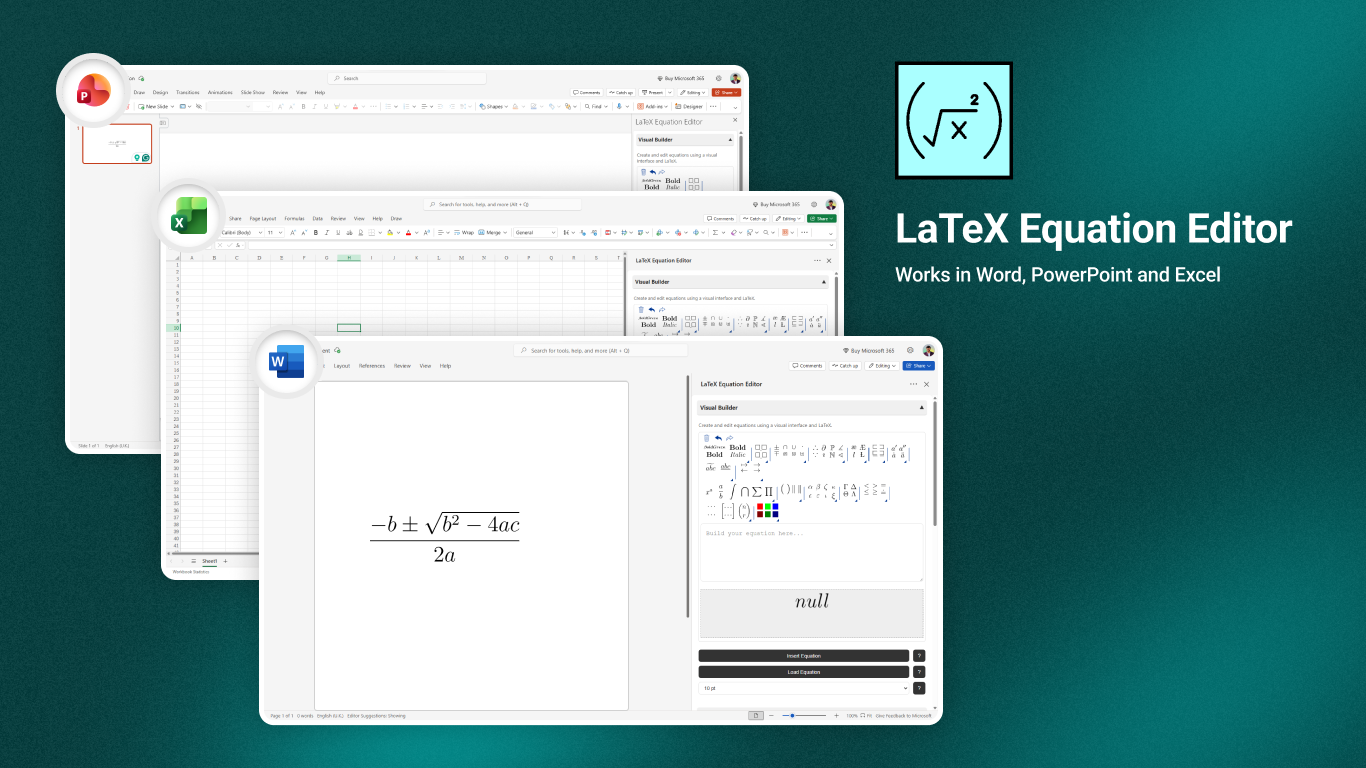
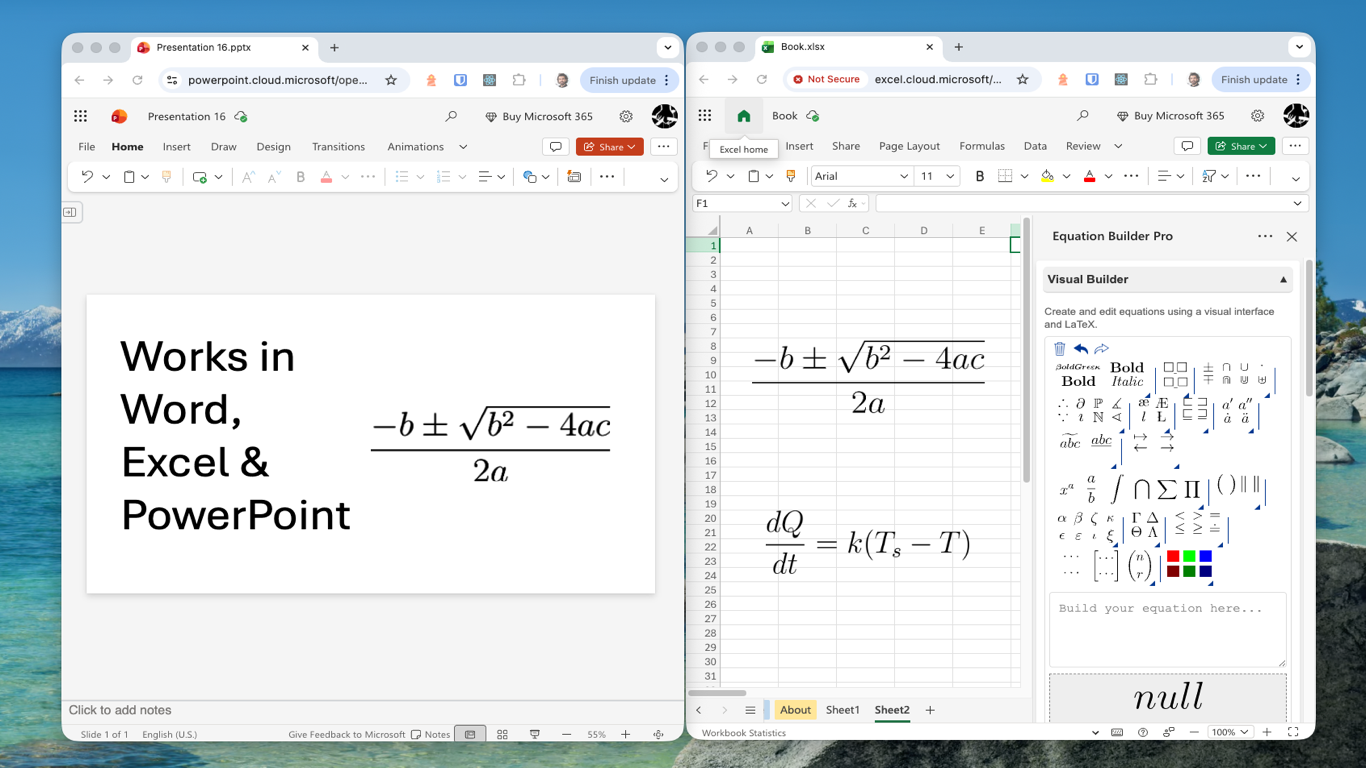
If you need mathematical equations in Word, Excel, or PowerPoint, LaTeX Equation Editor lets you create them in a task pane and insert high-resolution results directly into your document, worksheet, or slide.
Open LaTeX Equation Editor
Launch the add-in from the Office ribbon. It opens in a task pane beside your document so you can build equations without switching to another app or website.
Build or type the equation
You can use the visual builder for point-and-click editing, type LaTeX directly with autocomplete, or search the built-in catalog for common formulas. That makes it useful for both beginners and advanced users.
Preview and choose PNG or SVG
The equation preview updates as you work. Before you insert it, choose whether you want raster output such as PNG or vector output such as SVG, depending on the kind of document or slide deck you are creating.
Insert it into Word, Excel, or PowerPoint
When the equation looks right, click Insert. The add-in places the rendered equation directly into the current Word document, Excel worksheet, or PowerPoint slide.
Word tip: compile inline LaTeX
If you are working in Word, you can also write LaTeX directly in the document using $$ delimiters and compile those expressions in place. That can be faster when you already have the formula written out.
Need help?
If you run into trouble, email product@1990quebec.com with the Office app you are using, a sample expression if possible, and a screenshot or error message.