
Summary
In this guide, we show you how to add a spinner wheel to PowerPoint with Web Viewer 2.0. You can spin the wheel directly on your slide to pick a name or choose an activity during your presentation.
We use Wheel of Names in PowerPoint for the web for the walkthrough. We also show five other wheel websites that you can embed in your slides.
Six spinner wheels you can use in PowerPoint
We show six wheel websites running inside PowerPoint below. Click the montage to open a larger view.
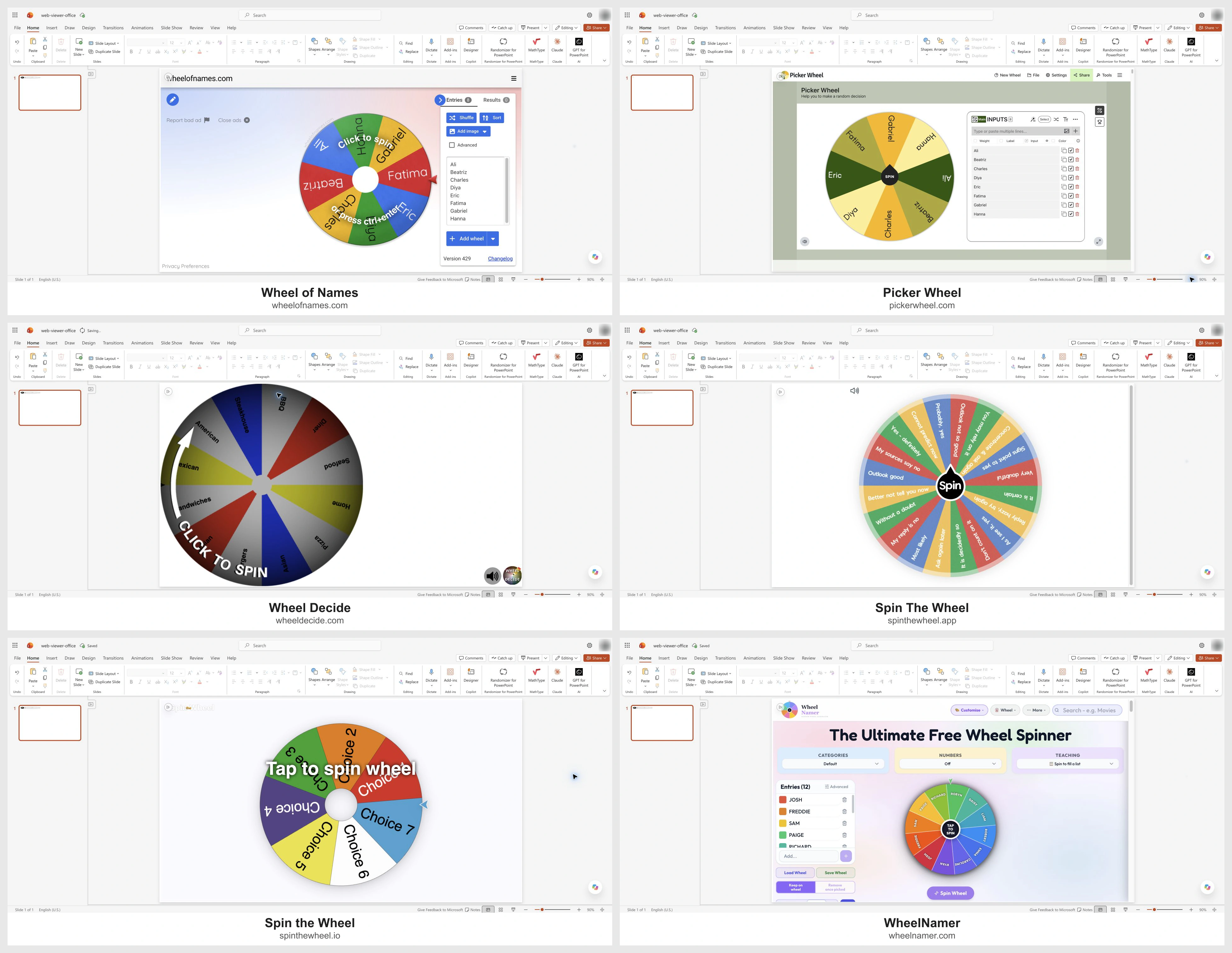
You can open each provider using the links below:
- Wheel of Names
- Picker Wheel
- Wheel Decide — we use its embedded view in the montage.
- Spin The Wheel (spinthewheel.app)
- Spin the Wheel (spinthewheel.io)
- WheelNamer
You can fit a website's controls inside the slide with Web Viewer's Zoom out button while keeping the add-in itself at full-slide size.
Before you start
- Open a presentation with Web Viewer 2.0 already inserted on the slide.
- Resize Web Viewer to fill the slide, with its edges aligned to the slide's edges.
- Keep an internet connection available while presenting.
-
Copy the website link for your wheel. We use
https://wheelofnames.com/in this guide; you can also use a shared link to a wheel you have prepared.
Load the wheel on your slide
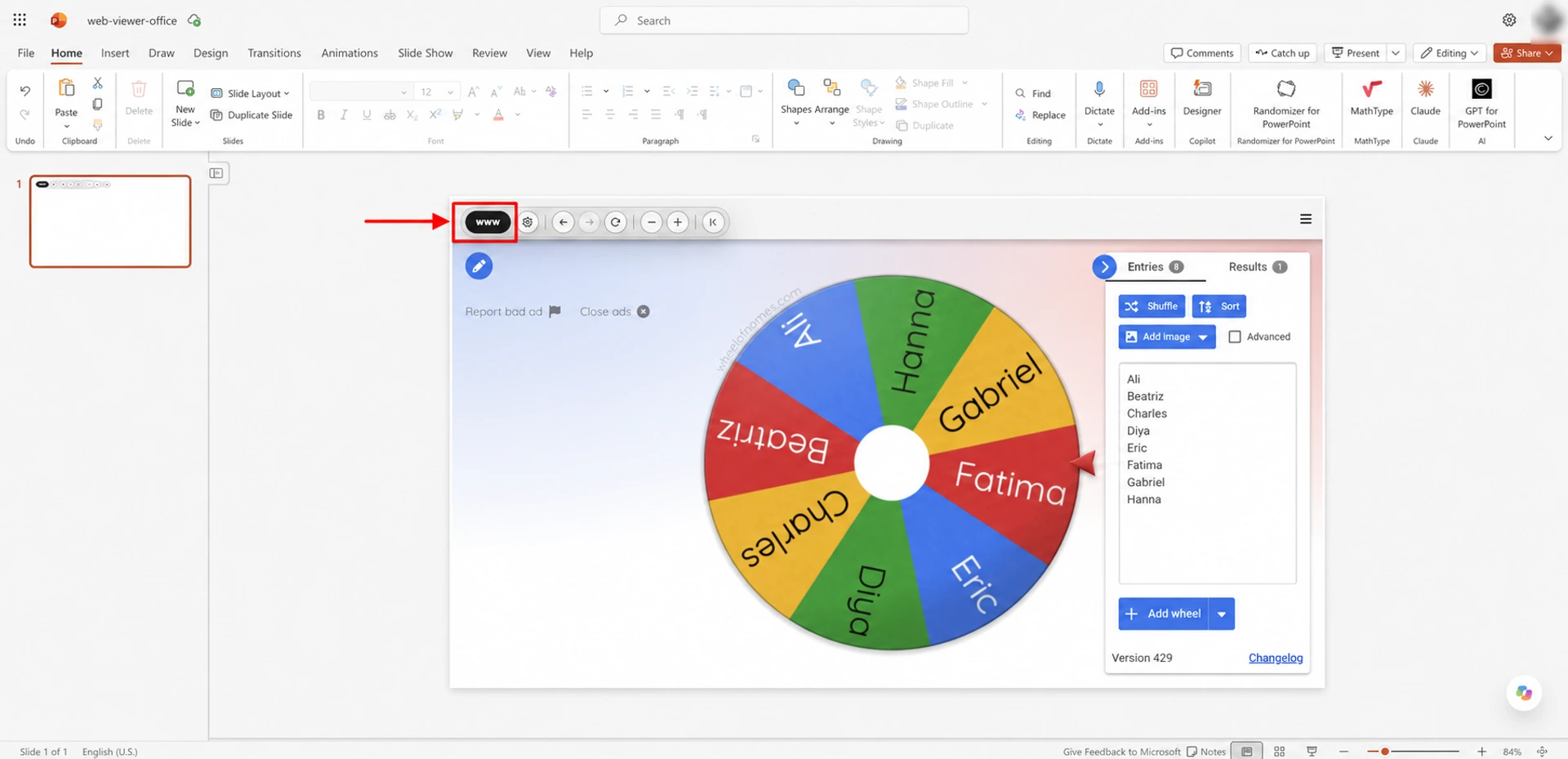
- Click the www button at the top left of Web Viewer.
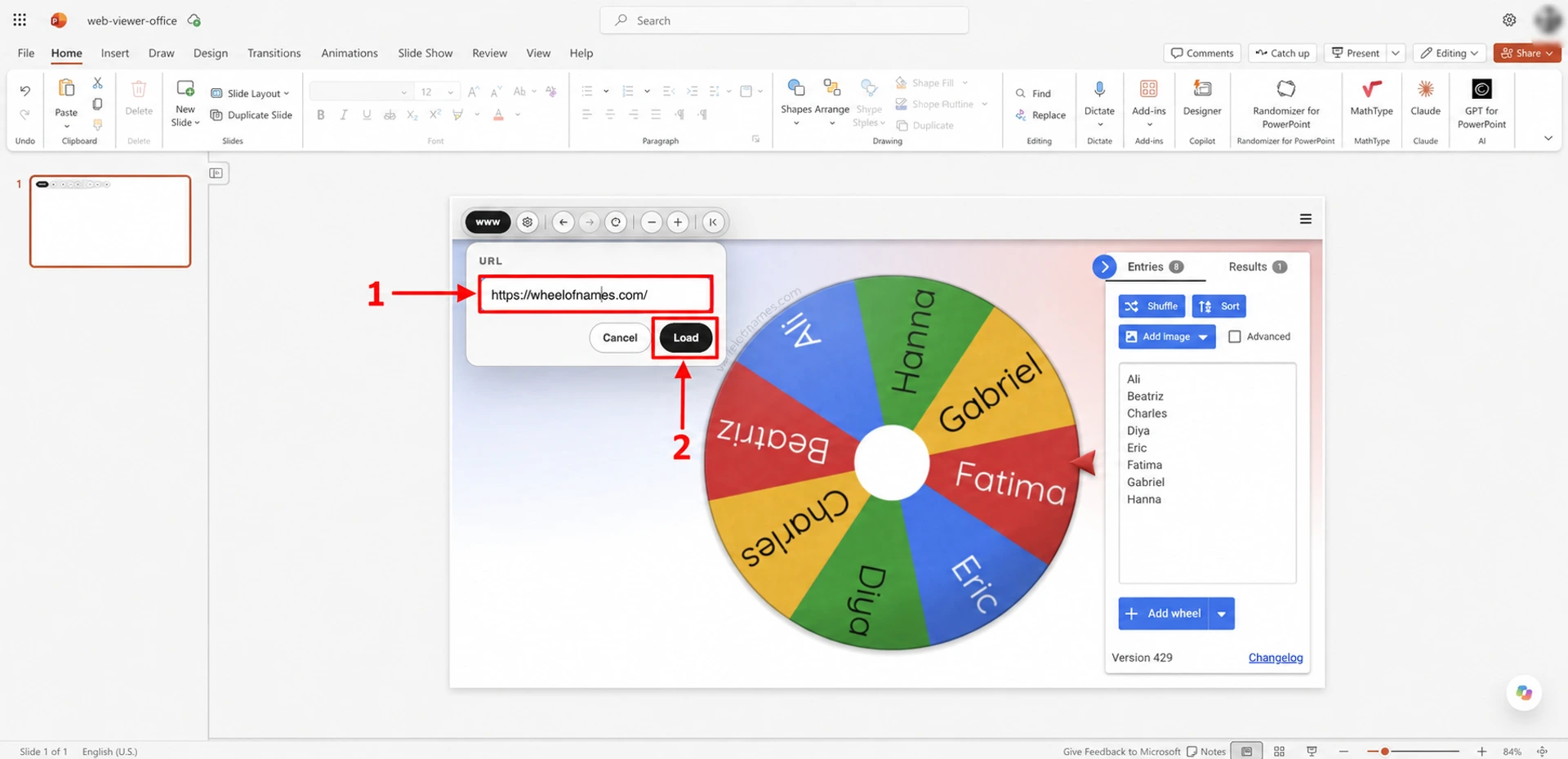
- Paste the wheel link into URL (1), then click Load (2).
Spin the wheel during Slide Show
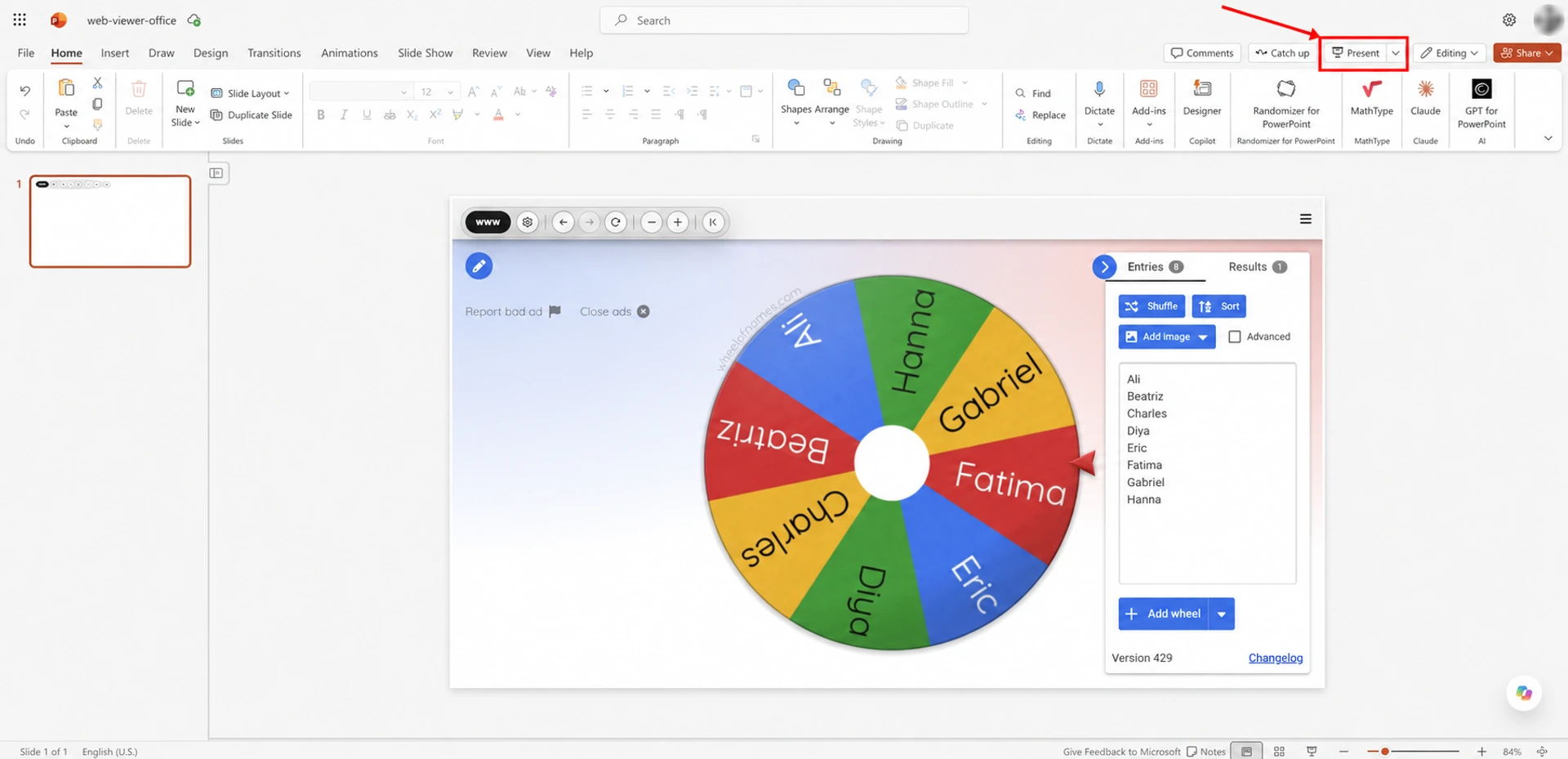
- Click Present in PowerPoint after the wheel finishes loading.
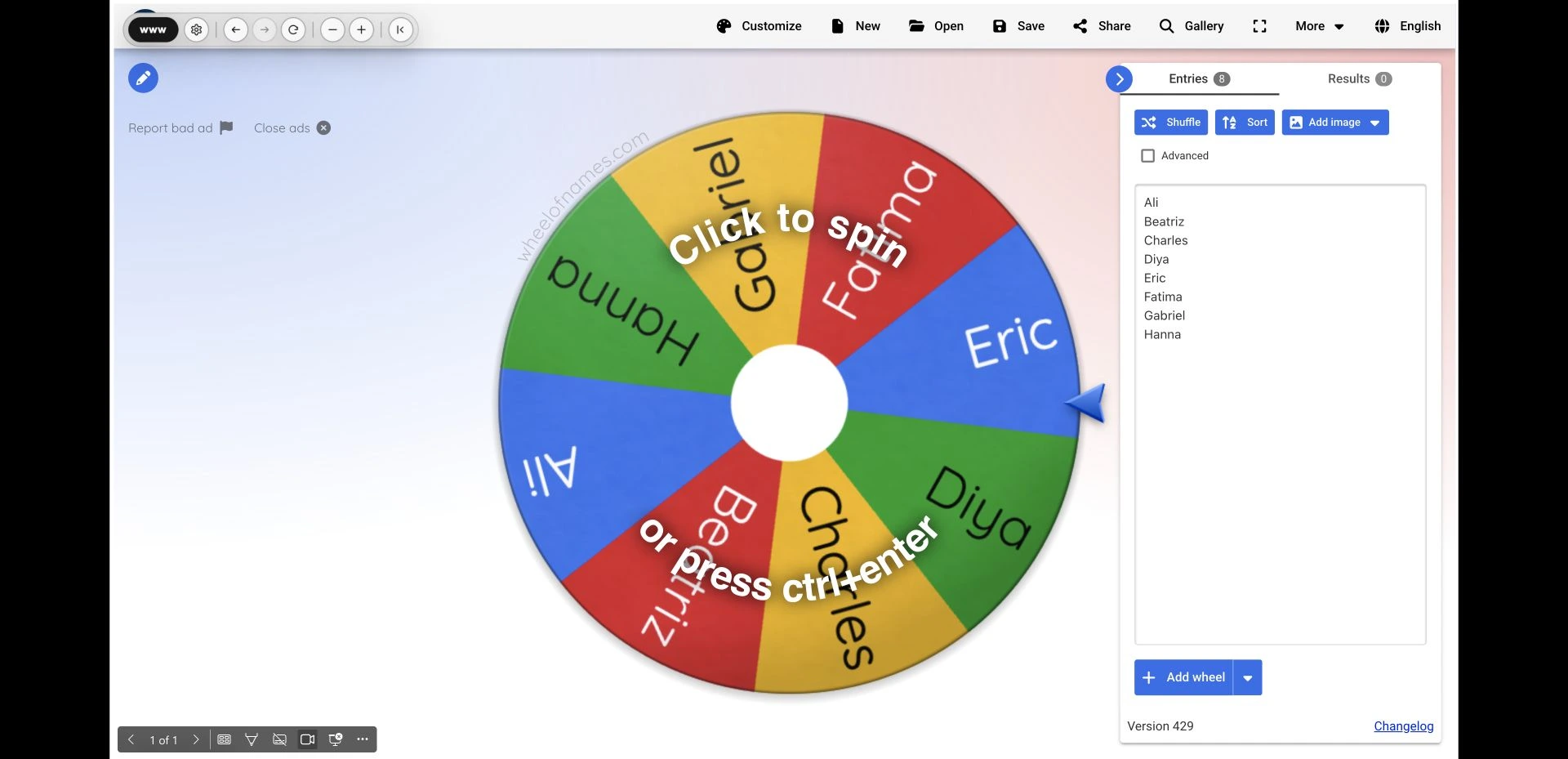
- Click the wheel to spin it and wait for the winner to appear.
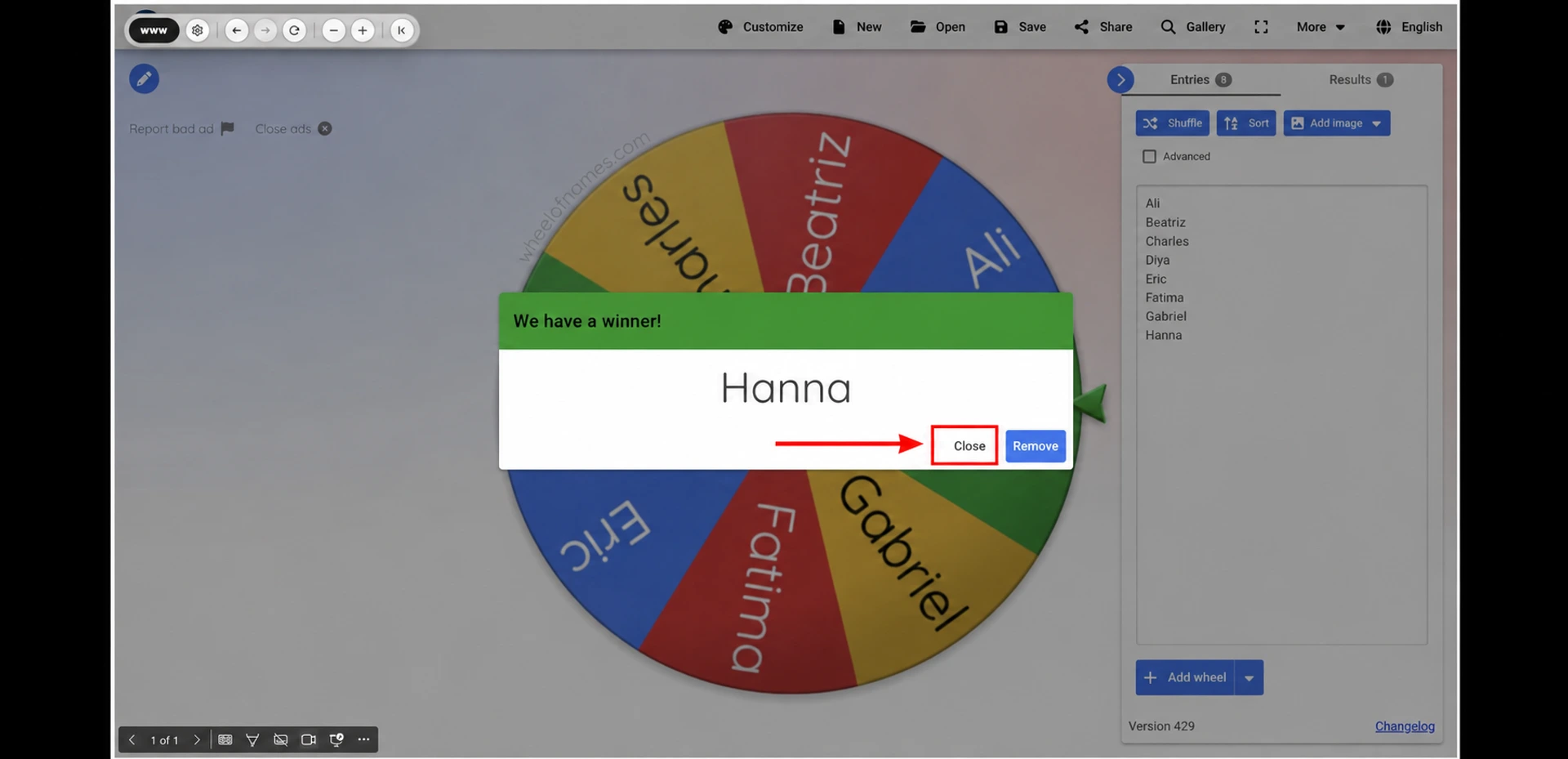
- Click Close on the result to return to the wheel without removing that entry.
Use your own wheel
You can load your own names and colors by creating a shared wheel link. Wheel of Names explains how to share a wheel with its entries and appearance. Once you have the shared link, load it in Web Viewer using the steps above.
Web Viewer needs a new link to show changes to your shared wheel. Wheel of Names captures your entries and appearance when you share the wheel, so create a new link after editing your wheel and load that link on your slide.
FAQ
Can I use Wheel of Names in PowerPoint presentation mode?
Yes, you can spin Wheel of Names during a PowerPoint presentation. Click Present in PowerPoint for the web, then click the wheel on your slide to select a winner.
Is a spinning wheel the same as a PowerPoint animation?
Web Viewer loads an interactive website that makes a fresh selection when you spin the wheel. A PowerPoint animation or prerecorded spin plays a sequence that you prepared earlier.
Can my school or organization use Web Viewer?
Your school or organization can use Web Viewer with a suitable license. If your organization blocks Marketplace, your administrator can deploy the add-in through Microsoft 365 admin center.
Need help?
You can contact our support team for help loading a wheel website in Web Viewer.