
Summary
This post shows you how to resize or move an add-in on a PowerPoint slide, such as Timer for PowerPoint, Web Viewer 2.0, or HTML Viewer 365.
Resize or move an add-in
-
Select the add-in's outer border
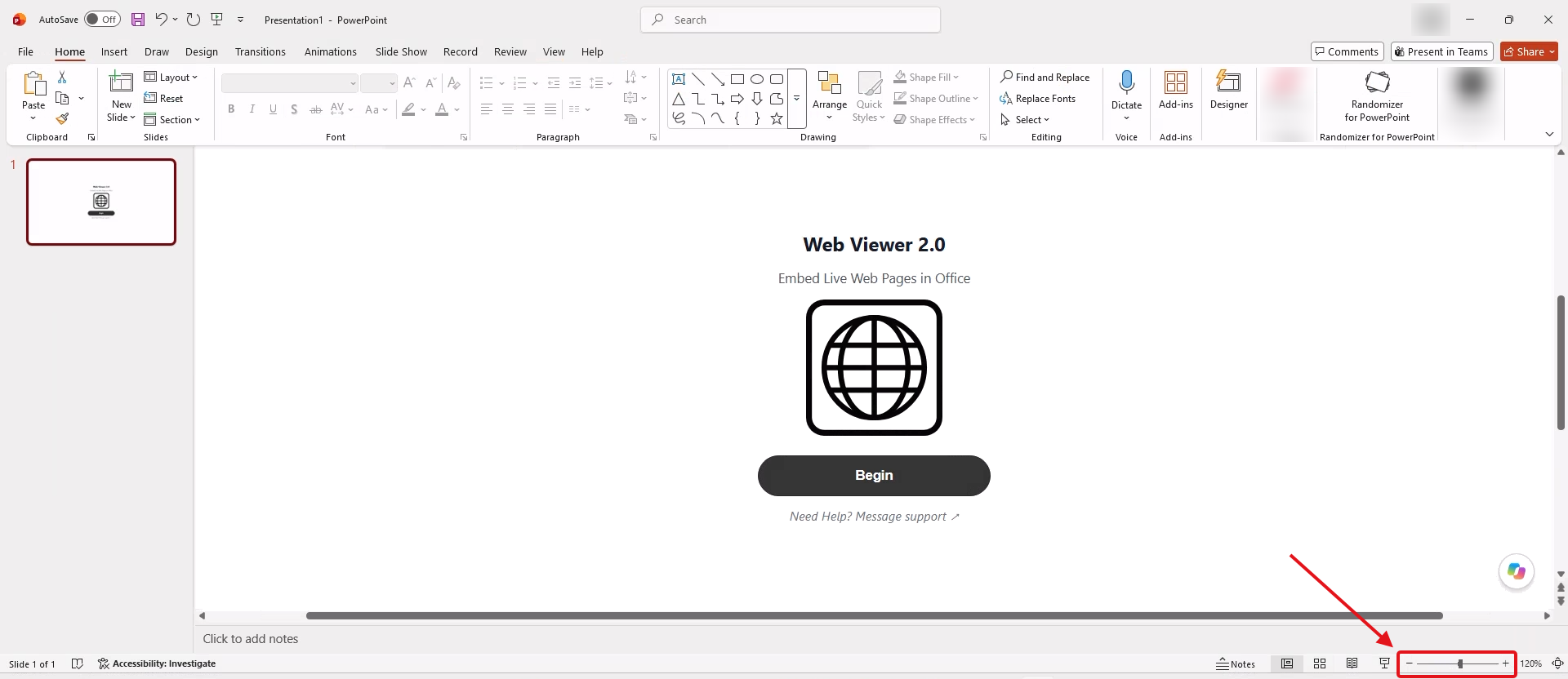
- In PowerPoint for Windows or Mac, drag the Zoom slider in the lower-right corner to the left when the add-in covers the slide edges.
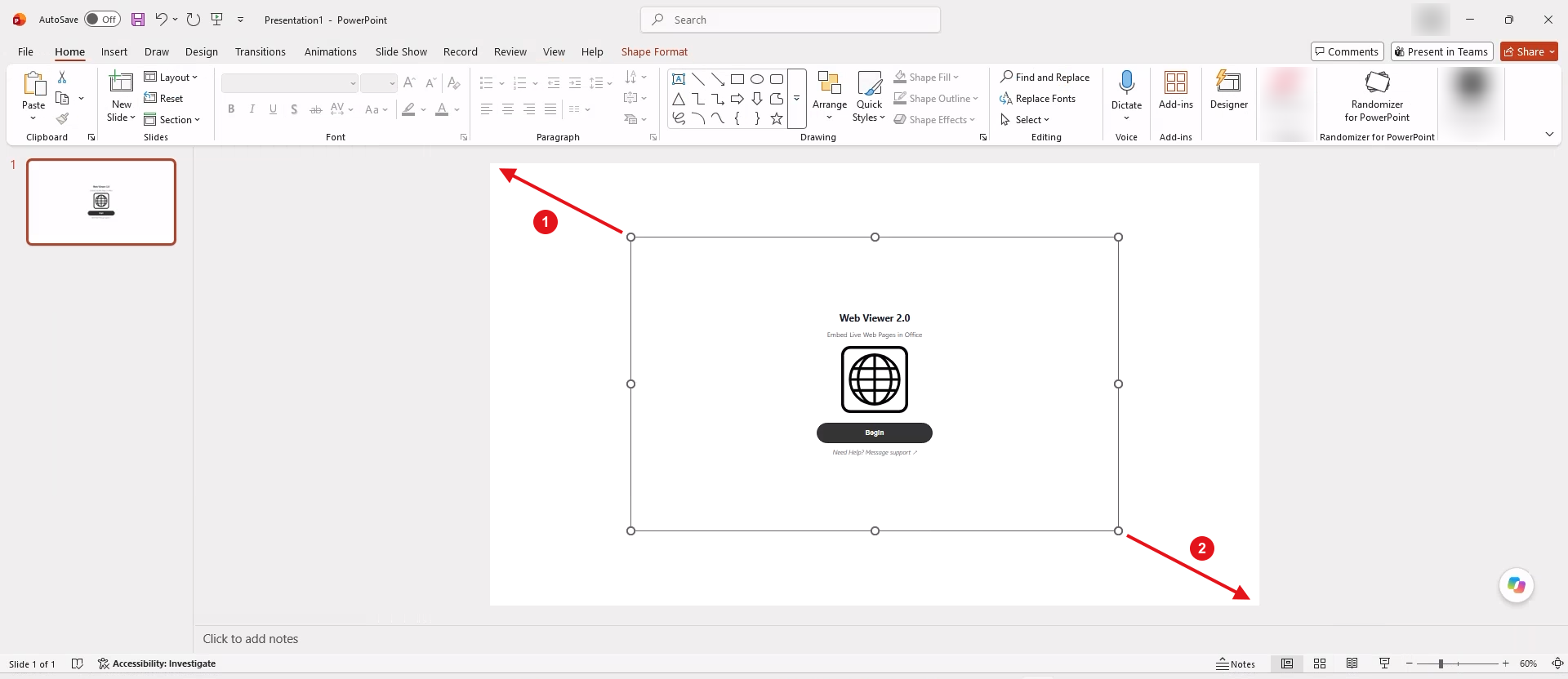
- Click the add-in's thin outer border so circular sizing handles appear around the frame. Clicking inside the add-in interacts with its content instead; if that happens, click the gray workspace around the slide and try again.
-
Drag a corner sizing handle to resize
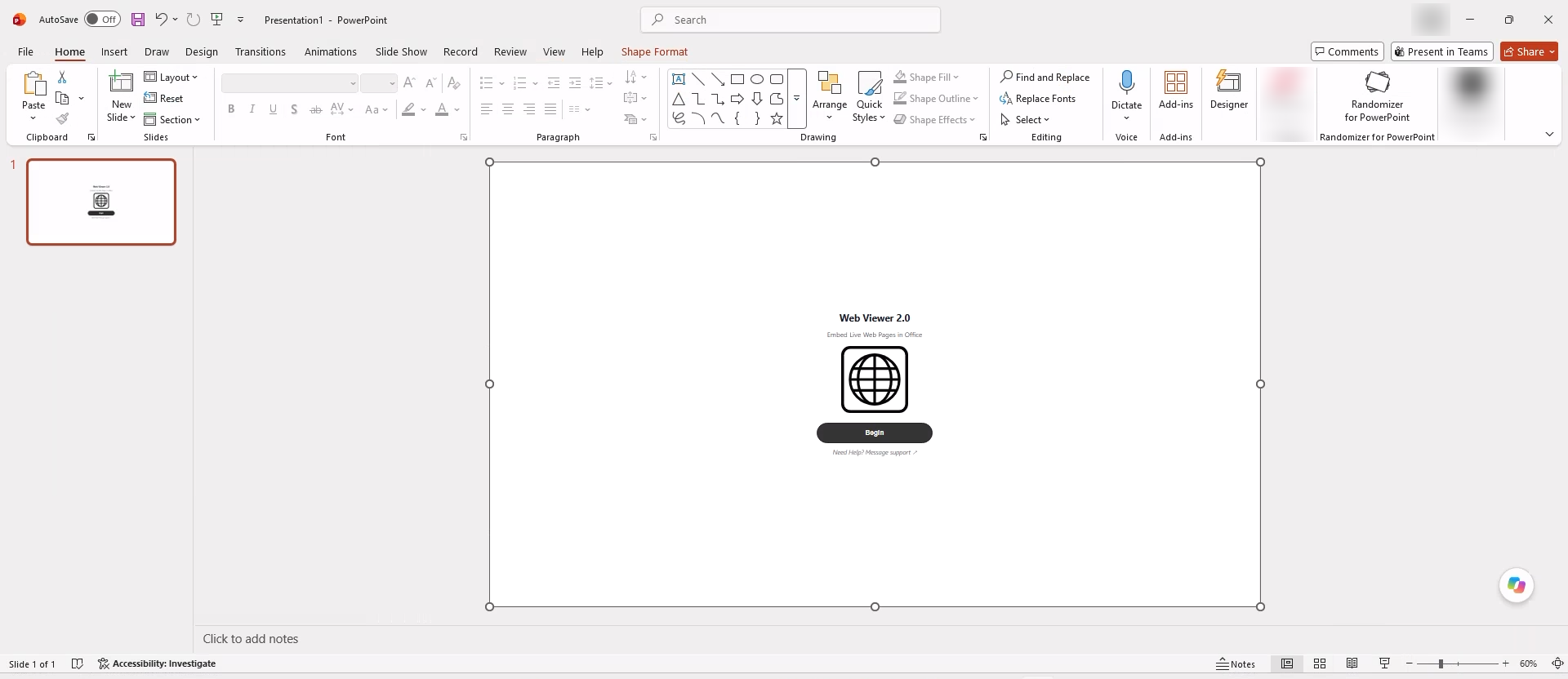
- Drag any corner handle inward or outward. To fill the slide, drag the top-left handle (1) and bottom-right handle (2) to the slide corners:
-
Move the frame or undo a change
- Point at the selected border away from the sizing handles until the four-headed arrow appears, then drag the add-in to a new position.
- To undo a resize or move, click the gray workspace around the slide first so PowerPoint receives Ctrl+Z (Windows) or Command+Z (Mac) instead of the add-in.
If your HTML Viewer 365 layout leaves empty space or overlaps after resizing, see common HTML resizing problems and fixes. For help with Web Viewer 2.0 or our other PowerPoint add-ins, contact support.