
Summary
This post shows you how to add a ready-made five-minute countdown to PowerPoint by using the free timer template below.
The template suits a class activity or workshop that needs a visible deadline and editable instructions. It contains a silent countdown video; no timer add-in, account, or subscription is required.
To use it:
- Download the countdown timer template (PPTX) and open it in PowerPoint.
- Replace the activity title and instructions, then copy the slide into your presentation.
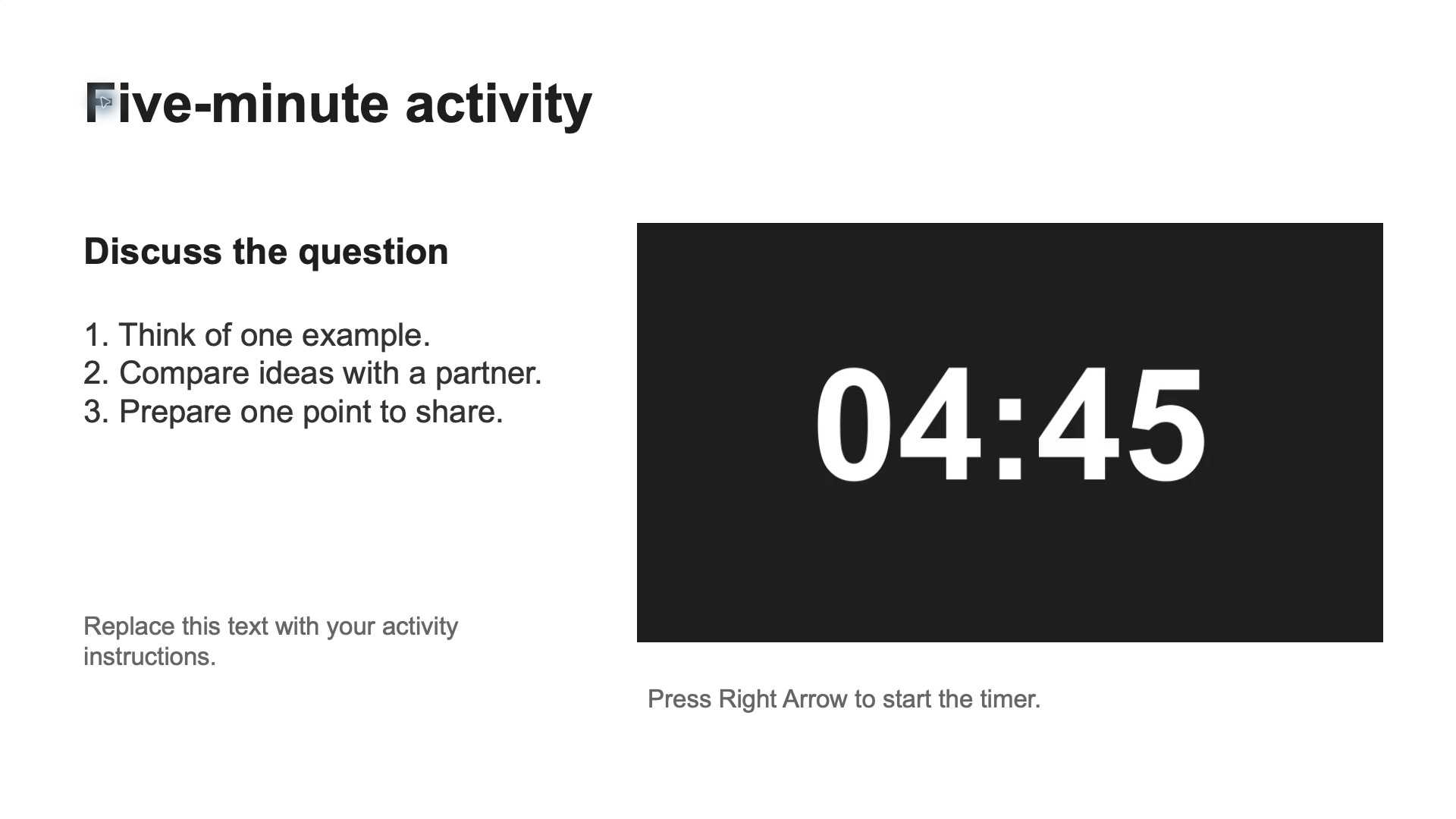
- Enter Slide Show and press Right Arrow once to start the countdown while keeping the activity slide on screen.
The video duration is fixed at five minutes. For another length, replace it with a custom timer video. To reuse your edited layout, save it as a PowerPoint template.
What the template includes
- A widescreen slide with a large, silent five-minute countdown and no watermark.
- Editable title, task, and instructions for a class activity or workshop.
- An embedded MP4 that plays from 05:00 to 00:00.
The countdown numbers are part of the video; you can edit the surrounding slide text.
Customize and present the slide
- Open the downloaded PPTX in PowerPoint.
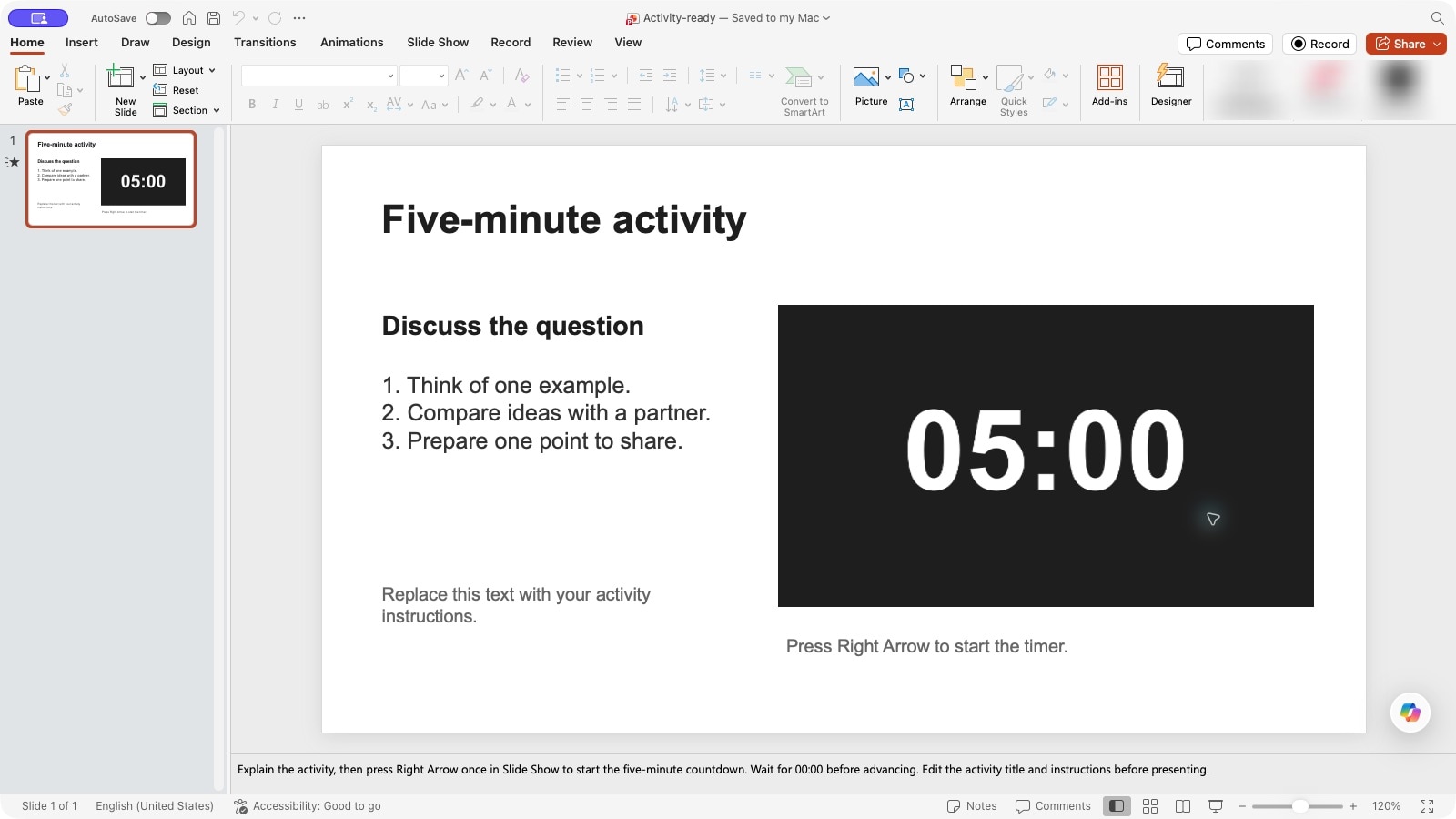
- Replace Five-minute activity, the discussion prompt, and the numbered instructions with your own task. Remove the editing reminder.
- Keep the timer large enough for the back of the room. Resize the video from a corner to preserve its proportions.
- Start Slide Show and explain the activity. Press Right Arrow once to start the countdown. Wait for 00:00 before advancing.
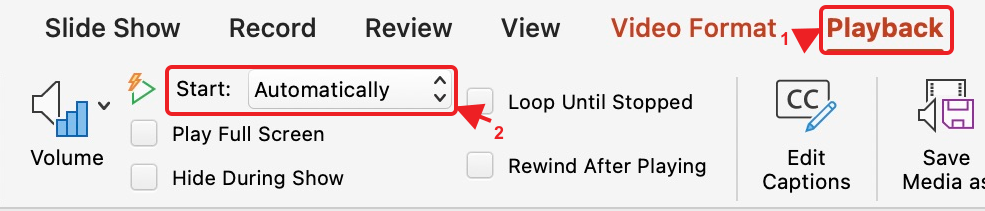
To start the countdown as soon as the slide appears, select the video in desktop PowerPoint and choose Playback > Start > Automatically. See PowerPoint's automatic video playback instructions.
Change the timer duration
Changing the slide title does not change the five-minute video. To create a replacement MP4 with another duration:
- Open a separate blank presentation in PowerPoint for the web. Select its first slide, then open Home > Add-ins.

- Enter Timer for PowerPoint in the search box. Under More search results, select Add beside the matching result.
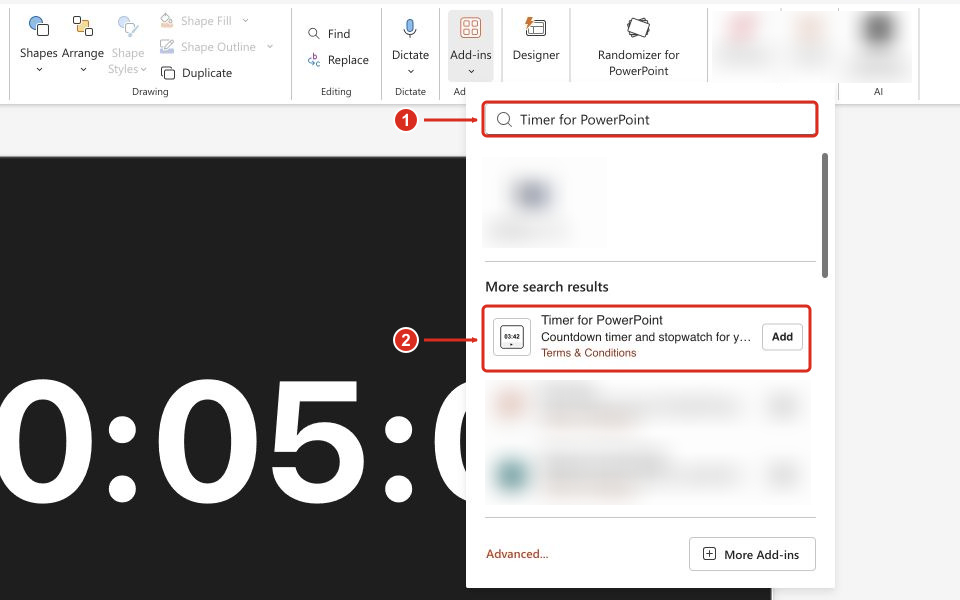
Complete any installation prompts. The timer appears on the selected slide. For other PowerPoint versions or organization-managed installation, see the full Office add-in installation guide.
- In Settings, choose Timer mode, then close Settings and enter the required duration, such as 00:10:00 for ten minutes.
- Open Settings > Export Timer and select Export Video. Keep the window open while the video processes.
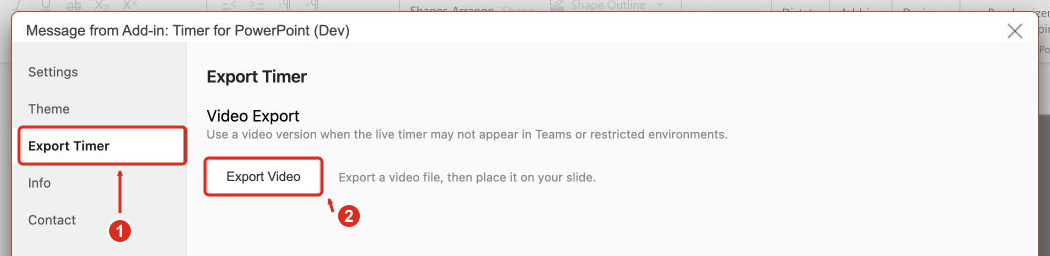
- Save the MP4 when processing finishes, then play it to check its duration and sound.
- Return to the template slide and delete the old video. Insert the new MP4 with Insert > Video > This Device on Windows or the web, or Insert > Video > Movie from File on Mac.

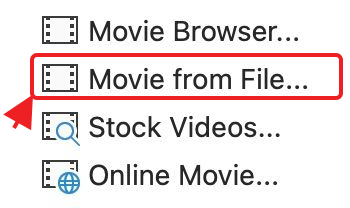
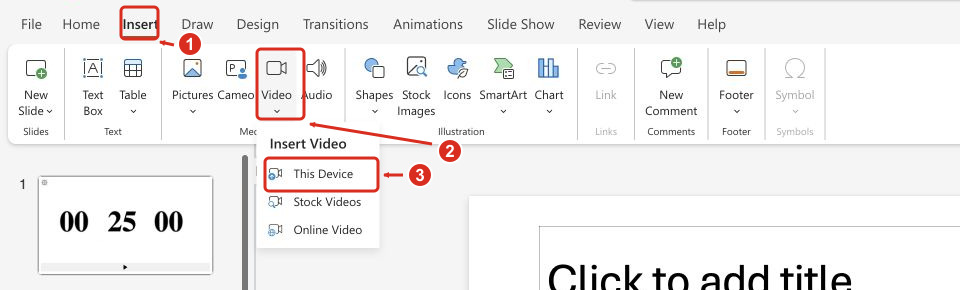
- Resize the video, set its playback behavior as above, and check the replacement in Slide Show.
For theme, label, and sound settings, see the custom timer video export guide. Timer for PowerPoint has a 24-hour free trial followed by a subscription. Trial exports have a FREE TRIAL watermark.
Reuse the layout
Duplicate the slide for another activity or copy it into your presentation, then check video playback in Slide Show.
To save your customized slide as a .potx template, use desktop PowerPoint. On Mac, choose File > Save as Template. On Windows, choose File > Save As or Save a Copy, then select PowerPoint Template as the file type. Microsoft's template instructions explain the template workflow.
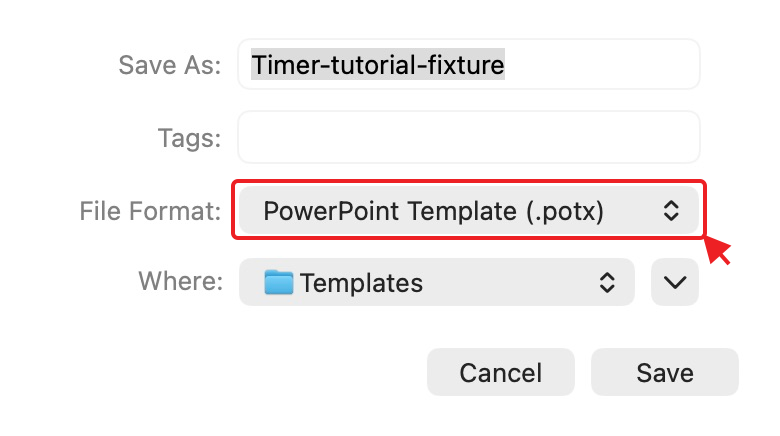
For other approaches, see free countdown timers for PowerPoint and the live countdown setup guide.