
Summary
This post shows you how to fix OneDrive's The cloud operation is invalid error (0x8007017C) by shortening parent folders or opening the file in SharePoint in your browser.
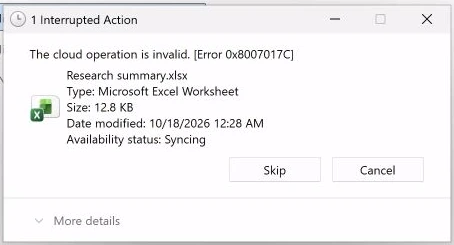
When you double-click a cloud-only file in File Explorer, OneDrive downloads the file before your desktop app opens it. If the full file path on your PC is too long, Windows stops the download with Error 0x8007017C: The cloud operation is invalid, even when the file's SharePoint path is under SharePoint's 400-character limit:
Choose one approach to open the file:
- Option A: Shorten parent folders. Rename long parent folders in SharePoint, wait for OneDrive to sync the shorter names to your PC, and reopen the file in File Explorer.
- Option B: Open the file in the browser. Open the file directly from its SharePoint folder in your web browser without changing folder names on your PC.
Why "The cloud operation is invalid" (0x8007017C) happens
OneDrive's Backed up and synced status means your folder structure is up to date, not that every file is downloaded to your PC. Files with a cloud icon in File Explorer's Status column remain online-only until you open them.
When you double-click a cloud-only file whose local PC path exceeds Windows' 259-character limit (such as 330 characters in the example above), Windows blocks the on-demand download with Error 0x8007017C: The cloud operation is invalid. At some path lengths (such as 270 characters on your PC), double-clicking a cloud-only file shows no error and opens no app.
This happens because OneDrive prepends your Windows user profile and company folder name to every synced file on your PC:
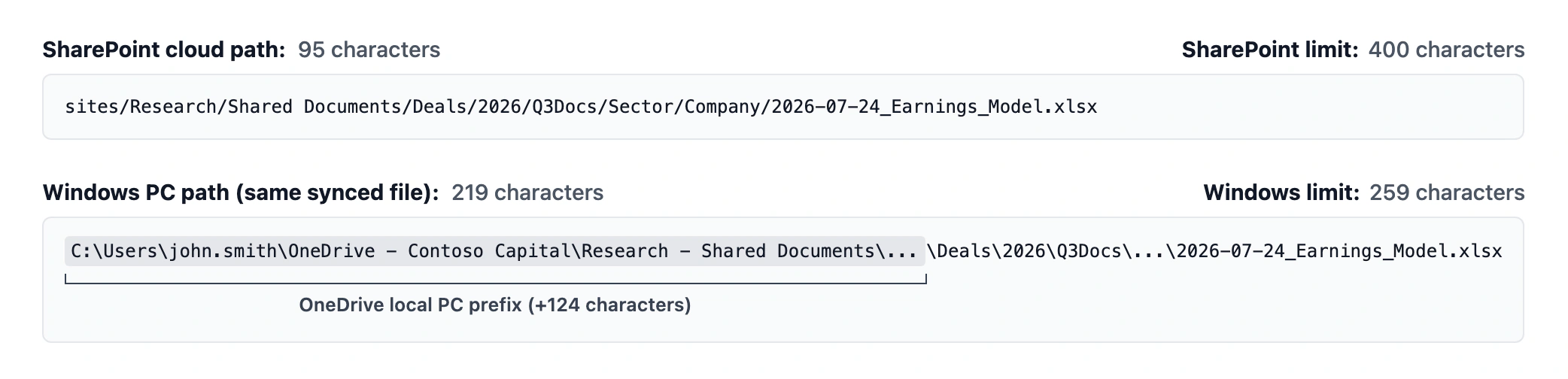
To check the full path length on your PC:
-
Reveal the folder path in File Explorer
- Open the folder containing the file that failed to open and click the address bar to display the folder path as text.
-
Count the full path and filename
-
Count the folder path (including the drive letter and backslashes), plus one
backslash and the filename with its extension. If File Explorer displays a shortened
folder name containing
~1, count the complete folder name instead. See SharePoint and OneDrive path length limits to compare your local PC path with your SharePoint path.
-
Count the folder path (including the drive letter and backslashes), plus one
backslash and the filename with its extension. If File Explorer displays a shortened
folder name containing
Option A: Shorten parent folders
Shortening long parent folders in SharePoint reduces the path for every file inside them so OneDrive can download and open the files on your PC:
-
Rename long parent folders in SharePoint
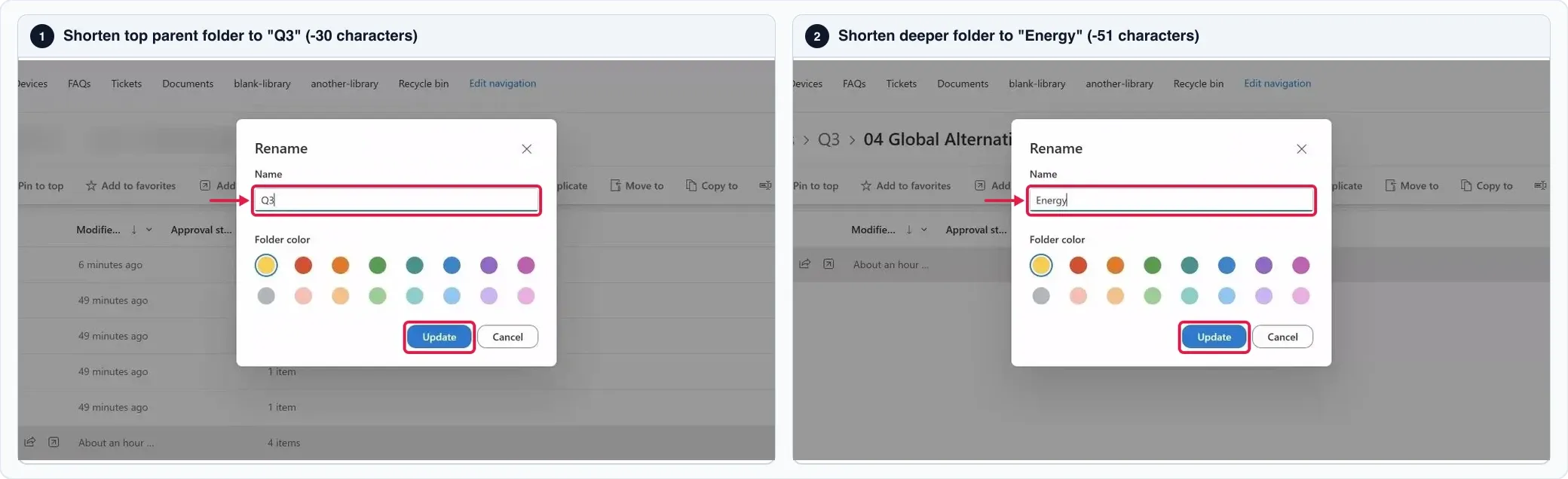
- Open the document library in SharePoint, select a long parent folder's checkbox, click Rename on the toolbar, enter a shorter name, and click Update.
- Repeat for a deeper folder if needed. In the example below, renaming the top folder to Q3 removes 30 characters and renaming a deeper folder to Energy removes another 51 characters:
-
Wait for OneDrive to sync and open the file
- Once OneDrive syncs the shorter folder names to your PC, double-click the file in File Explorer to download and open it:
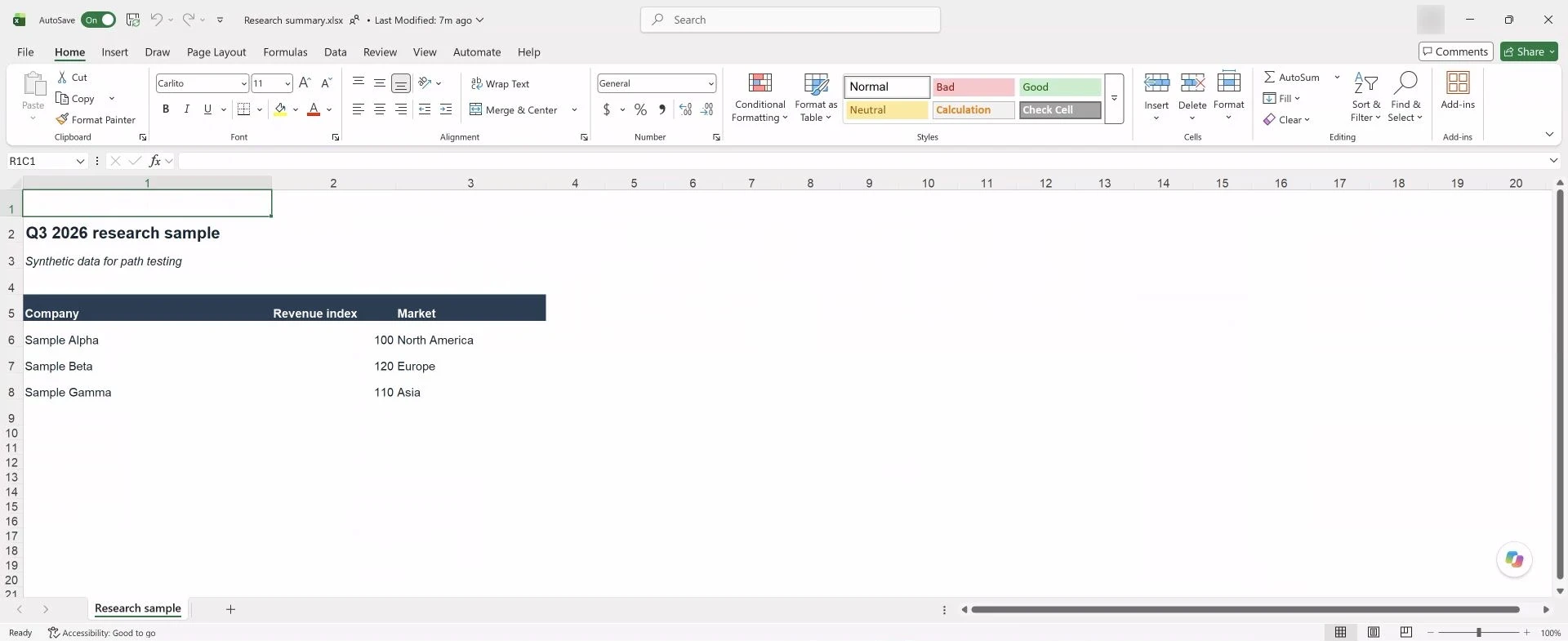
After those two renames, the longest local path on the PC drops from 330 to 249 characters (and a second branch drops from 270 to 240 characters), so Excel, Word, PDF, and PNG files inside both branches download and open normally from File Explorer.
Option B: Open the file in the browser
If you cannot rename shared folders right away, open the file directly in SharePoint without downloading it to the long path on your PC:
-
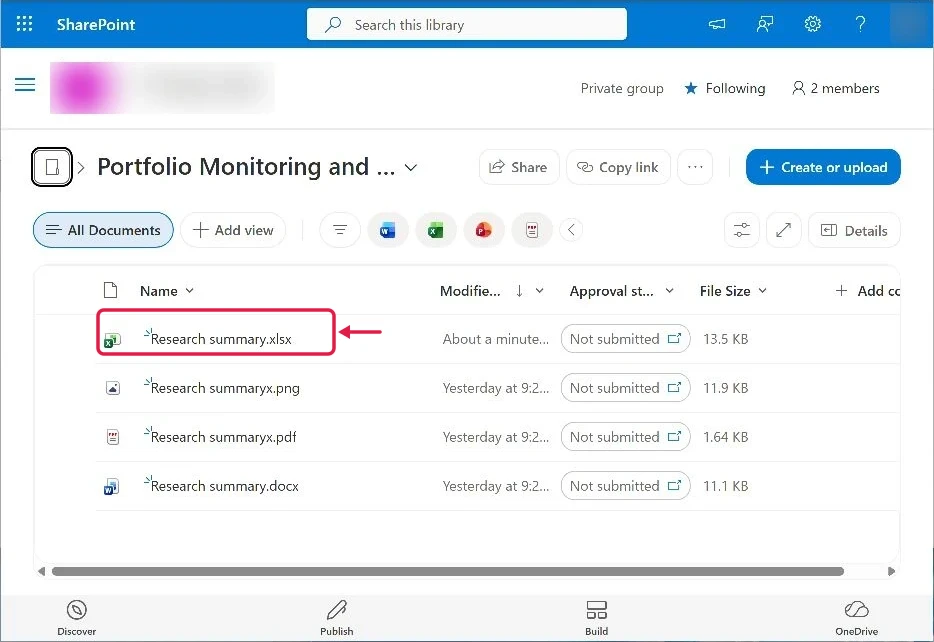
Select the file in SharePoint
- Open the document library in your web browser, browse to the folder containing the file, and click the filename:
-
View or edit the file in the web app
- Excel and Word files open in Excel for the web and Word for the web, while PDF and PNG files open in SharePoint's built-in viewer:
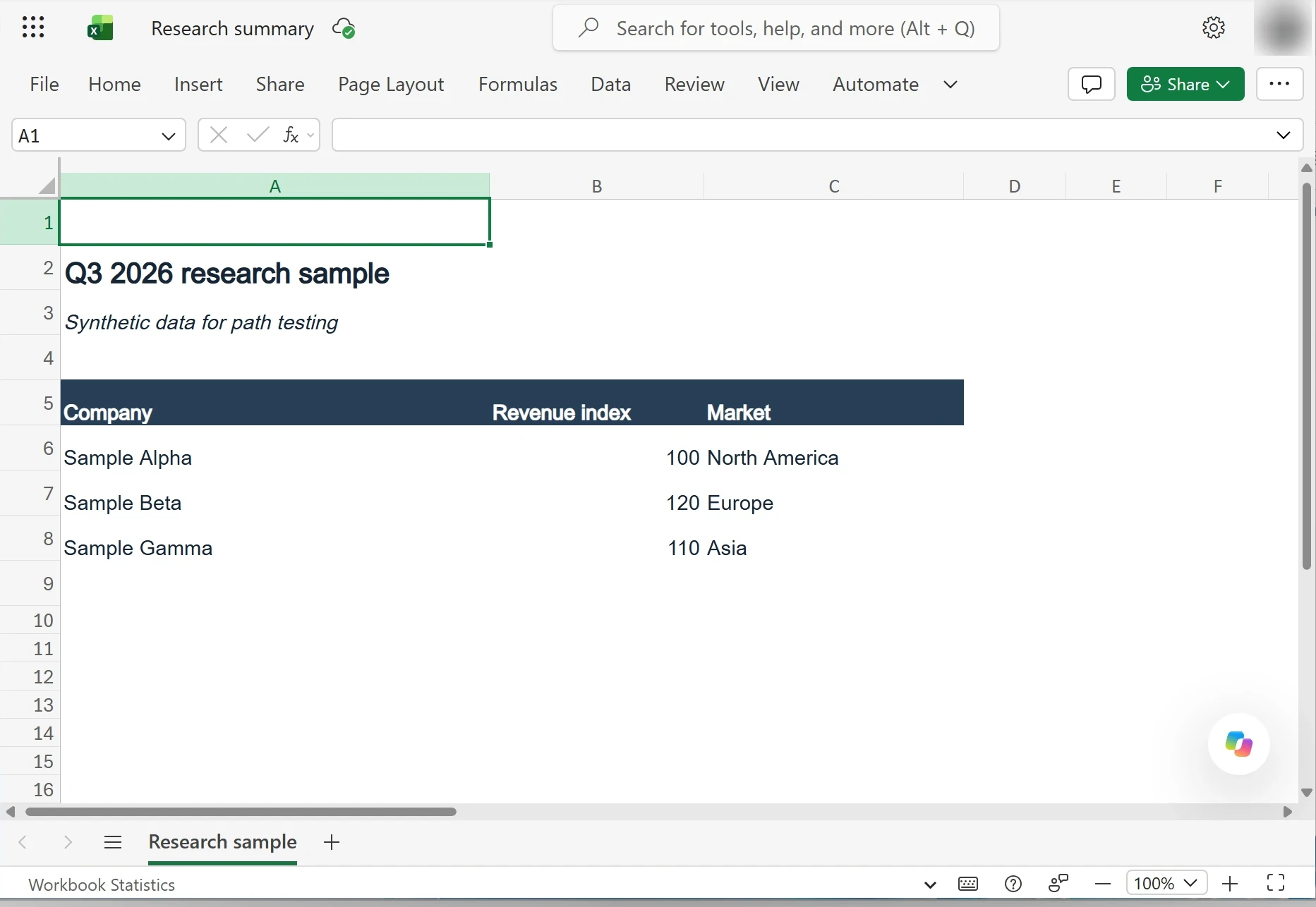
Because browser access uses the SharePoint path (296 and 356 characters in these folders) rather than the local Windows path, all four file types open in the browser even while the local path on your PC remains unchanged. For a full breakdown of how SharePoint and Windows calculate path lengths differently, see SharePoint and OneDrive path length limits.