
By default, external guests cannot use SharePoint add-ins in document libraries unless you allowlist them. This guide shows how.
Required permission: You must be a SharePoint Administrator or have permission to manage the tenant Apps site.
Allowlist the guest
First, open the Apps site permissions page. The shortcut URL is usually:
https://YOURTENANT.sharepoint.com/sites/appcatalog/_layouts/15/user.aspxReplace YOURTENANT with your SharePoint tenant name. If the shortcut does not work, use the next section to navigate with the UI.
Once you are there, grant the guest read access.
- Click Grant Permissions, then enter the guest's email address:
- Open Show Options, choose the Read permission level, and click Share.
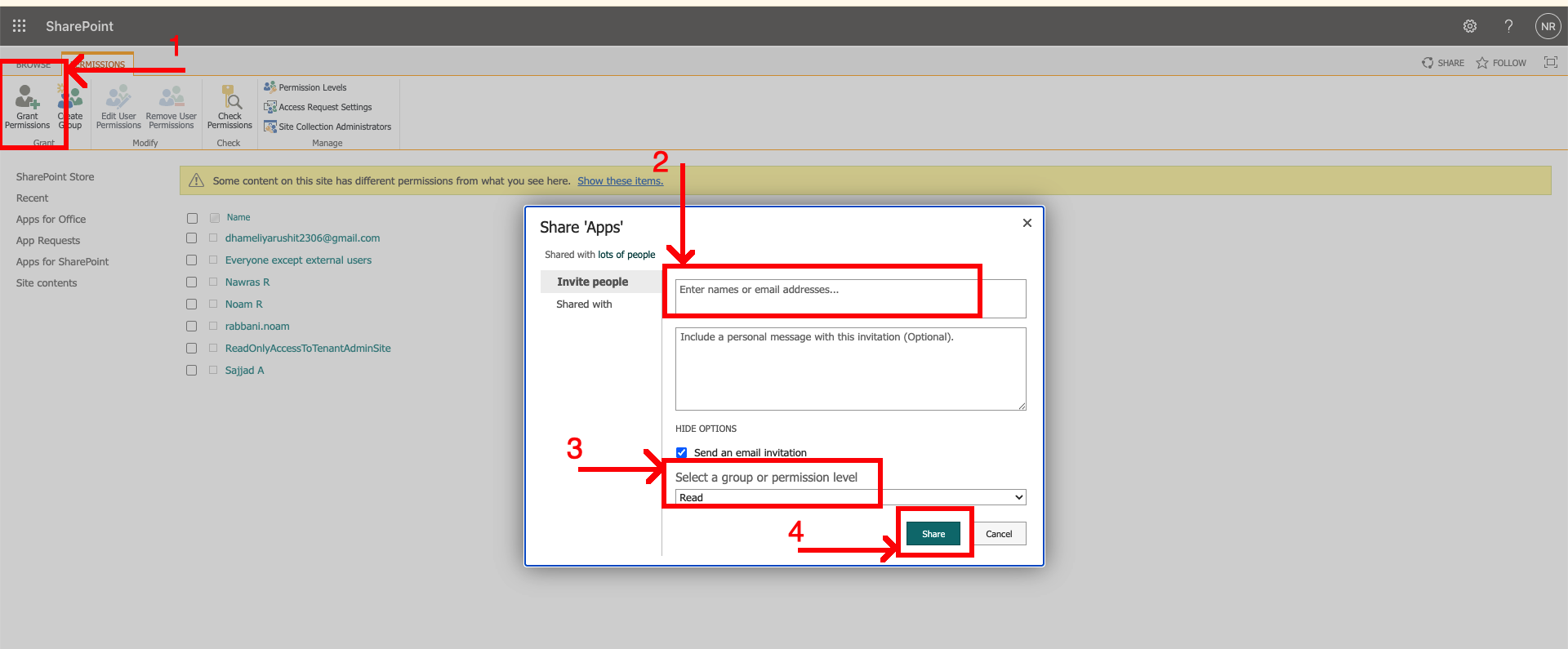
Open the Apps site permissions page from SharePoint admin center
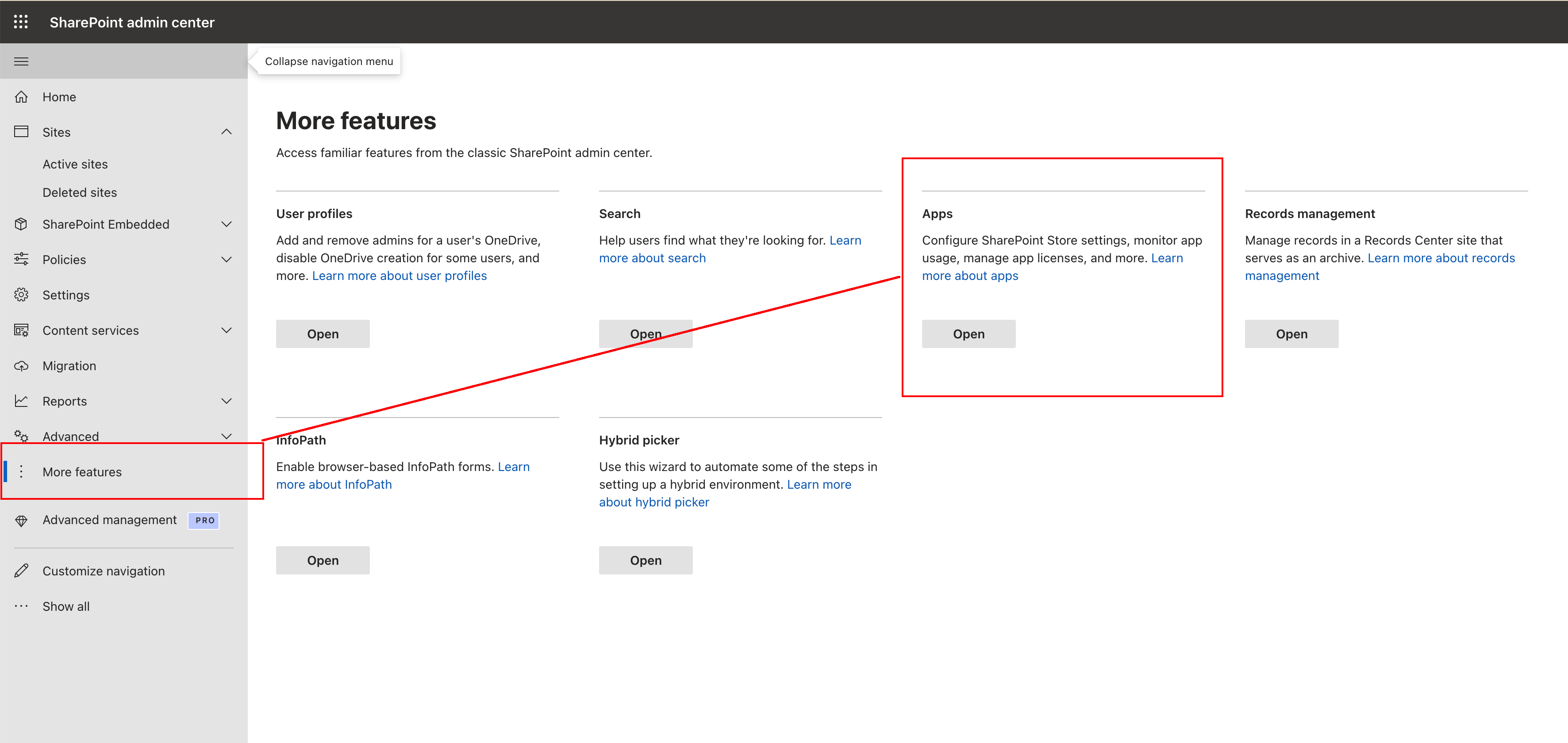
- Open the SharePoint admin center.
- Go to More features, then under Apps click Open.
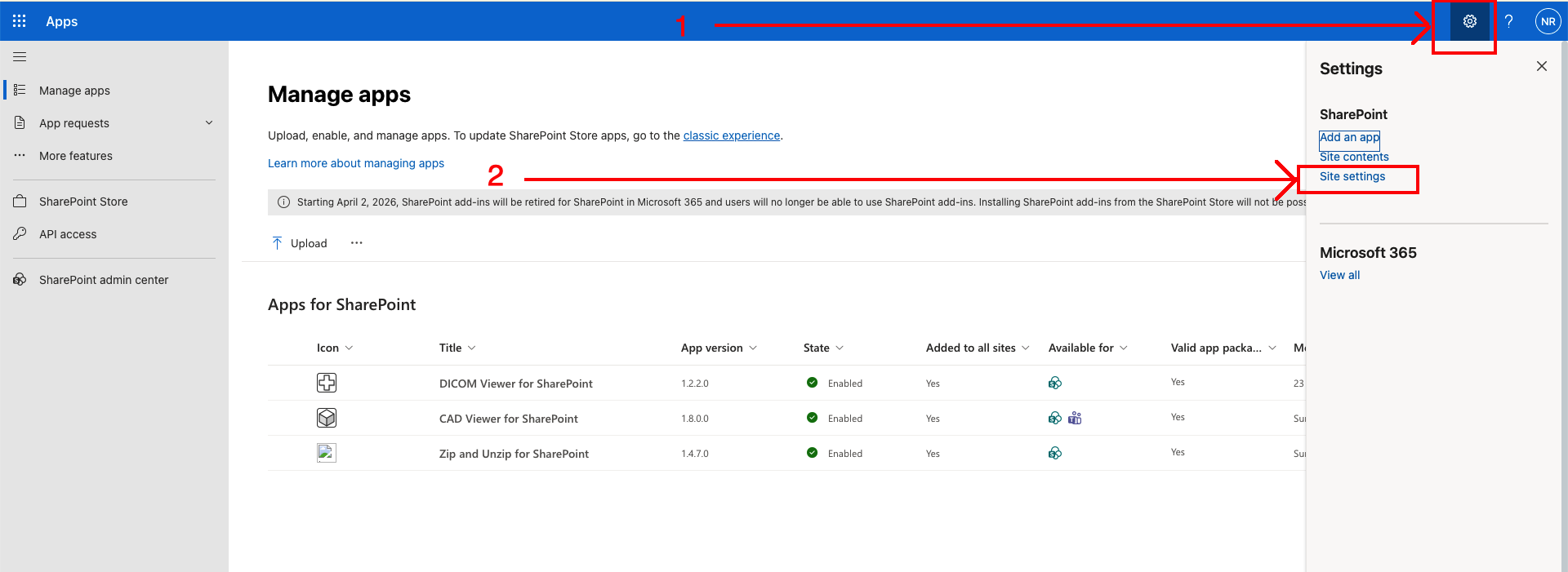
- On the Manage apps page, click the settings gear in the top-right corner.
- In the settings panel, click Site settings.
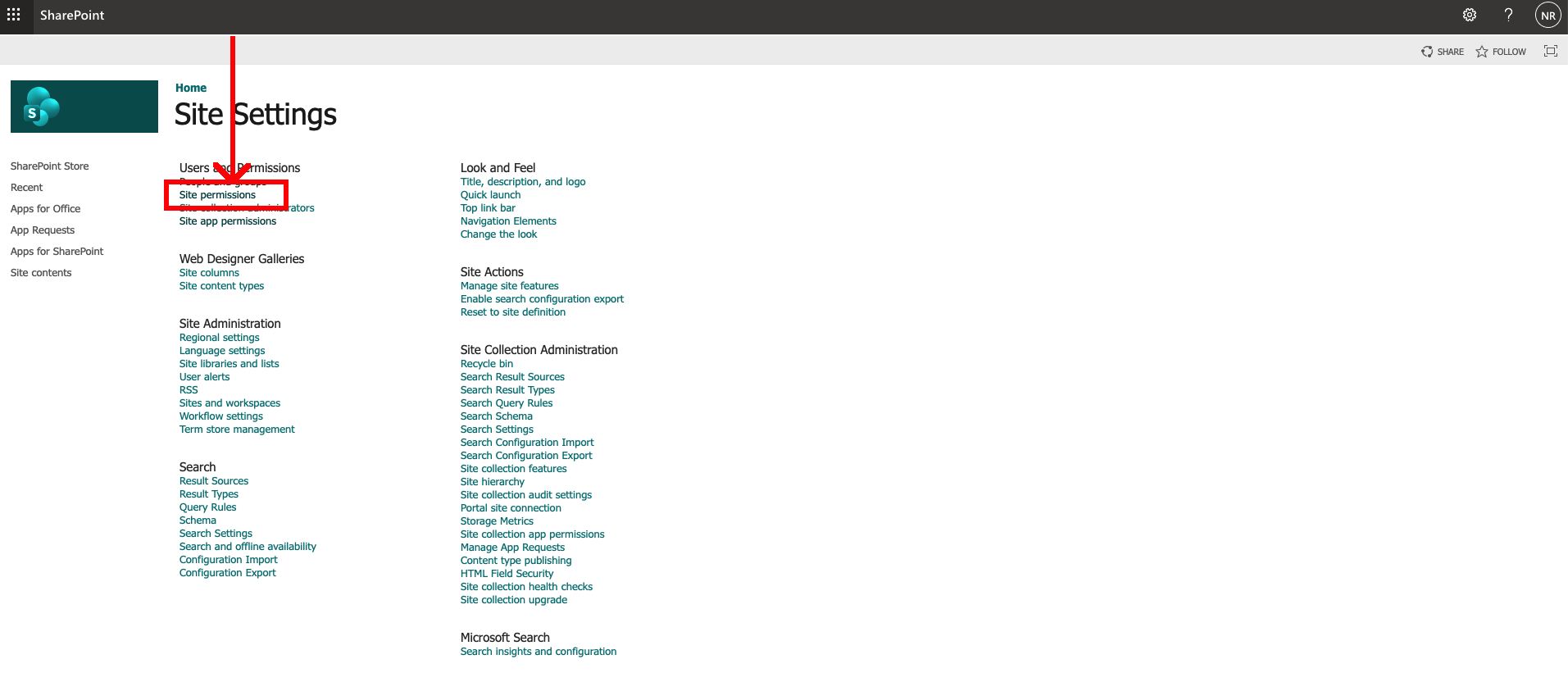
- On the Site settings page, click Site permissions.
Troubleshooting
If SharePoint cannot find the guest by email, try the full guest user principal name:
guest_email.com#EXT#@yourtenant.onmicrosoft.comYou can find guest user principal names in Microsoft Entra ID users.
Need help?
If the add-in still does not appear for guest users, contact us through our help page and we'll help.