
Summary
This post shows you how to measure elapsed time on a PowerPoint slide by using Timer for PowerPoint in Stopwatch mode, either live or as an exported video.
A stopwatch is useful for:
- Measuring how long a presentation or rehearsal takes.
- Timing a classroom task without setting a fixed deadline.
- Comparing the duration of repeated attempts.
Choose one approach. Option A: Live stopwatch lets you pause, resume, and start a new measurement:
- Insert the add-in on your slide and select Settings > Mode > Stopwatch.
- Enter Slide Show and press Start. Use Pause and Resume for interruptions.
- Record the elapsed time, then choose New Timer and Start for another attempt. The add-in does not save laps or previous results.
Use Sections to label parts of a rehearsal and presentation sync to continue the same measurement across slides.
Option B: Stopwatch video. Choose Settings > Export Timer to export a fixed-length stopwatch video of 15, 30, or 60 minutes, then insert the MP4 on a slide. Recipients can play it without the add-in; each video runs independently.
Option A: Insert a live stopwatch on a slide
- In PowerPoint for the web, select the slide and open Home > Add-ins.

PowerPoint for the web. Select the screenshot to enlarge it.
- Enter Timer for PowerPoint in the search box (1). Under More search results, select Add beside the matching result (2).
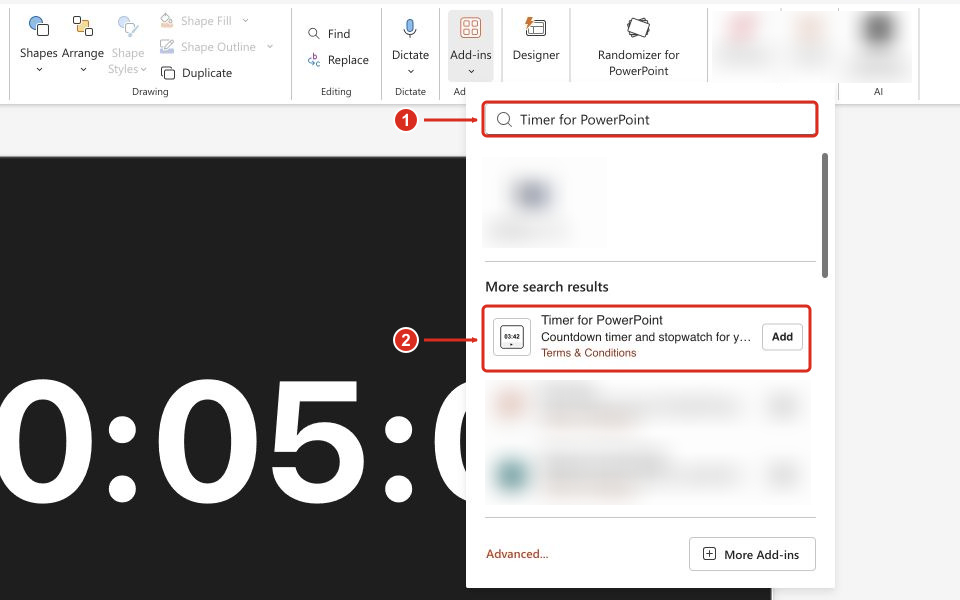
Complete the installation prompts. The timer appears on the selected slide. For other PowerPoint versions or organization-managed setup, see the full installation guide.
- Choose the gear button labeled Settings at the timer's upper left.
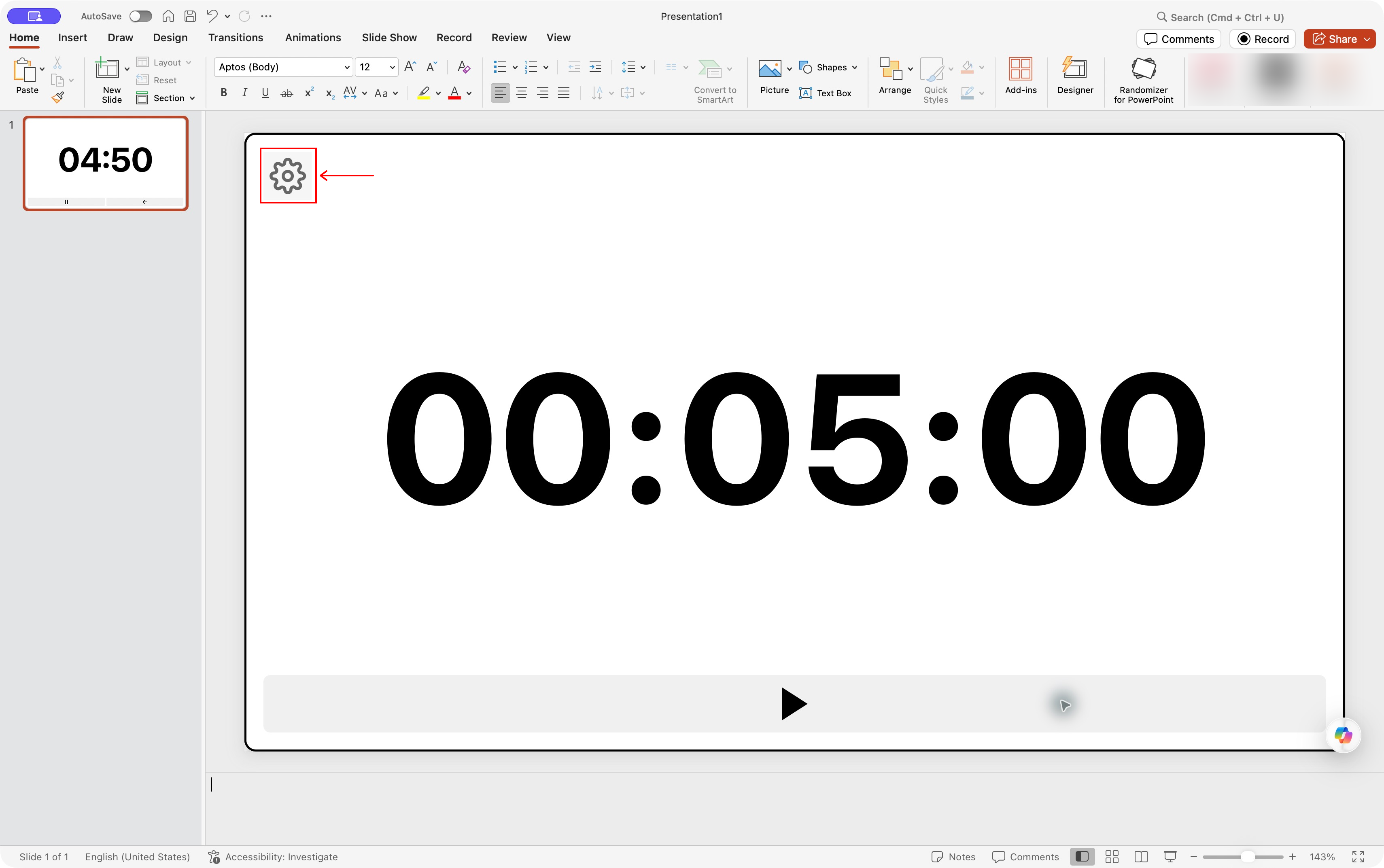
PowerPoint for Mac, before choosing Stopwatch mode. Select the screenshot to enlarge it.
- Under Mode, select Stopwatch.
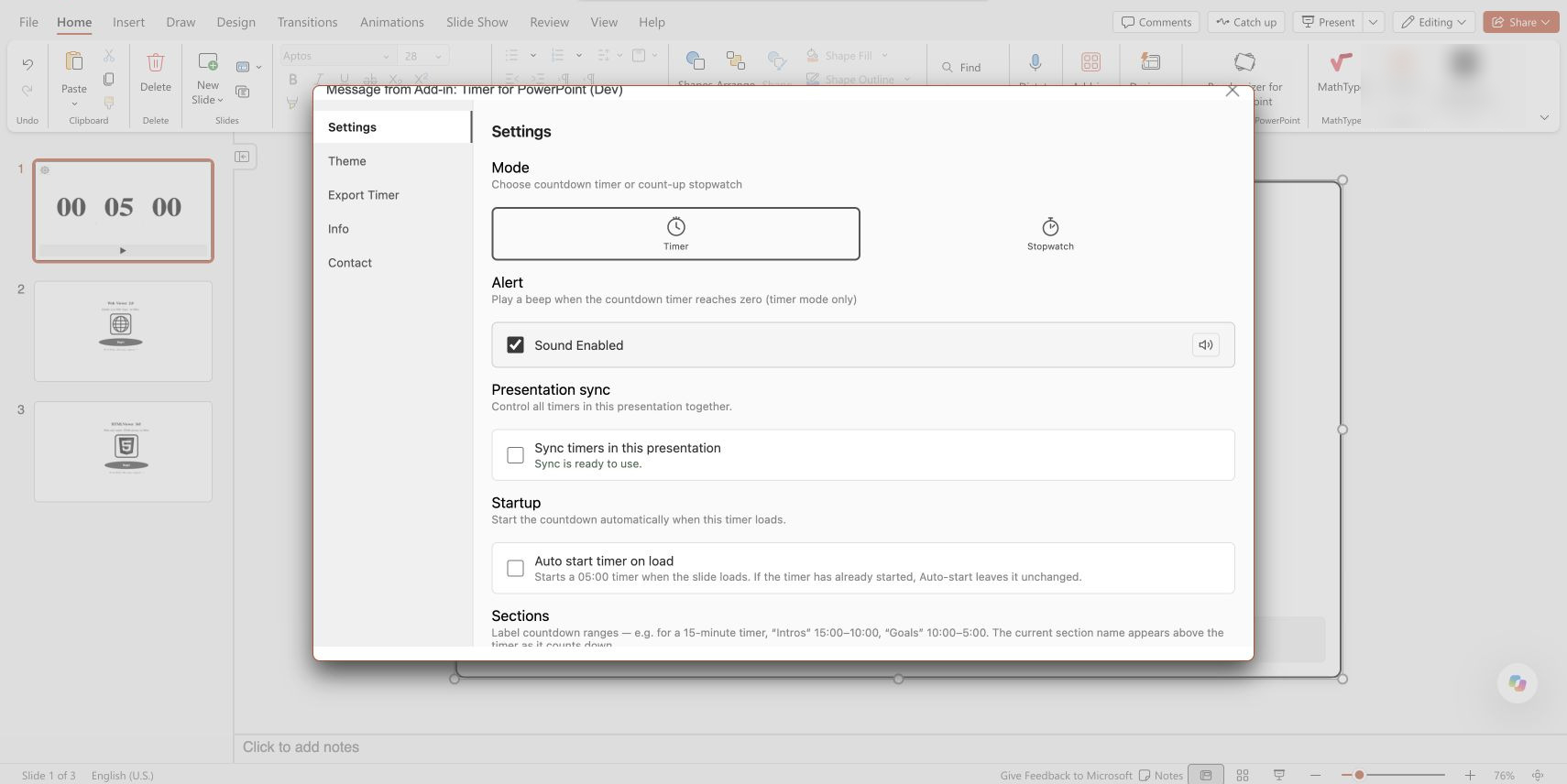
PowerPoint for the web, before selecting Stopwatch. Select the screenshot to enlarge it.
- Close Settings and resize the on-slide add-in by dragging its corners, then enter Slide Show.
- Press the play button labeled Start when the activity begins.
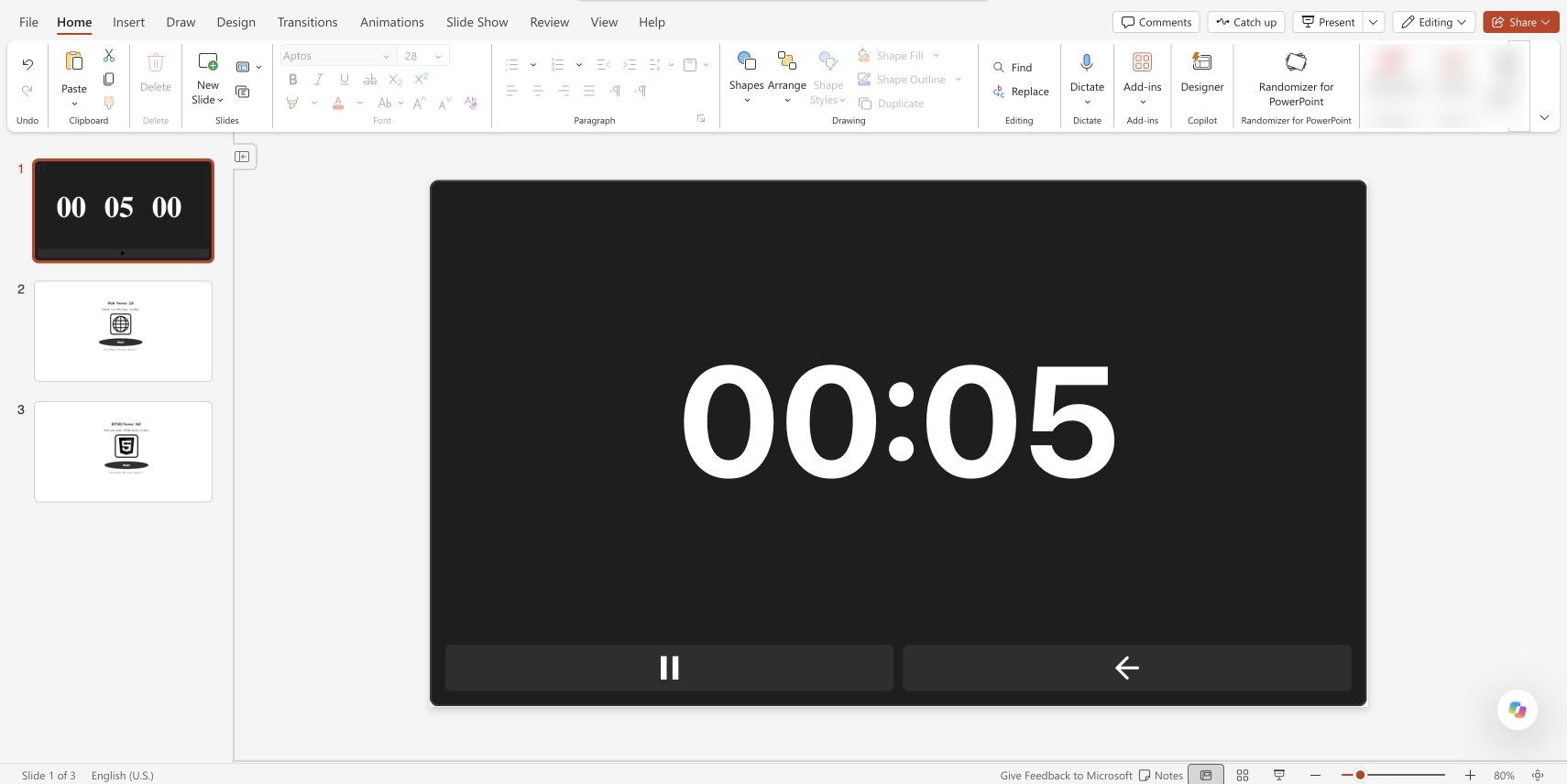
The stopwatch running in PowerPoint for the web.
Pause, resume, and start a new measurement
Choose Pause to freeze the elapsed time and Resume to continue. For a new attempt, choose New Timer, then Start.
For a speech rehearsal or classroom challenge, pause when each attempt finishes and record the result before starting the next. Timer for PowerPoint does not store laps or past results.
Label elapsed-time ranges
Choose New Timer if the stopwatch is running. Open Settings, scroll to Sections, and choose + Add Section. Stopwatch ranges count upward. For a practice talk, set the Introduction range (1) from 00:00:00 to 00:02:00. Add a Main points range (2) from 00:02:00 to 00:06:00. Timer for PowerPoint displays the active label above the elapsed time.
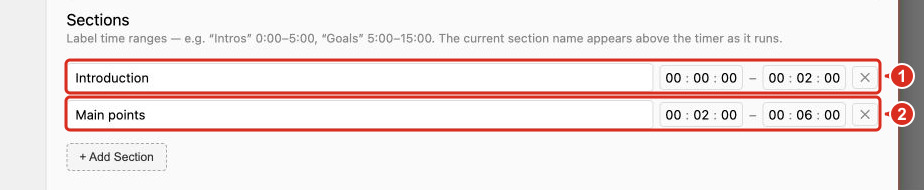
PowerPoint for the web. Select the screenshot to enlarge it.
Sections mark the expected part of a talk without stopping the stopwatch or advancing slides. The end alert applies to countdown mode, not stopwatch mode.
Keep linked stopwatch displays in sync
Place a stopwatch on each slide that needs the display. Open Settings and enable Sync timers in this presentation. Wait for the synced status, then start the stopwatch once. Changing slides continues the same measurement; pausing one linked stopwatch pauses the others. Leave sync off for independent timers.

Follow the across-slides guide for more detail.
Click outside the stopwatch if arrow keys stop changing slides after you interact with it. Auto start timer on load starts an unstarted stopwatch when it loads. Auto-start leaves a running or paused stopwatch unchanged and does not restart it when you revisit the slide.
Option B: Insert a stopwatch video
Use a fixed-length video when recipients need to play the stopwatch without installing an add-in.
- Insert Timer for PowerPoint using the setup above and choose Settings > Mode > Stopwatch.
- Open Export Timer. Choose 15, 30, or 60 minutes for Stopwatch video length (1), then select Export Video (2).
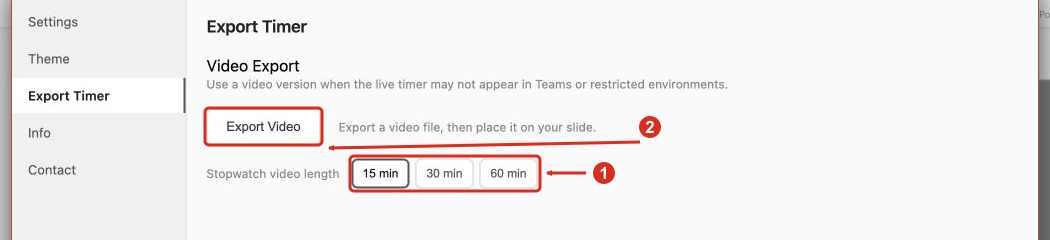
PowerPoint for the web, before export. Select the screenshot to enlarge it.
- Keep the export window open until processing finishes, then save the MP4.
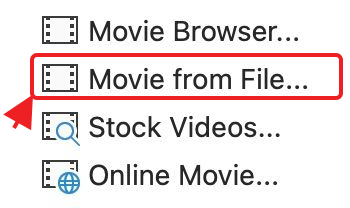
- In PowerPoint for Mac, choose Insert > Video > Movie from File. On Windows, choose Insert > Video > This Device. Select the MP4 and resize it on the slide.

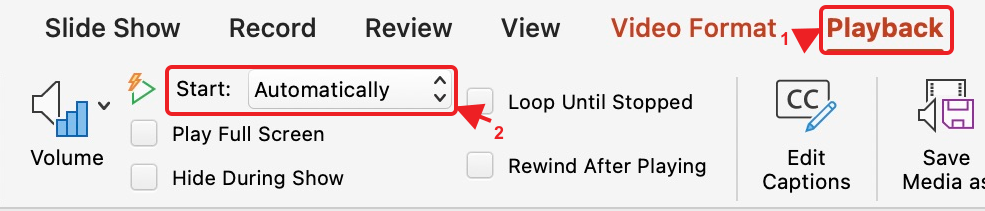
- Select the video. Set Playback > Start > Automatically to begin when the slide appears, or keep a click-to-start setting.
- Enter Slide Show and play the video. The display counts up from zero for the chosen length. Use PowerPoint's video controls to pause playback.
The video does not sync with live timers or record results. Trial exports include a FREE TRIAL watermark. See the timer video guide for other insertion options.
Is the stopwatch free?
Timer for PowerPoint offers a 24-hour free trial followed by a subscription. Our free native timer methods create fixed countdowns.
Get Timer for PowerPoint, or contact support for help.