
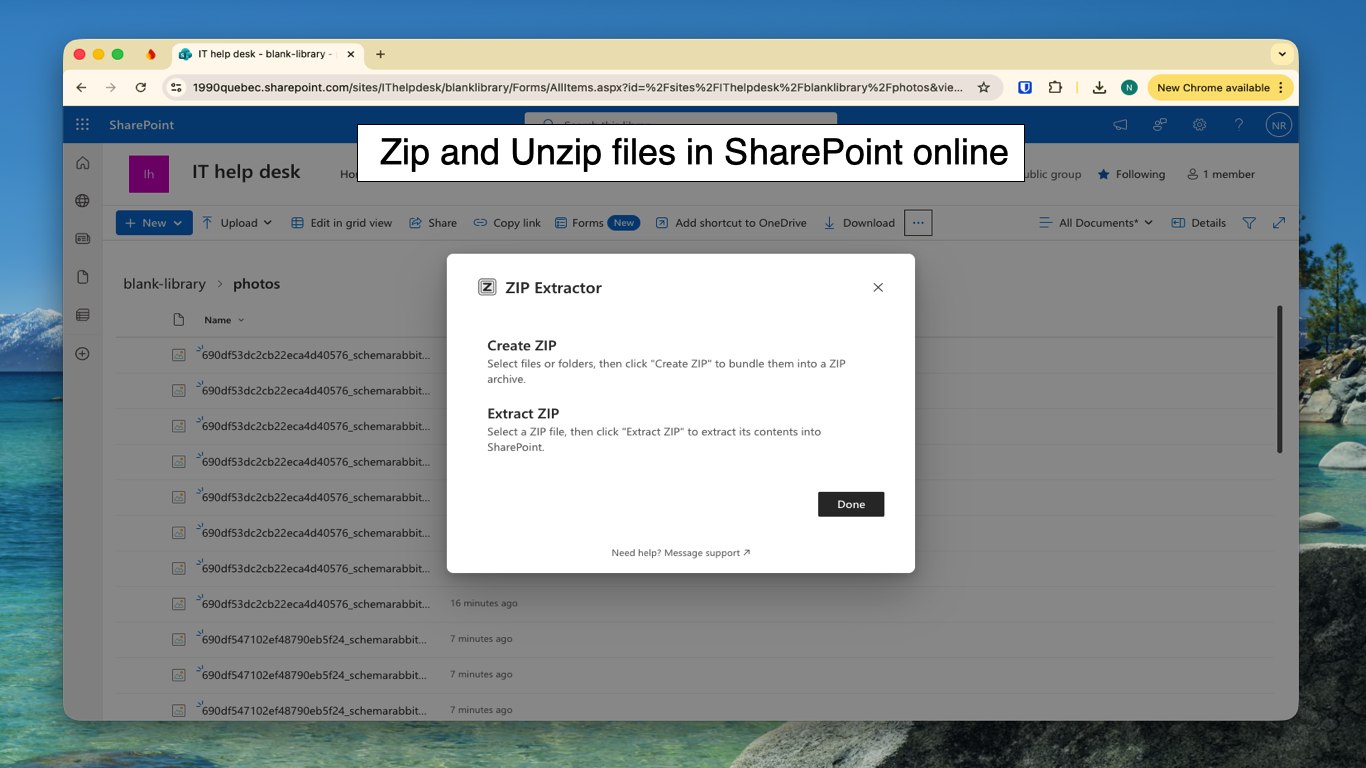
Zip & Unzip for SharePoint lets you create and extract archive files directly from a SharePoint document library, so you can package or unpack files without leaving SharePoint.
How to create an archive
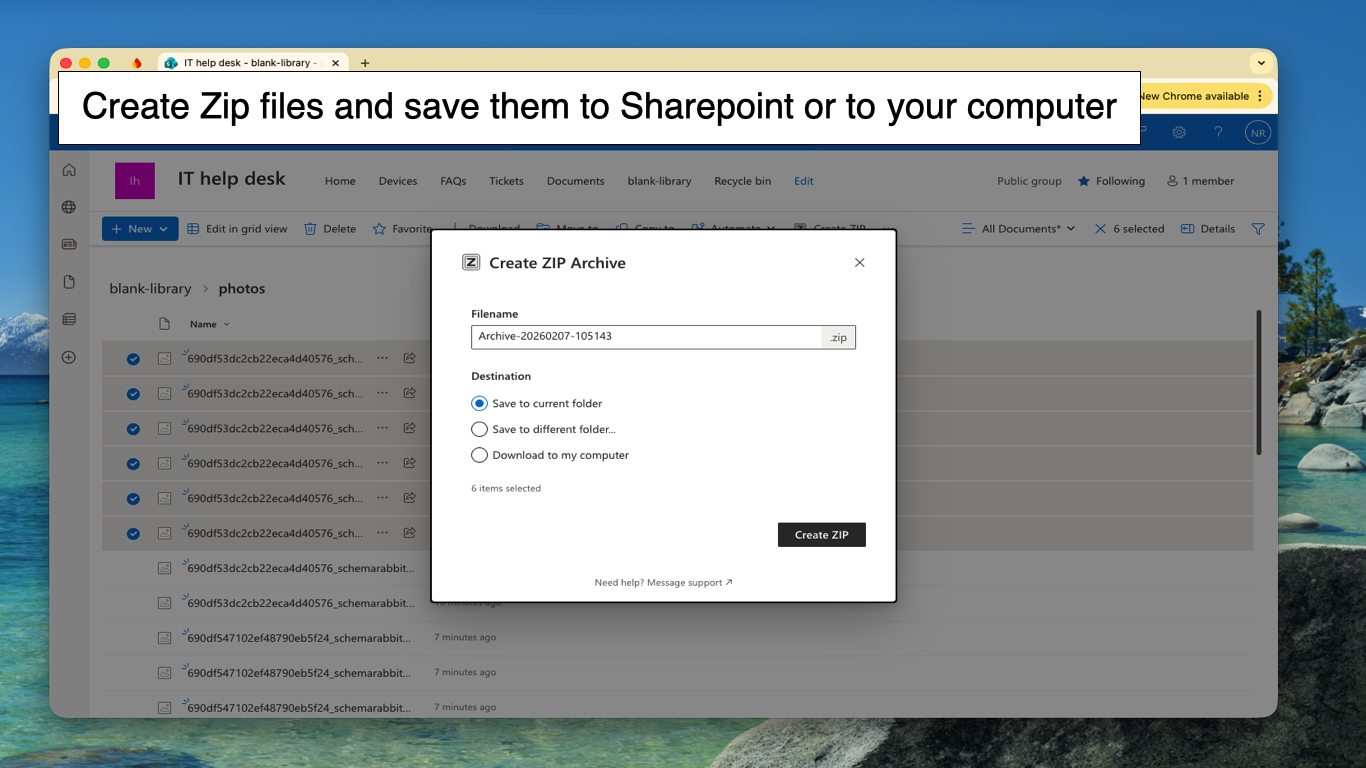
Select one or more files or folders in your document library, click Create ZIP, choose the archive format you want, and confirm the destination.
How to extract an archive
Select an archive file in the library, click Extract ZIP, and choose where the contents should go. If the archive is protected, the add-in prompts you for the password.
Choose format, password, and destination
When creating an archive, you can choose whether to save it in the current folder, send it to another SharePoint folder, or download it. For ZIP and 7z, you can also add password protection.
Supported archive types
- Create and extract: ZIP, 7z, TAR, TAR.GZ
- Extract only: RAR, ISO
Why do it inside SharePoint
The workflow stays inside SharePoint, and the files are processed in the browser rather than being uploaded to an external archive service.
Need help?
If you run into trouble, email product@1990quebec.com with whether you were creating or extracting, which format you used, and the error message or screenshot if you have one.