
Summary
This post shows you how to add and run a timer in PowerPoint for Mac by using Timer for PowerPoint or inserting a timer video.
You can show the time remaining for an activity, measure rehearsal time, or play a prepared countdown alongside your slides.
Choose one approach. Option A: Live timer supports adjustable durations and on-slide controls:
- Open Home > Add-ins, search for Timer for PowerPoint, and add it to the activity slide.
- Enter a countdown duration, or open Settings > Mode > Stopwatch for elapsed time. In Settings, choose a theme and optional sound alerts.
- Enter Slide Show and press Start. Use Pause and Resume for interruptions, or New Timer for another attempt.
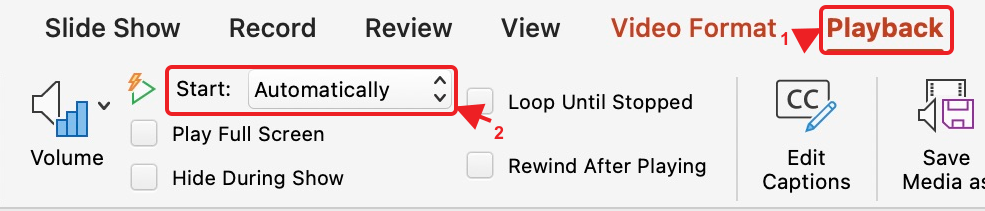
Option B: Timer video. For a fixed countdown, choose Settings > Export Timer > Export Video to export a timer video. Insert the MP4 through Insert > Video > Movie from File. Set Playback > Start > Automatically to start it when the slide appears. Each video runs independently.
Use presentation sync with Option A when one timer needs to continue across slides.
Option A: Insert Timer for PowerPoint on Mac
- Open the presentation in PowerPoint for Mac and select the activity slide.
- Open Home > Add-ins.

PowerPoint for Mac. Select the screenshot to enlarge it.
- Search for Timer for PowerPoint in the add-in menu. Under More search results, choose Add beside the matching result.
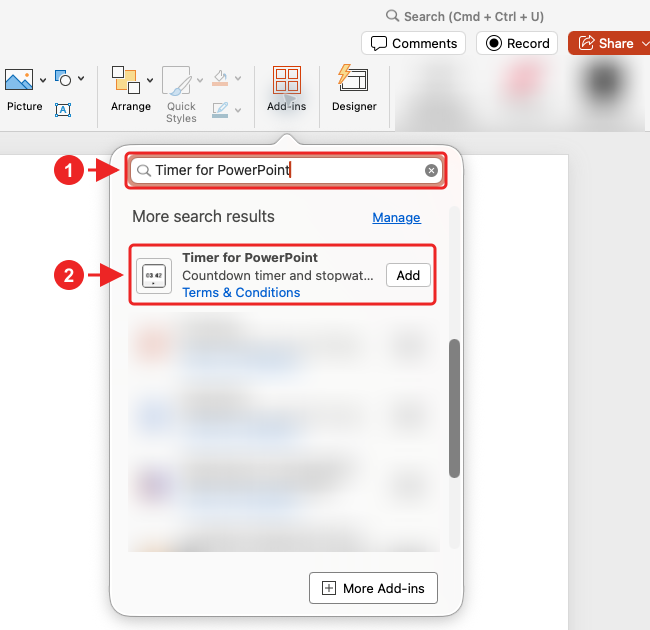
Complete the installation prompts. The timer appears on the selected slide. For other installation methods or organization-managed setup, see the full installation guide.
- Drag the timer's corners to make the time readable.
Set the countdown or stopwatch
- For a countdown, enter the hours, minutes, and seconds. Use 00:05:00 for five minutes.
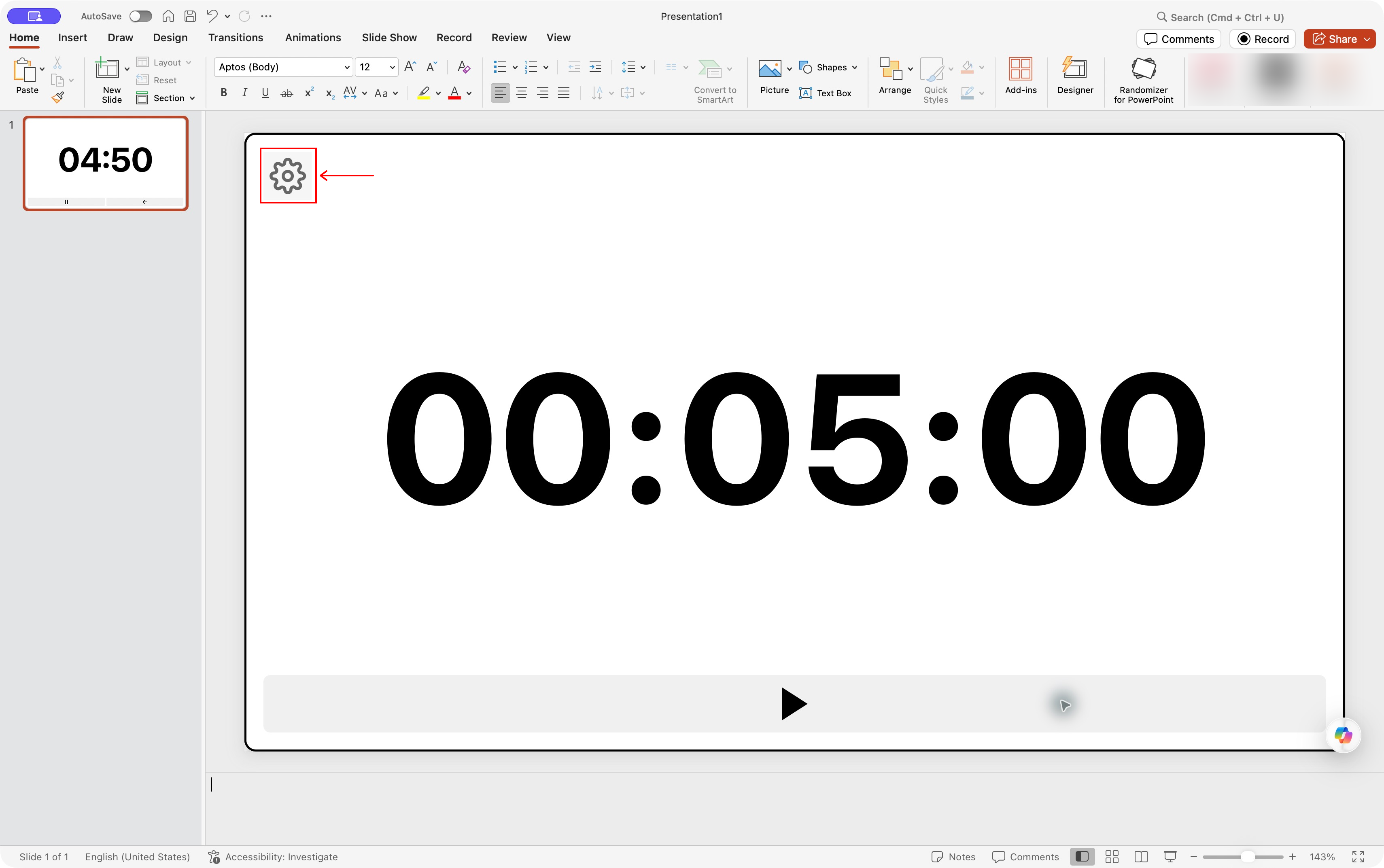
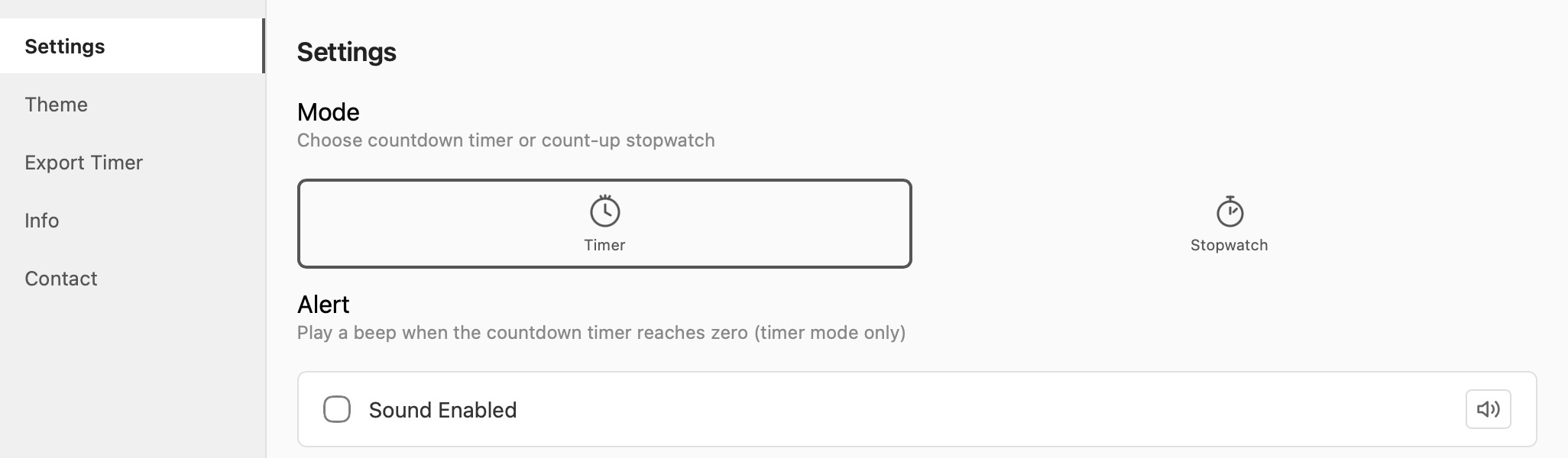
- Open the Settings gear. For elapsed time, choose Stopwatch under Mode. For a countdown beep, keep Timer selected and enable Sound Enabled under Alert. The speaker button previews the sound.
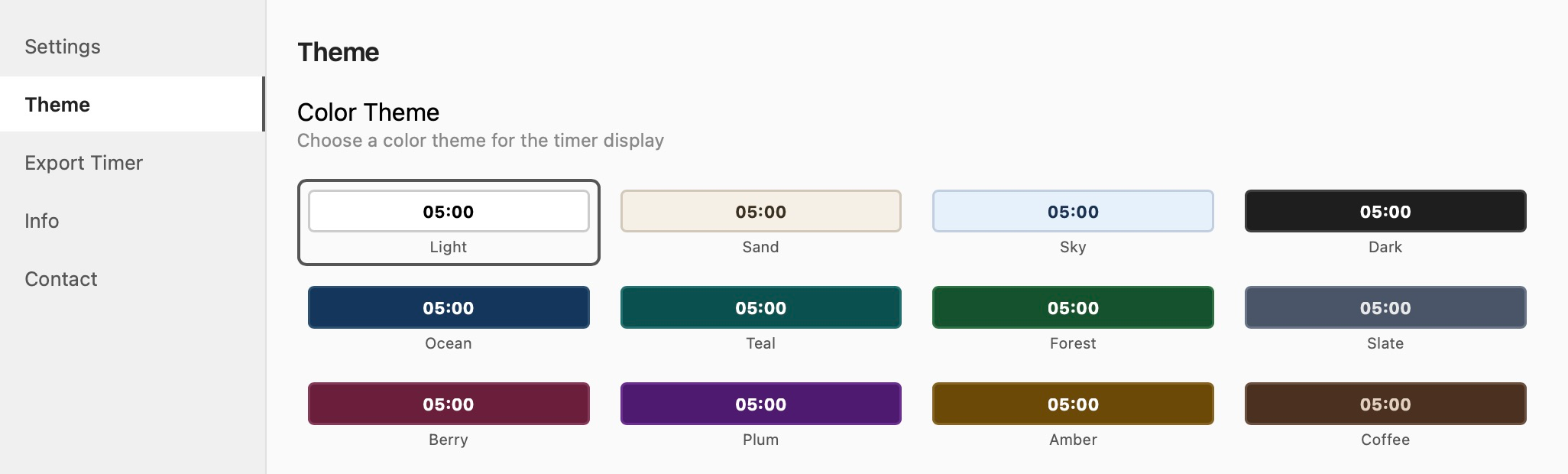
- Choose Theme in the sidebar and select a color. Close the Settings window when finished.
To add named time ranges, follow the countdown section instructions. For elapsed time, follow the stopwatch guide.
Run the timer in Slide Show
- Start Slide Show from the timer slide.
- Press Start when the timed activity begins.
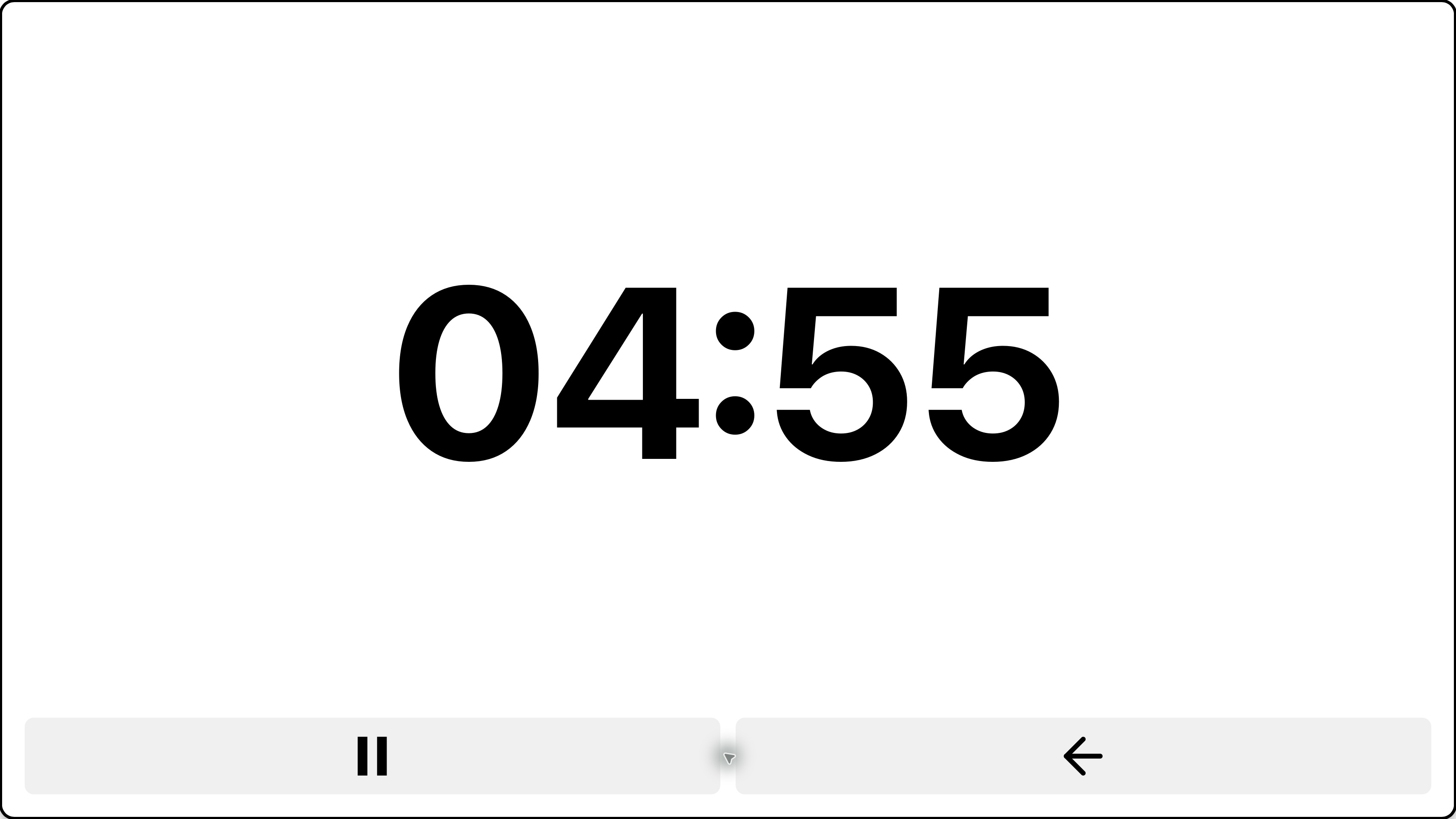
- Use Pause and Resume for interruptions. Choose New Timer before starting a new attempt.
Click outside Timer for PowerPoint if arrow keys stop changing slides.
To continue one timer across slides, place the add-in on each slide that needs the display. Enable Sync timers in this presentation in Settings, wait for the synced status, and start the timer once. Sync depends on support in your PowerPoint version; see the across-slides guide.
Auto start timer on load currently works in PowerPoint for the web. Mac support is coming soon; for now, press Start manually. On the web, auto-start starts an unstarted timer when it loads. It does not restart a running, paused, or finished timer when you revisit a slide.
Option B: Insert a timer video on Mac
- Open Timer for PowerPoint and choose Settings > Mode > Timer. Close Settings and enter the countdown duration. Reopen Settings to choose the theme and optional sound shown above.
- Select Export Timer in Settings, then choose Export Video. Keep the window open until processing finishes and save the MP4.
- Select the slide, then choose Insert > Video > Movie from File.

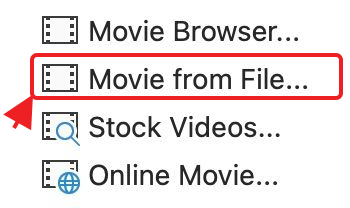
- Select the MP4 and insert it. Resize the video frame.
- Choose Playback > Start > Automatically if it should begin as the slide appears, then check the result in Slide Show.
Trial exports have a FREE TRIAL watermark. To change the video duration or appearance, configure the add-in and export again. The video export guide has more detail.
Microsoft documents video insertion and playback on Mac. Each video plays independently on its slide. To build a native animation, see free PowerPoint timer methods.
What if Timer for PowerPoint is missing or does not load?
Check your installed add-in list and your organization's add-in permissions. Follow the My Add-ins troubleshooting guide. For a loading issue, contact support with your PowerPoint version and macOS version.