
Summary
This post shows you how to display a countdown to Zoom participants by sharing a timer window or using Zoom's Timer app.
A shared countdown gives everyone the same deadline for an activity or break. A timer that stays outside the shared window remains private.
Choose one option. You do not need to set up all three:
- Option A: PowerPoint activity. Add Timer for PowerPoint to the slide. On one monitor, choose Slide Show > Set Up Slide Show > Browsed by an individual (window). Start the Slide Show, share that window in Zoom, and start the countdown.
- Option B: Zoom Timer app. Open Apps > Timer, enter the duration, enable Show timer to all, and press Start. Follow Zoom's Timer instructions for installation and app requirements.
- Option C: Browser countdown. Set a ten-minute Talk timer in Timeanddate's free online timer, disable the end alarm, and start the countdown. Use Share > Screens in Zoom's desktop app to share its browser window.
To share an enabled sound alert, turn on Share sound in Zoom for the shared window. Check with a participant that the countdown is visible and any intended alert can be heard. The browser example below is silent.
Option A: Share a PowerPoint timer in Zoom
Install the add-in on the activity slide, then use desktop PowerPoint's windowed Slide Show to share the countdown on a single monitor:
- In PowerPoint for Mac, select the slide that needs the timer, then open Home > Add-ins.

- Enter Timer for PowerPoint in the search box. Under More search results, select Add beside the matching result.
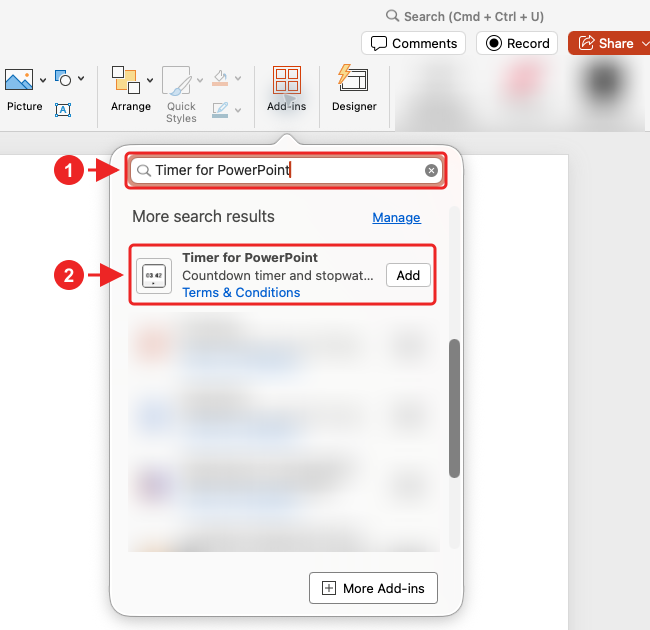
Complete any installation prompts. The timer appears on the selected slide. For other PowerPoint versions or organization-managed installation, see the full Office add-in installation guide.
- Enter the countdown duration, such as 00:05:00 for five minutes.
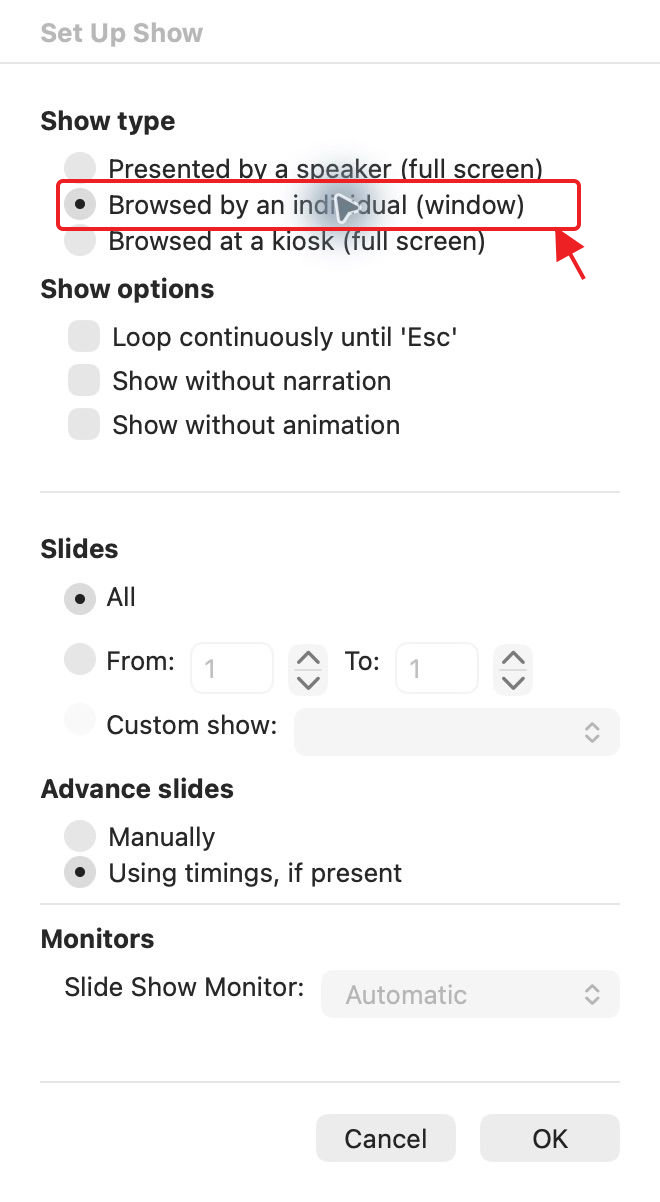
- Open Slide Show > Set Up Slide Show and select Browsed by an individual (window), then choose OK.
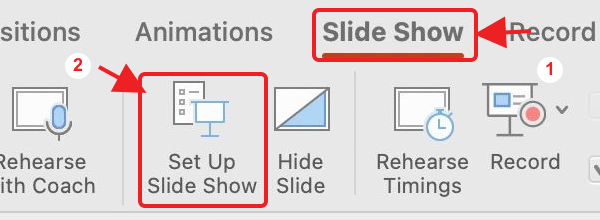
- Start Slide Show to open the presentation in its own window.
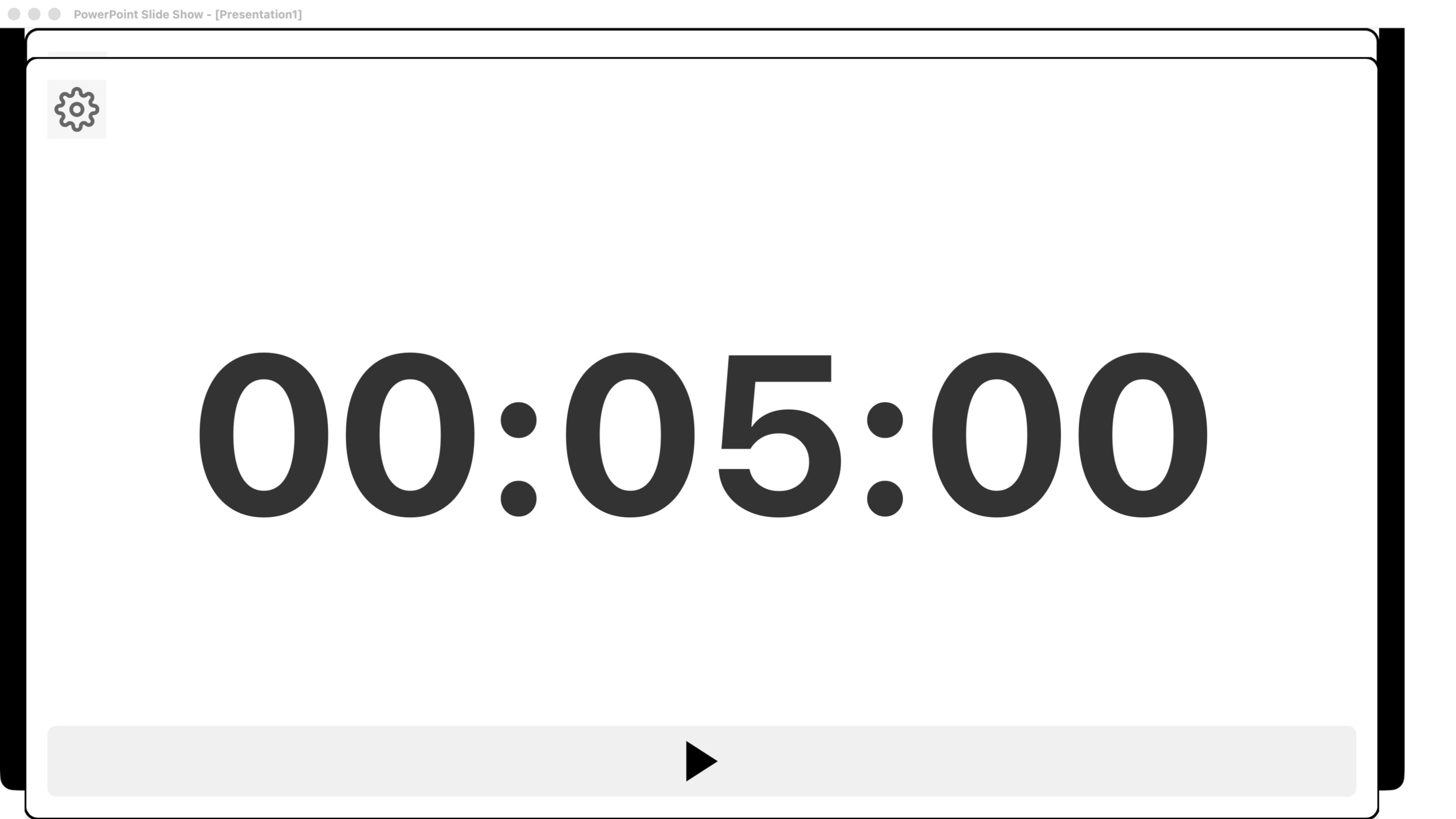
A windowed Slide Show in PowerPoint for Mac, with the five-minute timer ready.
- In Zoom, choose Share and select the Slide Show window. Enable Share sound to send an end alert, then choose Share.
- Press the timer's Start control. Ask a participant to confirm that the countdown is visible and any alert can be heard.
With two monitors, share the screen showing the slides rather than Presenter View. Follow Zoom's PowerPoint sharing guide and test any timer sound with an attendee.
Timer for PowerPoint offers a 24-hour trial followed by a paid subscription. For a free five-minute slide, use the timer template.
Option B: Use the Timer app by Zoom
Zoom's Timer app provides countdowns, a stopwatch, and an optional alarm. It requires a
Zoom account, the Windows or Mac desktop app, and network access to
https://timer.zoomapp.cloud/. App approval depends on your organisation's
Marketplace settings. See
Zoom's Timer instructions.
- Install Timer from the Zoom Marketplace if needed, then open Apps > Timer during a meeting.
- Enter the duration on the Timer tab, enable Show timer to all, and press Start.
- Ask another participant to confirm that the countdown is visible.
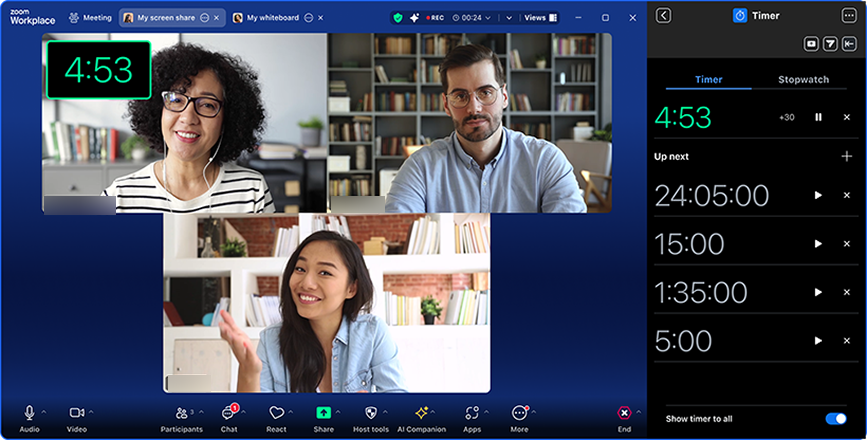
Use the audio icon for an end alarm, or choose Stopwatch to measure elapsed time.
Option C: Share a browser countdown
This example uses a ten-minute Talk timer with no end alarm:
- Open Timeanddate's free online timer in its own browser window and select Edit.
- Set Hrs to 0, Mins to 10, and Secs to 0. Enter Talk as the Timer Name.
- Set Timer End Alarm to --None-- for a silent countdown, then select Done.
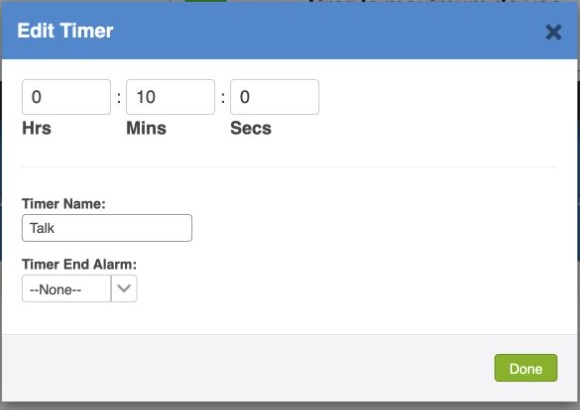
Configure the ten-minute countdown and turn off its end alarm.
- Choose Fullscreen, then Start.
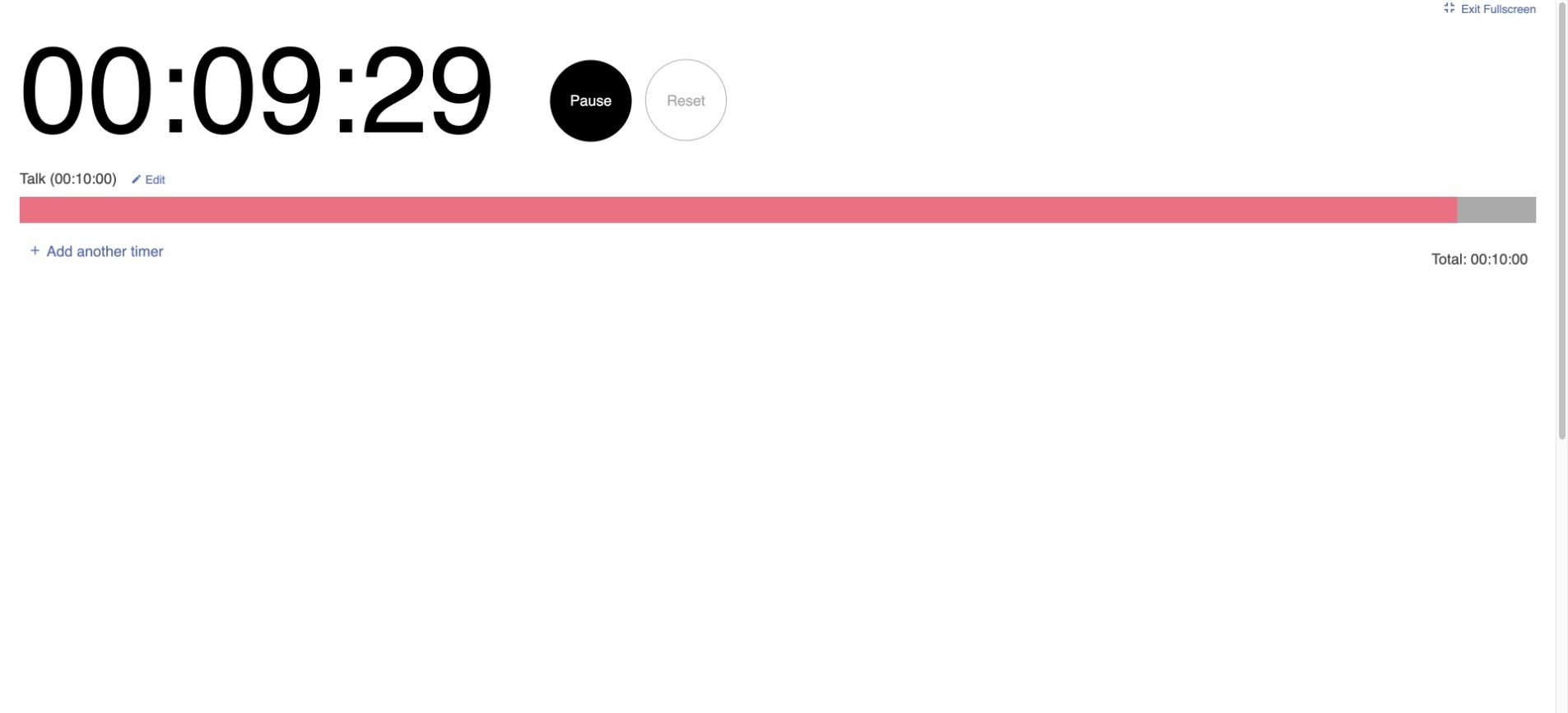
The running Talk timer before sharing its browser window.
- In Zoom's desktop meeting controls, choose Share > Screens.
- Select the timer's browser window, then choose Share.
- Ask a participant to confirm that the countdown is visible and updating.
The host controls who can share. Follow Zoom's screen-sharing instructions. A timer outside the shared window stays private. For a timer with an alarm enabled, Zoom's Share sound instructions explain how to include the audio.
For timed agendas, return-time reminders, or repeated focus periods, see meeting timers, break timers, or Pomodoro timers.