
If you need to shuffle slides in PowerPoint for quizzes, flashcards, classroom prompts, or practice decks, Randomizer for PowerPoint reorders the slides for you inside the current presentation.
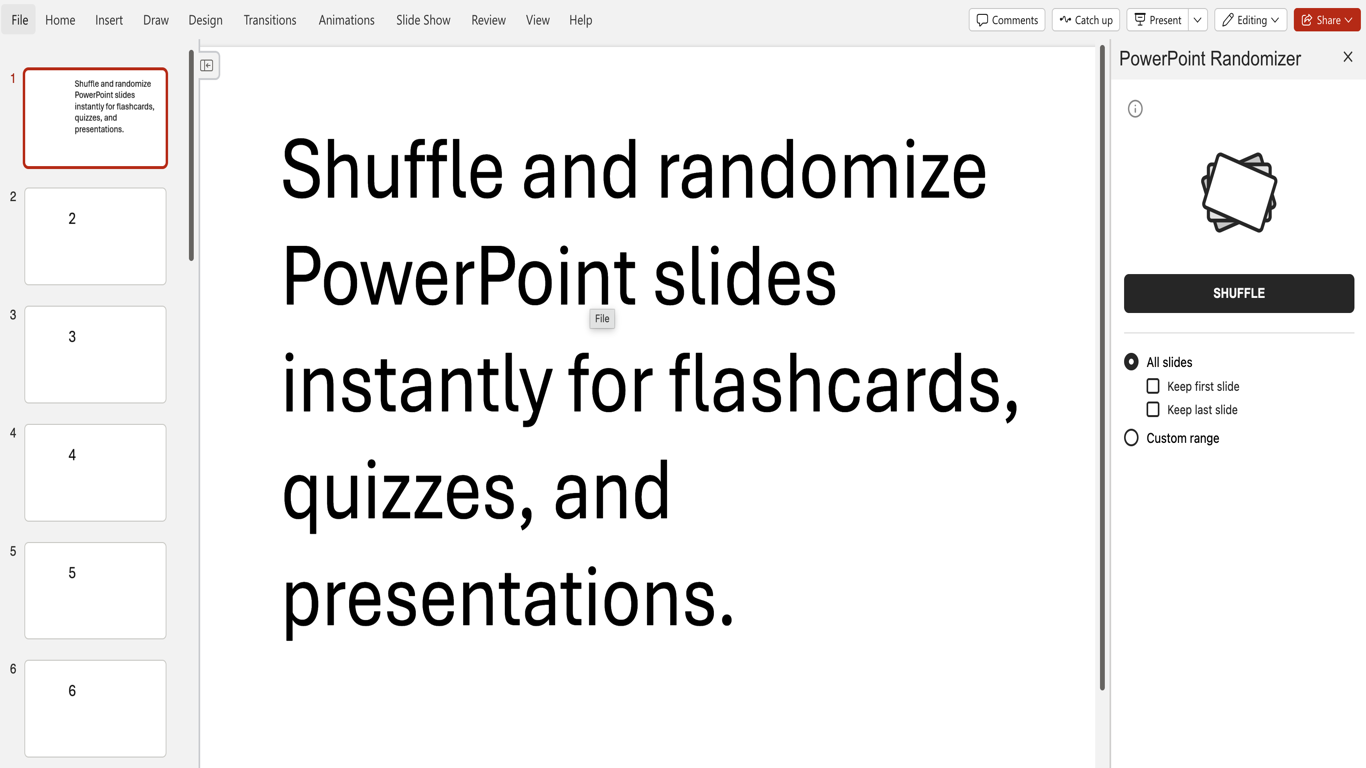
Choose which slides should stay in place
You can shuffle the whole deck or keep the first slide, the last slide, or both in place. If you only want to randomize part of the presentation, use a custom range.
Shuffle the deck
After you choose your options, click Shuffle and confirm. The add-in reorders the slides for you inside the current presentation.
Undo the shuffle
To restore the original order, press Ctrl+Z on Windows or Cmd+Z on Mac until the slides are back where they started. The number of undo steps depends on how many moves PowerPoint needed to complete the shuffle.
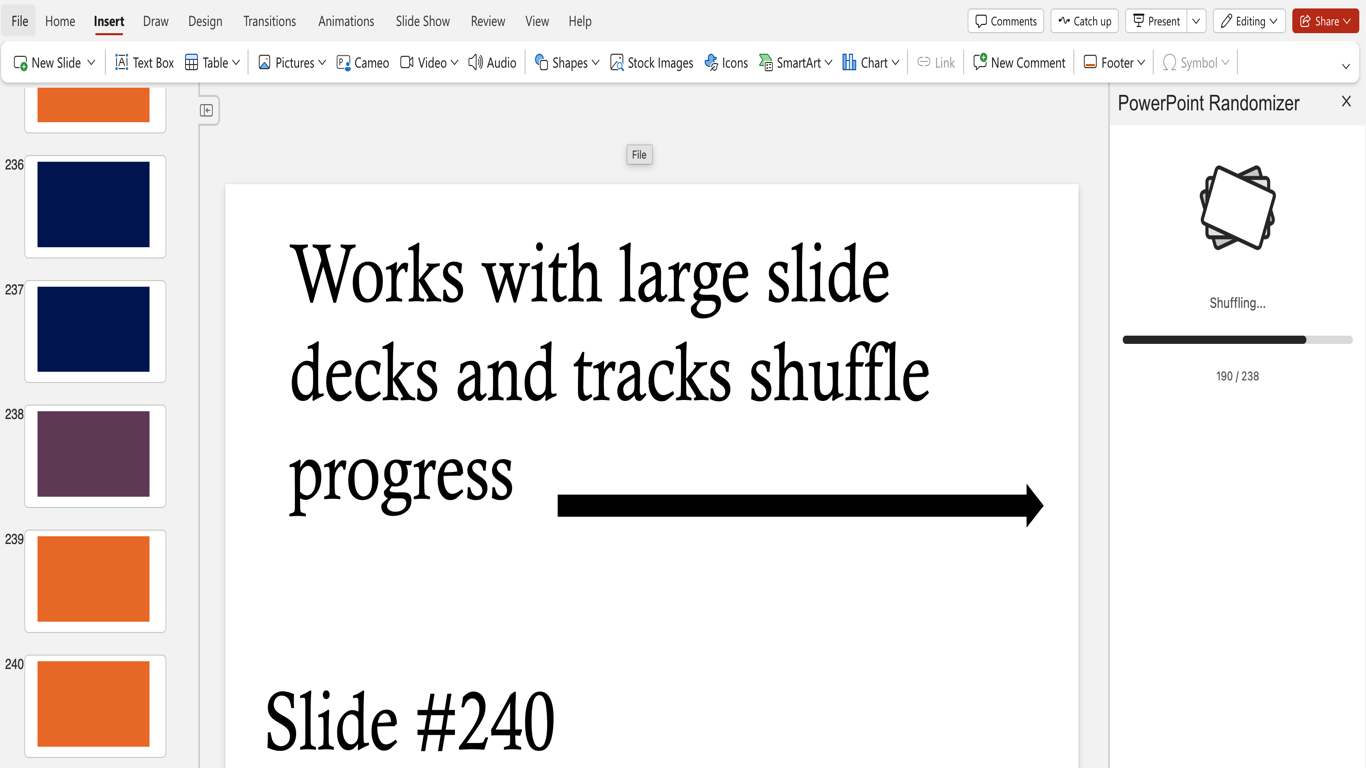
Use it for quizzes, flashcards, and classroom prompts
This workflow is useful when you want a different order every time without rebuilding the presentation manually. It works well for review games, training sessions, study decks, and question banks.
What to do if a large deck feels slow
If shuffling feels slow on a very large presentation, that is usually because PowerPoint has to move slides one by one. If you see a message saying you need at least two slides, there are not enough slides left after your keep-in-place options are applied.
Need help?
If you run into trouble, email product@1990quebec.com with the size of the deck, the options you selected, and any error message you saw.