
When a new version of a SharePoint marketplace app is released, update it from the Apps page in SharePoint admin center.
Required permission: You must be a SharePoint Administrator or higher in Microsoft 365.
Step by step
- Open the SharePoint admin center.
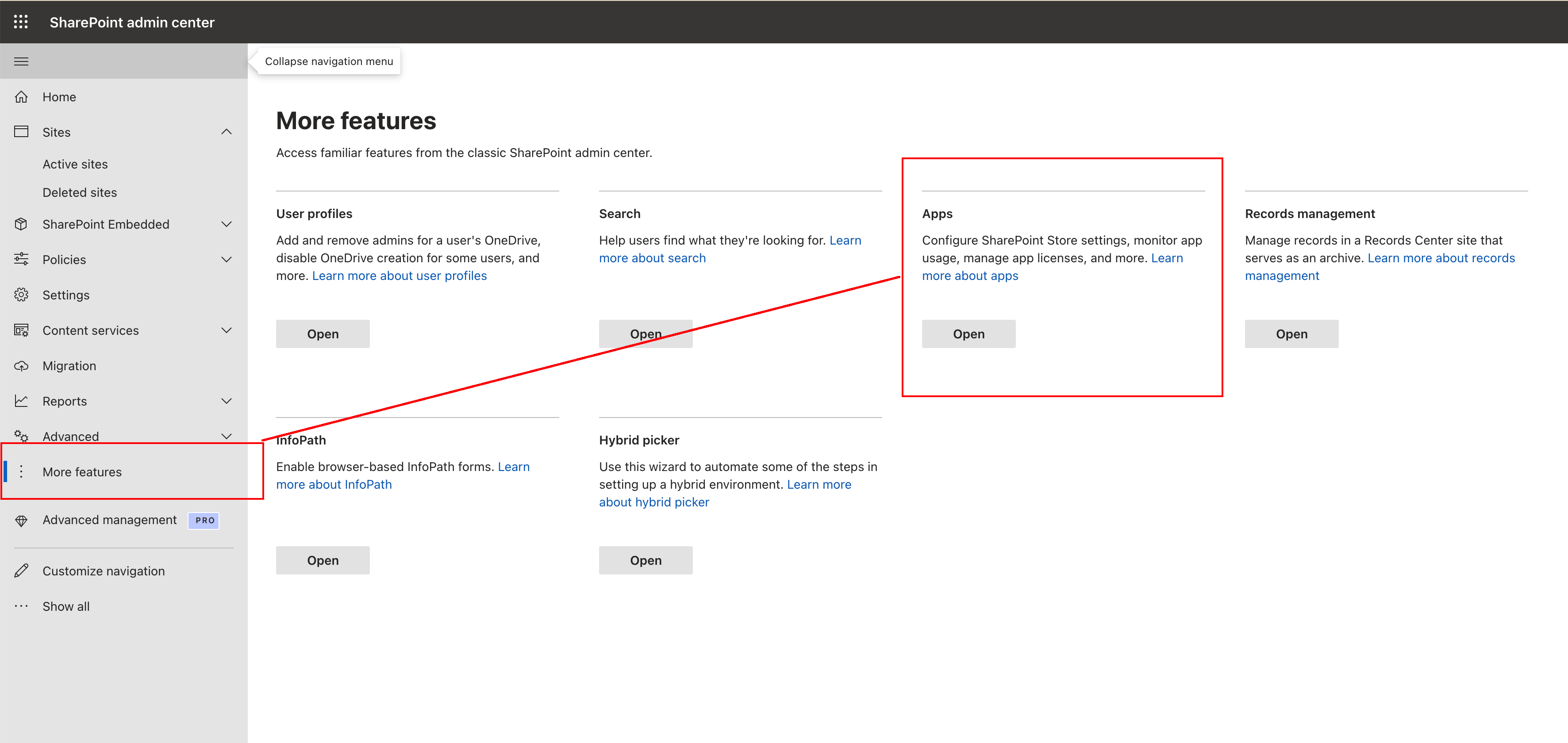
- Go to More features, then under Apps click Open.
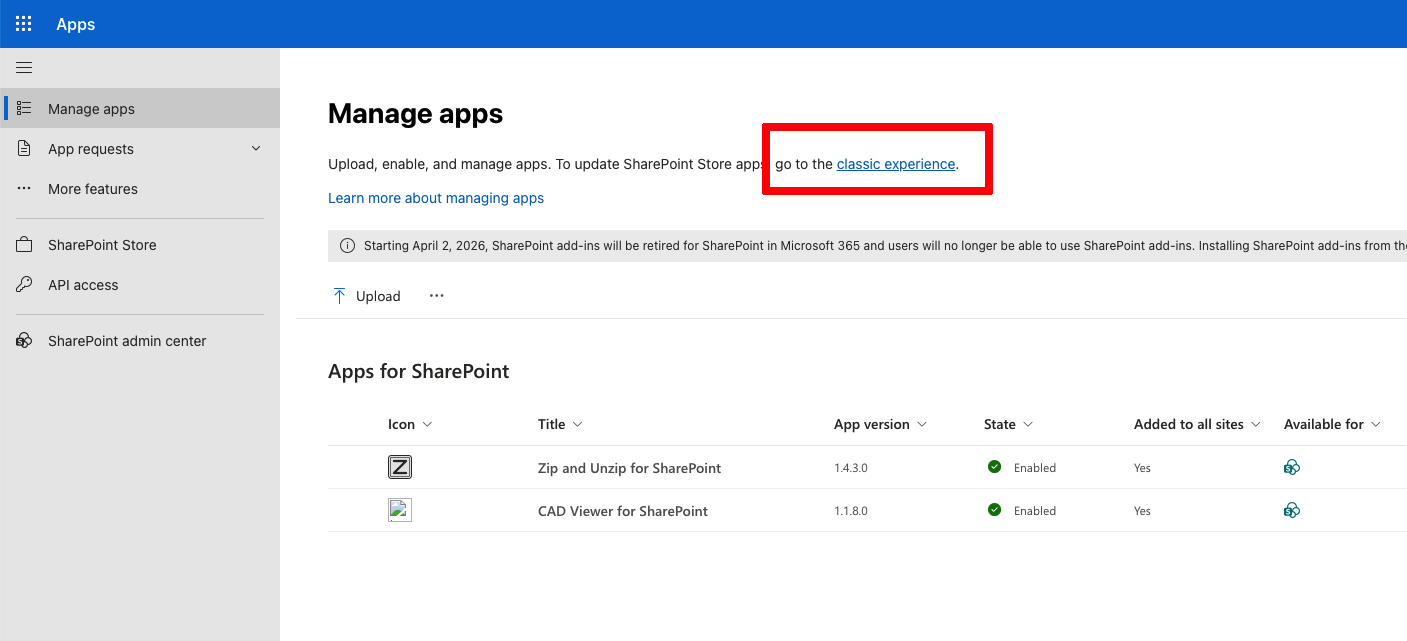
- On Manage apps, click Go to the classic experience.
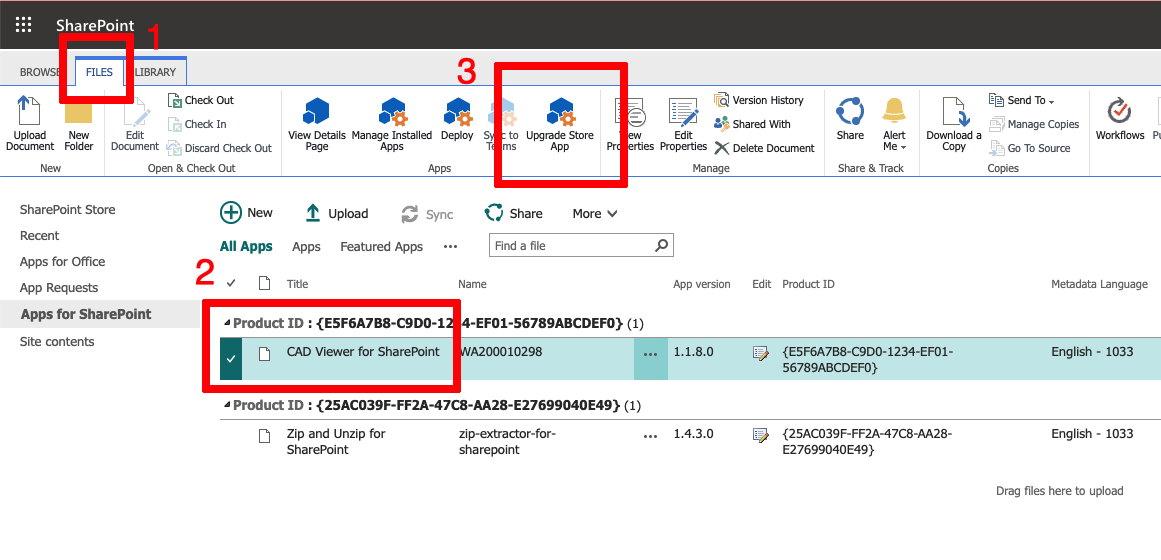
- Click the Files tab in the classic SharePoint ribbon.
- Select the app that you want to upgrade.
-
Click Upgrade Store App in the ribbon.
- This update comes from a Microsoft Marketplace app that has already been reviewed as part of Microsoft's certification process .
-
After the update completes, open your SharePoint page again and do a hard refresh so the
browser loads the latest add-in version.
- Windows: Ctrl + Shift + R
- Mac: Cmd + Shift + R
SharePoint Classic Experience vs Modern Experience
This upgrade CUJ is currently available only in SharePoint's classic experience (not Modern), so this flow uses the classic ribbon. Microsoft confirmed this in this SharePoint issue .
They are working on Modern admin experience improvements, but there is no public ETA yet.
Need help?
If you run into any issues updating the app, contact us through our help page and we'll be in touch.