
File Converter for SharePoint lets you convert files directly from a SharePoint document library, so you can change formats without downloading the file or using an external conversion service.
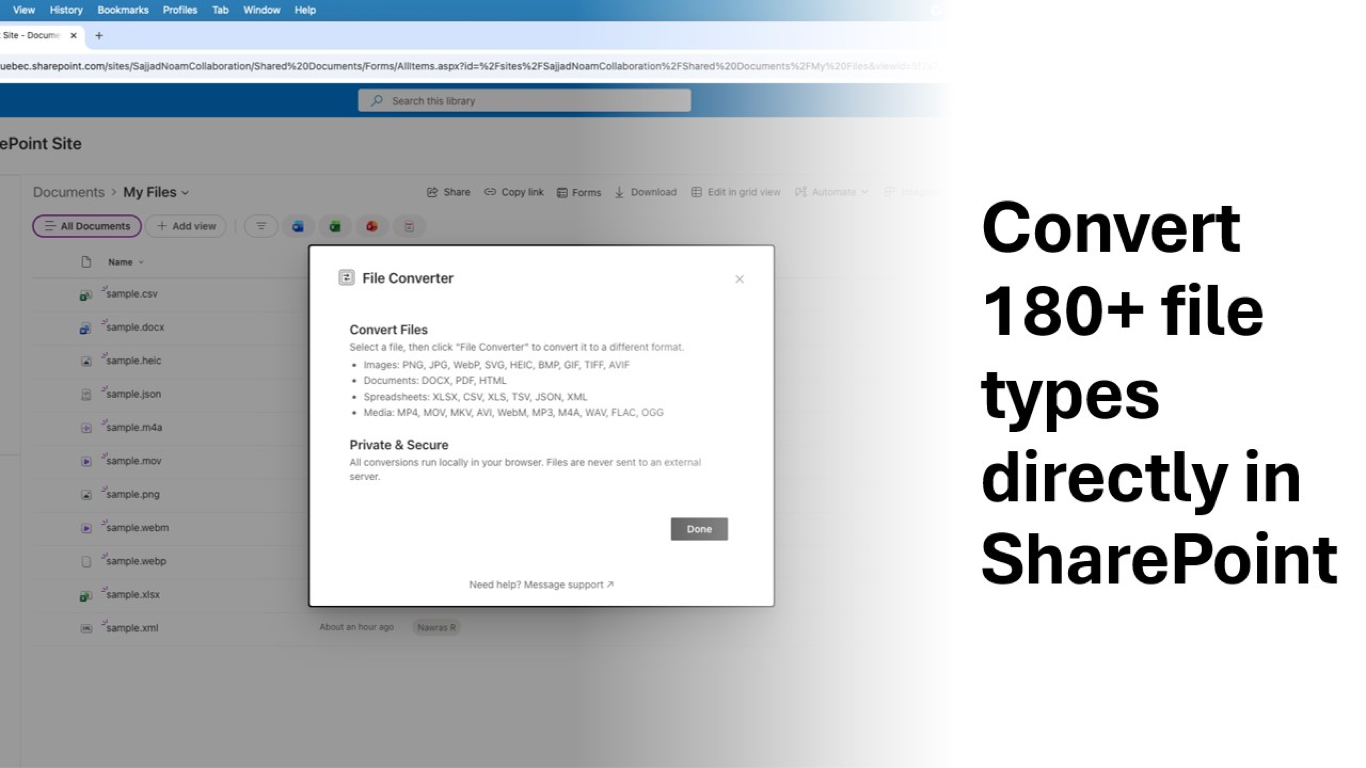
Select a file and click Convert
Go to your SharePoint document library, select the file you want to convert, and click Convert in the command bar.
Choose the target format
The add-in supports image, video, audio, spreadsheet, and document conversions. Pick the output format you want and confirm the conversion.
Choose where to save the converted file
You can save the result back to the current SharePoint folder, browse to a different folder, or download the converted file to your computer.
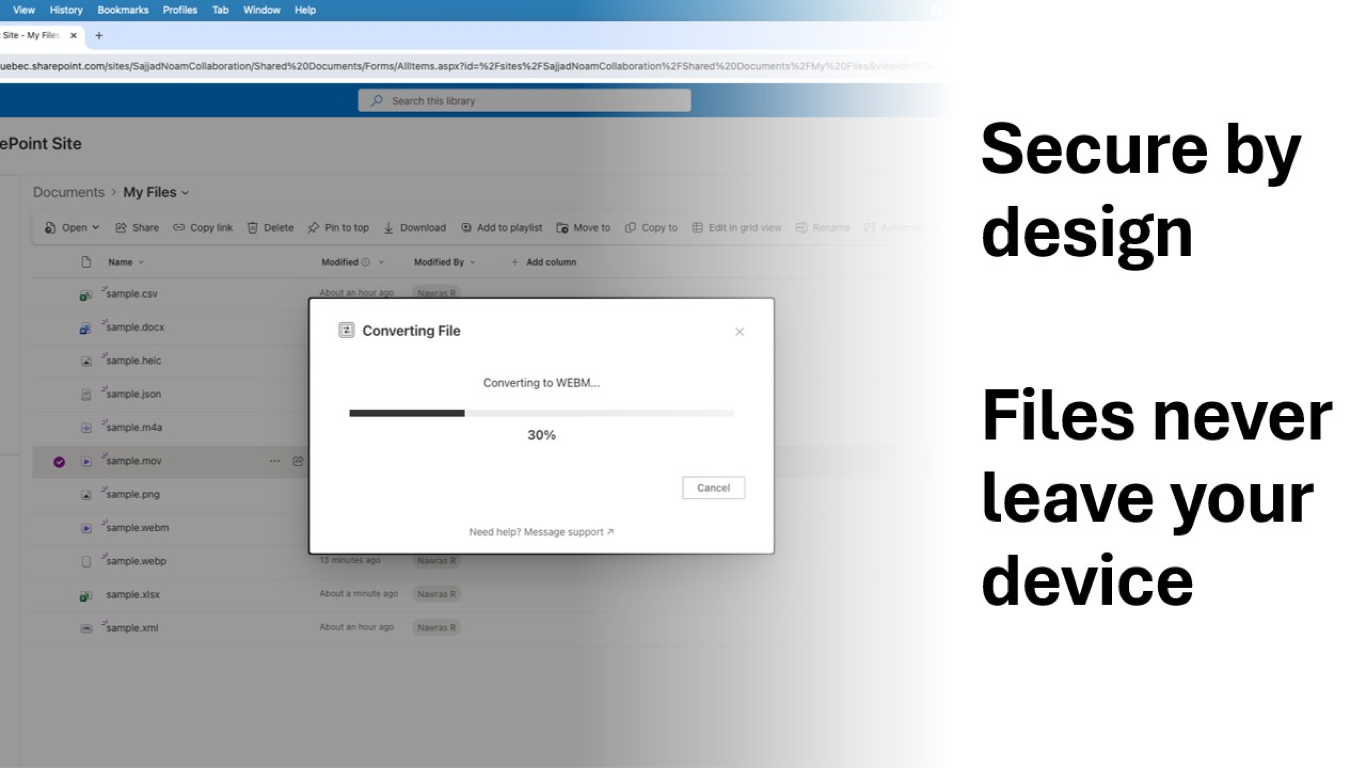
Common conversion examples
- Images: HEIC to JPG, WebP to PNG, SVG to PNG, AVIF to JPG
- Video: MOV to MP4, MKV to MP4, AVI to MP4
- Audio: MP4 to MP3, WAV to MP3, FLAC to MP3
- Spreadsheets: CSV to Excel, XLSX to CSV, JSON to CSV
Why convert inside SharePoint
All processing happens in the browser, which means the workflow stays inside SharePoint and your files do not need to be uploaded to a third-party site.
Need help?
If a conversion fails, email product@1990quebec.com with the source format, target format, approximate file size, and the error message if one appears.