
Summary
This post shows you how to time an exam or quiz by choosing a shared display or an individual time limit.
A shared screen can show everyone the remaining time or a clock beside a written finish time. An online quiz may instead need a separate deadline for each participant.
Choose one option for your assessment:
- Option A: Countdown on a quiz slide. Add Timer for PowerPoint, set the question's duration, and start it in Slide Show. Leave presentation sync off for separate question timers. The display does not enforce submission deadlines.
- Option B: Shared exam screen. Open Online-Stopwatch's Basic Exam Timer, enter the exam length and labels, select Set!, then Start at the announced time.
- Option C: Individual online limits. In Microsoft Forms, enable Set time duration in the quiz settings. Forms submits each participant's answers when their time expires.
- Option D: Private practice. Set a countdown in Mac Clock or Windows Clock for a timed question or practice test.
- Option E: Exam clock. Open the large digital clock and write the exam's start and finish times beside it. The clock updates continuously; the invigilator announces when time is up.
Follow the assessment's timing rules, including separate reading time and individual allowances.
Option A: Add a quiz timer to PowerPoint
- In PowerPoint for the web, select the question slide, then open Home > Add-ins.

Open Home, then Add-ins in PowerPoint for the web.
- Enter Timer for PowerPoint in the search box. Under More search results, select Add beside the matching result.
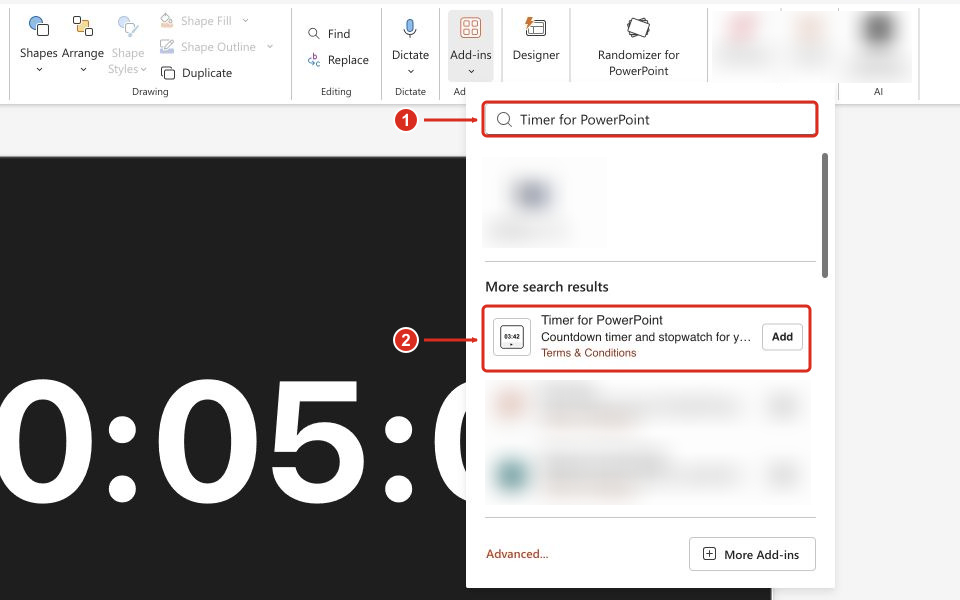
Search for the full add-in name, then select Add beside the matching result.
Complete any installation prompts. The timer appears on the selected slide. For other PowerPoint versions or organization-managed installation, see the full installation guide.
- For a one-minute question, set 00:01:00.
- Open Settings using the gear on the timer.
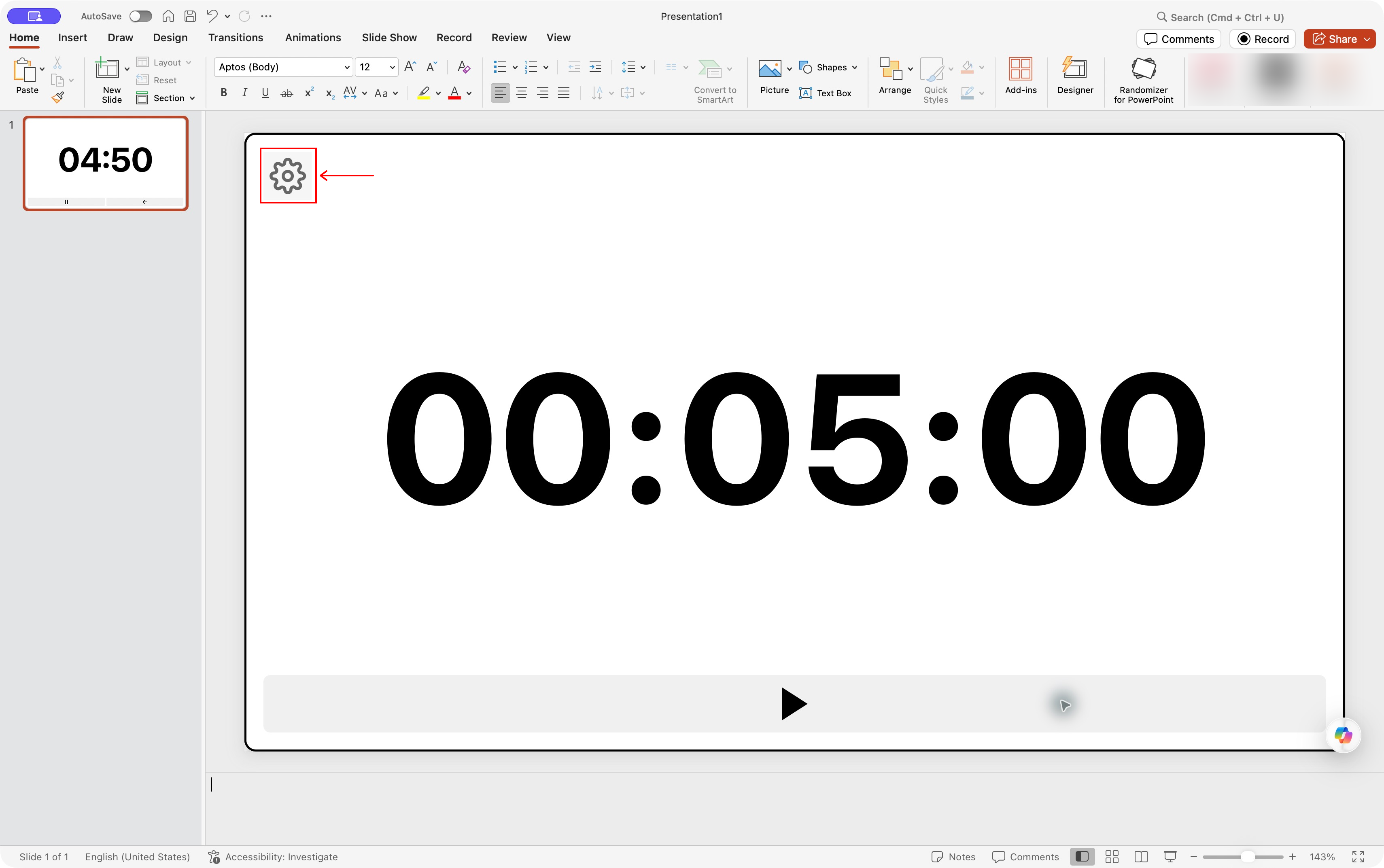
Settings gear location in Timer for PowerPoint on Mac. Select the screenshot to enlarge it.
- Leave Sync timers in this presentation unchecked when each question needs its own timer. Under Alert, choose whether to enable Sound Enabled for an end alert.
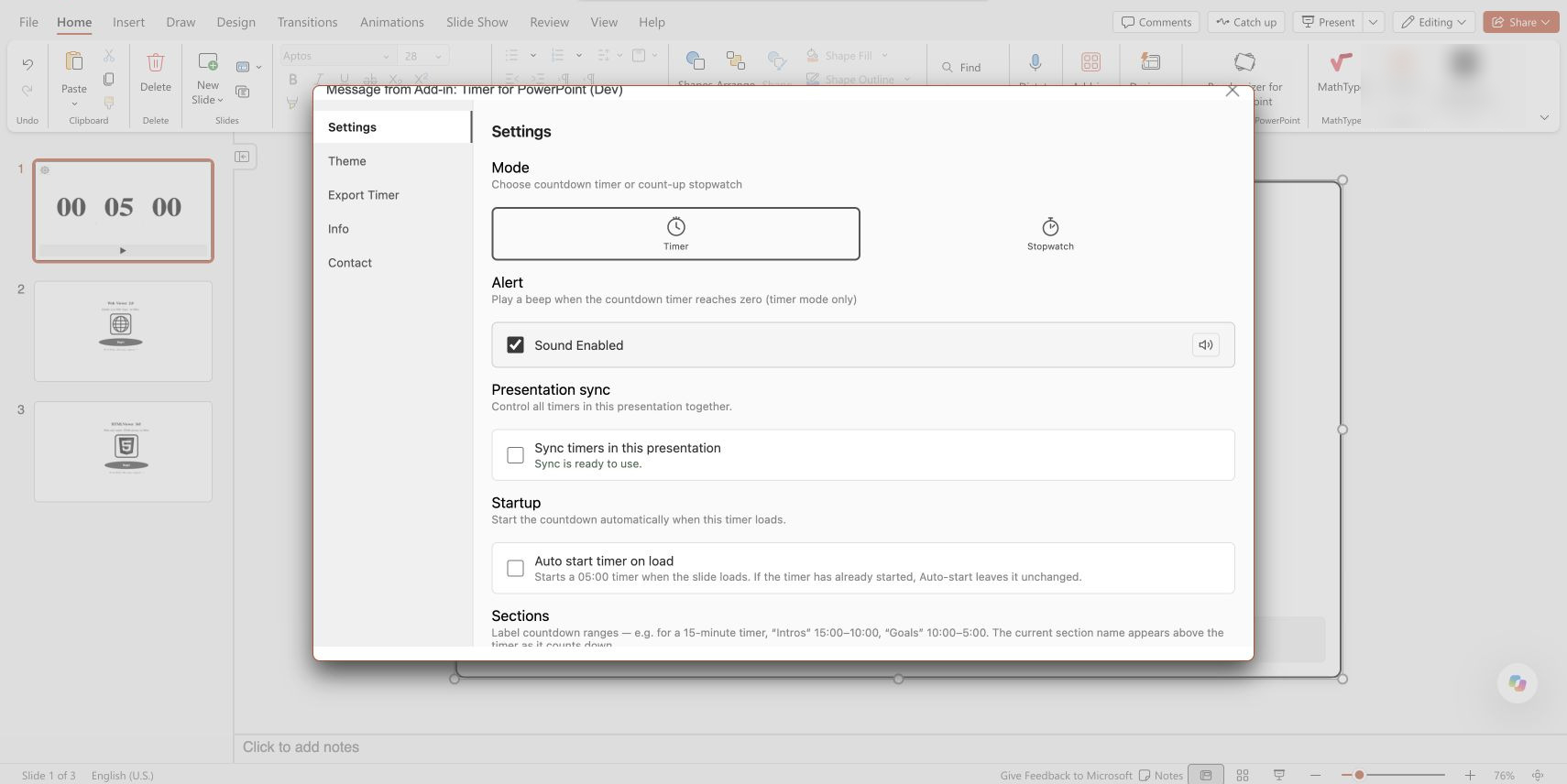
Settings in Timer for PowerPoint on PowerPoint for the web; presentation sync is off. Select the screenshot to enlarge it.
- Close Settings, enter Slide Show, and press Start when answering begins. Use New Timer before repeating the question.
Timer for PowerPoint shows one shared countdown; it does not enforce individual submission deadlines. It offers a 24-hour trial followed by a paid subscription.
For a ready-made deck, download the free quiz template with three question-and-answer pairs and 30-second countdowns. Other slide options include timer videos and native animation timers.
Option B: Display a shared online exam timer
Online-Stopwatch's exam timers provide plain displays with exam labels, including clock and separate-reading-time options.
- Open the collection and choose Basic Exam Timer, which opens in a new tab.
- Choose Go Fullscreen!. If a previous timer appears, choose Settings to open the setup controls.
- Under Exam Length, choose Clear if a duration is already entered. For 30 minutes, press 3, 0, 0, 0 and check 00:30:00.
- Enter the exam details in the three Labels fields and choose Set!.
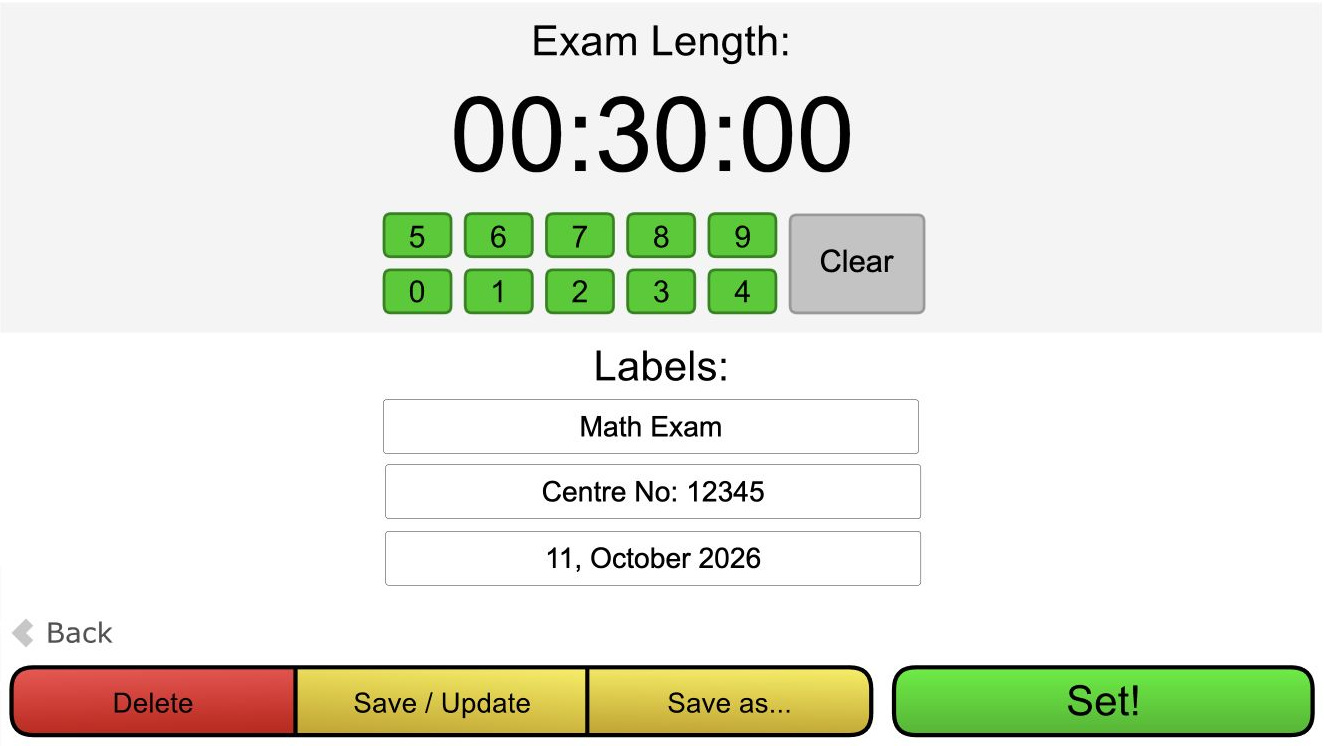
Exam duration and labels before starting the countdown. Select the screenshot to enlarge it.
- Choose Start at the announced time.
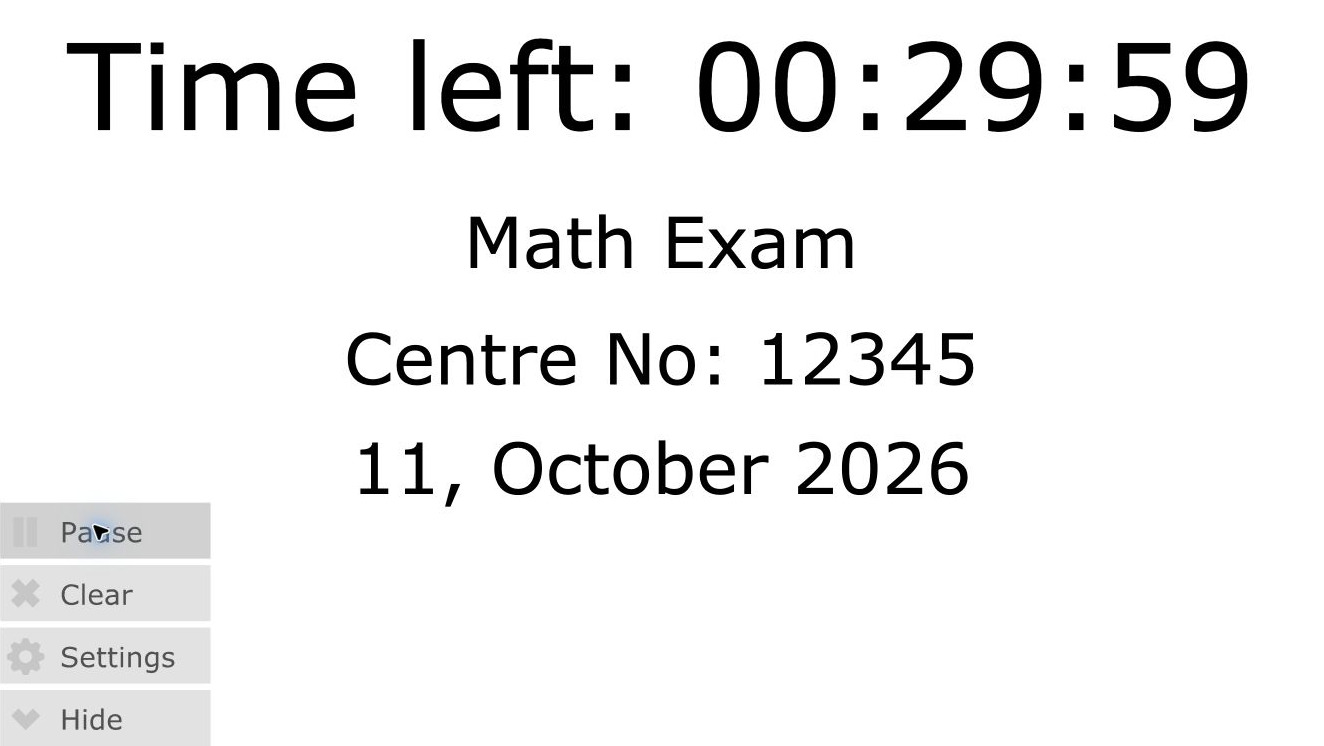
The shared exam countdown after Start. Select the screenshot to enlarge it.
Option C: Give each participant a timed online quiz
- Open your prepared Microsoft Forms quiz. Select Settings, under the three-dot menu when needed.
- Select Set time duration and enter the number of minutes, such as 30.
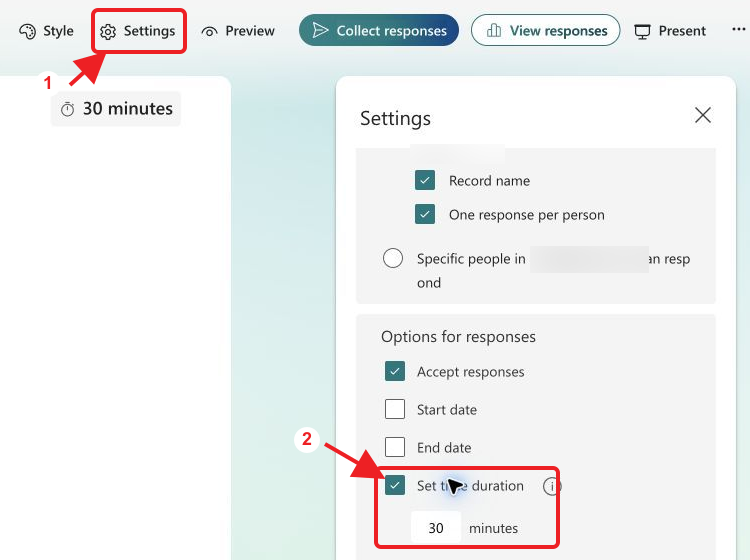
A 30-minute quiz time limit in Microsoft Forms. Select the screenshot to enlarge it.
- Select Collect responses and choose who can respond. Select Copy link to get the participant link, following Microsoft's sharing instructions.
- Open the participant link. Read the time limit on the start page, then select Click to start to begin the quiz and its countdown.
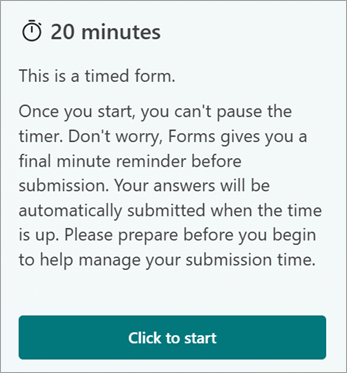
Microsoft's start-page example uses 20 minutes; your page shows the duration you set. Image: Microsoft Support.
The timer bar shows the remaining time while participants answer. They cannot pause the timer; Forms submits their answers when time expires.

The countdown during a timed quiz. Image: Microsoft Support.
Option D: Time a practice test on your computer
Use five minutes for a practice question, or enter the full test duration. Start the countdown when you begin answering.
Mac Clock
- Open Clock > Timers. Select + to add another timer.
- Enter 0 hours, 5 minutes, 0 seconds for a short reminder. Name it "Reminder" and choose an alert sound.
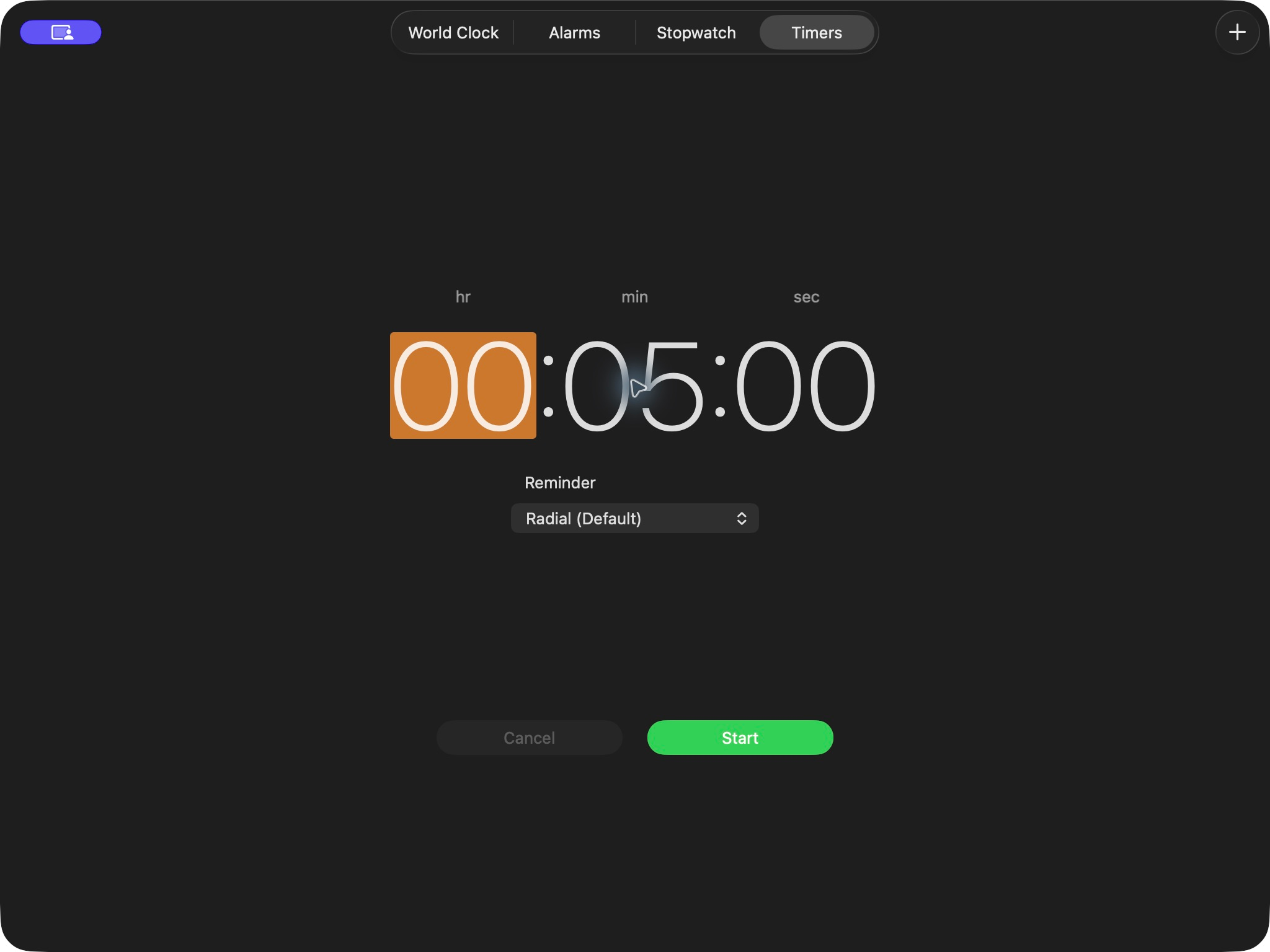
A five-minute Reminder before Start. Select the screenshot to enlarge it.
- Select Start when the timed activity begins.
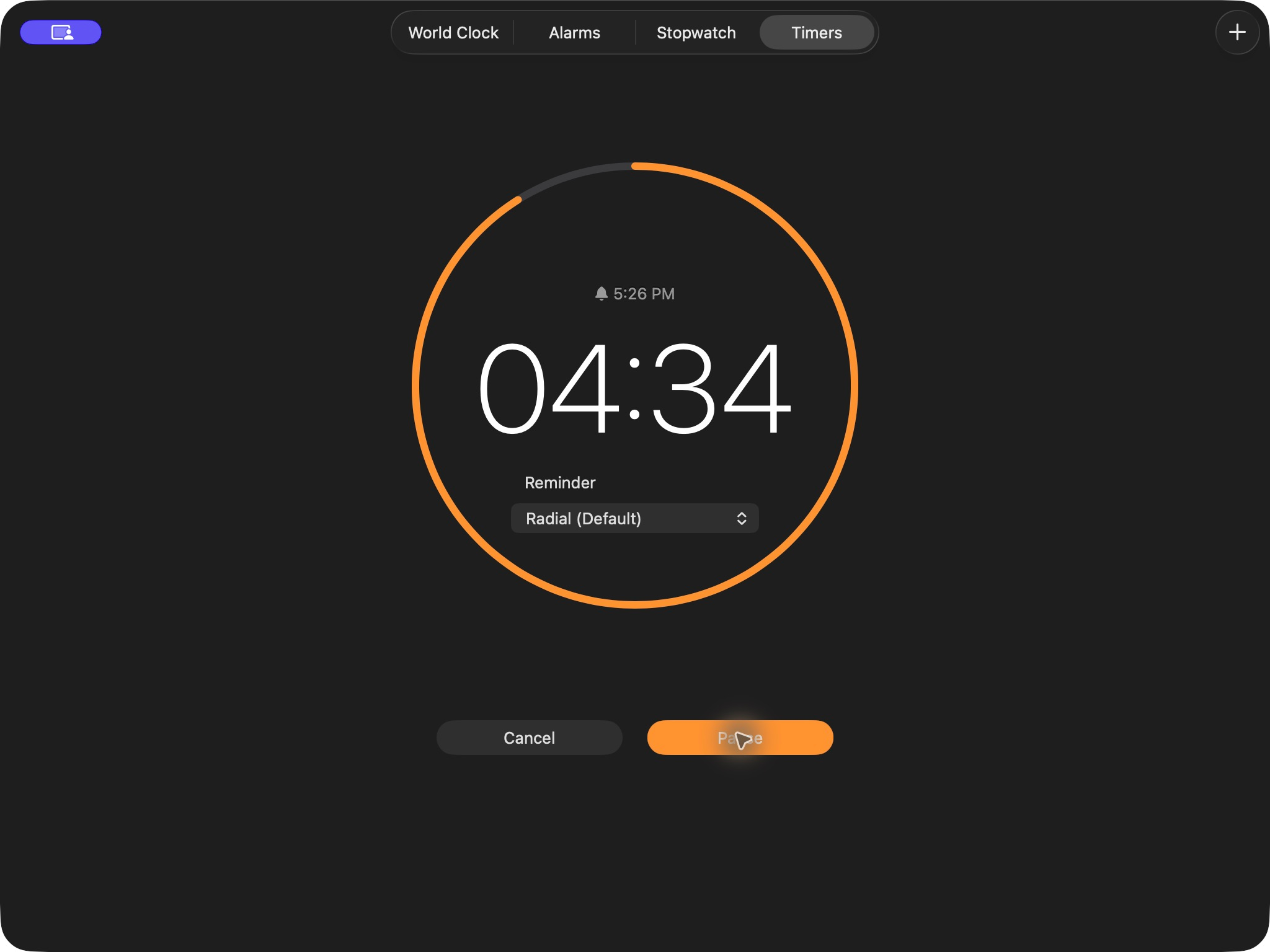
The Reminder timer after Start. Select the screenshot to enlarge it.
Use Pause and Resume for interruptions, or stop the alert when time expires.
The countdown continues while you use another app. See Apple's timer instructions for timer controls.
Windows Clock
- Open Clock > Timer and select +.
- Enter the hours, minutes, and seconds, then name and save the timer.
- Start the timer using its play button. Keep Clock outside the shared window for a private reminder.
Microsoft's Clock guide explains notification and sleep settings that affect the alert.
Option E: Display an exam clock
An exam clock shows the current time, so students can compare it with a written start and finish time. Use this approach when the room needs a shared clock rather than a countdown.
- Open Online-Stopwatch's large digital clock on the exam room's display. The clock starts immediately; no duration or Start button is needed.
- Compare its displayed time with the time the invigilator uses. Write the exam's start and finish times on the board beside the clock, including any separate reading period.
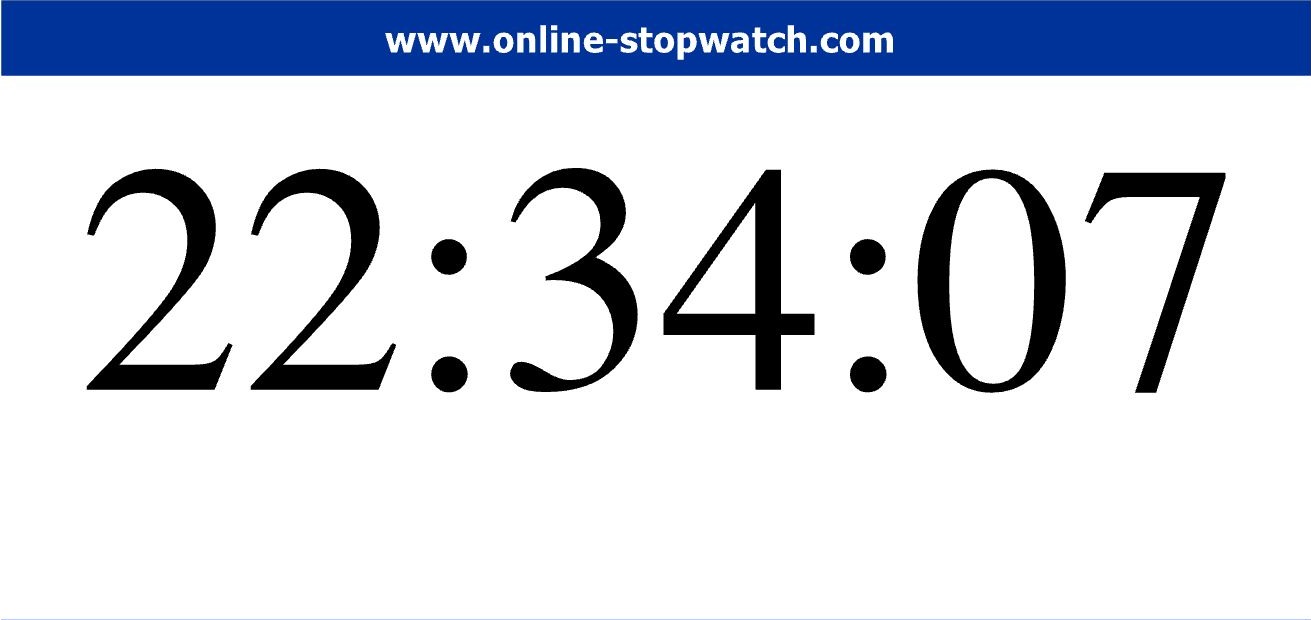
The clock keeps updating while the page stays open.
A clock does not enforce a deadline or submit answers. Use Option B for remaining time, or Option C for individual online limits. To show current time inside a slide, follow the live clock in PowerPoint guide.
Related timer setups
- PowerPoint stopwatch for measuring elapsed time during practice.
- Classroom timers for everyday lessons and activities.