
Summary
This post shows you how to add a free countdown to PowerPoint by using a ready-made timer slide, native animations, or an existing video.
These options suit short activities and reusable slides without a timer add-in or subscription.
Choose one option. Each produces a working timer on its own:
- Option A: Ready-made five-minute timer. Download the free timer template, edit the activity instructions, then press Right Arrow once in Slide Show to start the countdown.
- Option B: Five-second numbered countdown. Create text boxes labeled 5 to 1 and apply Disappear exit effects. Start the first effect On Click and the rest After Previous, each with a one-second delay.
- Option C: Thirty-second visual bar. Draw a rectangle, apply Fly In > From Left, and set Duration to 30 seconds with no delay. Click once in Slide Show to begin.
- Option D: An existing timer video. Insert a countdown MP4 you can reuse, set its playback behavior, and start it in Slide Show. Its duration stays fixed.
Copy the complete animated slide to reuse its timing. These timers run on their own slides; one countdown across several slides needs a live solution such as Timer for PowerPoint, which offers a trial followed by a subscription.
Choose the timer format
| Option | Useful for | Limitation |
|---|---|---|
| A: Free template | A ready-made five-minute activity slide | The video duration is fixed; the instructions are editable. |
| B: Numbered countdown | A short countdown you build in PowerPoint | Each number needs its own animation timing. |
| C: Visual bar | A visible time limit without numbers | The bar shows progress rather than seconds remaining. |
| D: Existing video | A countdown MP4 you already have permission to reuse | Duration and appearance are part of the video. |
Option A: Use the free five-minute template
- Download the free countdown template (PPTX) and open it in PowerPoint.
- Replace the activity title and instructions with your own task.
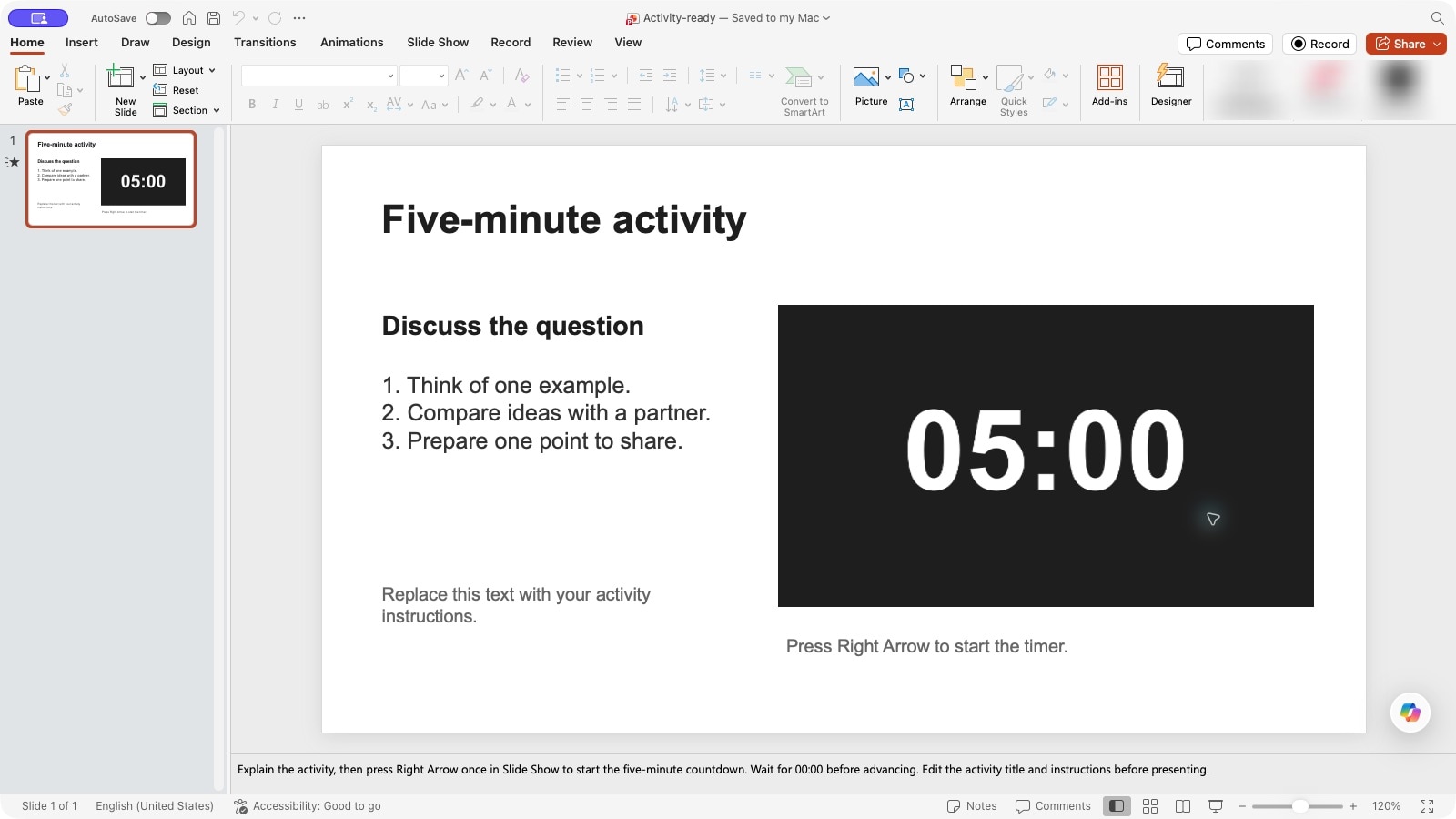
- To use the slide in another presentation, copy its thumbnail and paste it into the destination presentation. Keep the whole slide so its embedded video travels with it.
- Start Slide Show and explain the activity. Press Right Arrow once to start the silent five-minute countdown. Wait for 00:00 before advancing.
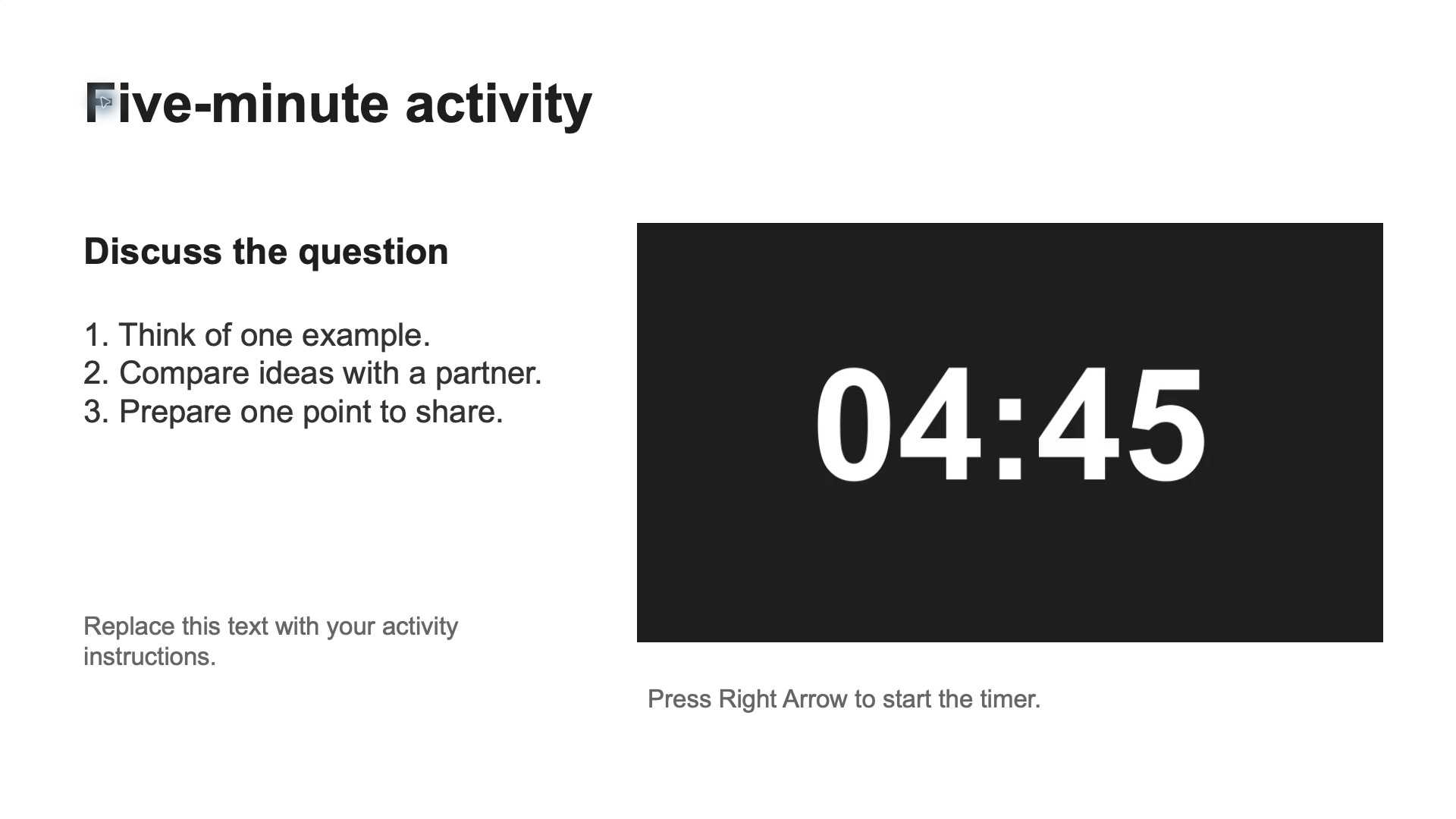
The template needs no timer add-in or subscription. For automatic playback or a reusable .potx file, see the template customization guide.
Option B: Build a five-second numbered countdown
Build a five-second countdown in PowerPoint desktop:
- Create five text boxes labeled 5, 4, 3, 2, 1 and arrange them in a row.
- Select the first text box. On Mac, open Animations > Exit Effects. On Windows, open Animations > Add Animation > Exit.

- Choose Disappear. Repeat for the remaining text boxes.

- Open Animation Pane and order the effects from 5 to 1.
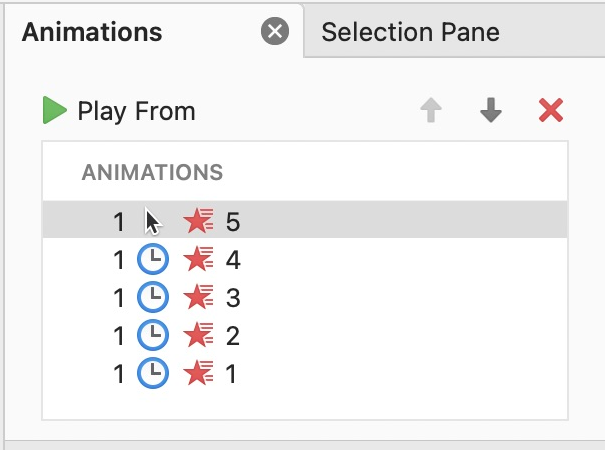
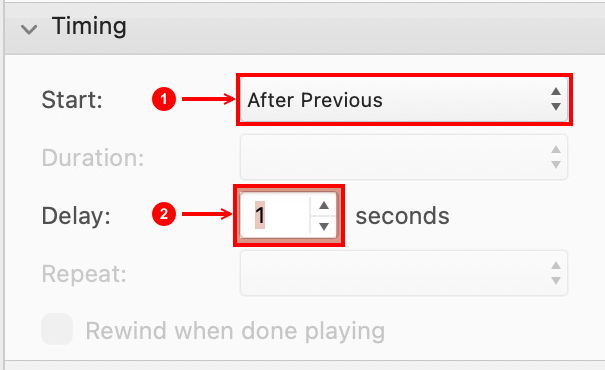
- Select 5's effect. Under Timing, set Start to On Click and Delay to 1 second. Press Enter after editing the delay.
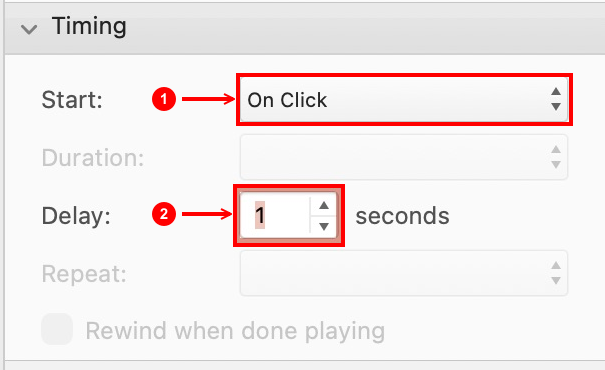
- Select each remaining effect and set Start to After Previous, with a 1-second Delay. Press Enter after editing each delay.
- Start Slide Show from the current slide and click once to begin.
The numbers disappear from left to right once per second. To change the countdown, edit the animation sequence.
Option C: Build a 30-second visual bar
- Draw a rectangle on the slide and select it.
- On the Animations tab, apply Fly In.

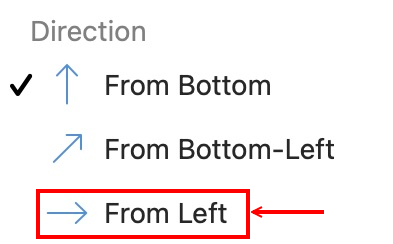
- Open Effect Options and choose From Left.
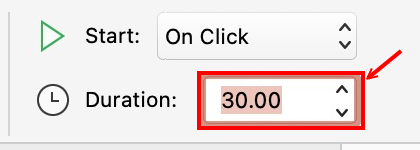
- In the Animations ribbon, enter 30 in the Duration field and press Enter.
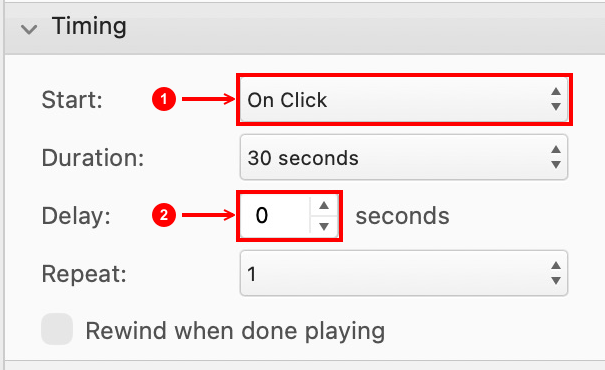
- Open Animation Pane. Under Timing, set Start to On Click and Delay to 0. Press Enter after editing the delay.
- Start Slide Show from this slide and click once. The bar moves in from the left over 30 seconds.
Microsoft's on-screen timer guide explains both native methods.
Reuse either animated timer
- Copy the complete animated slide from the thumbnail pane and paste it into the destination presentation.
- Open the Paste Options button beside the pasted slide's thumbnail.
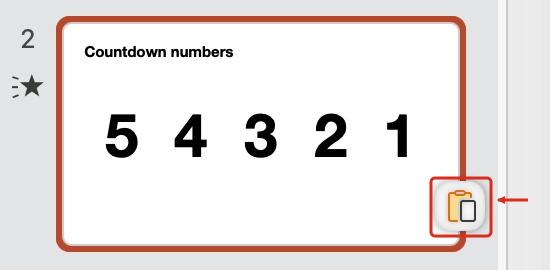
Paste Options beside the pasted slide thumbnail in PowerPoint for Mac.
- Choose Keep Source Formatting from the paste menu, then update the instructions.
Copying the whole slide keeps its shapes and animation sequence together.
Option D: Insert an existing countdown video
This option uses a countdown MP4 you already have permission to reuse. Without a video file, Option A provides a free slide with one embedded.
- Select the slide. On Windows, choose Insert > Video > This Device. On Mac, choose Insert > Video > Movie from File.
- Select the MP4 and insert it.
Microsoft documents these steps in its video insertion guide.

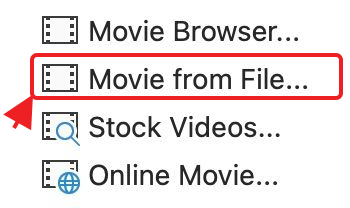
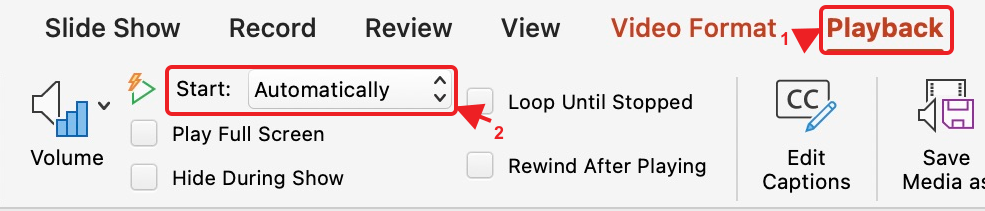
- Select the video and open Playback. Set Start to Automatically to begin when the slide appears, or keep click-to-start playback to control the start yourself.
- Start Slide Show. Click the video if required, then check that the countdown runs and any end sound is audible.
A video counts down only while playback runs. For a custom duration, theme, or end alert, see the MP4 export guide. Custom export uses Timer for PowerPoint's trial or subscription; trial exports have a FREE TRIAL watermark.
When a live PowerPoint timer is more useful
Timer for PowerPoint lets you change durations, switch to a stopwatch, or synchronize displays across slides. Follow the countdown setup guide or the stopwatch guide. Timer for PowerPoint has a 24-hour free trial and requires a subscription afterward.
Frequently asked questions
Will a countdown animation keep running across slides?
An animation runs on its own slide. For one clock across slides, place a live instance of Timer for PowerPoint on each slide and enable presentation sync. Follow the across-slides guide for linked timing.
What if I need the time of day rather than a countdown?
Follow the live clock guide to compare PowerPoint's date-and-time field with clocks that update while the slide is open.