
Summary
This post shows you how to keep a live event on schedule by setting up a stage countdown with Timer for PowerPoint or a free browser timer.
A visible countdown helps speakers pace a talk or discussion. Decide whether the audience should see the remaining time or whether the clock should face only the speaker.
Choose one option:
- Option A: A timer on the presentation slide. Add Timer for PowerPoint, enter the slot duration, and start the countdown in Slide Show. A timer on an audience-facing slide is visible to everyone.
- Option B: A free timer on a separate device. Set a duration in Timeanddate's online timer, disable the alarm for a silent cue, and open the fullscreen view. Position the device where the speaker can see it, then start the countdown when their slot begins.
Agree who starts, pauses, and resets the timer. Before the event, check its visibility from the speaker's position and rehearse the transition to the next slot.
Prepare the timing and display
- Slot length: Agree how much time belongs to the talk, questions, and changeover. Start a fresh countdown for each slot rather than resetting halfway through a speaker's allotted time.
- Audience: Put the timer on the projected slide when everyone needs the deadline. For a private speaker cue, use a separate device or display facing the stage and keep that screen out of the projected content.
- Operator: Assign the speaker or a nearby moderator to control the device running the timer. Agree on a visible or spoken cue when the time expires.
Option A: Show the countdown with Timer for PowerPoint
Use this option to show the time beside slide content, or fill a slide with the timer. This example gives a stage discussion five minutes.
- In PowerPoint for the web, select the slide for your stage timer, then open Home > Add-ins.

Open Home, then Add-ins in PowerPoint for the web.
- Enter Timer for PowerPoint in the search box. Under More search results, select Add beside the matching result.
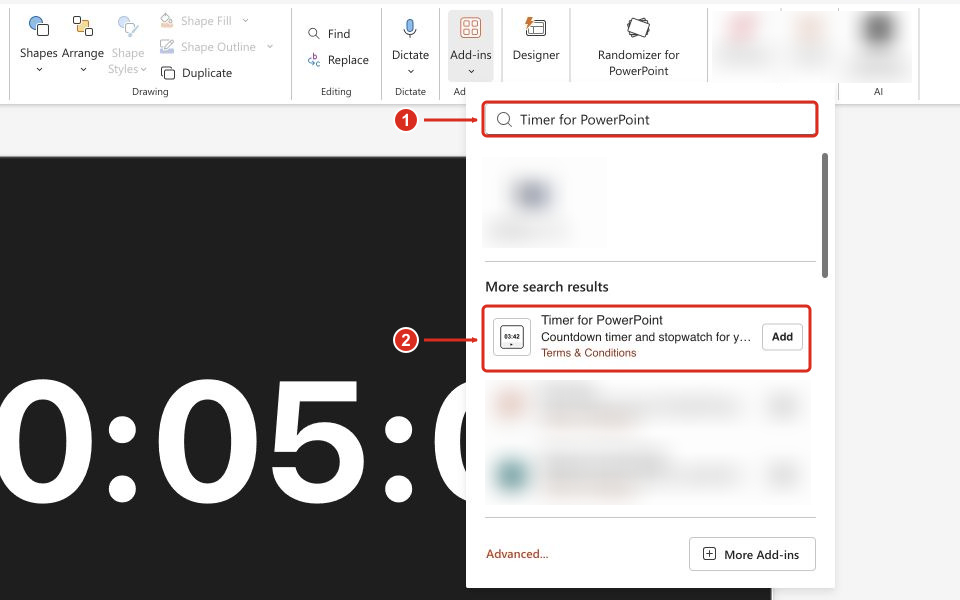
Search for the full add-in name, then select Add beside the matching result.
Complete any installation prompts. The timer appears on the selected slide. For other PowerPoint versions or organization-managed installation, see the full installation guide.
- Set the on-slide hours, minutes, and seconds to 00:05:00. Resize the timer so the speaker can read the digits from their position.
- Open the gear for Settings and select Timer under Mode. Under Alert, enable Sound Enabled for an end beep, or clear it for a silent cue.
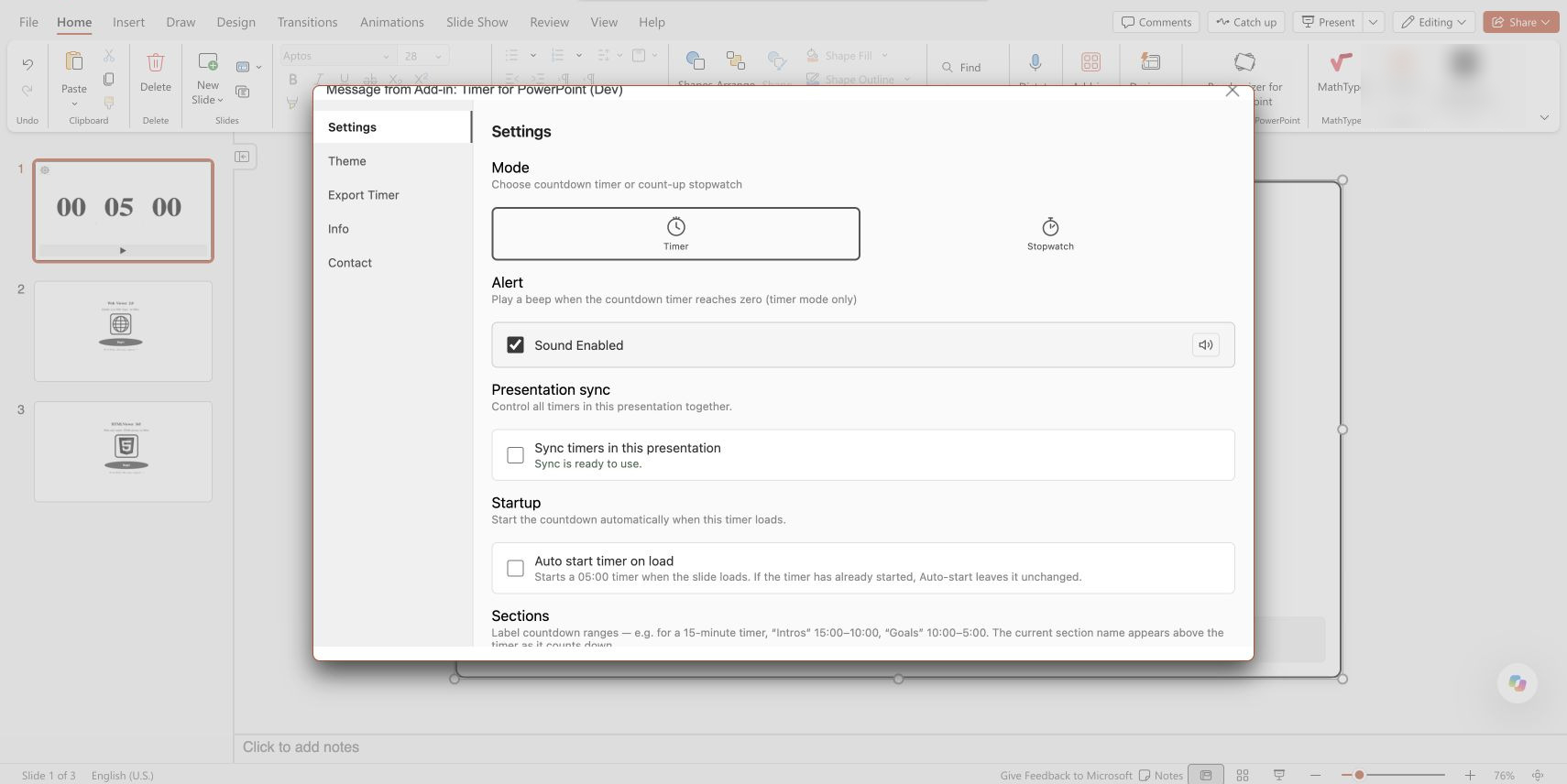
Countdown mode and the optional end alert in PowerPoint for the web.
- To label the slot, scroll to Sections and choose + Add Section. Enter Discuss and set the remaining-time range from 05:00 to 00:00.
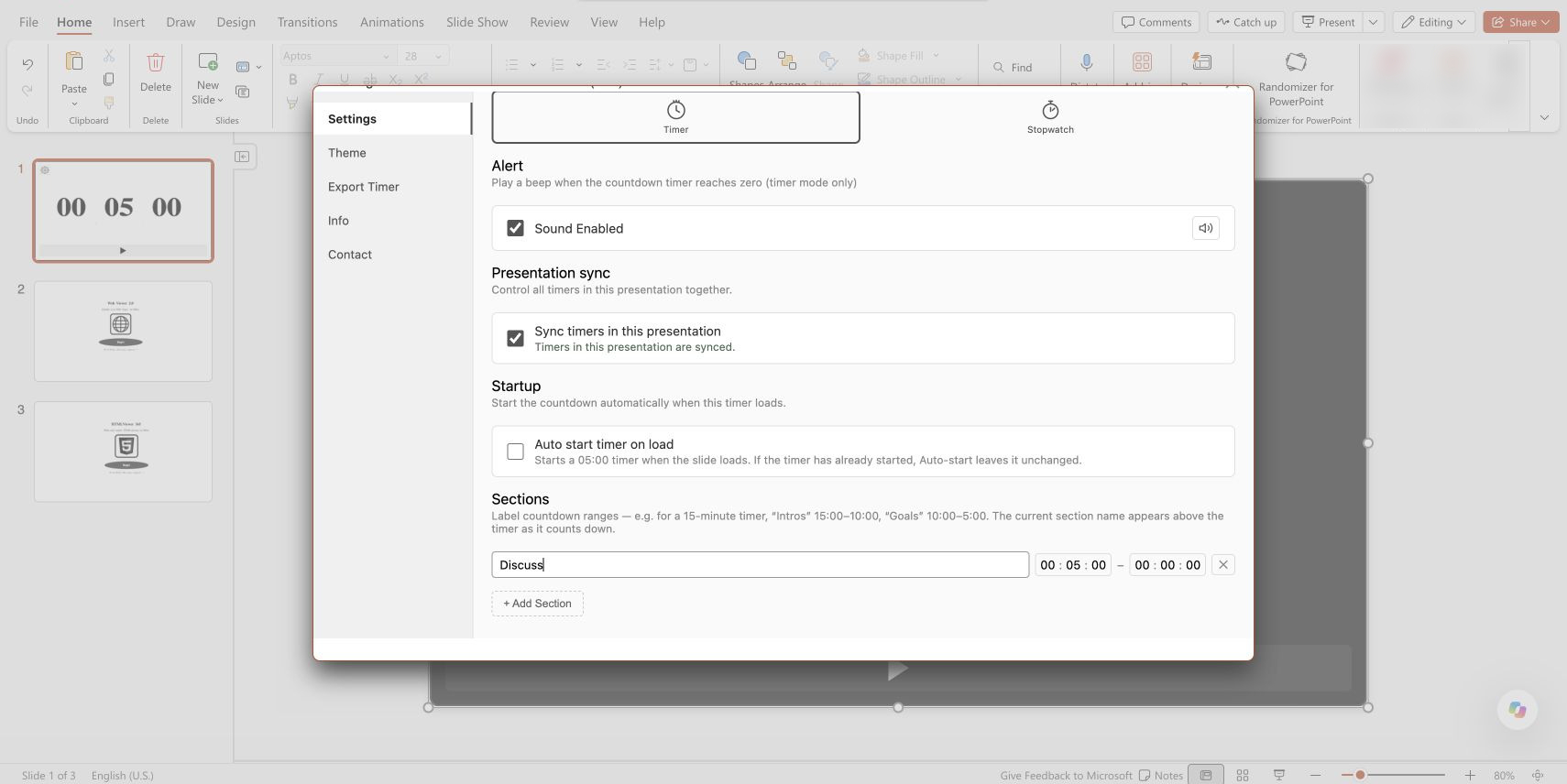
The label remains visible throughout the five-minute discussion.
- Close Settings and enter Slide Show. Press Start when the discussion begins. Use Pause for an interruption and Resume to continue the same slot.
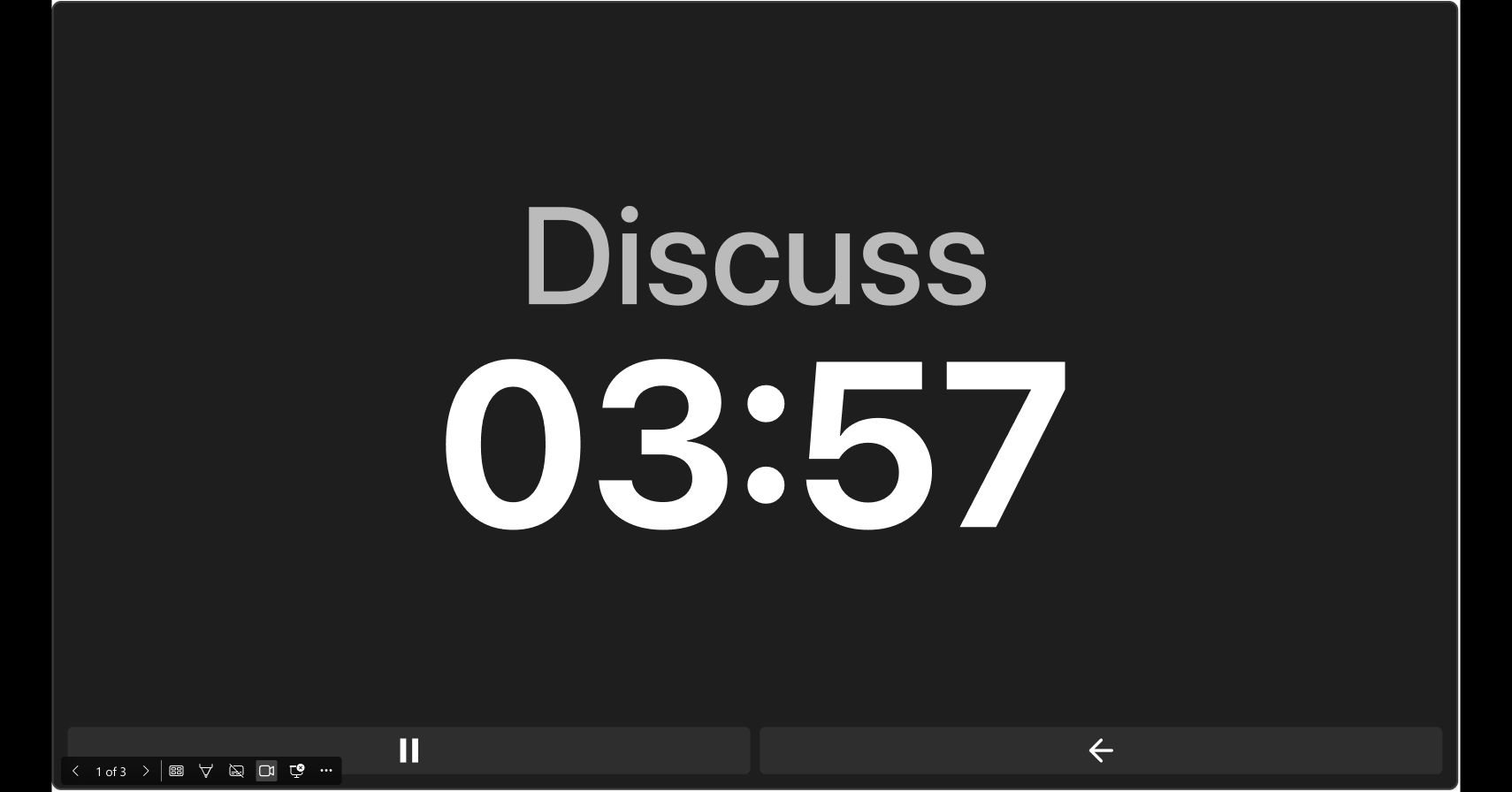
The running timer on an audience-facing slide.
- At the next slot, use New Timer and enter the new duration. In Settings > Sections, update or remove the previous slot's name and time range before starting again. New Timer keeps those settings.
For a talk that spans several slides, follow the presentation sync guide to keep one countdown running across them. Sync links instances within the same presentation; it does not provide remote moderator controls for a separate device.
Timer for PowerPoint offers a 24-hour trial followed by a paid subscription.
Option B: Use a free browser timer on a separate device
A separate laptop or tablet can show the speaker a countdown while the audience sees the presentation. This option uses a ten-minute talk and a silent alarm.
- On the device facing the speaker, open Timeanddate's free online timer and select Edit.
- Set Hrs to 0, Mins to 10, and Secs to 0. Enter Talk as the Timer Name.
- Set Timer End Alarm to --None-- for a silent countdown, then select Done.
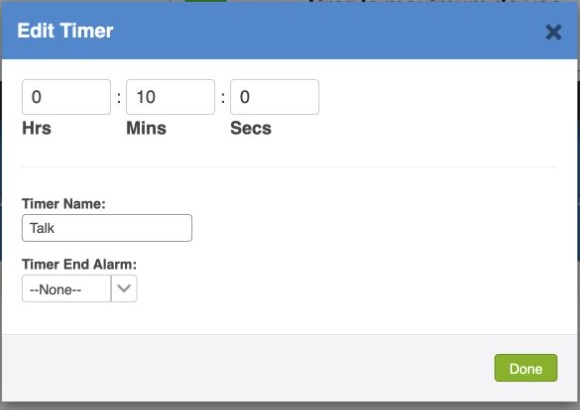
Set the duration, slot name, and sound before starting the talk.
- Choose Fullscreen. Place the screen in the speaker's sightline and confirm that the numbers are readable from the stage.
- Choose Start when the talk begins.
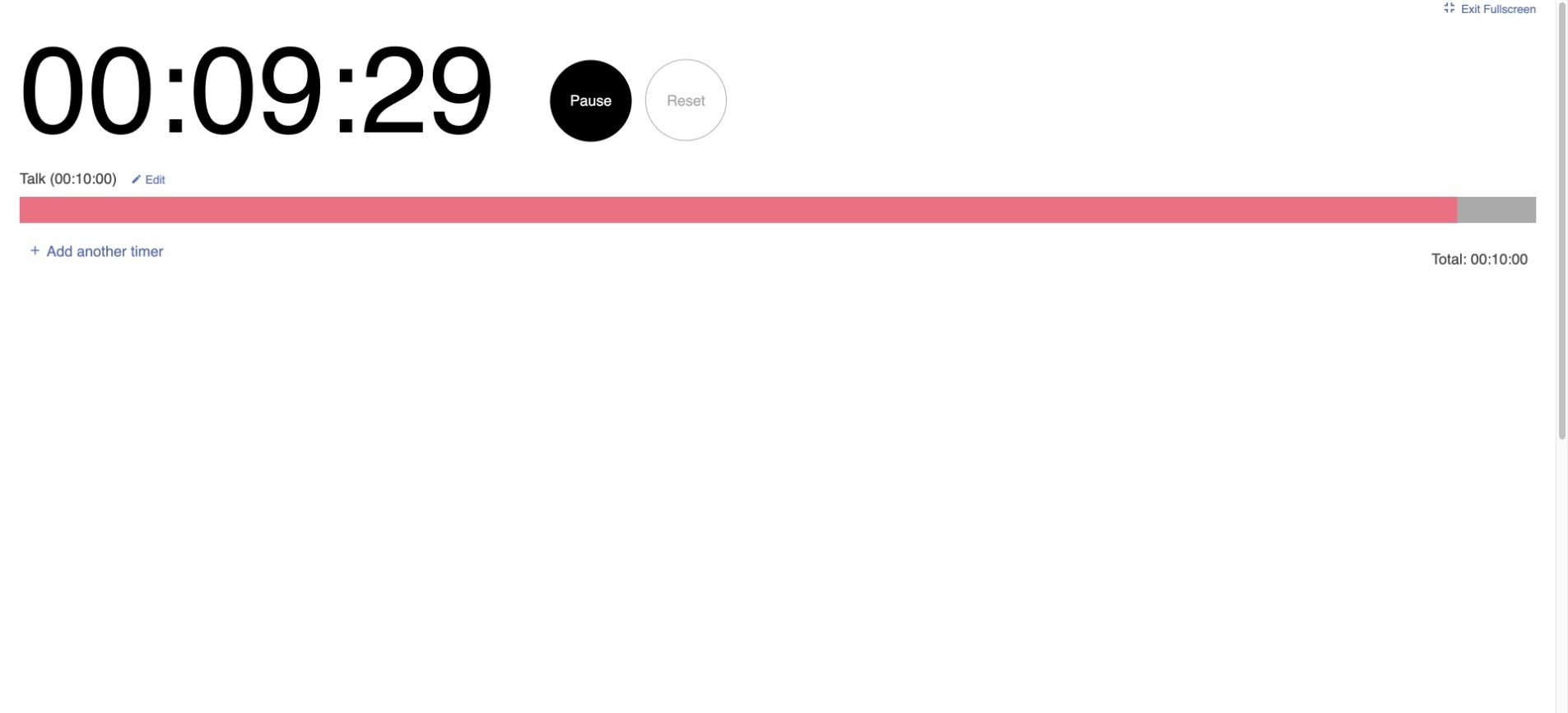
A large, silent countdown for the speaker's screen.
- Choose Pause for an interruption, then Start to resume. To repeat the same slot, pause and choose Reset.
- For a different slot length, leave fullscreen and select Edit. Change the duration and name, choose Done, and start at the next cue.
The timer runs on this device. Opening the same timer page on another device does not create a shared countdown or remote control.
Rehearse before the event
- Check the digits from the speaker's actual position, with the stage lights on.
- Confirm that only the intended audience can see the timer.
- Run a short countdown to test the chosen end cue and any sound.
- Practice pausing, resuming, and resetting for the next speaker.
For timing several agenda items, see presentation and meeting timers. For an online event, see how to share a timer in Zoom.