
Summary
This post shows you how to track elapsed presentation time by using PowerPoint's Presenter View timer.
The timer helps you pace a talk while keeping the audience's slides free of a clock. It counts up from zero; it does not count down from a time limit.
- On Mac, open Slide Show > Presenter View. The elapsed timer starts automatically.
- Use Pause Timer and Resume Timer to leave an interruption out of your elapsed time.
- Use Reset Timer to return to zero and start counting again. Reset also starts a paused timer.
Keep Presenter View on your own screen and show the audience the Slide Show screen. Sharing or mirroring Presenter View also reveals its timer and notes.
Open Presenter View on Mac
- Open your presentation in desktop PowerPoint and select the first slide.
- Open Slide Show (1), then choose Presenter View (2).

Open Slide Show (1), then Presenter View (2). PowerPoint for Mac shown.
- Find the elapsed timer at the upper left, above the current slide. It begins at zero and continues as you move through the presentation.
- Advance through your slides while watching the total elapsed time.
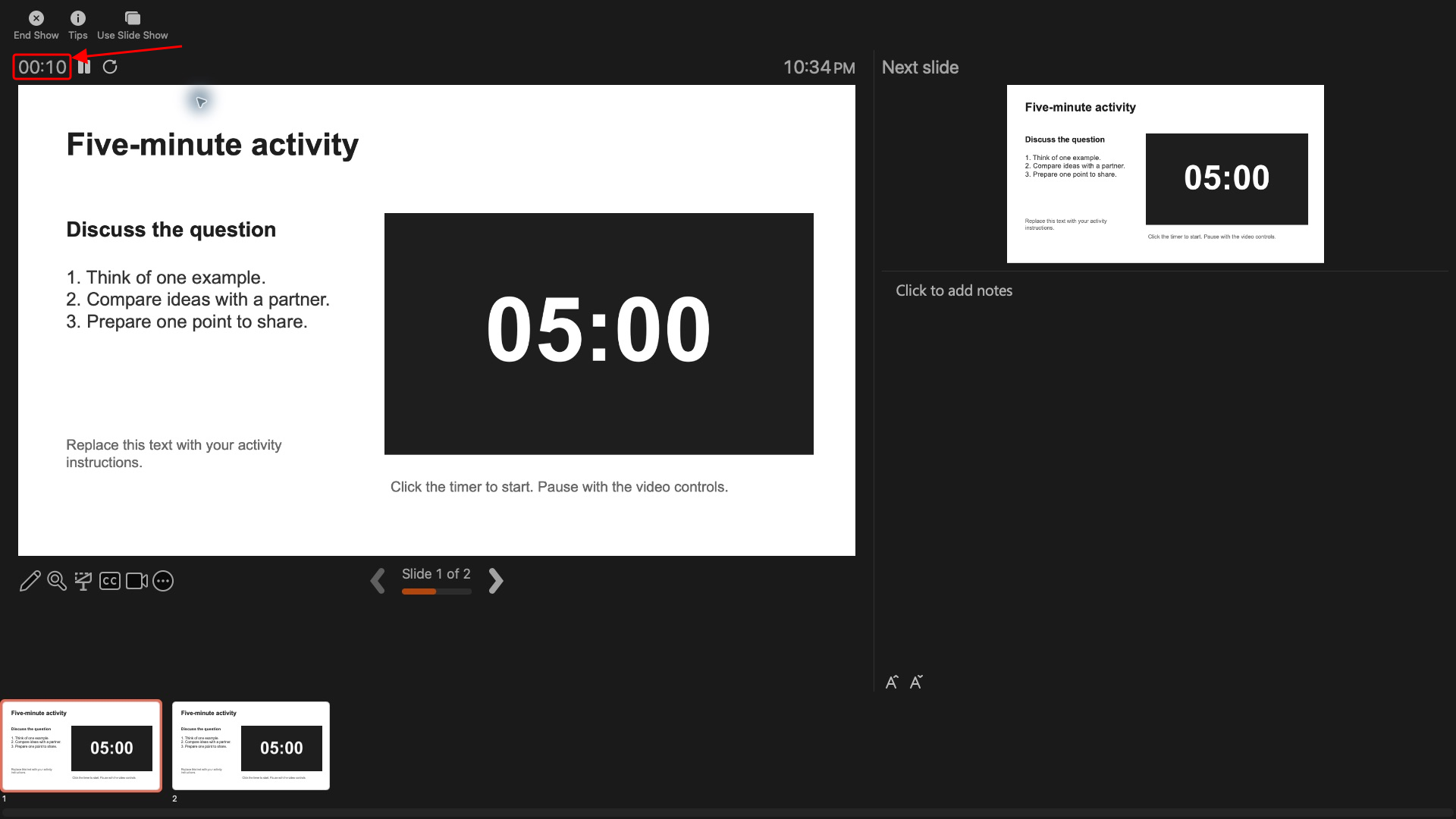
The highlighted 00:10 is the native elapsed timer. The large 05:00 belongs to a separate video on the slide.
Mac can open Presenter View on one display for practice. During a live talk, keep the audience on the separate slide display. Microsoft's Presenter View instructions explain the presentation display controls.
Pause, resume, or reset the timer
- Pause Timer freezes the elapsed time during an interruption.
- Resume Timer continues from the paused value.
- Reset Timer returns the timer to zero and starts it again, including when the timer was paused.
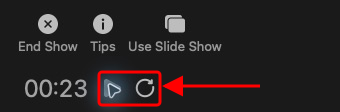
The triangle resumes the paused timer; the circular arrow resets it and starts counting again.
Press Esc to leave Presenter View when you finish.
To save the time spent on each slide for automatic playback, use Rehearse Timings. To show a deadline to the audience instead, follow the on-slide countdown guide using Timer for PowerPoint.