
If you need a visible timer for a classroom activity, workshop, break, or timed presentation segment, Timer for Google Slides lets you create a countdown timer video and add it to your deck from Google Drive.
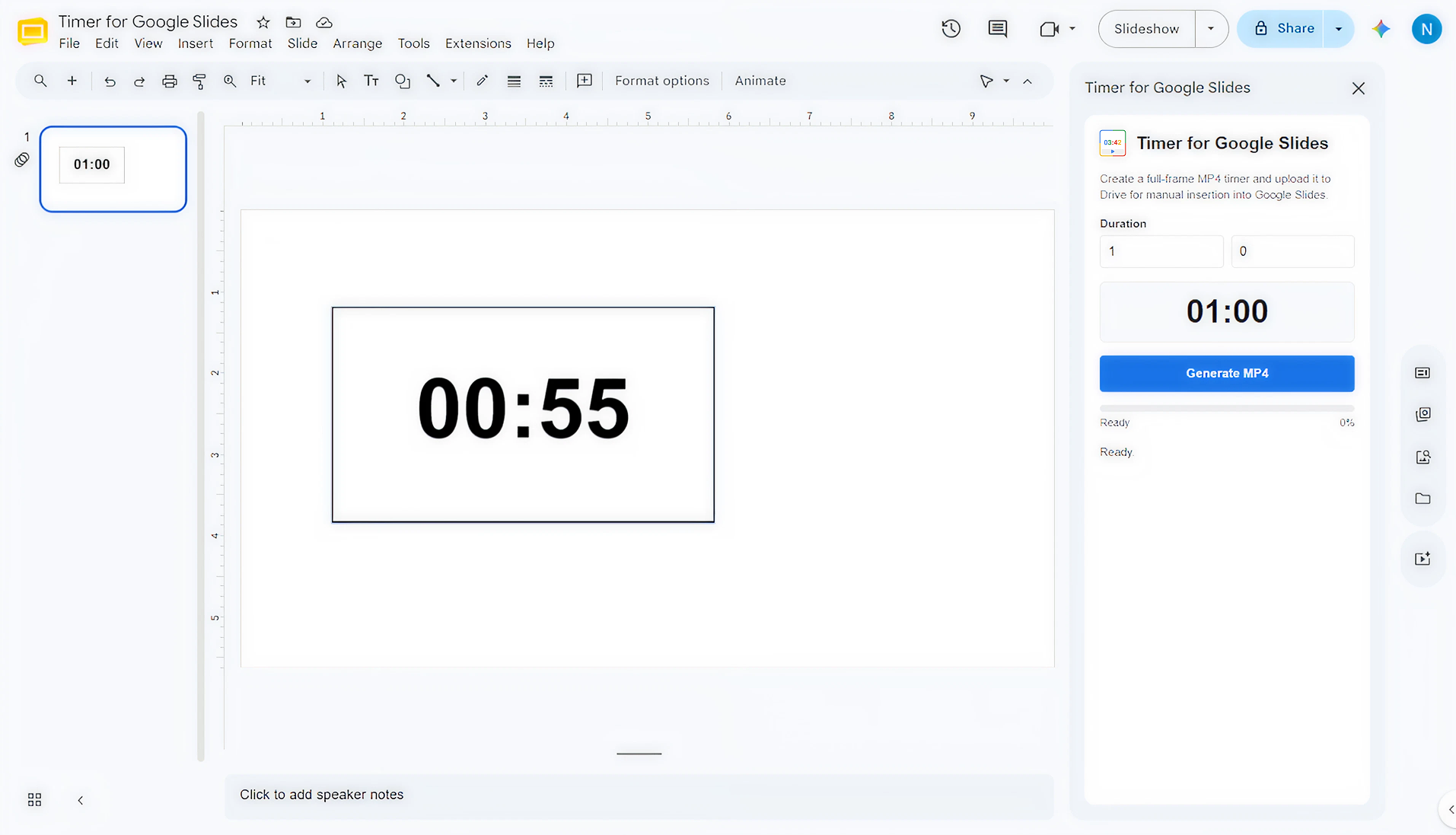
How it works
- Install the add-on from Google Workspace Marketplace, open your presentation, and launch Timer for Google Slides from the Extensions menu.
- Enter the time you want the audience to see for the activity, break, quiz, or timed presentation section.
- Start the export and wait for the add-on to finish creating the countdown video.
- In Google Slides, choose Insert, Video, then Google Drive. Select the timer video, place it on the slide, and resize it so the audience can see the countdown clearly.
- Now that the timer is on your slide, enter Slideshow and press the play button on your timer for each slide.
Need help?
If you encounter issues or have questions, message support and we'll help.