
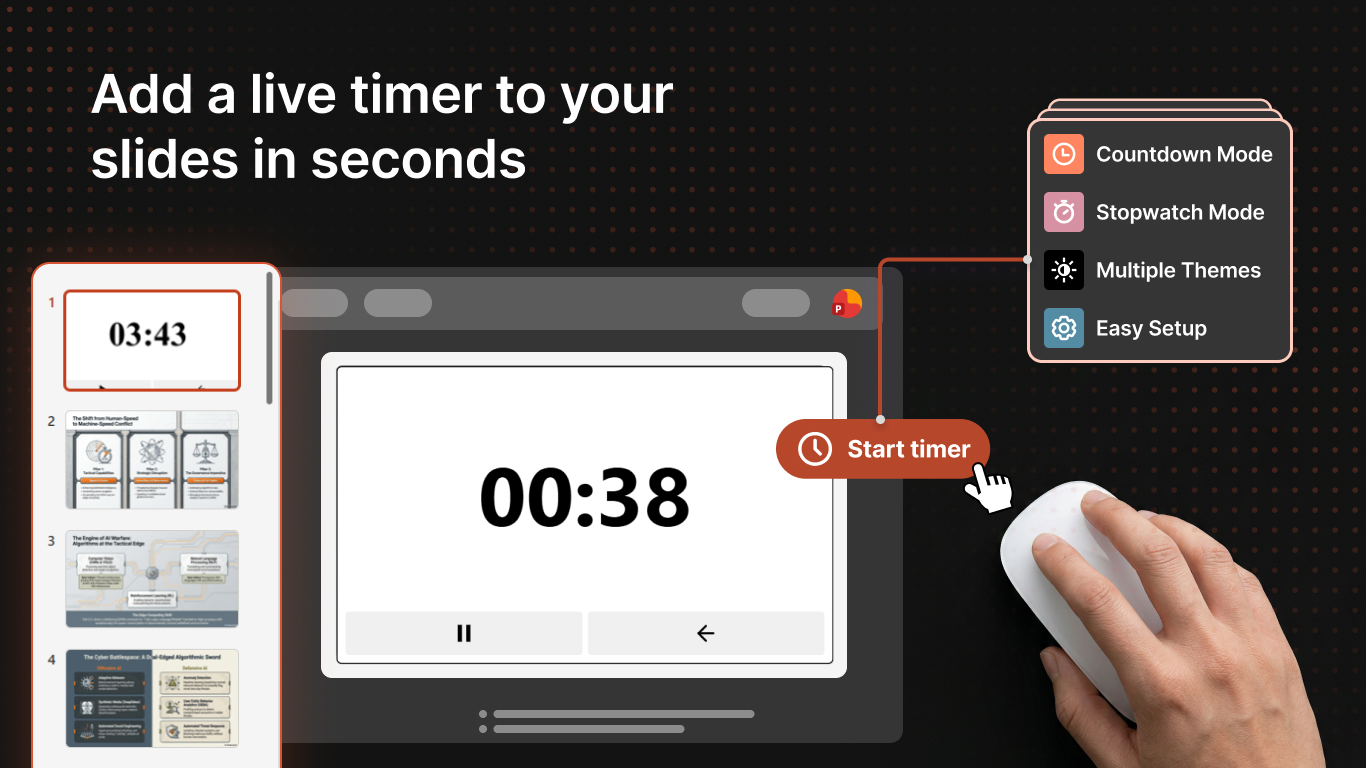
If you need to keep a presentation on schedule, Timer for PowerPoint lets you add a live countdown timer directly inside PowerPoint instead of juggling a separate app or browser tab.
Open Timer for PowerPoint
Launch the add-in from PowerPoint so the timer opens in the task pane alongside your slides.
Set the countdown or switch to stopwatch
Choose the time you want for the countdown, or switch to stopwatch mode if you want the timer to count up instead.
Choose a theme and sound alert
You can pick from multiple color themes so the timer matches your presentation style. If you want an alert at the end, enable the sound notification before you begin.
Add timer sections
Timer sections let you label parts of the talk such as Intro, Demo, or Q&A. That makes it easier to pace each part of the presentation.
Start it in presentation mode
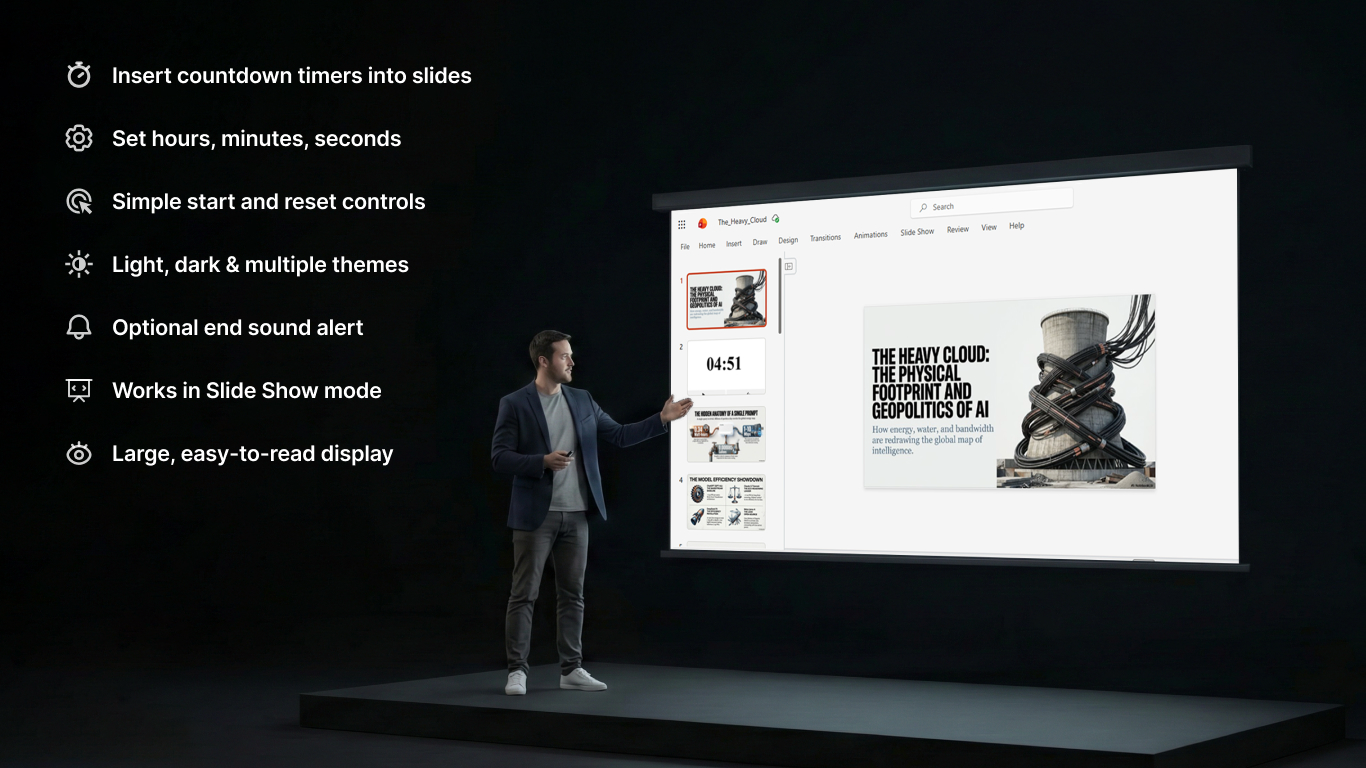
The timer stays visible in the PowerPoint task pane during slideshow mode, so you can keep an eye on time while presenting. If you use multiple devices with the same presentation, the timer can also stay in sync.
Need help?
If you run into trouble, email product@1990quebec.com with your PowerPoint version, operating system, and a short description of what happened.