Timer for Google Slides
Create a live timer and insert it in your presentation without leaving Google Slides.
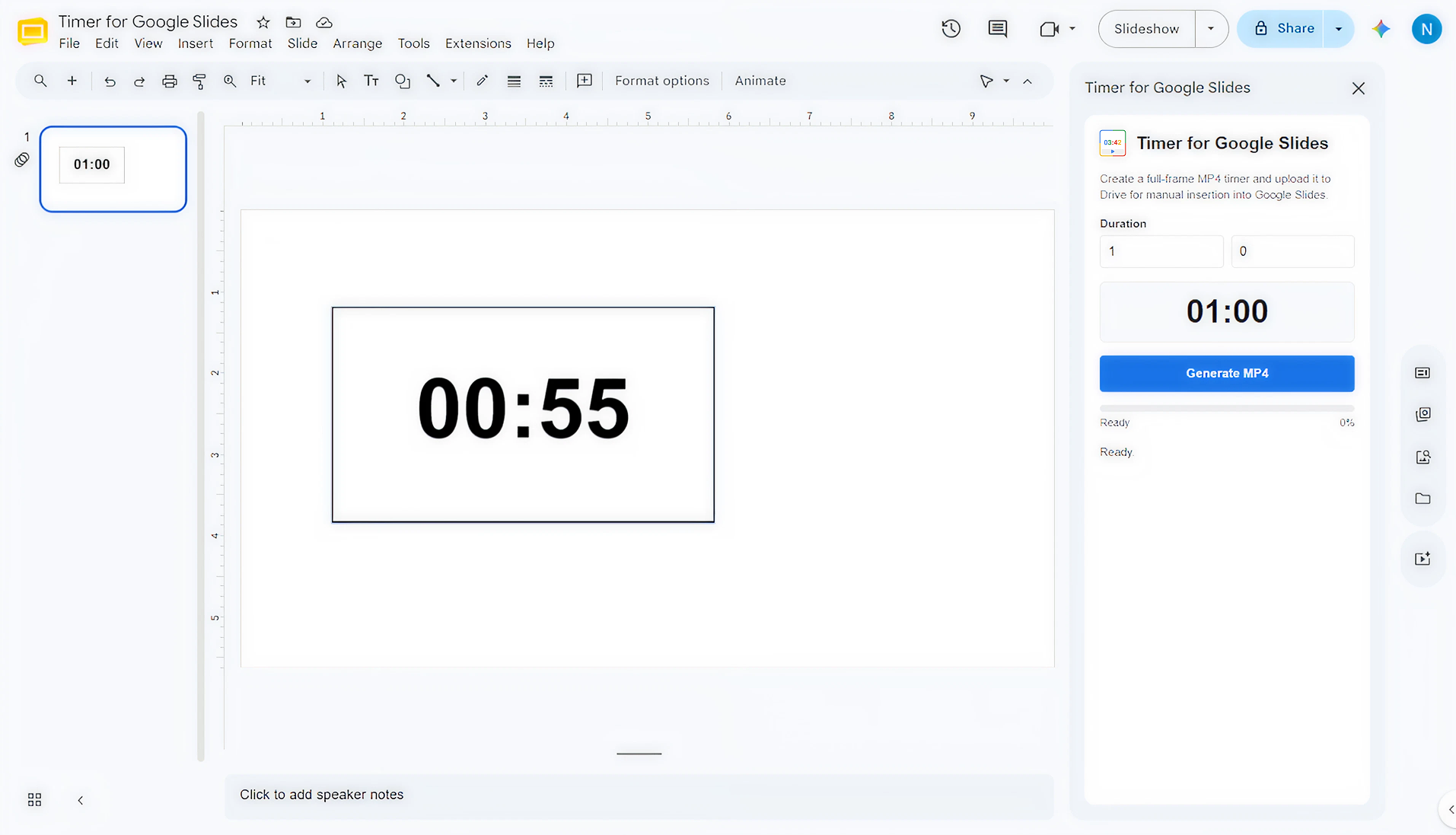
Create a live timer and insert it in your presentation without leaving Google Slides.
Google Slides is great for teaching, training, workshops, and meetings, but adding a reliable visual timer usually means jumping between browser tabs or manually building a timer animation.
Timer for Google Slides gives you a focused add-on workflow: choose a countdown duration, export a timer video, and insert it into the slide where you need it. The timer becomes part of the presentation instead of a separate tool you have to manage.
Use it for classroom activities, breaks, timed discussion blocks, workshop exercises, and any presentation moment where everyone should see the same time remaining.
Create a countdown timer video that can be inserted into Google Slides and played during your presentation.
Pick the timer length, start the export, and follow the built-in completion step to place the timer on the slide.
The timer is a slide video, so it stays visible to the audience without relying on a separate timer tab or screen share.
The add-on is built for the Google Slides editor and follows the Google Workspace add-on installation path.
Install Timer for Google Slides from Google Workspace Marketplace and open it from a Google Slides presentation.
Enter the timer duration you want for the activity, break, presentation segment, or workshop exercise.
Export the countdown as a video file that can be selected from Google Drive inside Slides.
Use Insert, Video, Google Drive in Google Slides, choose the timer video, and place it where the audience should see it.
Now that the timer is on your slide, enter Slideshow and press the play button on your timer for each slide.
Teachers running classroom activities, warmups, quizzes, transitions, or timed group work in Google Slides.
Trainers and facilitators leading workshops where the audience needs a clear visual cue for time remaining.
Meeting hosts keeping discussion blocks, retrospectives, and brainstorms on schedule.
Presenters who want a timer embedded in the deck instead of a separate browser tab or phone timer.
The add-on creates a timer video that you can insert into Google Slides from Drive. The video plays during the presentation like any other slide video.
No. Once the timer video is inserted on the slide, it is part of the presentation and can be shown to the audience from Google Slides.
Timer for Google Slides is designed to minimize data collection and protect your content. We never read or upload your Google Slides presentation. The add-on generates the timer video in your browser, and Google Apps Script creates the file in your Google Drive. Our database never receives or stores the video. Read our privacy policy for full details. Need more information or have special requirements? Contact support and we'll help.
Contact support with the Google account, browser, and presentation details if you run into trouble.
Create a countdown timer video for your next Google Slides presentation.