 Get on AppSource
Install from AppSource
Install DICOM Viewer from AppSource for your SharePoint site.
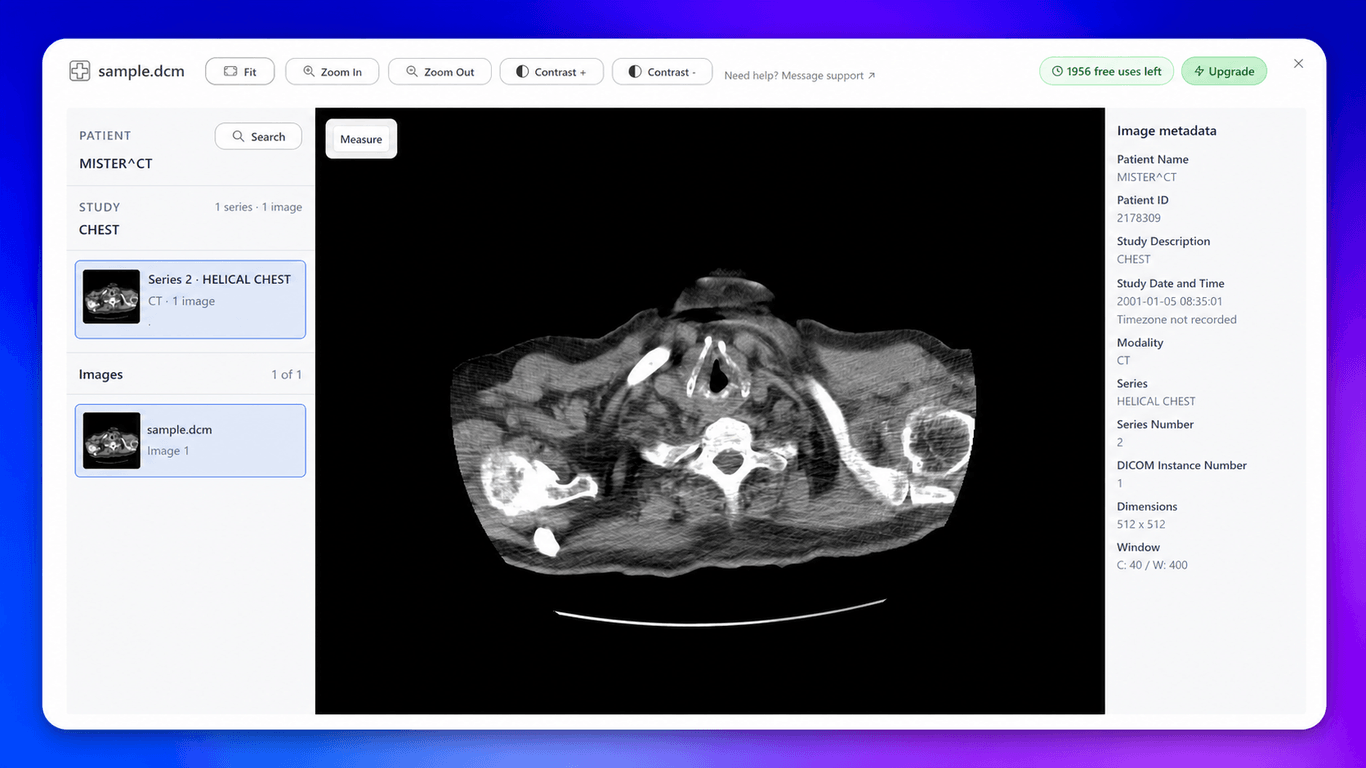
Open medical images and browse complete studies directly in SharePoint. Files render in your browser and never upload to external servers.
SharePoint has poor support for DICOM files. Most files do not open directly in SharePoint. This results in the following problems:
View, measure and share DICOM files in SharePoint.
Install DICOM Viewer from AppSource for your SharePoint site.
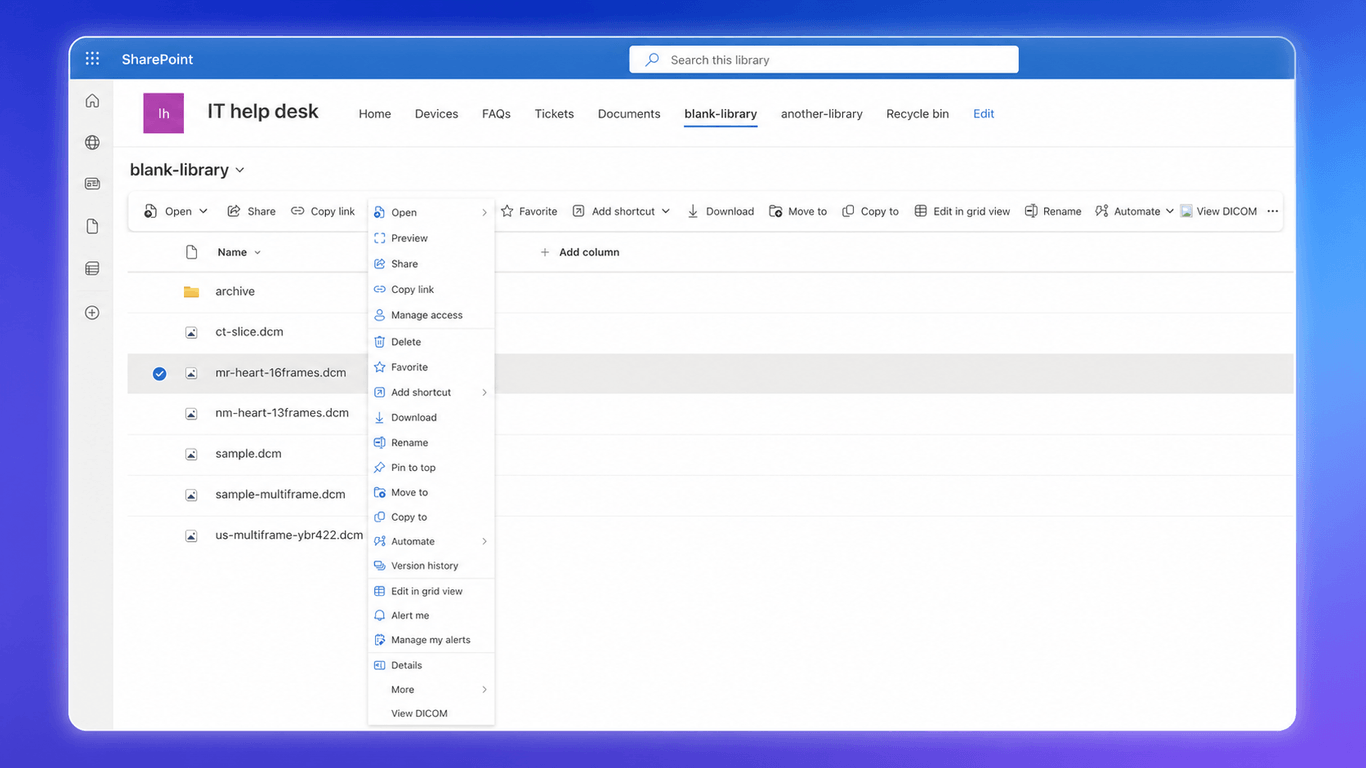
Select a DICOM file or folder in SharePoint, then right-click → View DICOM.
View, measure and share DICOM files in SharePoint.
Choose a supported DICOM file, a folder containing DICOM files, or a DICOMDIR file-set, then click View DICOM in the command bar. The viewer reconstructs the study hierarchy and opens the images in SharePoint.
DICOM Viewer supports .dcm, .dicom, .dcm30, .ima, and extensionless DICOM files, including single-frame and multiframe images. It supports uncompressed, deflated, RLE, supported JPEG, JPEG-LS, JPEG 2000, and HTJ2K transfer syntaxes. DICOMDIR file-sets are also supported.
Need another format? Message us and we'll help.
Yes. We're considering support for ZIP archives, advanced DICOM objects such as SEG and RT objects, and research formats such as NIfTI, NRRD, MetaImage, MINC, FreeSurfer, MRtrix, AFNI, Analyze 7.5, GIPL, Philips PAR/REC, and ECAT7. If you need one, message us and we'll help.
DICOM Viewer opens files from SharePoint in your browser. It never uploads them to external servers. Read the privacy policy for details.
No. DICOM Viewer runs in your browser, so you do not need OsiriX, RadiAnt, or another desktop viewer to inspect supported studies.
Yes. You can try DICOM Viewer a few times without a credit card. If you need a longer evaluation, contact us and we'll help.
All plans include a 60-day full refund guarantee. Cancel anytime from your dashboard. If you're not satisfied, contact us for a full refund.