
Summary
This post shows you how to work with archives in a SharePoint document library by using Zip & Unzip for SharePoint:
- Extract archives directly in SharePoint (ZIP, 7z, RAR, ISO, TAR, TAR.GZ).
- Fix folder or file paths that are too long before extracting.
- Create new archives and verify them against corruption.
Prerequisite: Install the SharePoint add-in.
Extract an archive
-
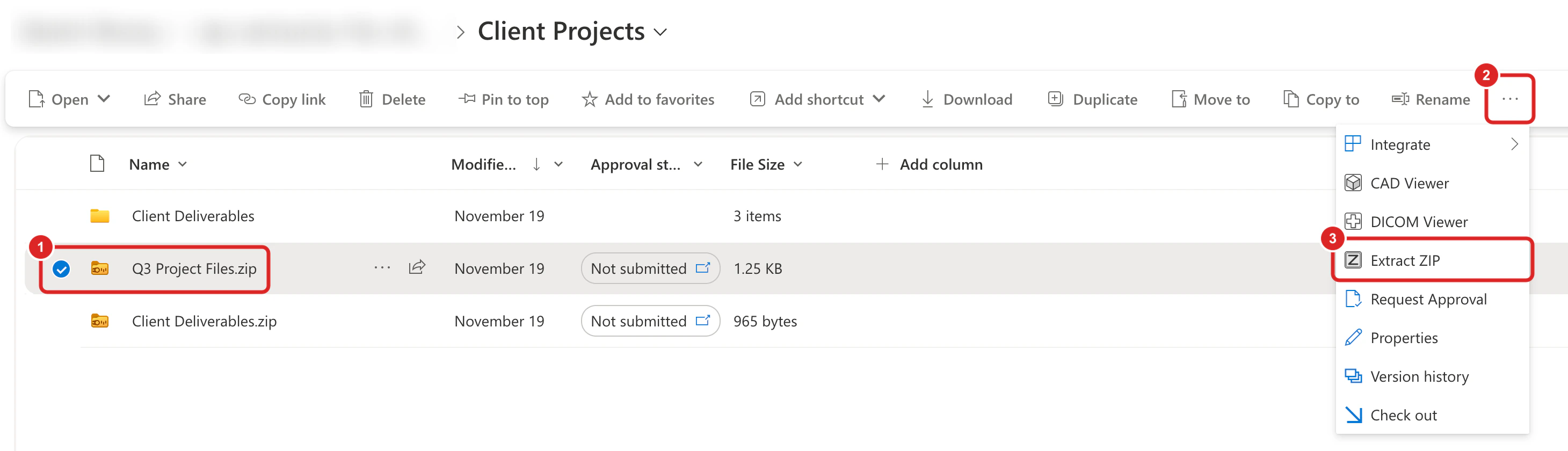
Open Extract ZIP
- Select the archive (1), open More (...) if needed (2), and select Extract ZIP (3).
-
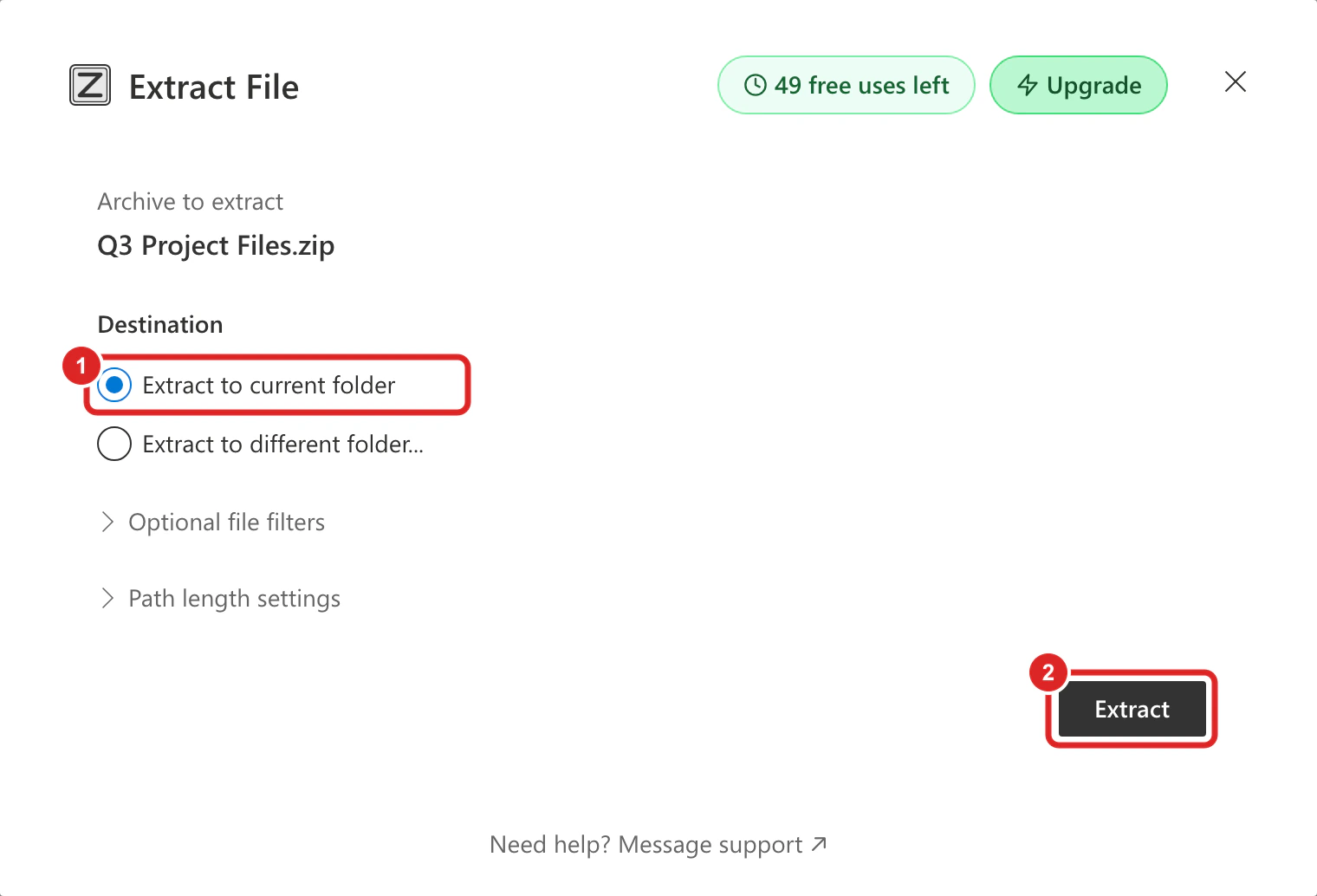
Choose a destination and extract
- Choose a Destination (1), then select Extract (2).
-
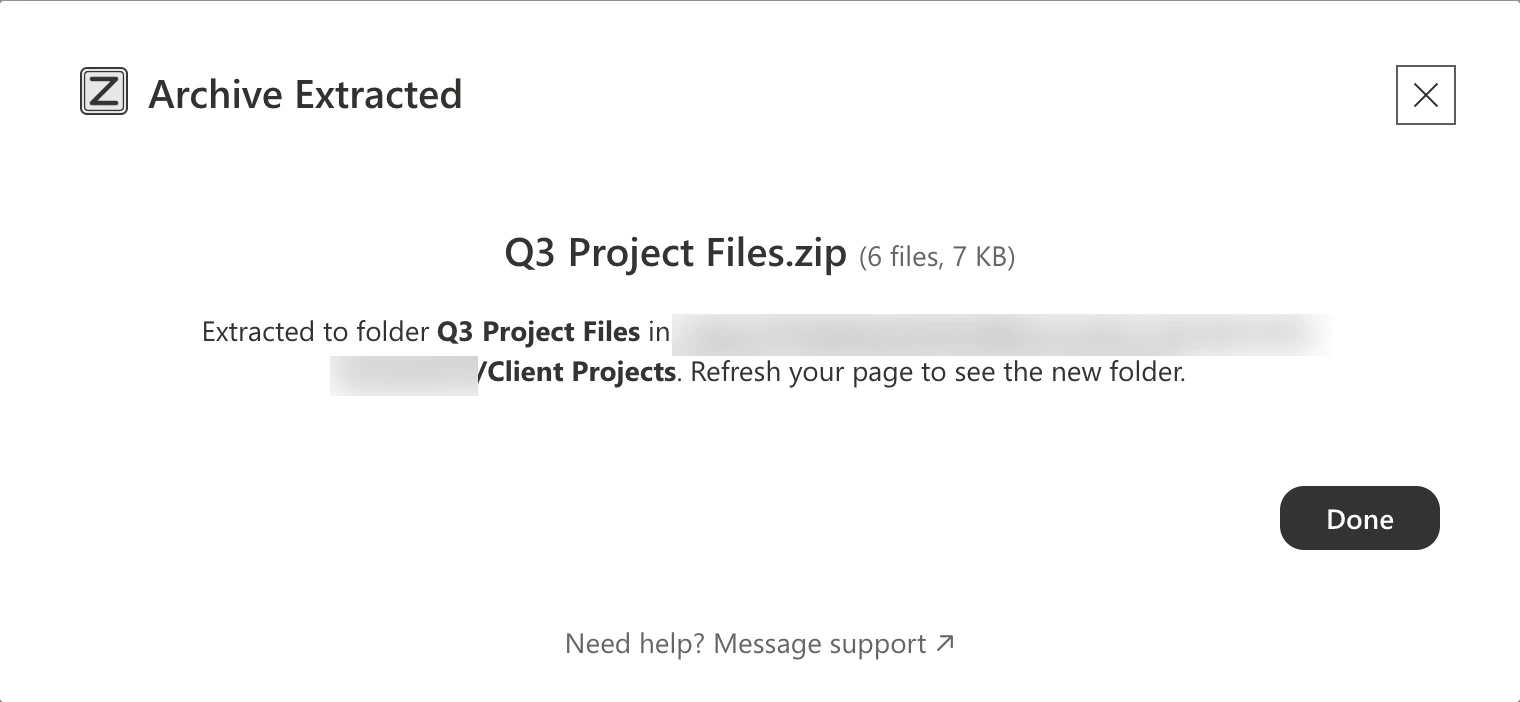
Finish
- Once extracted, select Done.
Fix long file paths before extracting
Zip & Unzip checks SharePoint's 400-character cloud path limit automatically. If your team syncs the library with OneDrive, you can also enable an optional check for Windows' 259-character PC limit so extracted files do not fail to sync or open in File Explorer, Word, or Excel (see SharePoint and OneDrive path length limits).
-
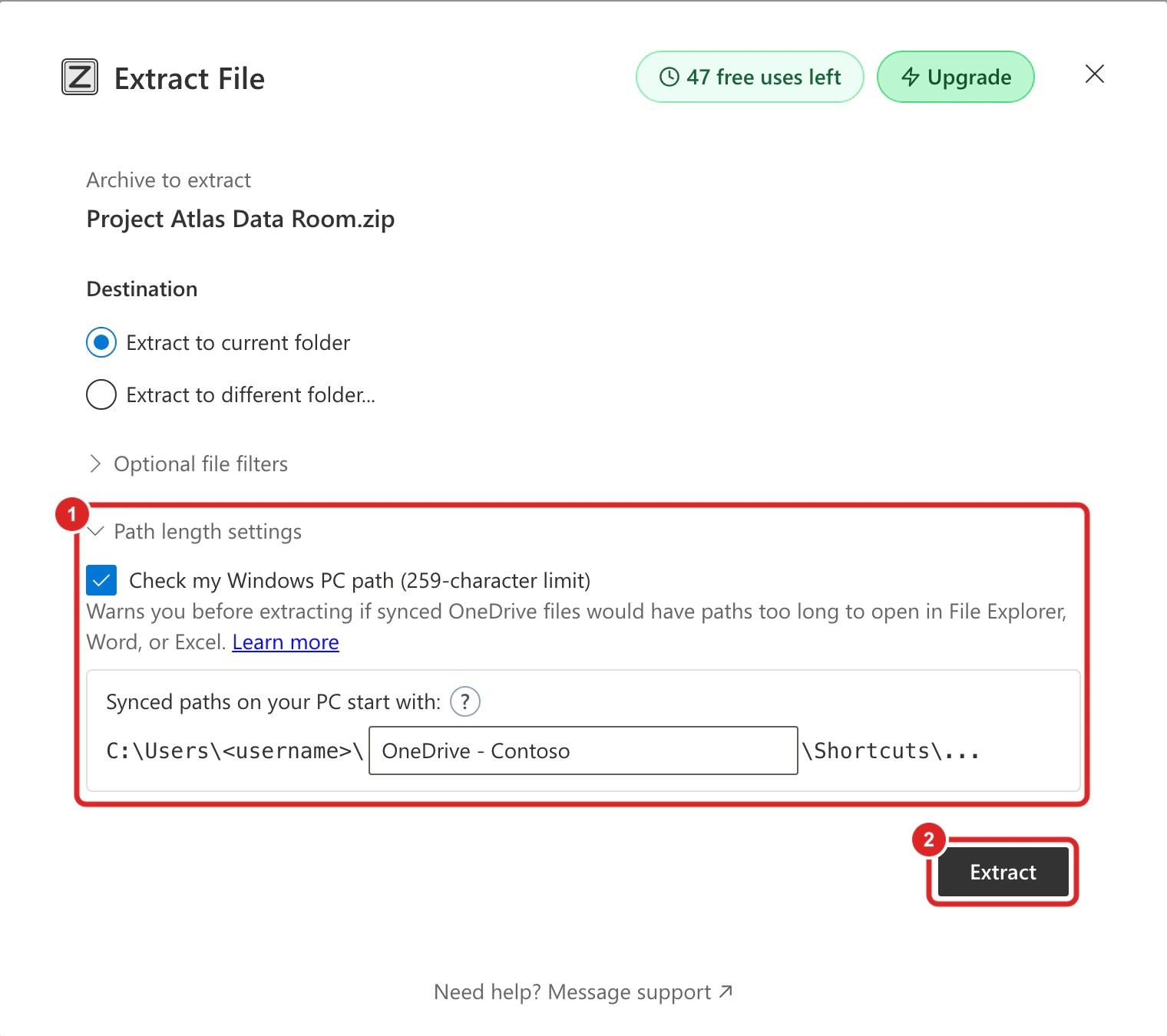
Enable the Windows PC path check (optional)
- In Extract File, expand Path length settings, check Check my Windows PC path, and enter your OneDrive folder name (1) (your admin may prefill this for your organization).
- Select Extract (2).
-
Rename or skip flagged files
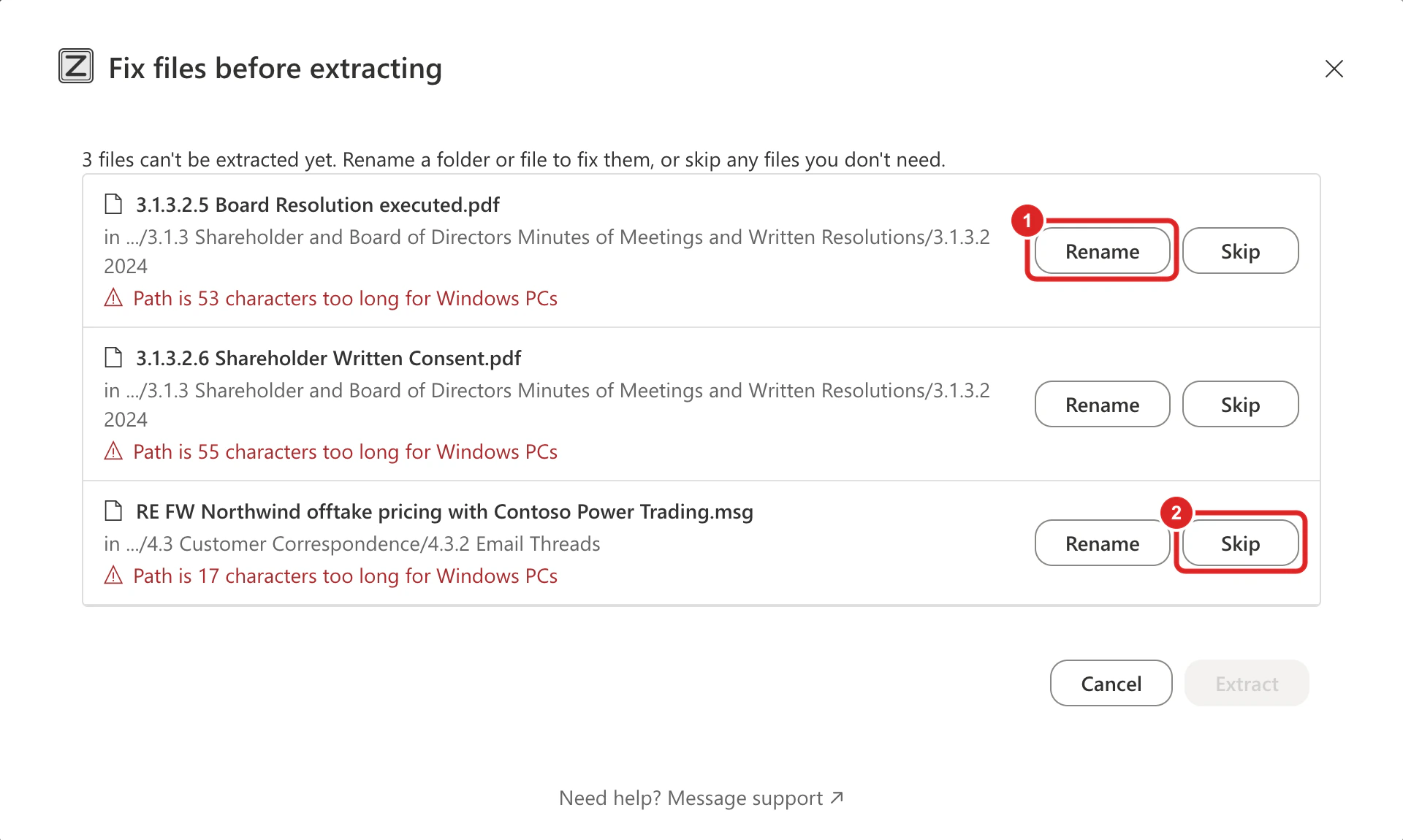
- When any file exceeds an active path limit, Fix files before extracting opens automatically. Select Rename (1) to shorten a path, or Skip (2) to exclude a file.
-
Shorten a folder or file name
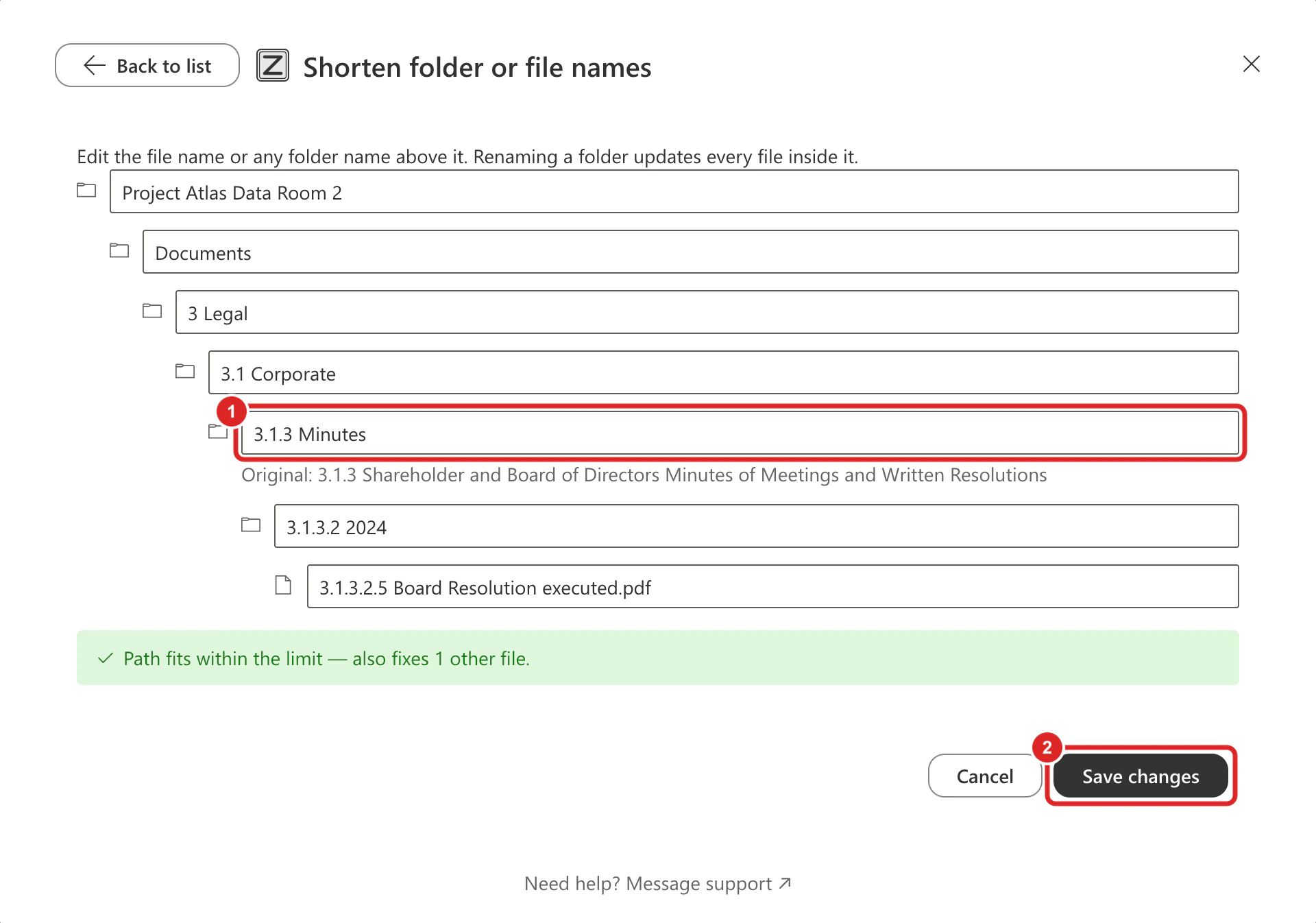
- Edit the file or any parent folder above it (1), then select Save changes (2).
- Shortening a parent folder fixes every file inside it at once.
-
Extract the archive
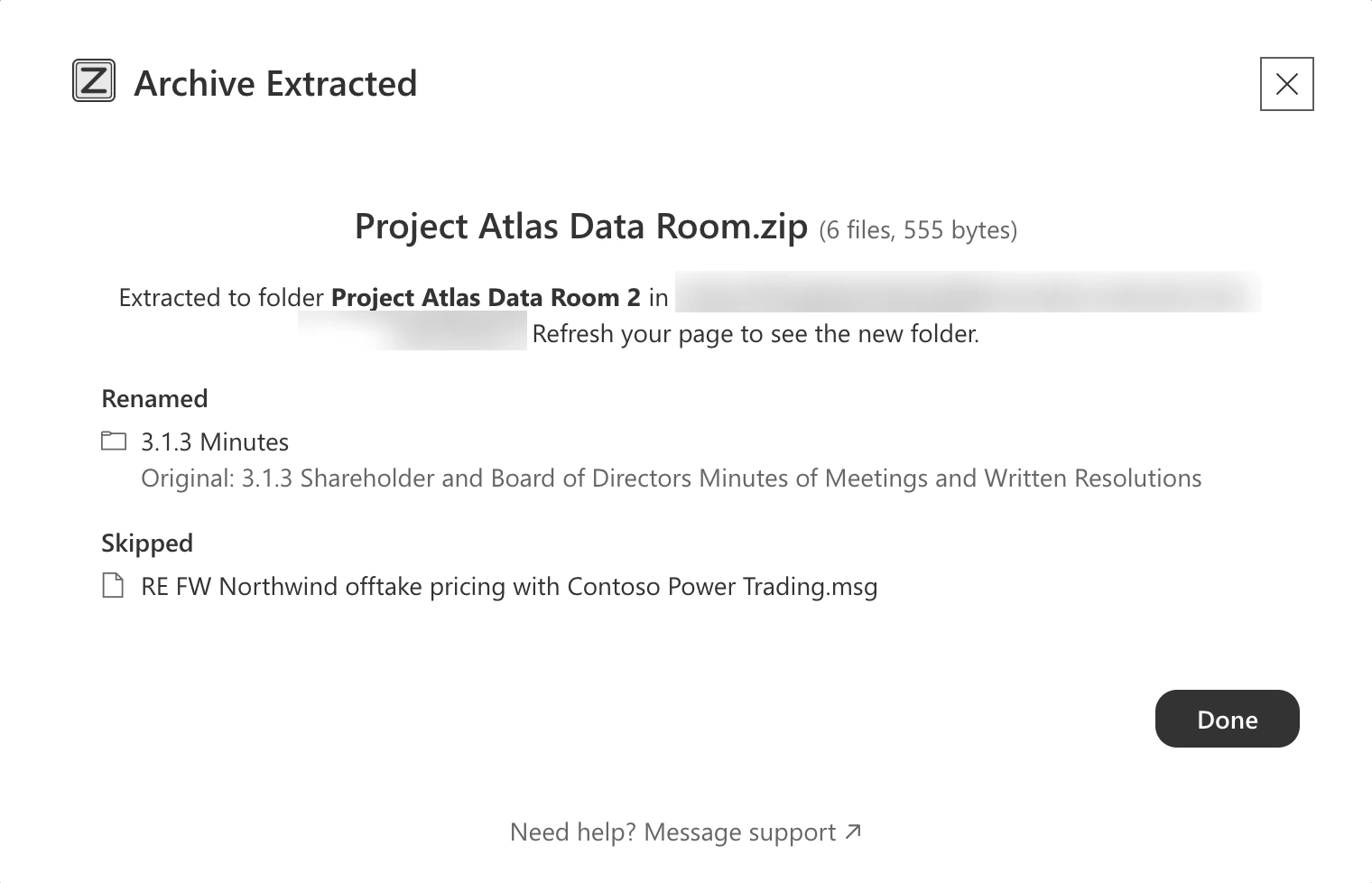
- Once all issues are fixed, select Extract. Archive Extracted lists any renamed or skipped items.
Create and verify an archive
-
Select items and open Create ZIP
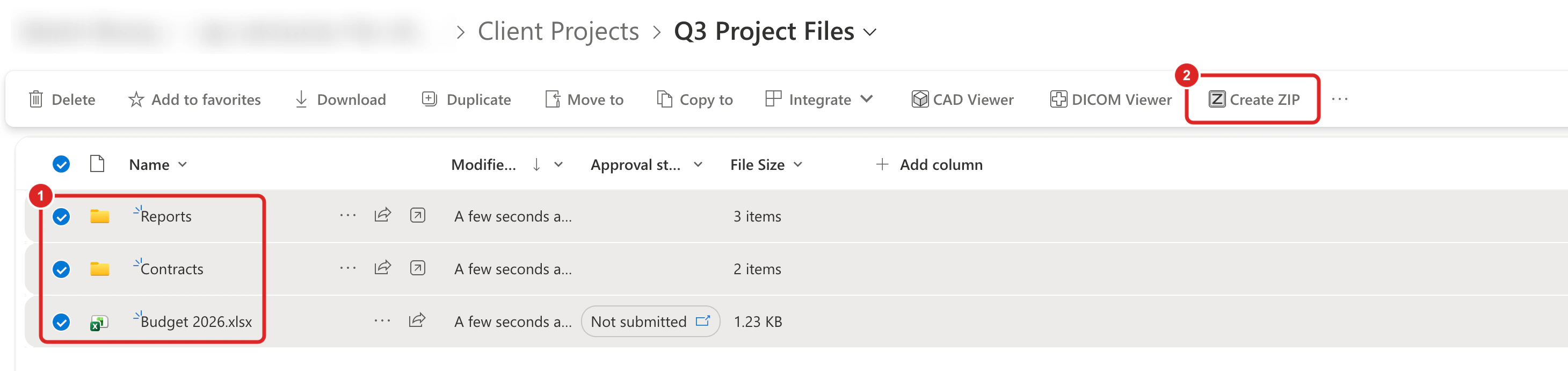
- Select your files or folders (1), then select Create ZIP (2) (or under More (...)).
-
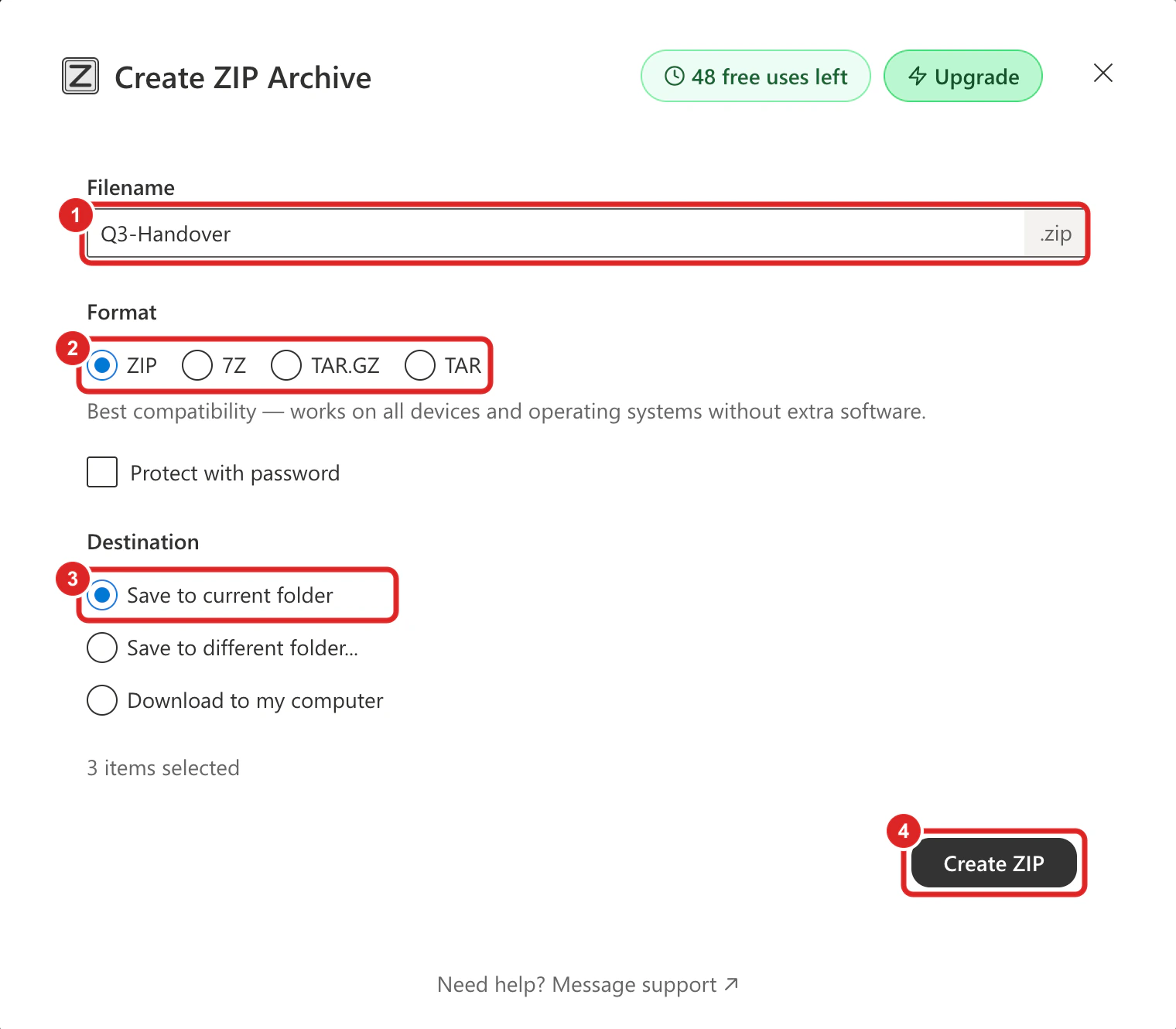
Choose archive options
- Enter a Filename (1), choose a Format (2) and Destination (3), then select Create ZIP (4).
-
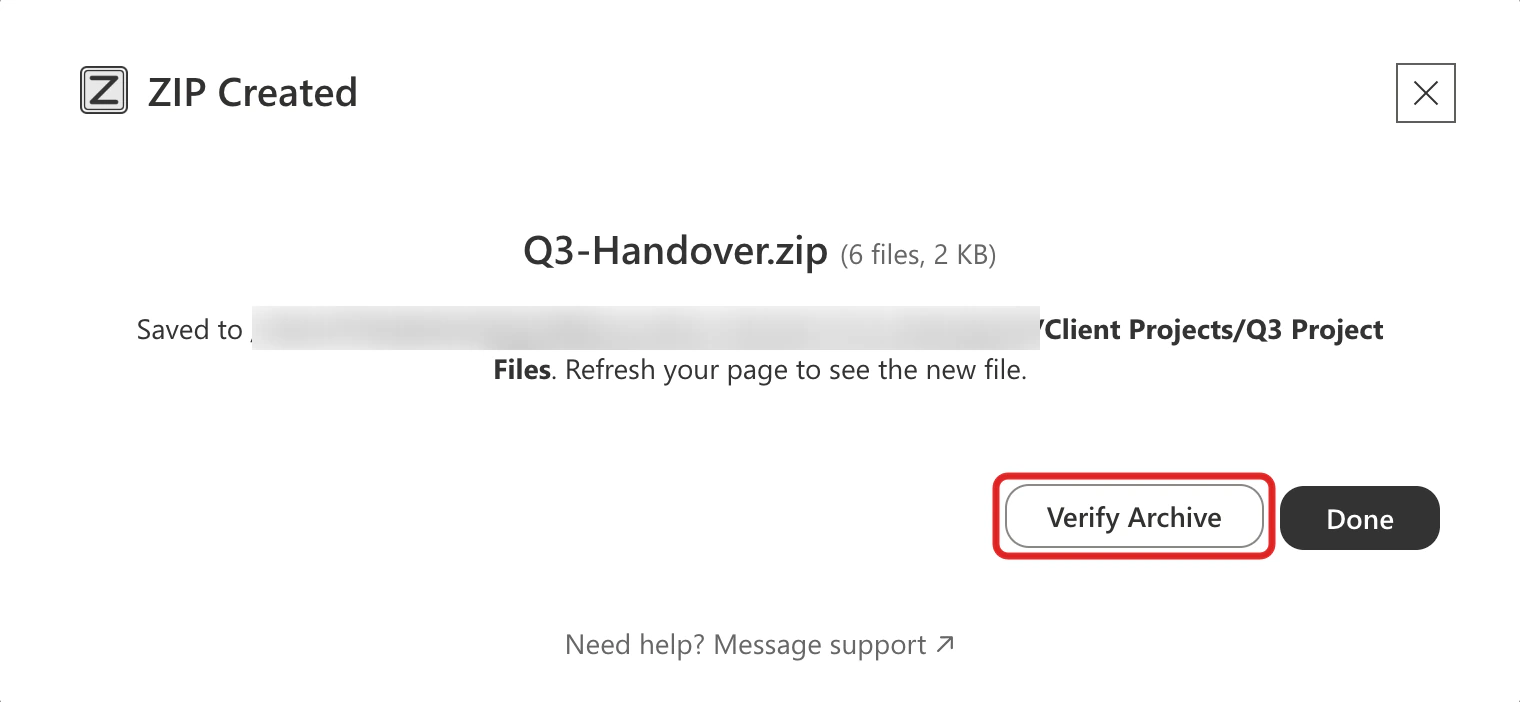
Verify the archive
- Select Verify Archive to check the saved file for corruption.
-
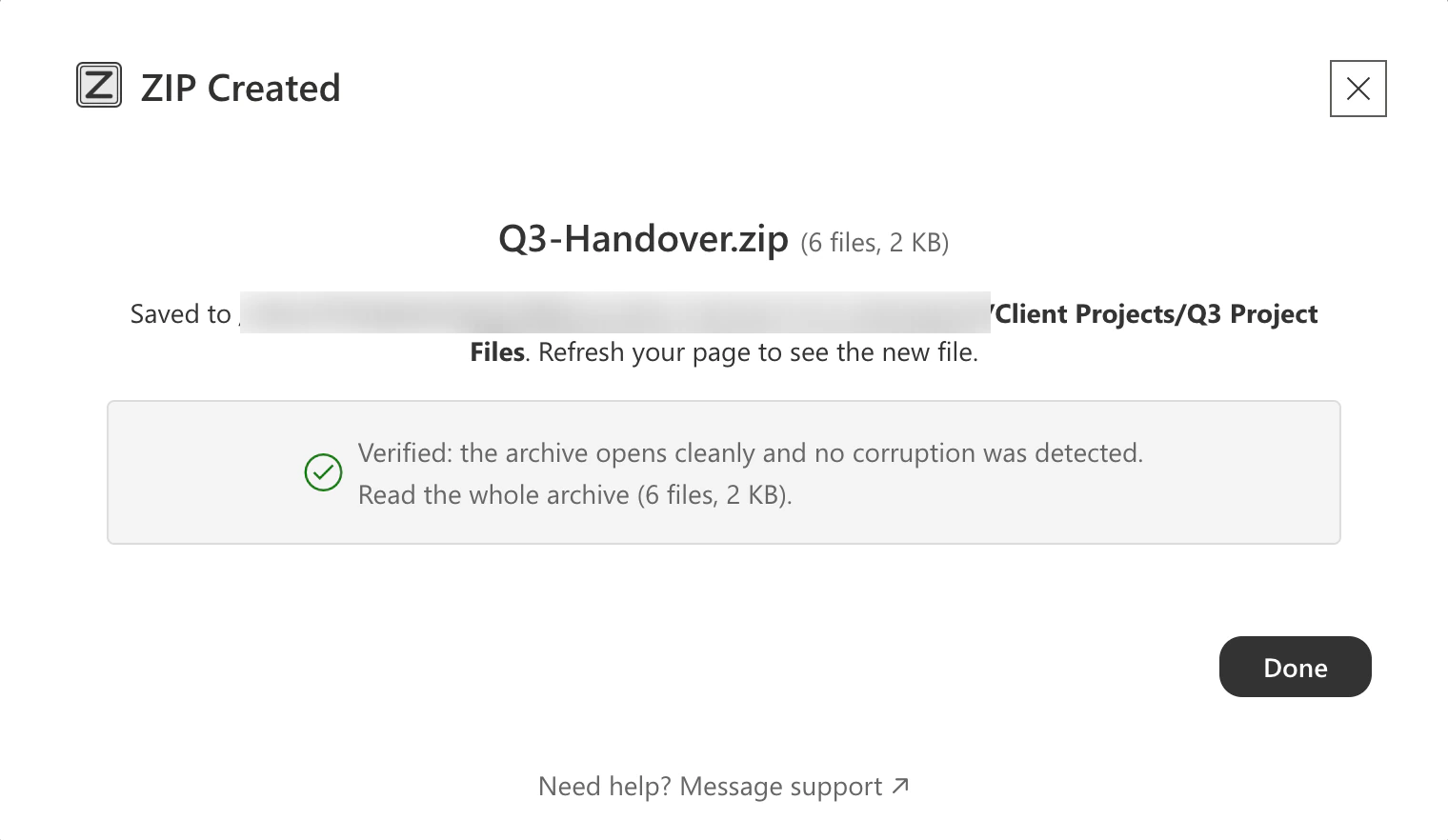
Finish
- Once verified, select Done.
For help with Zip & Unzip for SharePoint, contact support.