
Summary
This post shows you how to sign in to Tableau Cloud or Tableau Server in PowerPoint to embed a private dashboard on your slide by using the Sign in to Tableau card in Web Viewer 2.0.
Tableau's built-in Sign in to Tableau Cloud button opens a browser popup that cannot pass your sign-in back to PowerPoint. To sign in from your slide:
- Insert Web Viewer 2.0 and load the dashboard's embed link.
- Select Sign in in the Sign in to Tableau card.
- Sign in to Tableau in the window that opens and select Proceed when asked to authorize the app.
- Start Slide Show and verify the dashboard loads before presenting.
The Sign in to Tableau card appears again when you start Slide Show or reopen the presentation. Select Sign in only if the dashboard asks you to sign in.
Insert Web Viewer 2.0 on your slide
- Select the slide, then open Home > Add-ins.
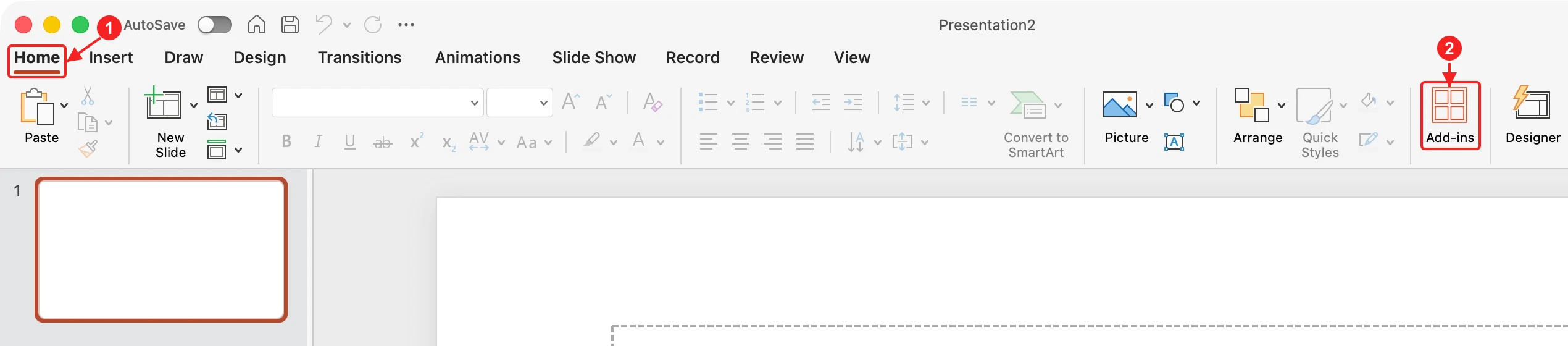
- Enter Web Viewer 2.0 in the search box (1). Under More search results, select Add beside the matching result (2).
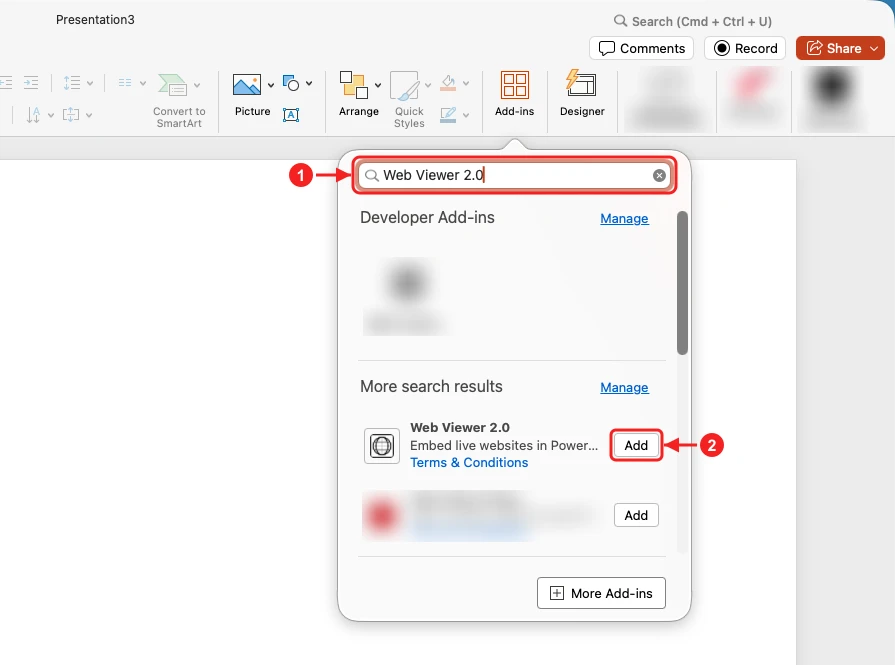
Complete any installation prompts. For other Office versions or organization-managed installation, see the full installation guide.
Sign in to Tableau
- Load the dashboard's embed link in Web Viewer 2.0.
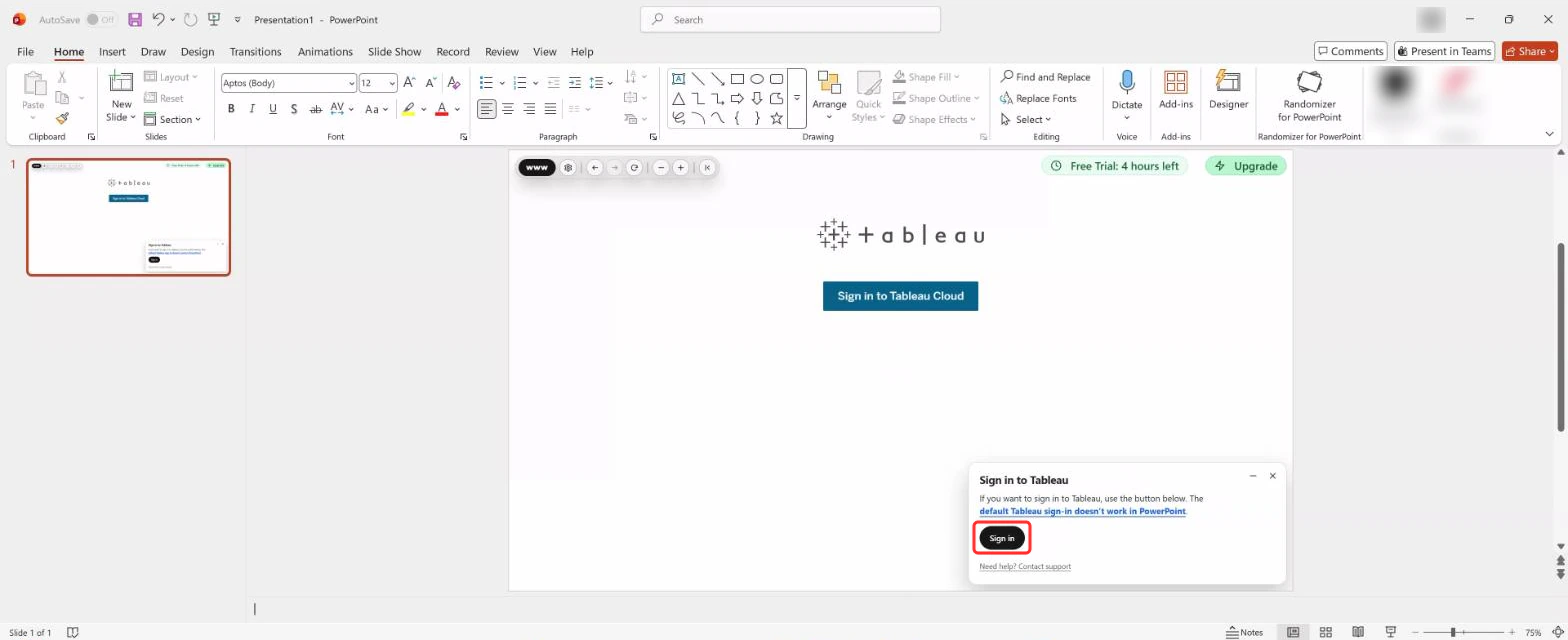
- In the Sign in to Tableau card, select Sign in.
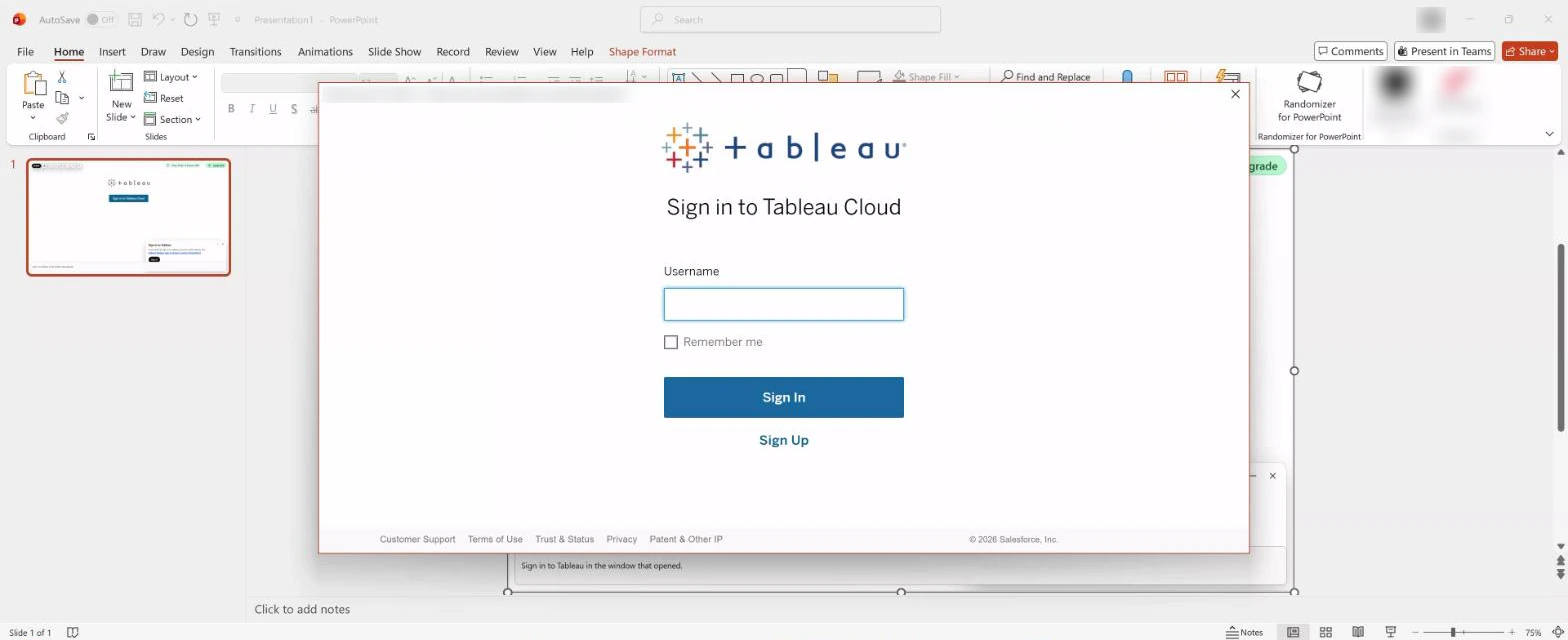
- Sign in to Tableau in the window that opens. Enter a verification code if Tableau asks for one.
- When Tableau asks to authorize the app, select Proceed.
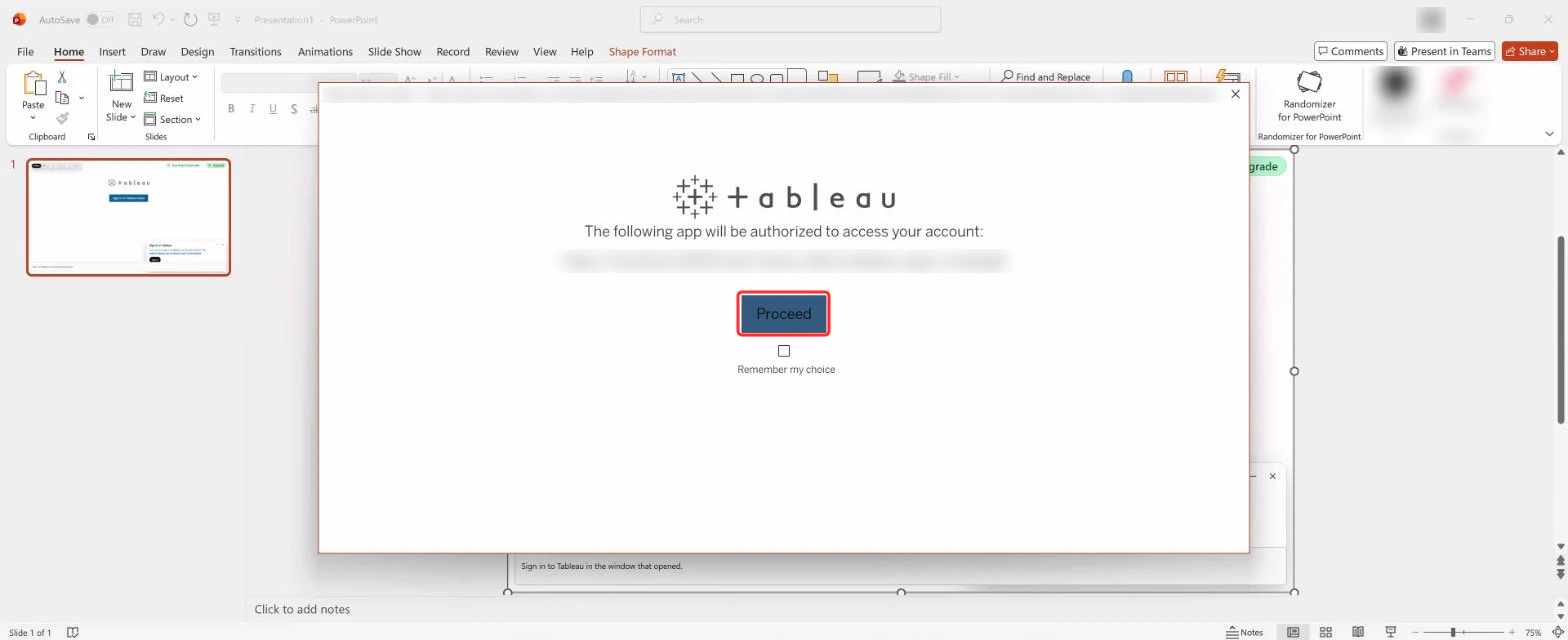
The window closes, and the dashboard loads on your slide.
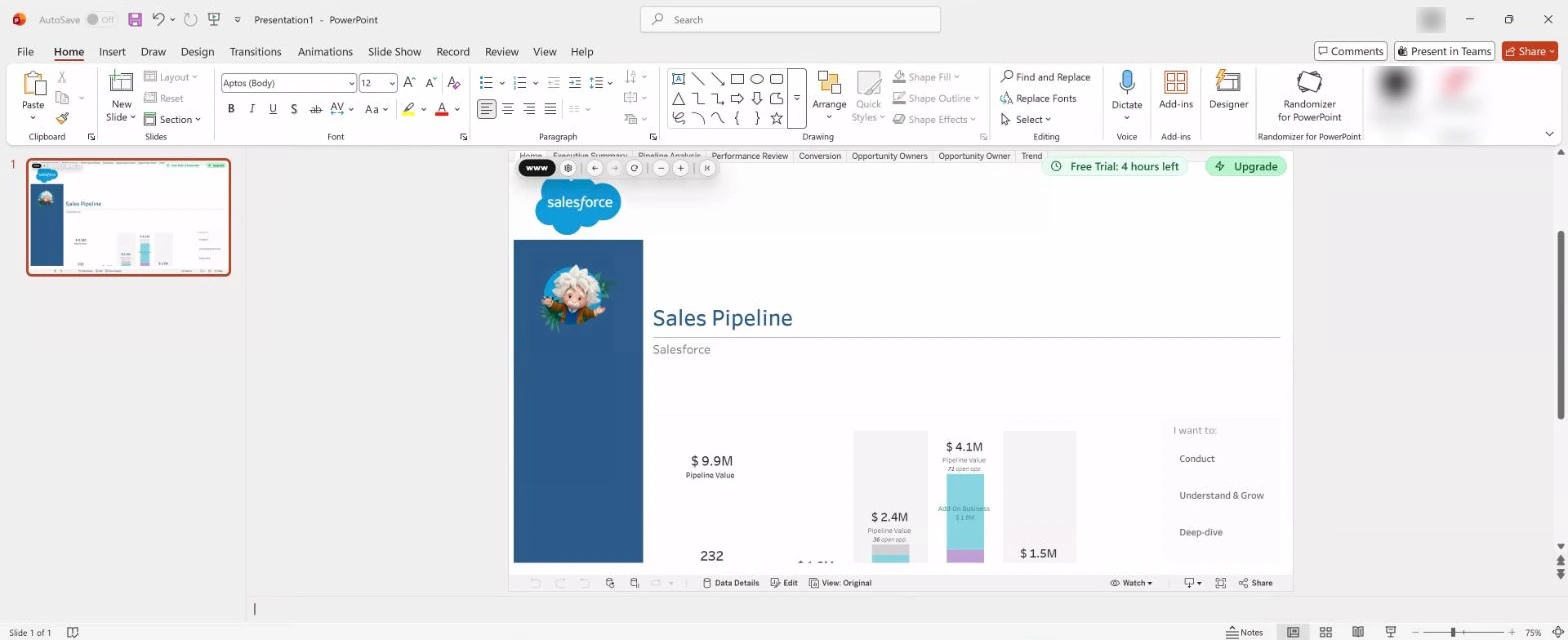
- Start Slide Show and check the dashboard before presenting.

Sign in again
The Sign in to Tableau card appears again when you start Slide Show or reopen the presentation, even while your Tableau session is still active. Select Sign in only if the dashboard asks you to sign in. If you need the card during the same session after signing in, select Refresh in Web Viewer 2.0's toolbar.
For help with Web Viewer 2.0, contact support.