
Summary
This post shows you how to embed a Tinkercad design on a PowerPoint slide by loading its link in Web Viewer 2.0.
With a live design on your slide, you can rotate a 3D model or run a circuit simulation in front of a class without leaving the slide. To set it up:
- Copy the link to a public Tinkercad design.
- Add Web Viewer 2.0 to the slide, enter the link in URL, and select Load. When Web Viewer 2.0 offers Tinkercad's viewer, select Load again.
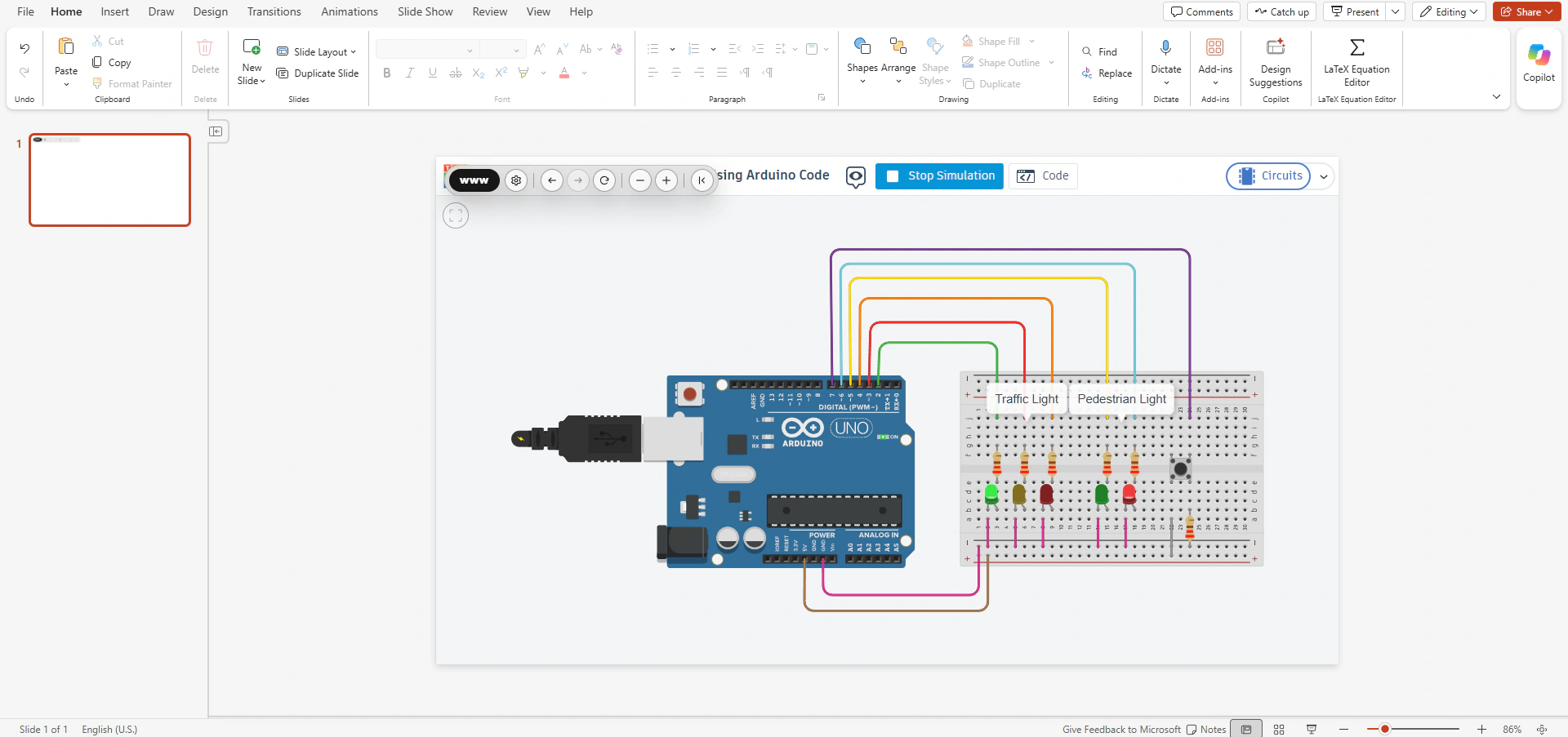
- Drag to rotate a 3D design, or select Start Simulation to run a circuit.
The design must be public, and the slide needs internet access to show it.
Insert Web Viewer 2.0 on your slide
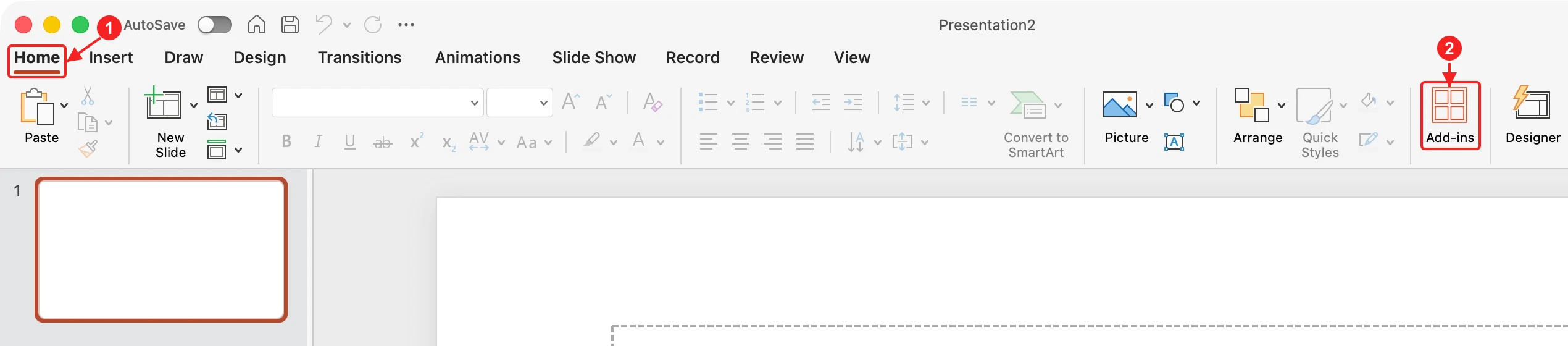
- Select the slide, then open Home > Add-ins.
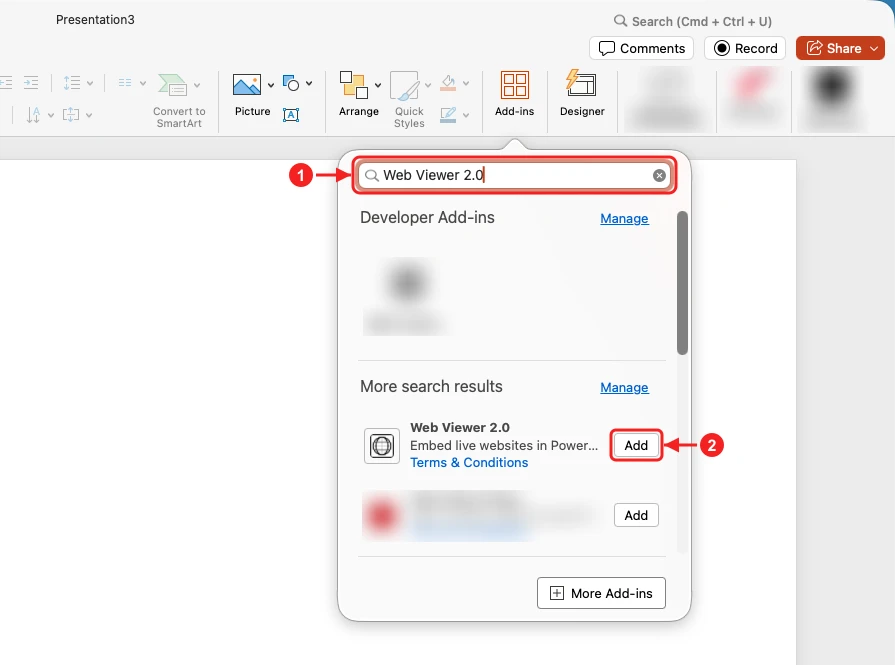
- Enter Web Viewer 2.0 in the search box (1). Under More search results, select Add beside the matching result (2).
Complete any installation prompts. For other Office versions or organization-managed installation, see the full installation guide.
Load the Tinkercad design
- Open the design's page in Tinkercad and copy the address from your browser. You can try Temple of Hercules Victor by g.raspanti.
- Resize the viewer to fit the slide.
- Select www, paste the address into URL, and select Load.
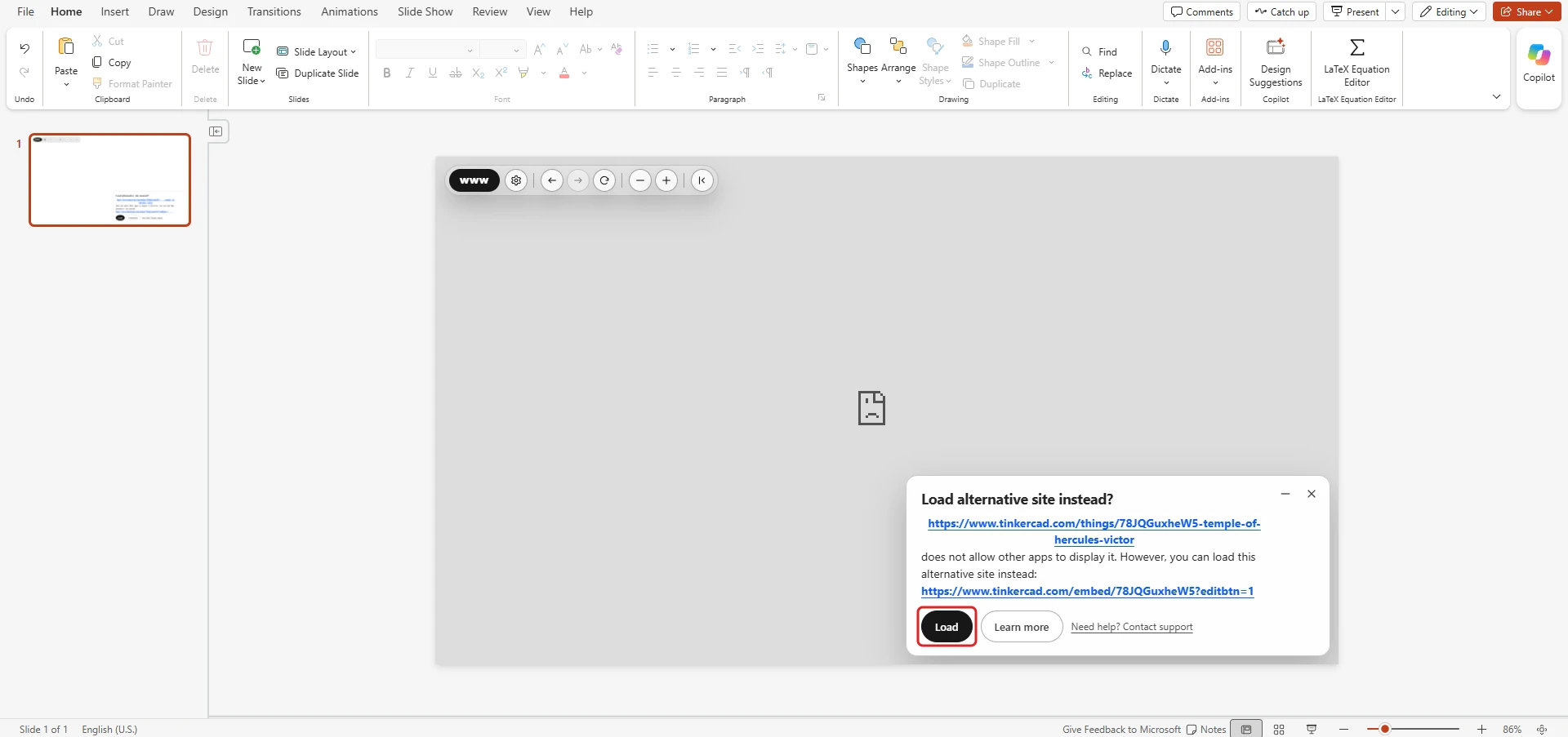
- When Web Viewer 2.0 offers Tinkercad's viewer, select Load.
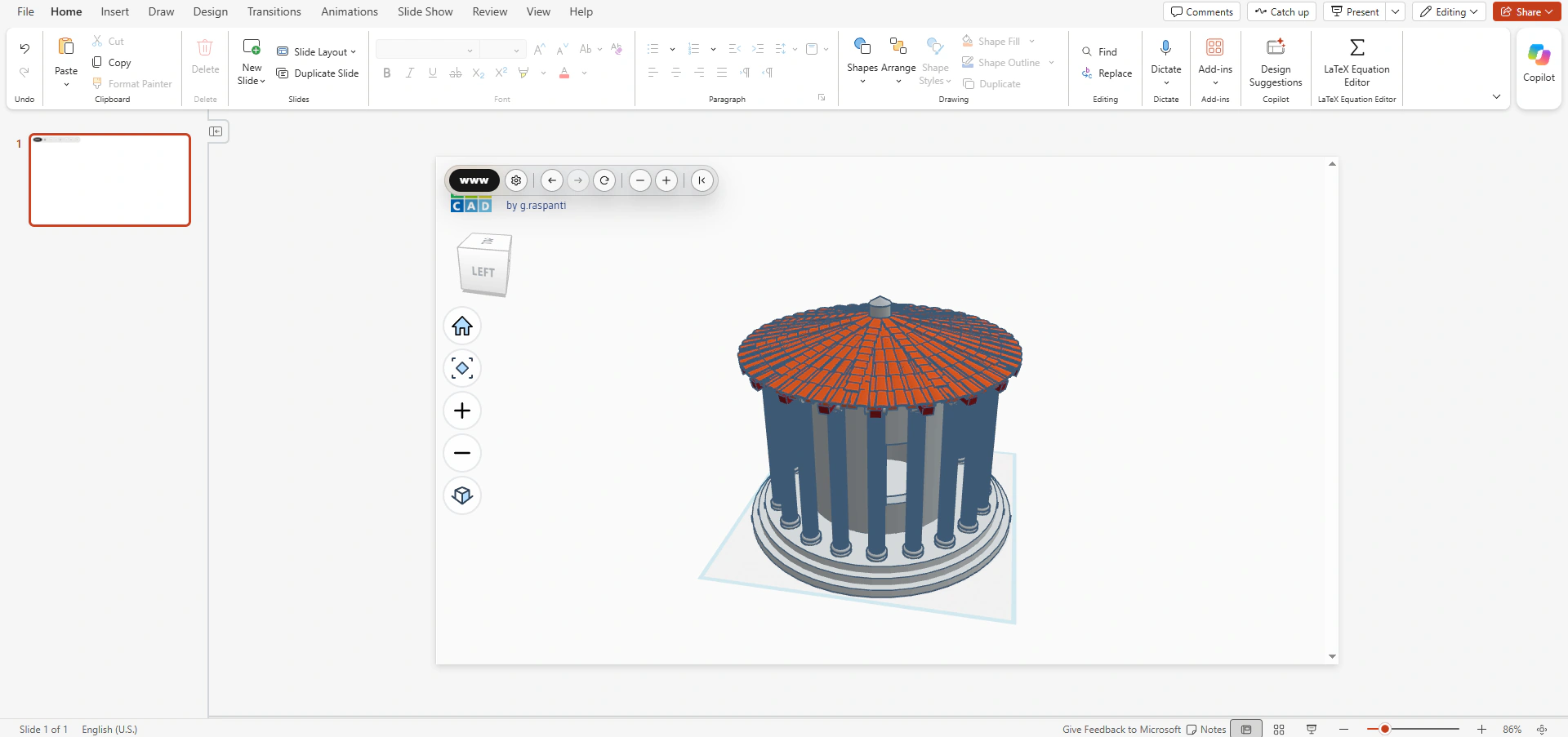
- Drag the model to rotate it. Use Tinkercad's zoom buttons to move closer or fit the whole design.
- Start Slide Show to present the design.
Run a circuit simulation
Circuit designs load the same way. Once the design loads, select Start Simulation to run the circuit on the slide. You can try Traffic Light and Pedestrian Crossing by Shanice Smith.
For other ways to show a model, see how to add an interactive 3D model to PowerPoint.
For help with Web Viewer 2.0, contact support.