
Summary
This post shows you how to embed a StrawPoll poll on a PowerPoint slide by loading its share link in Web Viewer 2.0.
The question stays on your slide while your audience votes on their own devices, and you can reveal the results without leaving the presentation. To set it up:
- Copy the poll's link from StrawPoll's Share dialog.
- Add Web Viewer 2.0 to the slide, enter the link in URL, and select Load. When Web Viewer 2.0 offers StrawPoll's poll view, select Load again.
- Share that same link with your audience so they can vote, then select Show results on the slide when you are ready to reveal the votes.
Live polling needs internet access for both you and your audience.
Copy the poll's share link
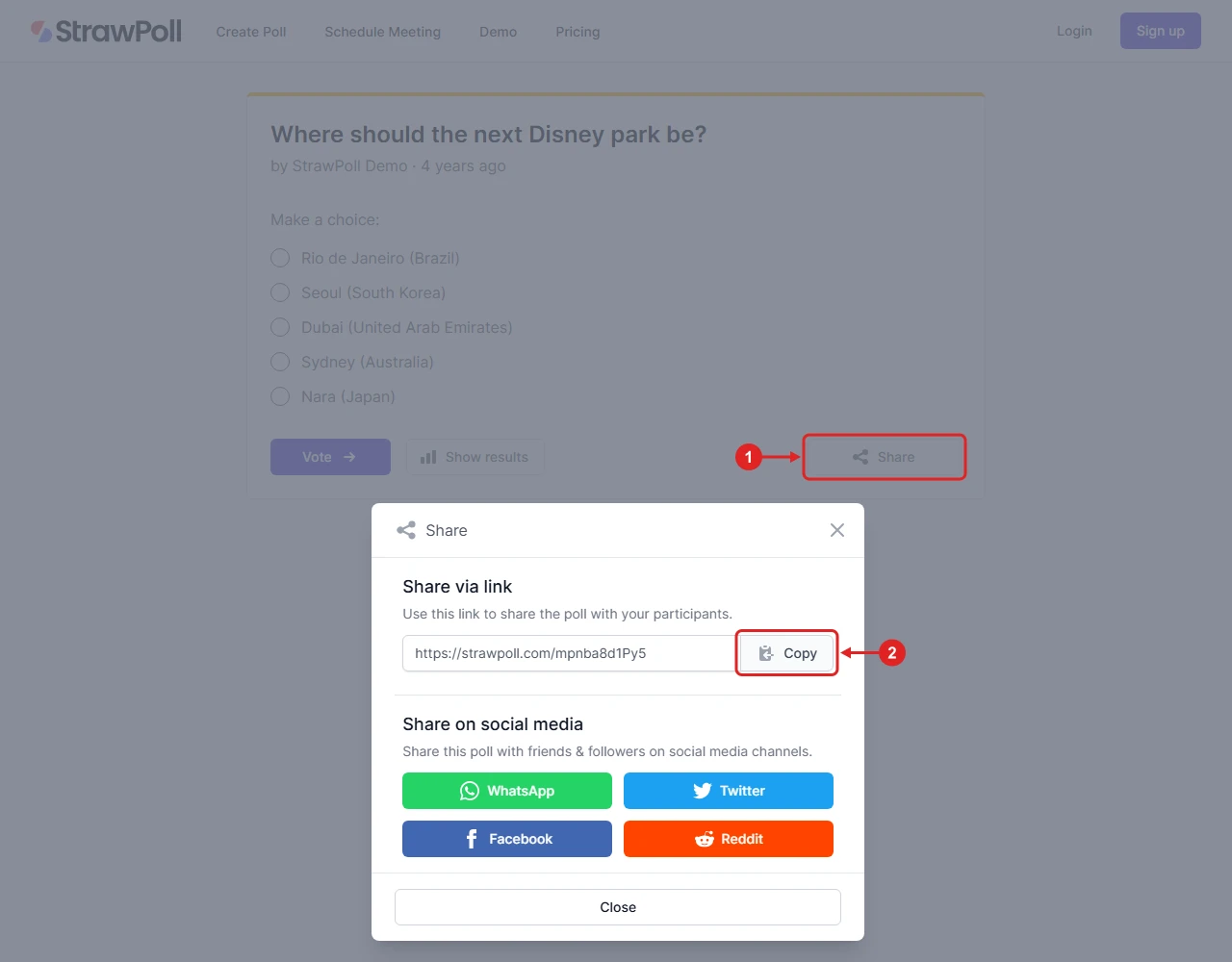
- Open the poll in StrawPoll and select Share (1). You can try StrawPoll's demo poll, Where should the next Disney park be?.
- Select Copy (2) under Share via link.
Insert Web Viewer 2.0 on your slide
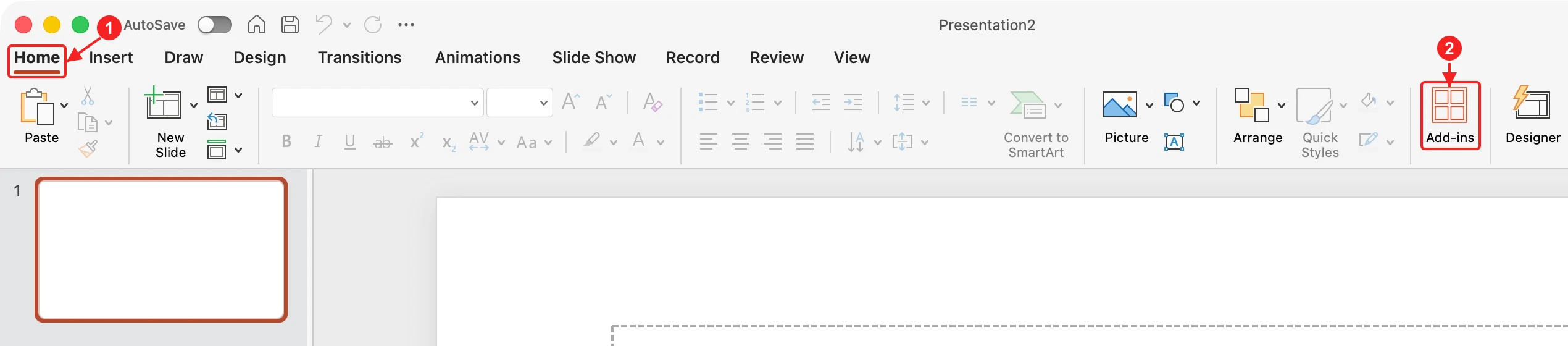
- Select the slide, then open Home > Add-ins.
- Enter Web Viewer 2.0 in the search box (1). Under More search results, select Add beside the matching result (2).
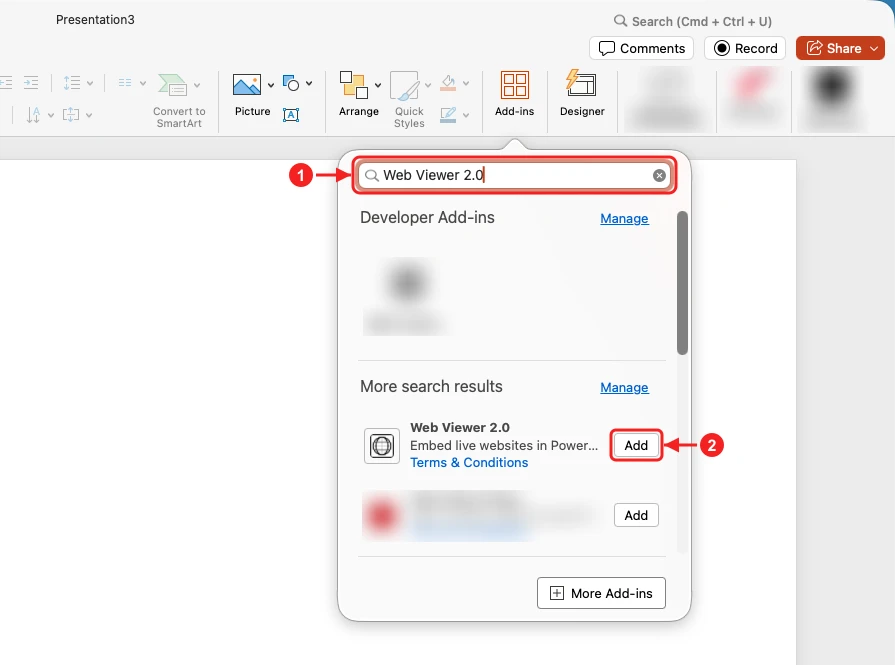
Complete any installation prompts. For other Office versions or organization-managed installation, see the full installation guide.
Load and present the poll
- Resize the viewer to fit the slide.
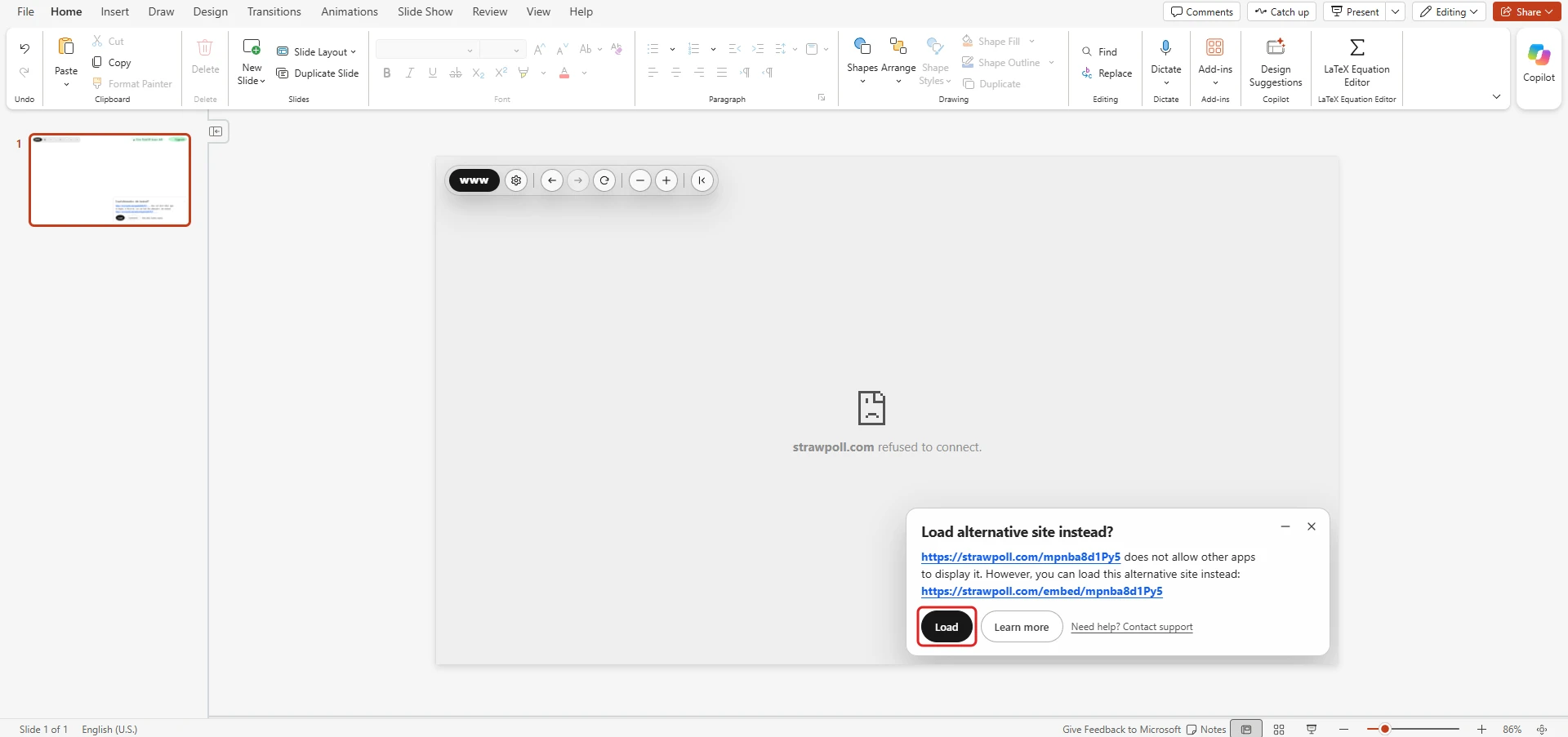
- Select www, paste the poll's link into URL, and select Load.
- When Web Viewer 2.0 offers StrawPoll's poll view, select Load.
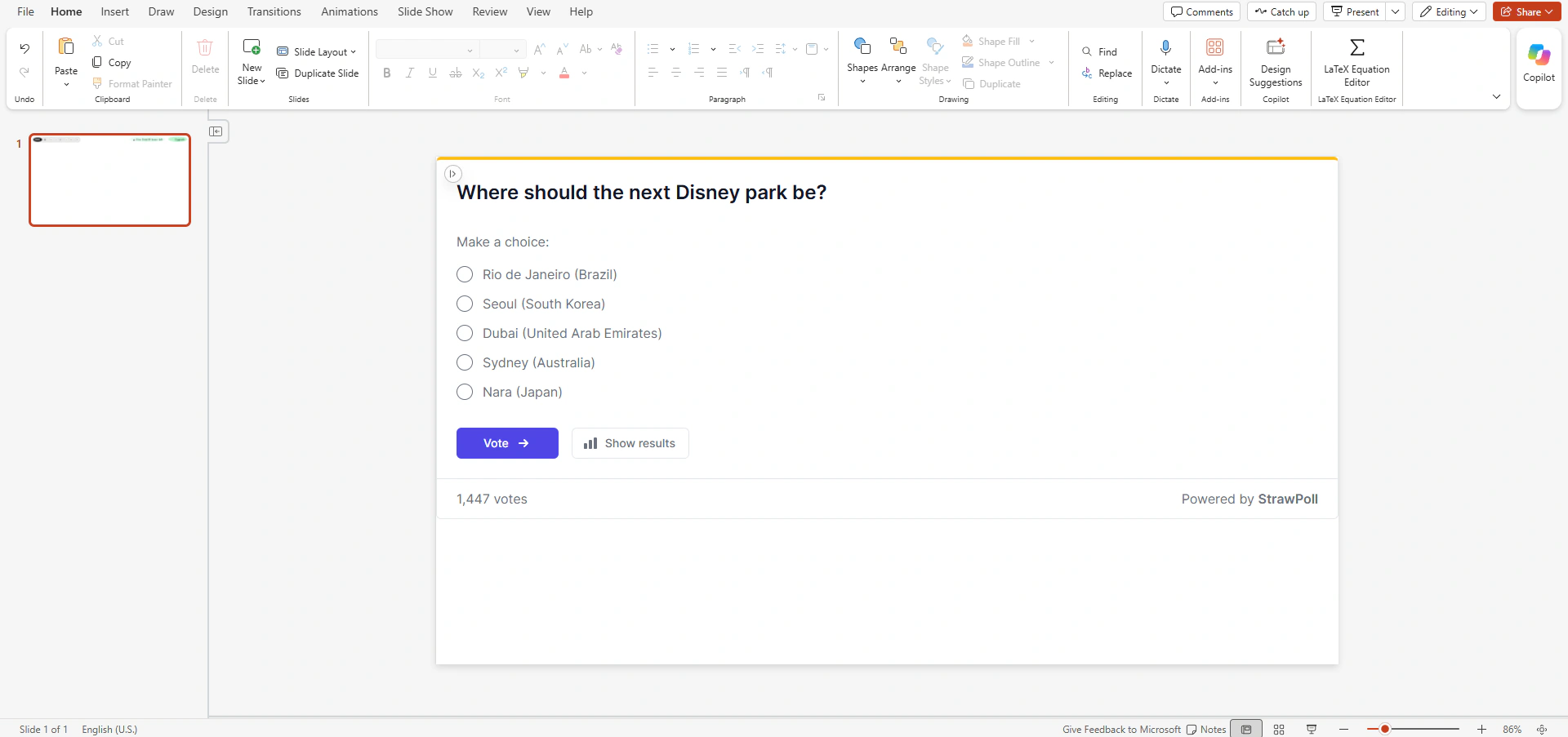
- Start Slide Show. Share the poll's link with your audience, for example in the meeting chat or on the slide before the poll.
- When voting ends, select Show results on the slide.
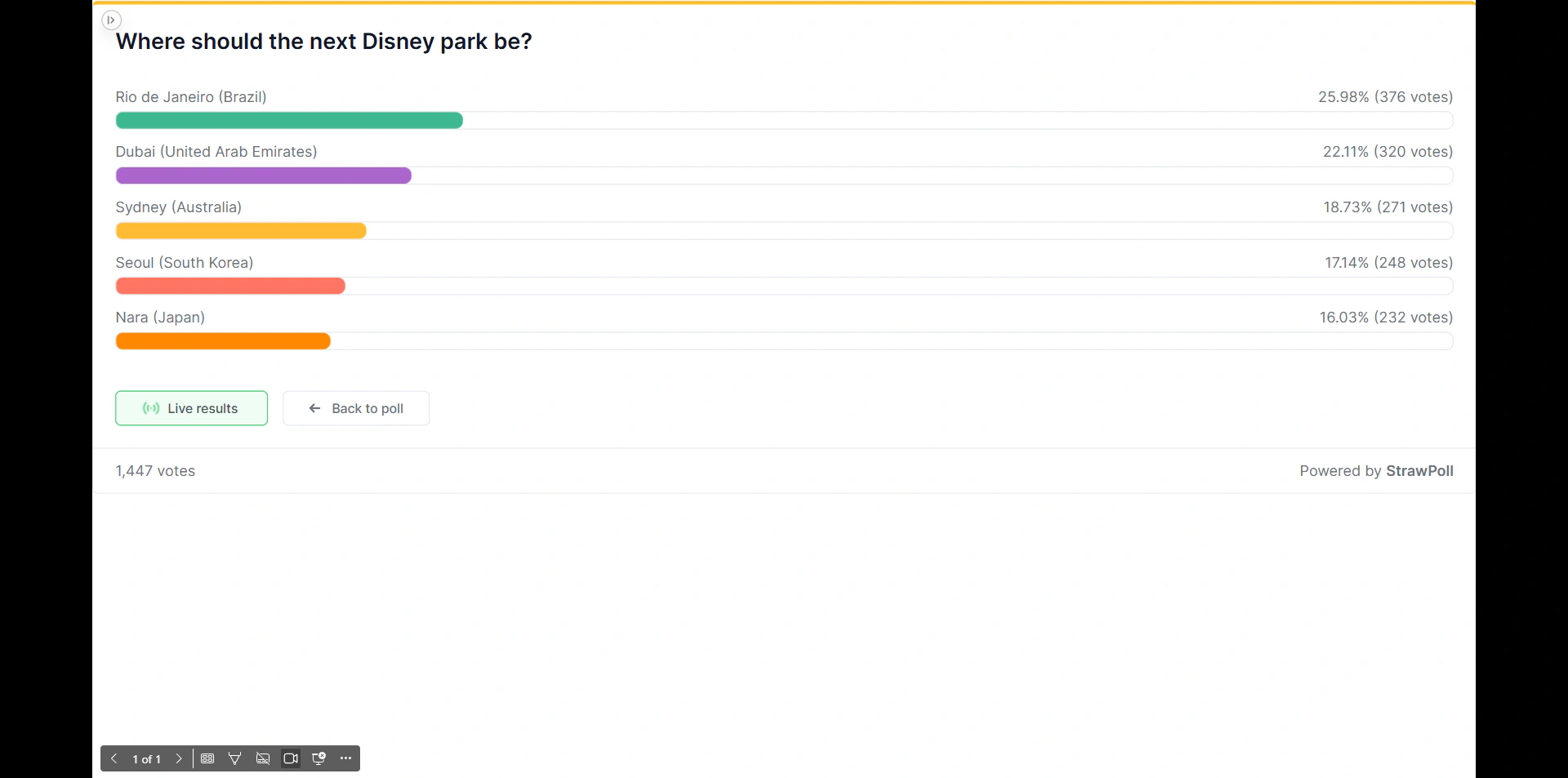
Select Back to poll to return to the question.
Tips
When you create a poll, two options under Settings affect how the poll works during your presentation:
- Results visibility: keep the default, Always public. StrawPoll can hide Show results or the votes on the slide if you choose another option. Select Show advanced settings to find Results visibility.
- Voting security: choose One vote per browser session if voters share a network, such as classroom or office Wi-Fi. The default, One vote per IP address, does not work on a shared network.
For other polling tools, see how to add a live poll or quiz to PowerPoint.
For help with Web Viewer 2.0, contact support.