 Get on AppSource
Add Timer for PowerPoint
Install Timer from Microsoft AppSource and place it on your slide.
Run a countdown timer or stopwatch directly on your PowerPoint slide. Our add-in is secure by design and never uploads your presentation to external servers.
A presentation is one of the few moments when colleagues and leaders see your thinking, preparation, and delivery at once. Protect that moment.
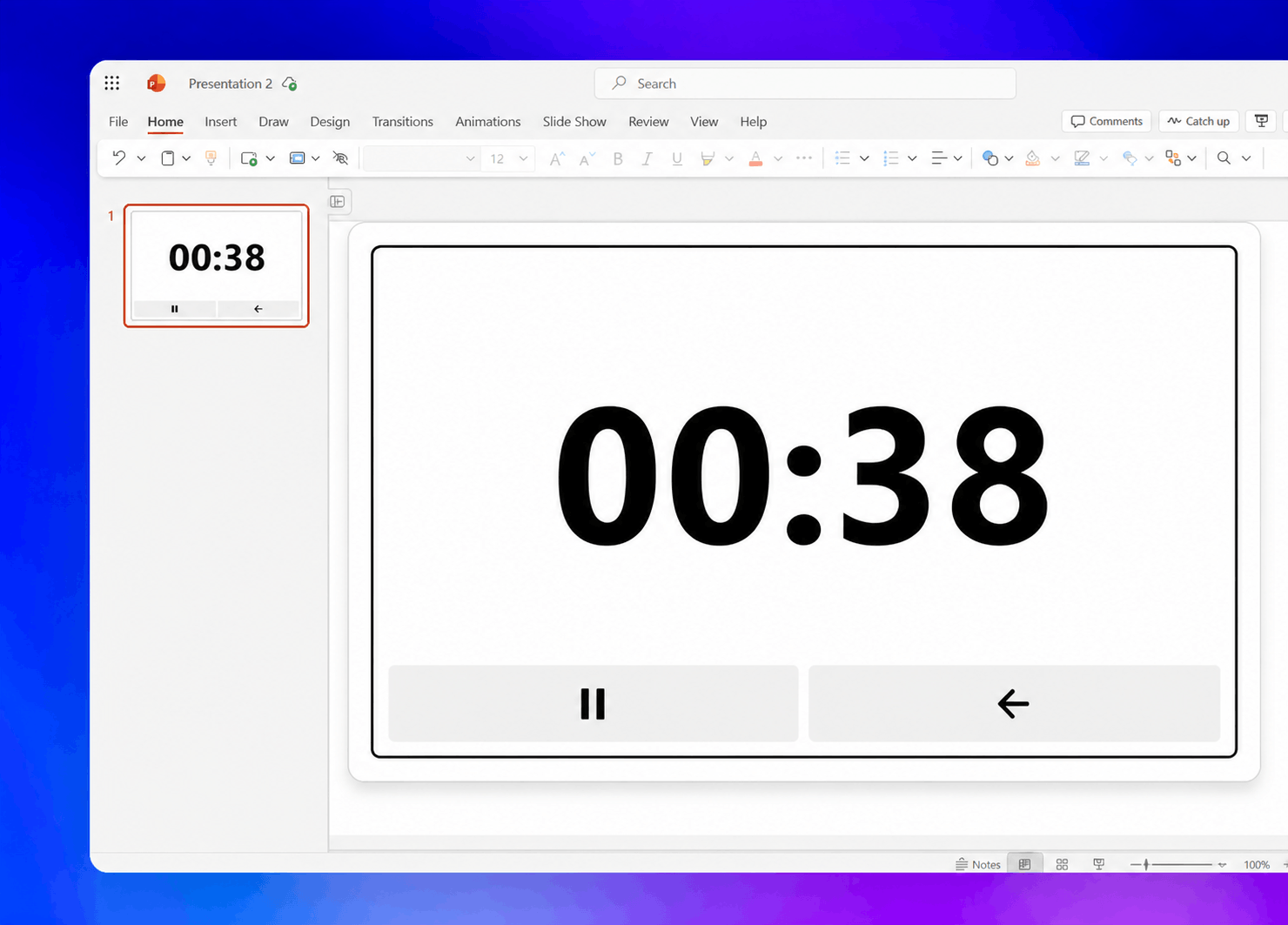
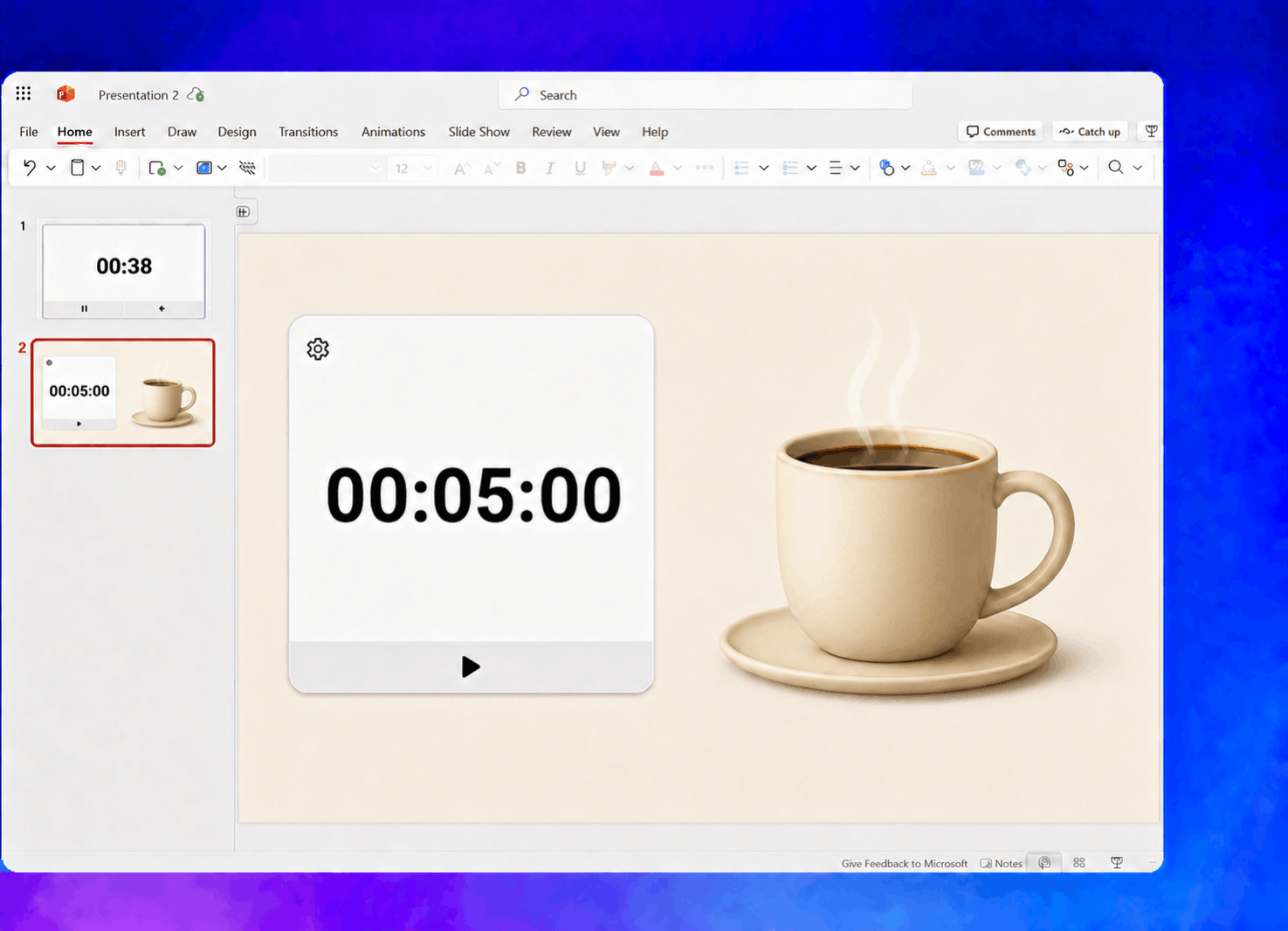
Add a countdown timer or stopwatch directly to any PowerPoint slide.
Install Timer from Microsoft AppSource and place it on your slide.
Choose a countdown or stopwatch, then add a theme, sections, or an alert.
Start the timer and use it directly on the slide in Slide Show.
Yes. Timer stays visible and interactive directly on the slide in Slide Show.
Yes. Add named time ranges for your introduction, demo, Q&A, or any other part of the presentation. The current section name appears above the timer as it runs.
Yes. Link Timer instances in the same presentation to keep them synchronized across supported devices. Unlink them when you need independent timers.
The display reaches 00:00 and flashes to get your attention. If you enabled the sound alert, Timer also plays a beep.
Yes. Timer saves the mode, duration, theme, sound preference, and sections with the presentation so they are ready when you reopen it.
Our add-in never uploads your presentation content to external servers. To persist and optionally sync timers, our database stores timer settings and runtime state under random identifiers. Read our privacy policy for full details. Need more information or have special requirements? Contact support and we'll help.
Yes. Start with a free trial so you can test Timer in your own presentations before subscribing.
All plans come with a 60-day full refund guarantee. Cancel anytime from your dashboard, or contact us within 60 days for a full refund.