
Summary
This post shows you how to save a local Excel workbook to OneDrive by turning on AutoSave or using Save As.
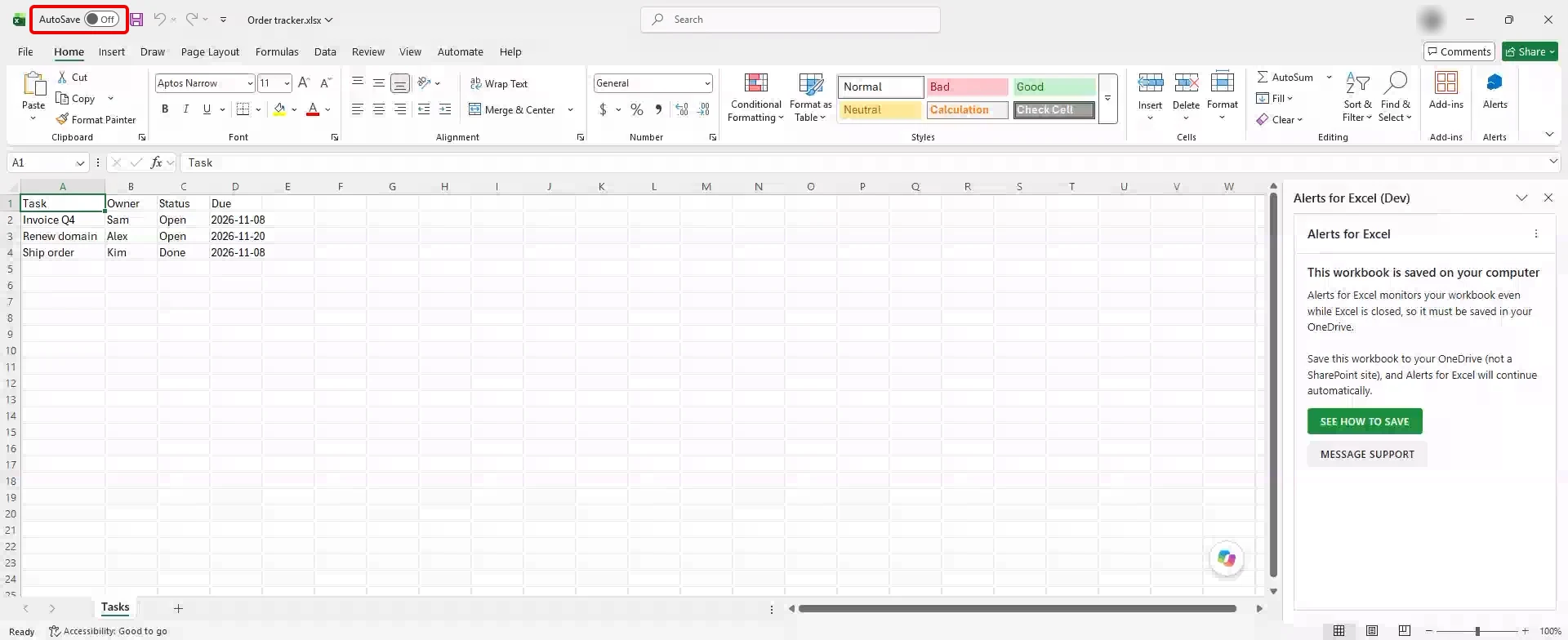
Alerts for Excel monitors your workbook even after you close Excel, so the file must be stored in your OneDrive. When you open a file saved only on your computer, the pane displays This workbook is saved on your computer.
Choose one approach:
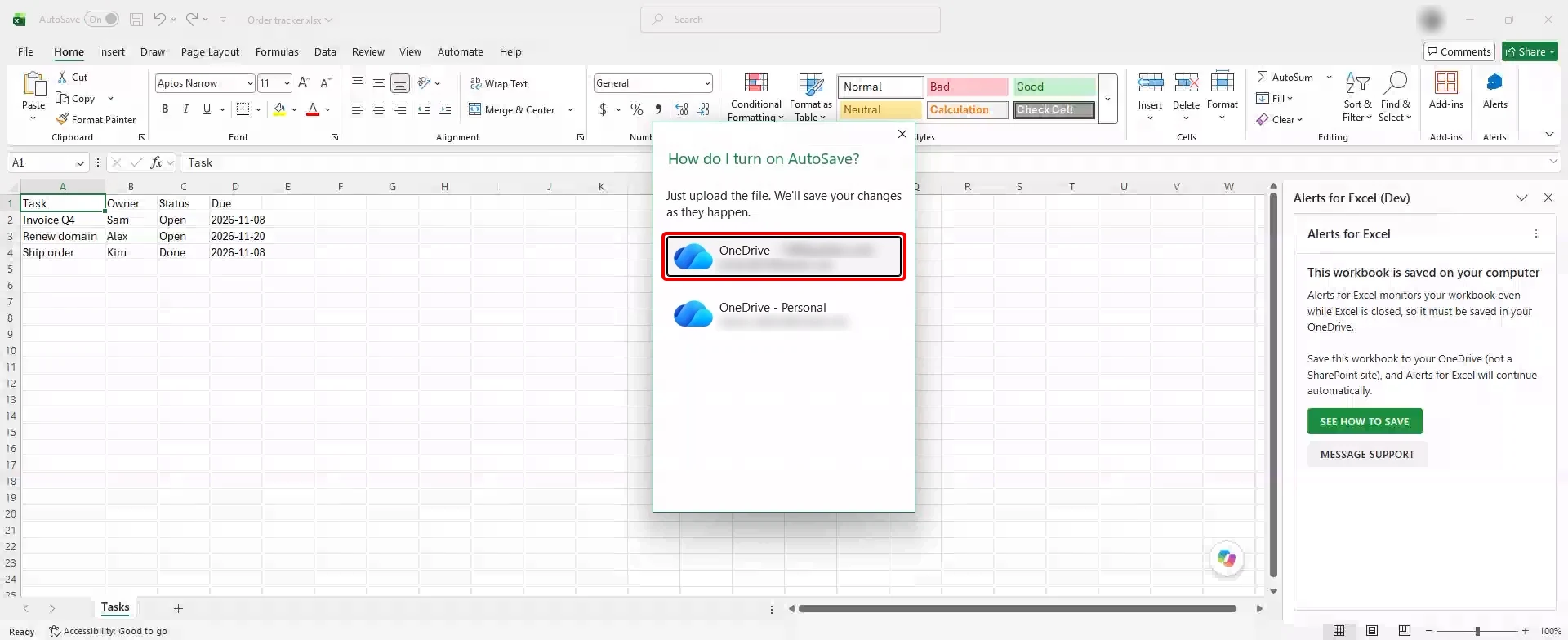
- Option A: Turn on AutoSave (fastest). Flip the AutoSave switch in Excel's title bar and select your OneDrive account to upload the workbook to your main OneDrive folder.
- Option B: Use Save As (choose a specific folder). Open File > Save As, choose a OneDrive folder, and select Save.
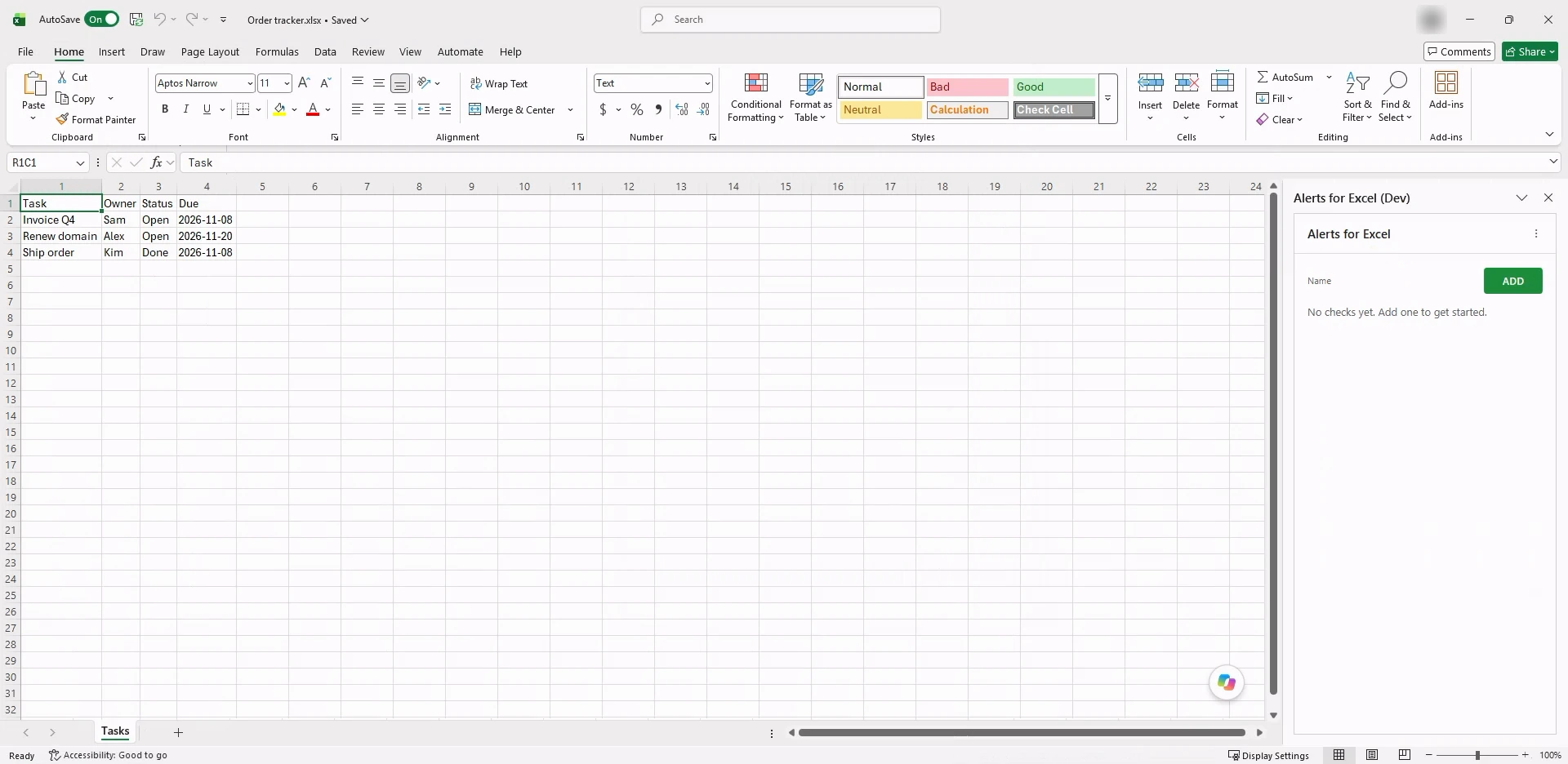
Once the upload finishes, Alerts for Excel continues automatically so you can set up your alerts. Excel saves future changes to the cloud workbook rather than the original file on your computer.
If your workbook is already saved in SharePoint, you can move the workbook to your OneDrive to start right away, or contact support so we can help your Microsoft 365 admin enable SharePoint access for your organization.
Option A: Turn on AutoSave
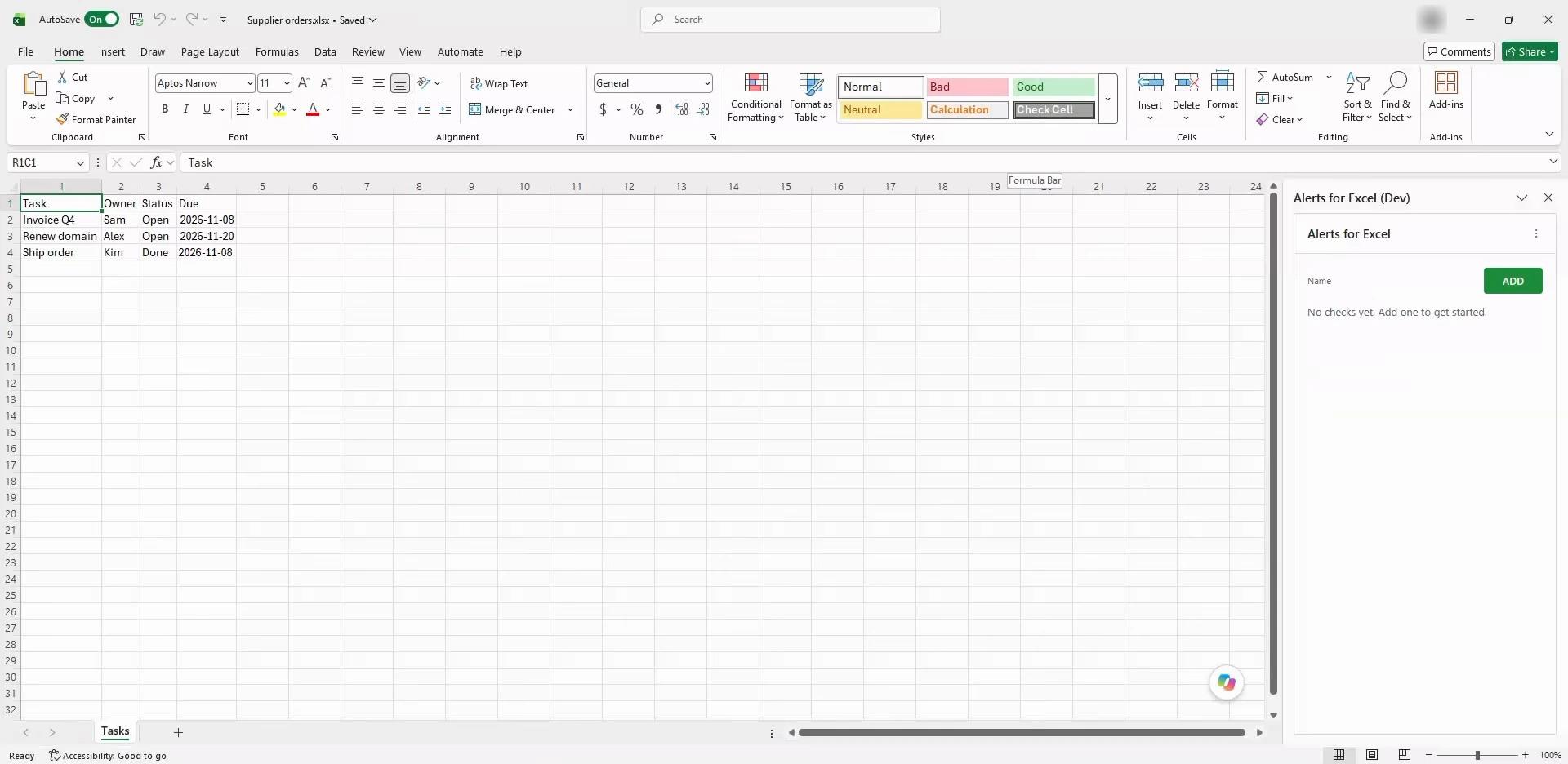
- Turn on the AutoSave switch in the top-left corner of Excel.
- Select your OneDrive account to upload the workbook.
Once the title bar shows Saved, Alerts for Excel continues automatically.
Option B: Use Save As
- Select File > Save As.
- Select your OneDrive account (1), then select Save (2).
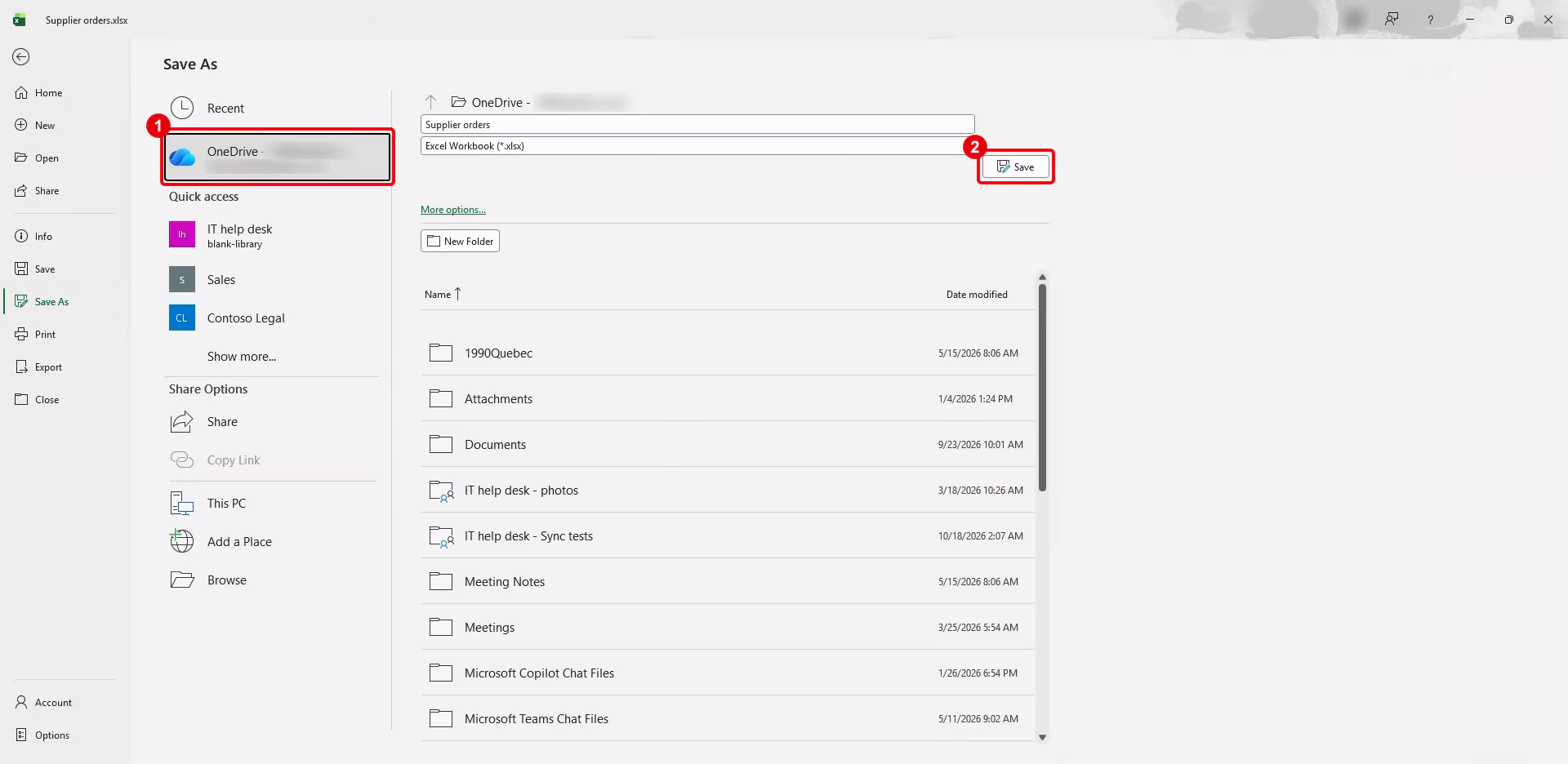
Excel opens the uploaded cloud workbook with AutoSave turned on, and Alerts for Excel continues automatically.
For help with Alerts for Excel, contact support.