
Summary
This post shows you how to move an Excel workbook from SharePoint to your OneDrive by using SharePoint's Move to command.
By default, Alerts for Excel monitors only workbooks saved in your own OneDrive. When you open a workbook stored in SharePoint, the pane displays This workbook is outside your OneDrive.
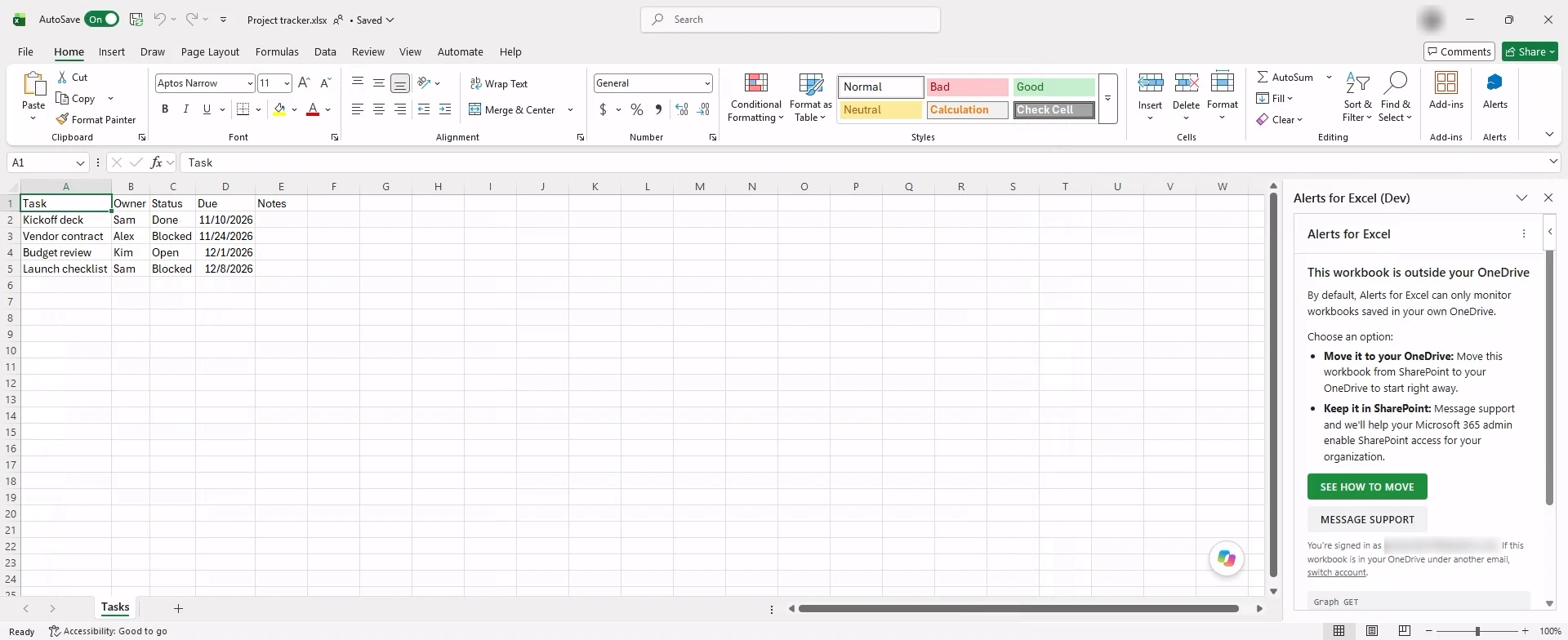
To move the workbook:
- Close the workbook in Excel, and ask teammates to close it too.
- In the SharePoint library, move the workbook to My files with Move to, keeping Keep sharing with the same people checked.
- In OneDrive, check who has access and share the workbook with any missing teammates.
- Open the workbook from OneDrive, then open Alerts in Excel.
Using SharePoint's Move to command (instead of File > Save a Copy in Excel) moves the original workbook with its version history intact. SharePoint carries over direct shares automatically, while teammates who had access through the SharePoint site lose access until you share the moved file with them.
If the workbook must stay in SharePoint, contact support and we'll help your Microsoft 365 admin enable SharePoint access for your organization.
Move the workbook to your OneDrive
- Close the workbook in Excel, and ask teammates to close it too. If someone leaves the workbook open during the move, their Excel window keeps the old SharePoint address and shows UPLOAD FAILED on the next edit.
- In your browser, open the SharePoint library that contains the workbook.
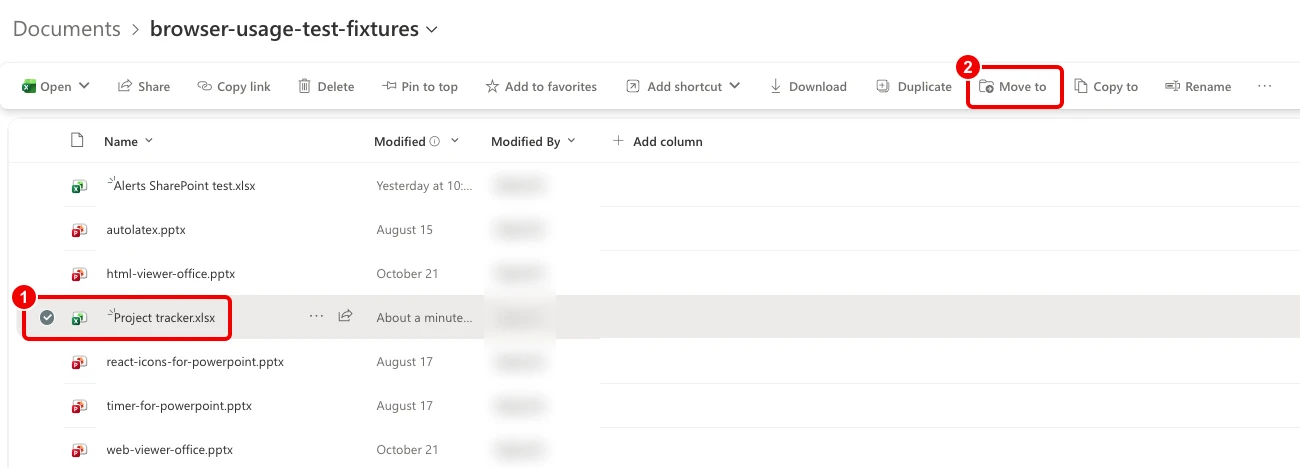
- Select the workbook (1), then select Move to (2) in the command bar.
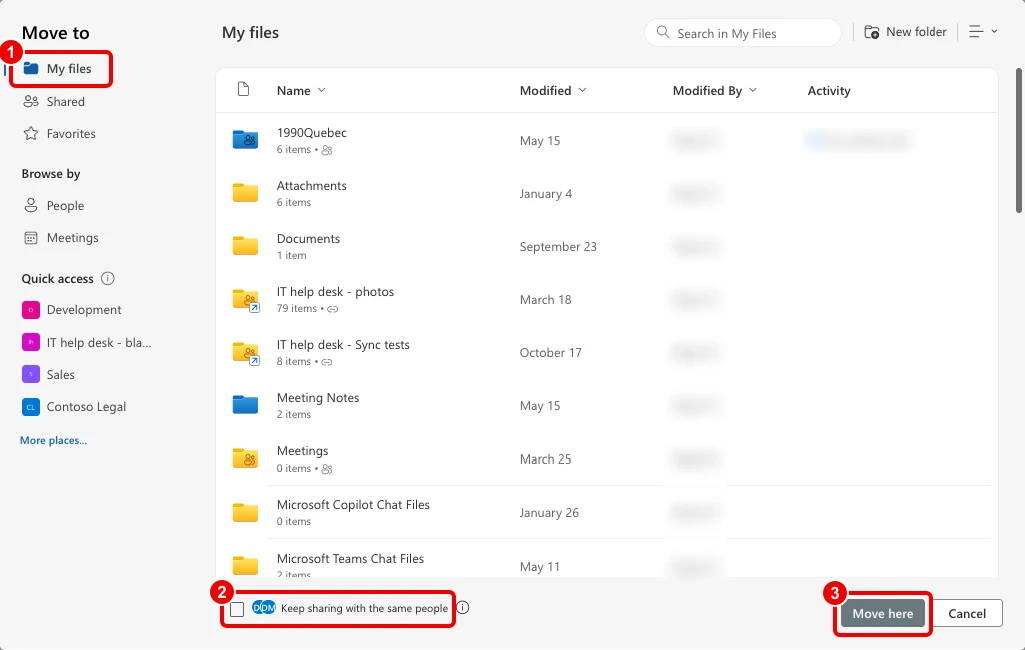
- Select My files (1), check Keep sharing with the same people (2), and select Move here (3).
SharePoint shows Moved 1 item to My files, and the workbook moves to your OneDrive with its version history intact.
Do not use File > Save a Copy in Excel. Save a Copy leaves the original workbook in SharePoint and switches your Excel window to a separate OneDrive copy without version history. Alerts for Excel then monitors only that copy while teammates keep editing the original in SharePoint, so their changes never trigger your alerts.
Check who has access
Keep sharing with the same people preserves access for anyone you shared the workbook with directly. Permissions from the SharePoint site do not carry over, so share the workbook in OneDrive with any teammates who had access through the site.
- Open My files in OneDrive. To see who already has access, select ... beside the workbook, then select Manage access.
- To add missing teammates, select the workbook, then select Share.
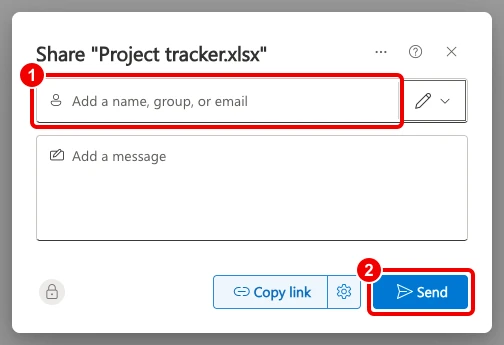
- Enter a name, group, or email for each missing teammate (1), then select Send (2). The default Can edit permission lets them continue editing.
Alerts for Excel monitors this shared workbook in your OneDrive, including any changes your teammates save.
Open the workbook from OneDrive
- In OneDrive, open My files, select the workbook, then select Open > Open in Excel.
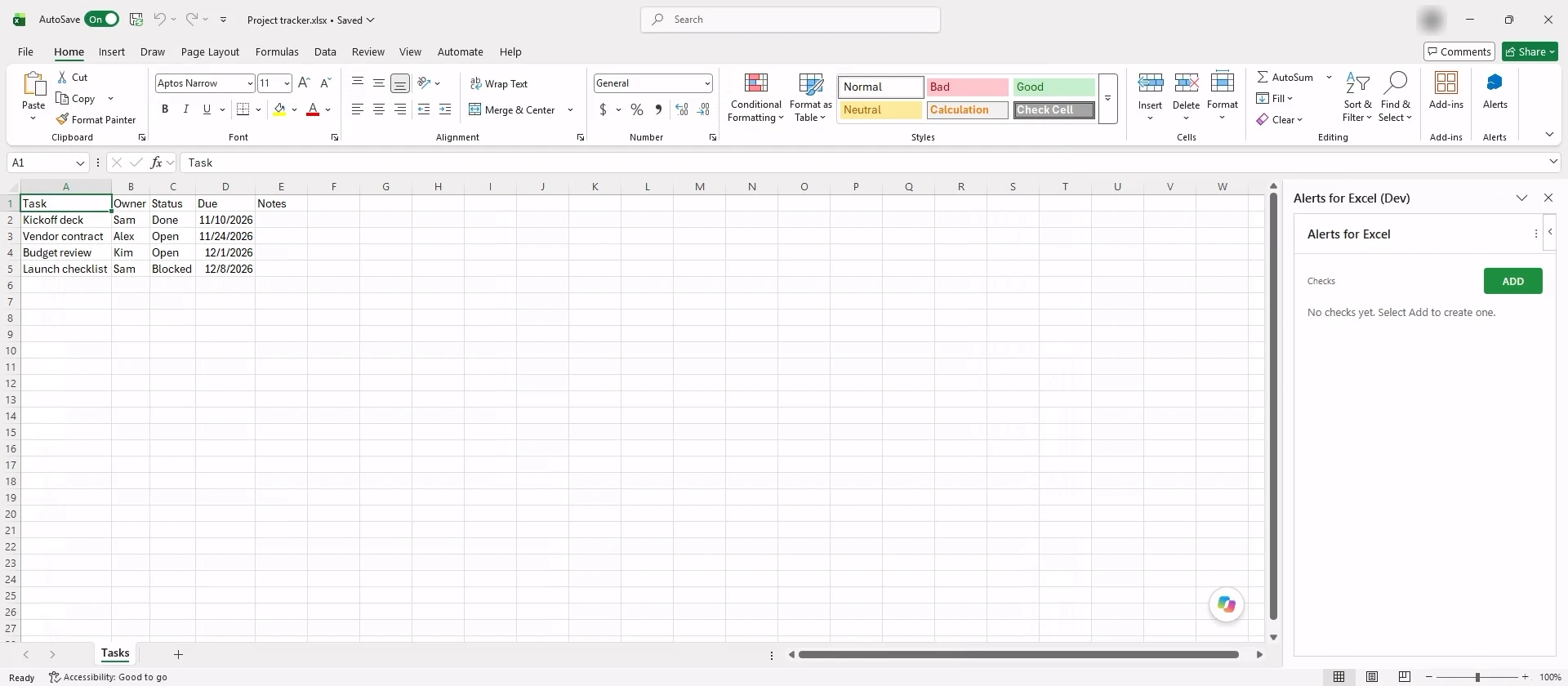
- Select Alerts on the Home tab. The pane opens to Checks, where you can select Add to set up your alerts.
For help with Alerts for Excel, contact support.