 Get on AppSource
Add HTML Viewer
Install HTML Viewer from Microsoft AppSource and place it on your slide or worksheet.
Bring interactive dashboards and tools directly into PowerPoint. Our add-in is secure by design and never uploads your code or presentation to external servers.
You've built something worth showing. Your audience should see it work without a break in the presentation.
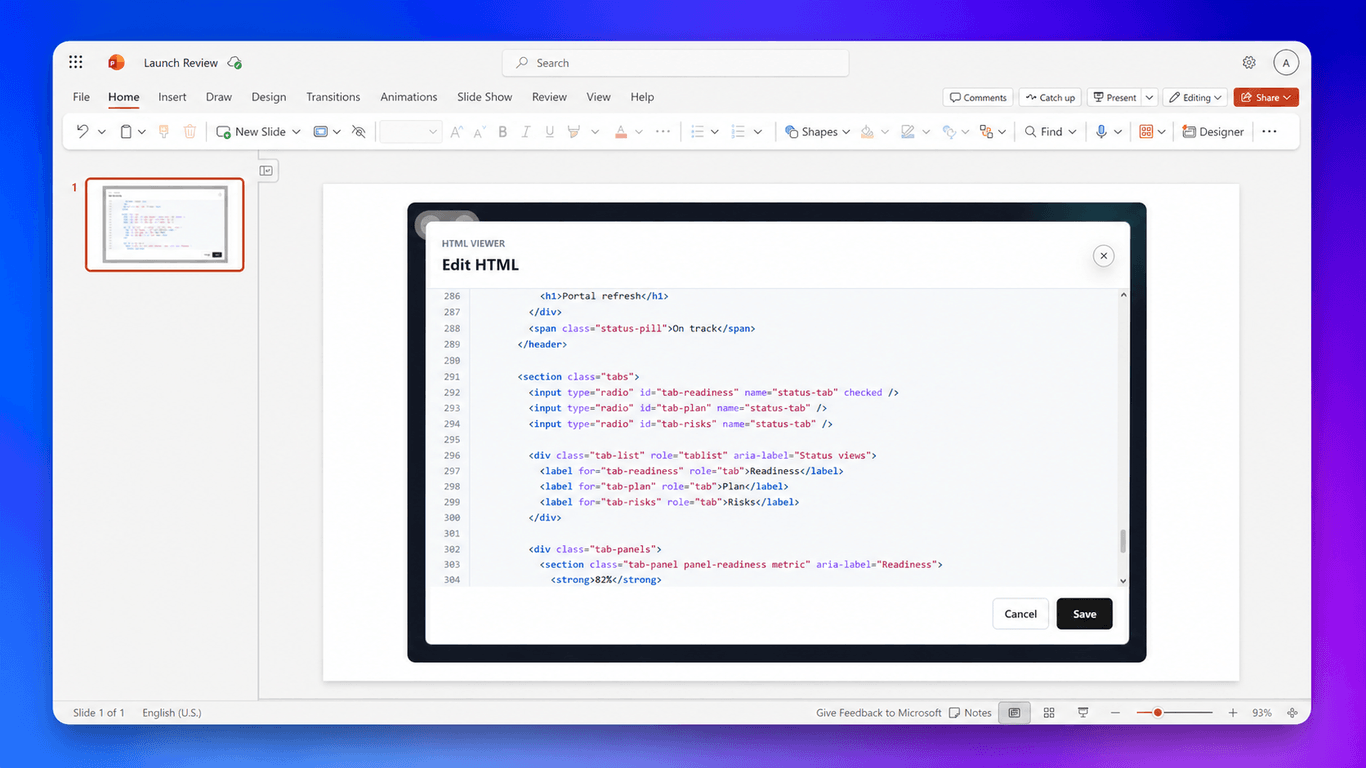
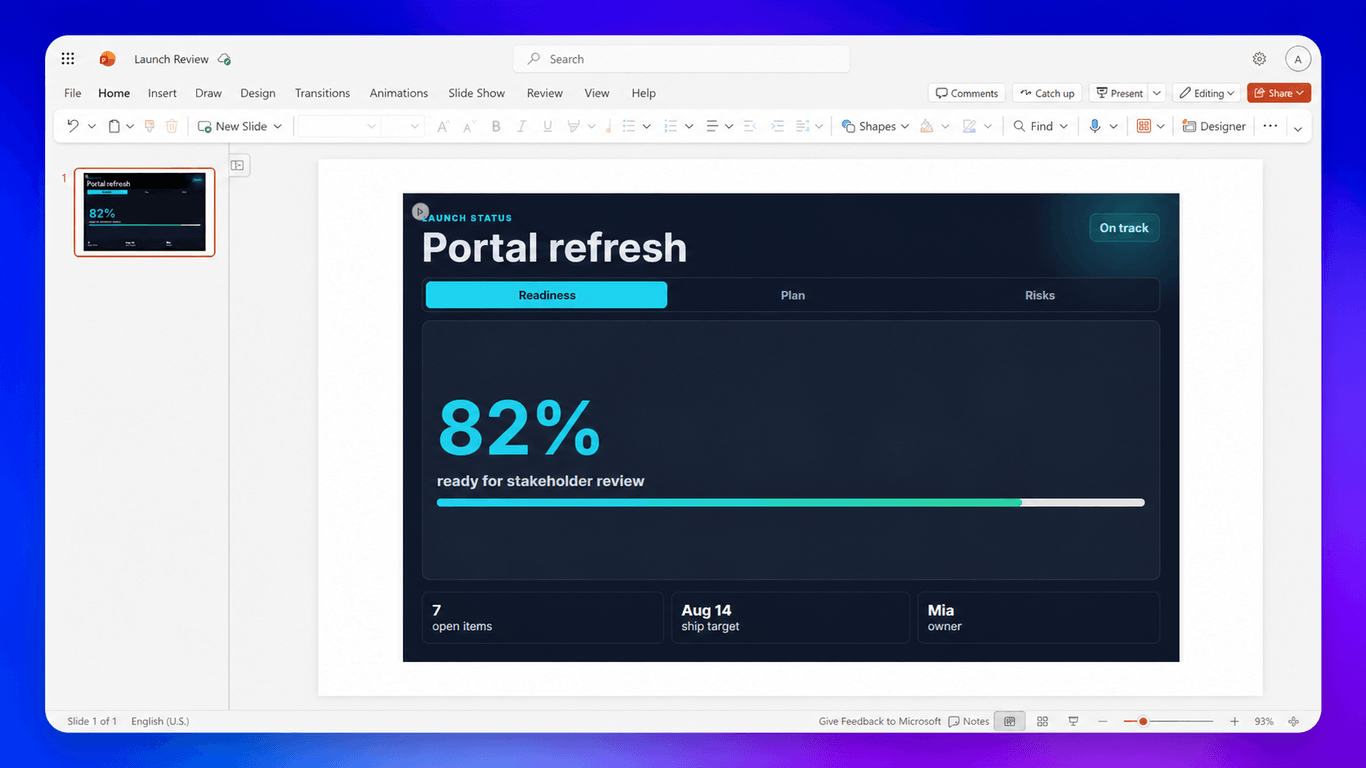
Add interactive HTML to your PowerPoint slides or Excel workbooks.
Install HTML Viewer from Microsoft AppSource and place it on your slide or worksheet.
Paste your self-contained HTML, CSS, and JavaScript, then save to see the result. Try a ready-to-use example.
Save your presentation or workbook to keep the HTML ready for next time.
HTML Viewer 365 is a content add-in for PowerPoint and Excel.
Yes. Paste self-contained HTML with embedded CSS and JavaScript. HTML Viewer renders scripts inside a sandboxed frame.
HTML Viewer accepts up to 5 MB of HTML, CSS, and JavaScript source.
Yes. The add-in saves the source in the presentation or workbook, so reopening the same file restores it.
Yes. External scripts, images, styles, and other resources can contact third-party services directly. Only use code and resources you trust.
Our add-in renders your code locally and never uploads your code or presentation to external servers. The add-in saves the source in the Office file and renders it in a sandboxed frame. External code and resources can contact third parties directly. Read our privacy policy for full details. Need more information or have special requirements? Contact support and we'll help.
Yes. Start with a free trial so you can test your own HTML before subscribing.
All plans come with a 60-day full refund guarantee. Cancel anytime from your dashboard, or contact us within 60 days for a full refund.