
Summary
This post shows you why Alerts for Excel requests file and email permissions when you select Begin, what the add-in can and cannot access, and how to revoke access at any time.
Because Alerts for Excel checks your workbook and emails recipients even while Excel is closed, Microsoft asks you to approve four permissions. Two of Microsoft's permission labels sound broader than what the add-in actually does:
- Read your files: Alerts for Excel reads only the worksheets you monitor and stores only the cells in your watched ranges. This permission is read-only, so the add-in cannot create, edit, move, share, or delete any file.
- Send mail as you: Alerts for Excel sends only the alert emails you configure to the recipients you choose. It never reads your inbox, contacts, or calendar.
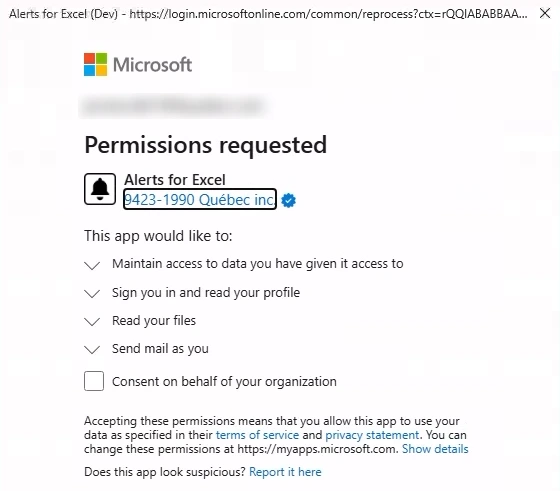
What each permission does
Compare each permission on Microsoft's consent screen with why Microsoft requires it and how Alerts for Excel uses it:
| Permission on consent screen | Why Microsoft requires it | What Alerts for Excel does (and never does) |
|---|---|---|
| Read your files | Required to read the workbooks you monitor in your OneDrive while Excel is closed. |
|
| Send mail as you | Required to send alert emails from your email address so recipients recognize the sender. |
|
| Maintain access to data you have given it access to | Required to keep checks running after you close Excel or turn off your computer. |
|
| Sign you in and read your profile | Required to link your checks to your Microsoft account. |
|
Workbooks in SharePoint
Read your files covers only the workbooks in your own OneDrive. If your workbook is stored in SharePoint, choose an option:
- Move it to your OneDrive: Move the workbook from SharePoint to your OneDrive to start right away without admin approval.
- Keep it in SharePoint: Contact support and we'll help your Microsoft 365 admin enable SharePoint access for your organization.
Revoke access at any time
With a work or school account:
- Open My Apps.
- Hover over Alerts for Excel, select ..., then select Manage your application.
- Select Revoke Permissions.
See Microsoft's guide to editing or revoking application permissions for more details.
With a personal Microsoft account, open your app permissions and remove the permissions for Alerts for Excel.
Alerts stop within about an hour of revoking access.
For help with Alerts for Excel, contact support.