Install from AppSource
Install ZPL Label Studio from AppSource for your SharePoint site.
View, edit, and export labels directly in SharePoint. Our add-in renders labels locally and never uploads your ZPL files to external servers.
SharePoint stores ZPL files but can't show you the labels. Reviewing a barcode or changing a field sends you to another tool.
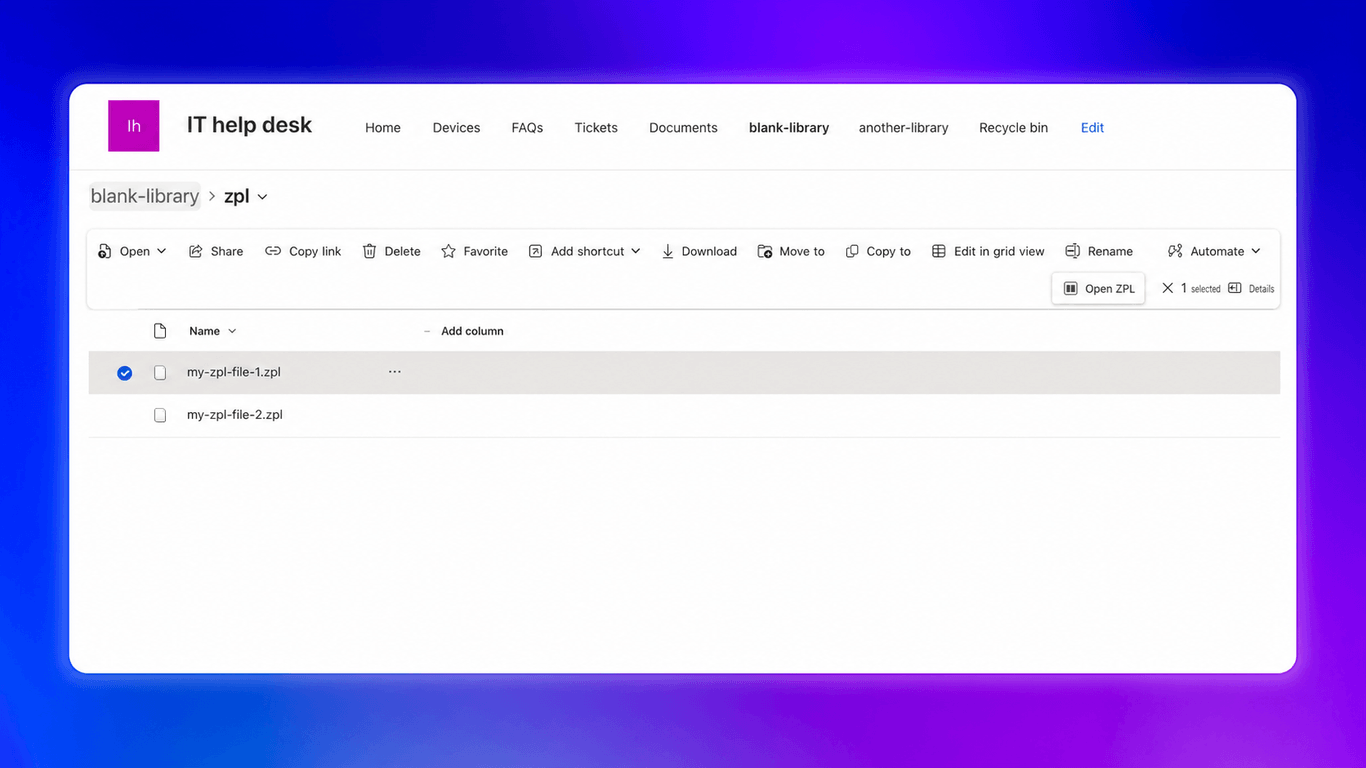
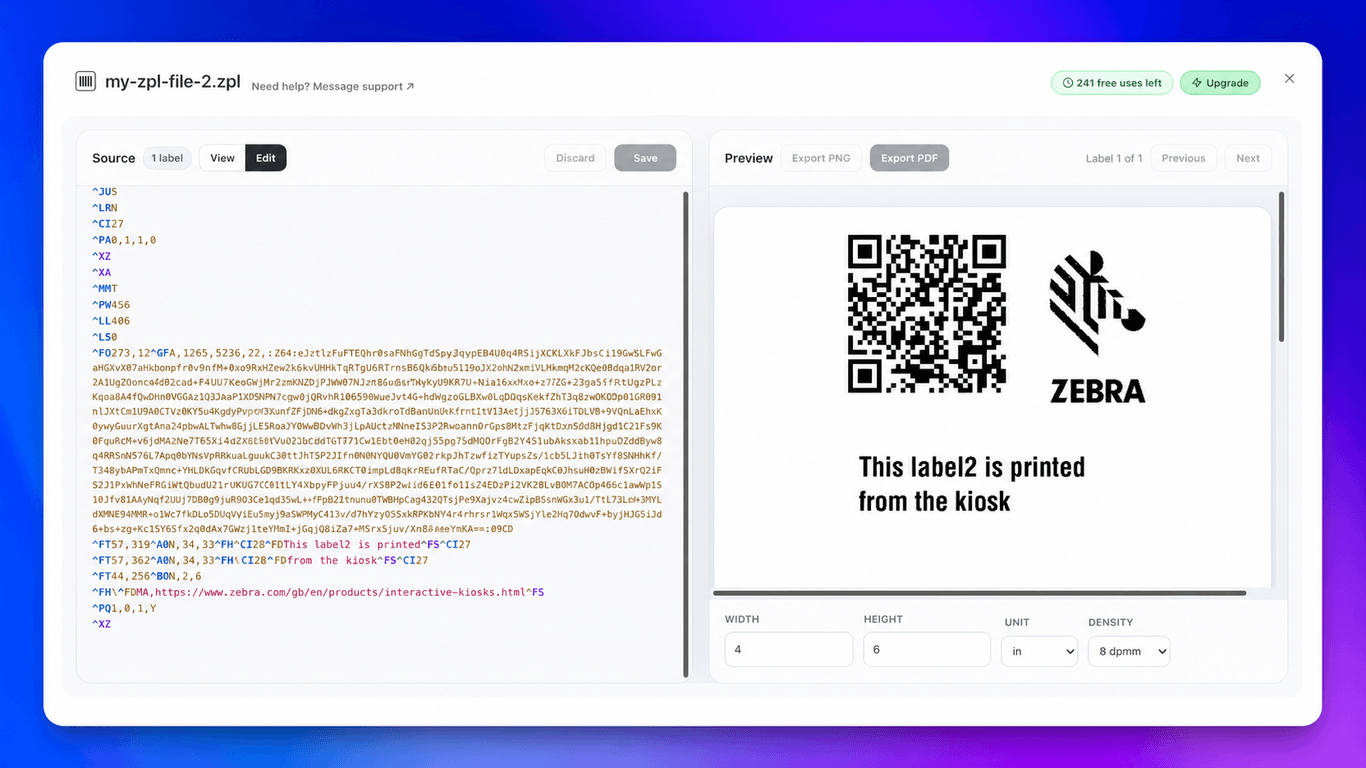
Review and update labels directly in SharePoint.
Install ZPL Label Studio from AppSource for your SharePoint site.
Select a ZPL file in SharePoint, then right-click → Open ZPL.
Preview and edit your labels, then save them in SharePoint or export as PNG or PDF.
Install the add-in, select a .zpl file in a SharePoint document library,
and click Open ZPL in the command bar.
ZPL Label Studio opens Zebra Programming Language files with the .zpl extension.
Every plan includes source editing, live preview, saving, PNG and PDF export, licensing controls, and product updates.
Yes. Switch to Edit, update the source, and review the live preview before saving. You can save the source back to SharePoint or download it to your computer.
The viewer counts the labels and provides Previous and Next controls. You can review each label while keeping its source and preview together.
Yes. Set the label width, height, units, and print density in the preview.
Export the current label as a PNG. For PDF, export the current label, selected labels, or every label in the file. Save the export to SharePoint or download it.
No. The add-in reads the file from SharePoint and renders it locally in your browser. Edited source and exported files go only to the destination you choose. For details about data processing, services, and storage, read the privacy policy. Need more information or have special requirements? Contact support and we'll help.
Yes. You can try ZPL Label Studio with representative labels before subscribing. No credit card is required, and you won't be charged unless you explicitly upgrade. If you need an extended trial, let us know and we'll help.
Yes. Tell us about your ZPL workflow and we'll review the request.
Organization is for teams that need tenant-wide access, discounted pricing, admin analytics, and procurement and compliance assistance.
All plans come with a 60-day full refund guarantee. Cancel anytime from your dashboard. If you're not satisfied, contact us for a full refund.
You can cancel anytime from your dashboard under Settings. Click Manage to open the billing portal and cancel. You'll keep access until the end of your current billing period. If you're within 60 days of purchase, you can also request a full refund.
Yes. You can switch between billing cycles at any time from your dashboard.